Smart Invoice Reminders help get you paid, while keeping your customer relationships on track. With intelligent insights and suggested actions, the painful admin disappears while you stay in full control.
How we've made invoice reminders smarter
Instead of one-size-fits-all reminders, you can send smarter, contextual messages that reflect your relationship with each customer and how overdue the invoices are.
This means you can:
Save time on manual followup with automated reminder schedules and clear suggested next steps, instead of chasing every overdue invoice manually.
Protect customer relationships by matching the reminder tone and timing to each client, so messages feel natural and appropriate rather than blunt or generic.
Improve cashflow by following up overdue invoices earlier and more consistently, based on clear visibility of who owes what and how long it’s been overdue.
How invoice reminders work
Invoice reminders are automated emails that go to customers you’ve sent invoices to, following a schedule you set (before the due date, on the due date, or selected days after it).
To set them up, you need to turn them on for your customers. Then decide what reminders to send and when (the schedule) and what tone of voice to use. Once you've saved your invoice reminder settings, they’re emailed to customers automatically from MYOB according to the schedule.
You can customise invoice reminders based on the customer, how long the invoice is overdue and your relationship with them.

Key features
Personalised reminder tones – For each reminder, you can choose a tone that matches the customer and situation: Friendly, Neutral, Firm or Urgent. You can choose to customise these messages if you want.
Flexible scheduling – Set reminders before the due date, on the due date, and at a specified number of days after the due date, so you can nudge customers at the right time for your business.
Default and contact-level schedule setting options:
Default settings - Turn reminders on for customers and define a default schedule in your sales settings.
Contact-level settings – Override the default schedule and tones for specific customers in their contact settings. You can also exclude specific contacts from getting reminders.
Visibility of reminder status and activity: Easily see and manage reminder settings from multiple locations:
Per-invoice visibility – When you create or view an invoice, see whether reminders are enabled for that customer and what schedule applies.
Sales settings – Manage default invoice reminder settings andschedule.
Per-contact visibility - When you create or view a contact, see whether reminders are enabled for that customer and what schedule applies.
Overdue view on the Invoices page – See whether reminders are turned on or off for customers with overdue invoices.
Setting up invoice reminders
Turn on invoice reminders for all customers
Enable reminders and set a default schedule for all of your customers.
Go to the settings menu (⚙️) > Sales settings > Reminders tab.
Select the Send reminders to all customers option.
For each reminder, click the pen icon to edit it:
Choose when to send the reminder (for example, a certain number of days before or after the due date).
Choose a tone – Friendly, Neutral, Firm or Urgent – to match the message strength you want.
(Optional) If you want, edit the reminder email subject or message text to customise the default template. Keep the wording short, clear and aligned with the chosen tone. You can also choose what info to automatically include, like customer name or invoice number, by choosing Tags.
Click Save. The invoice reminder will be sent to all customers who have the Send invoice reminders option selected in their contact record.
Repeat these steps for the other invoice reminders. If you don’t want to use an invoice reminder, click the trash icon to delete it. If you want to add more reminders (up to a total of five), click Add reminder.
Customise reminders for a specific customer
For specific customers, you can override the global schedule and tone at the contact level.
Go to the Contacts menu and choose the Customer contact type.
Click the name of the customer you want to update.
If required, in the Invoice reminders section, select the Send reminders to this customer
option.

In the Reminder schedule and messaging section, click the pen icon of the invoice reminder you want to customise:
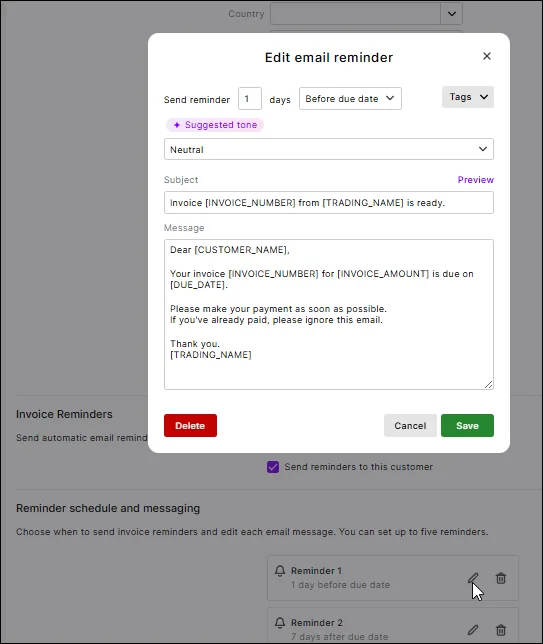
Choose when to send the reminder (for example, a certain number of days before or after the due date).
Choose a tone – Friendly, Neutral, Firm or Urgent – to match the message strength you want.
(Optional) If you want, edit the reminder email subject or message text to customise the default template. Keep the wording short, clear and aligned with the chosen tone. You can also choose what info to automatically include, like customer name or invoice number, by choosing Tags.
Click Save. Future invoice reminders for this customer will be sent according to the settings you’ve chosen.
Repeat these steps for the other invoice reminders. If you don’t want to use an invoice reminder, click the trash icon to delete it. If you want to add more reminders (up to a total of five), click Add reminder.


Check and adjust reminders on an invoice
When you create or open an invoice, you can see whether reminders are active and what schedule applies to that customer.
Create a new invoice or open an existing one.
If invoice reminders have been switched on for the customer, Reminders on will appear under the customer’s name. If you need to turn invoice reminders on for the customer, see the procedures above for turning invoice reminders on.
If you need to check or change the reminder setup for this customer, click Reminders on and then click
Manage reminders or Edit customer reminders. (The option you see depends on whether invoice reminders have been set at a global level or at the contact level.)
Review or update the schedule and tones if required, then save.
Track overdue invoices and follow suggested actions
Use the Overdue view on the Invoices page to see what’s overdue and what reminders have already been sent, then follow suggested next steps.
Go to the Sales menu > Invoices.
Click the Overdue tab.
Review the information for each invoice, including:
Customer name and reminder status (for example, automated reminders on or off).
Days overdue and average days to pay for that customer.
Activity on the invoice, such as reminders sent, emails, or invoice creation details.
Check the Suggested action for each overdue invoice – for example:
Send reminder – if it’s time for another automated or manual nudge. To manually send the reminder, click
Send reminder, review and update the reminder if necessary and click Send.
Contact customer – if a more direct call or email is recommended.
Watch and wait – if the invoice is overdue but doesn’t need immediate follow-up.
Follow the suggested action or choose a different step based on your knowledge of the customer. You can see other communication options, like emailing the invoice again or sending an SMS to the invoice (if using Online Payments), by clicking overflow menu.
Tips for choosing tones and schedules
Use Friendly or Neutral tones for regular customers and early reminders, so messages feel like a helpful nudge rather than a demand.
Save Firm or Urgent tones for invoices that are significantly overdue or high value, where you need a stronger message.
For customers who routinely pay on a particular cycle (for example, large organisations that pay at month-end), set schedules that match how they work, so reminders don’t feel too early or too frequent.
If there’s a dispute or you’re already in a conversation about an invoice, consider turning reminders off for that customer or invoice until things are resolved, to avoid sending confusing or conflicting messages.
Overdue invoice and reminder visibility and suggested actions
Overdue invoice and activity view – The Overdue view on the Invoices page (Sales menu > Invoices > Overdue) shows overdue invoices, how many days they’re overdue, average days to pay, activity on the invoice (including reminders sent) and whether reminders are turned on or off. This view provides visibility of overdue invoices and insight on payer behaviour, all in one place, making it easy to keep track and follow up quickly on overdue payments.
Suggested actions – For each overdue invoice, MYOB can suggest the next step – for example, send a reminder, contact the customer, or watch and wait – based on invoice age, history and activity.
Customer payment insights – See at a glance how long a customer typically takes to pay your invoices.
For the details, see Viewing invoices.
Turning off invoice reminders
You can turn off invoice reminders for all customers or for specific customers.
Let's take a look:
Turn invoice reminders off for all customers
Go to the settings menu (⚙️) > Sales settings > Reminders tab.
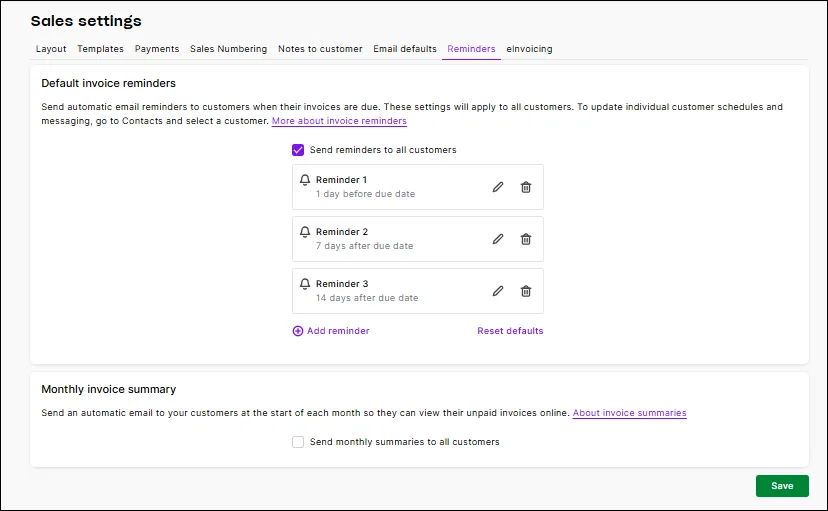
Deselect the Send reminders to all customers option.
In the message that appears, click Confirm.
Click Save.

Turn off invoice reminders for a specific customer
In the Card File command centre, click Cards List.
Click the Customer tab.
Click the zoom arrow next to the customer you want to update.
In the Selling Details tab, click Invoice Reminders. Your company file opens in the web version of AccountRight, showing the customer details.
In the Invoice reminders section, deselect the Send reminders to this customer option.

Click Save.
If you need to repeat turn invoices off for other customers, go to the Contacts menu, find and open the customer and repeat from step 5 above. More about viewing and entering contact information

Another way of prodding your customers to pay you is to send them unpaid invoice summaries. These contain a list of outstanding invoices that a customer will automatically be sent monthly. Learn more about unpaid invoice summaries.
FAQs
Why is an invoice reminder not being sent?
An invoice reminder won't be sent where the invoice terms is set to Prepaid or Cash on delivery. To check, find and open the invoice (need tips on finding an invoice?). If you want to, change the invoice terms so that they will get an automatic reminder:

If you don't want to change the invoice terms, but you still want to prompt them to pay, you can send them an email from the Share menu:

Where do I change my email "reply-to" address?
You can do this from the settings menu (⚙️) > Sales settings > Email defaults tab.
Online company files only
Smart Invoice Reminders help get you paid, while keeping your customer relationships on track. With intelligent insights and suggested actions, the painful admin disappears while you stay in full control.
If you're company file is online and you email directly from AccountRight, this is a great way to gently remind your customer to pay you.
How we've made invoice reminders smarter
Instead of one-size-fits-all reminders, you can send smarter, contextual messages that reflect your relationship with each customer and how overdue the invoices are.
This means you can:
Save time on manual followup with automated reminder schedules and clear suggested next steps, instead of chasing every overdue invoice manually.
Protect customer relationships by matching the reminder tone and timing to each client, so messages feel natural and appropriate rather than blunt or generic.
Improve cashflow by following up overdue invoices earlier and more consistently, based on clear visibility of who owes what and how long it’s been overdue.
How invoice reminders work
Invoice reminders are automated emails that go to customers you’ve sent invoices to, following a schedule you set (before the due date, on the due date, or selected days after it).
To set them up, you need to turn them on for your customers. Then decide what reminders to send and when (the schedule) and what tone of voice to use. Once you've saved your invoice reminder settings, they’re emailed to customers automatically from MYOB Business according to the schedule.
You can customise invoice reminders based on the customer, how long the invoice is overdue and your relationship with them.
Key features
Personalised reminder tones – For each reminder, you can choose a tone that matches the customer and situation: Friendly, Neutral, Firm or Urgent. You can choose to customise these messages if you want.
Flexible scheduling – Set reminders before the due date, on the due date, and at a specified number of days after the due date, so you can nudge customers at the right time for your business.
Default and contact-level schedule setting options:
Default settings - Turn reminders on for customers and define a default schedule in your sales settings.
Contact-level settings – Override the default schedule and tones for specific customers in their contact settings. You can also exclude specific contacts from getting reminders.
Visibility of reminder status and activity: Easily see and manage reminder settings from multiple locations:
Per-invoice visibility – When you create or view an invoice, see whether reminders are enabled for that customer and what schedule applies.
Sales settings – Manage default invoice reminder settings andschedule.
Per-contact visibility - When you create or view a contact, see whether reminders are enabled for that customer and what schedule applies.
Overdue view on the Invoices page – See whether reminders are turned on or off for customers with overdue invoices.
Setting up invoice reminders
You complete setting up invoice reminders in the web browser version of AccountRight.
Set up invoice reminders for all customers
Go to the Sales command centre and click Invoice Reminders. Alternatively, go to the Setup menu > Preferences > Emailing tab and click Invoice Reminders. Your company file opens in the web browser view in the Sales settings > Reminders tab.
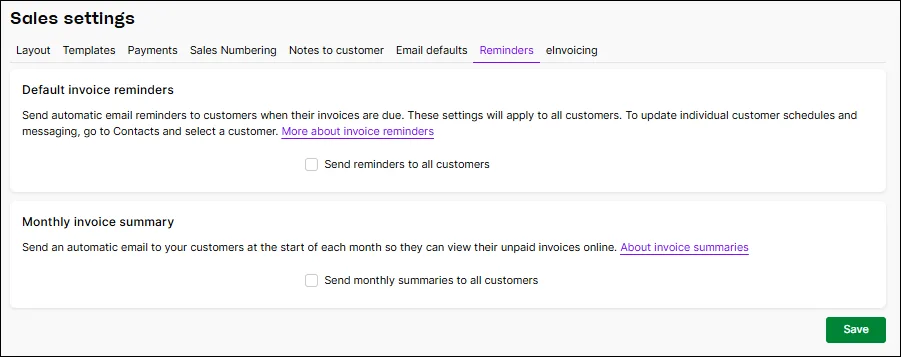
Select the Send reminders to all customers option.
For each reminder, click the pen icon to edit it:
Choose when to send the reminder (for example, a certain number of days before or after the due date).
Choose a tone – Friendly, Neutral, Firm or Urgent – to match the message strength you want.
(Optional) If you want, edit the reminder email subject or message text to customise the default template. Keep the wording short, clear and aligned with the chosen tone. You can also choose what info to automatically include, like customer name or invoice number, by choosing Tags.
Click Save. The invoice reminder will be sent to all customers who have the Send invoice reminders option selected in their contact record.
Repeat these steps for the other invoice reminders. If you don’t want to use an invoice reminder, click the trash icon to delete it. If you want to add more reminders (up to a total of five), click Add reminder.

Customise invoice reminders for specific customers
For specific customers, you can override the global schedule and tone at the contact level.
Go to the Card File command centre > Cards List > Customer tab.
Click the name of the customer you want to update.
In the Selling Details tab, click Invoice Reminders. The customer's details open in the browser version of AccountRight.
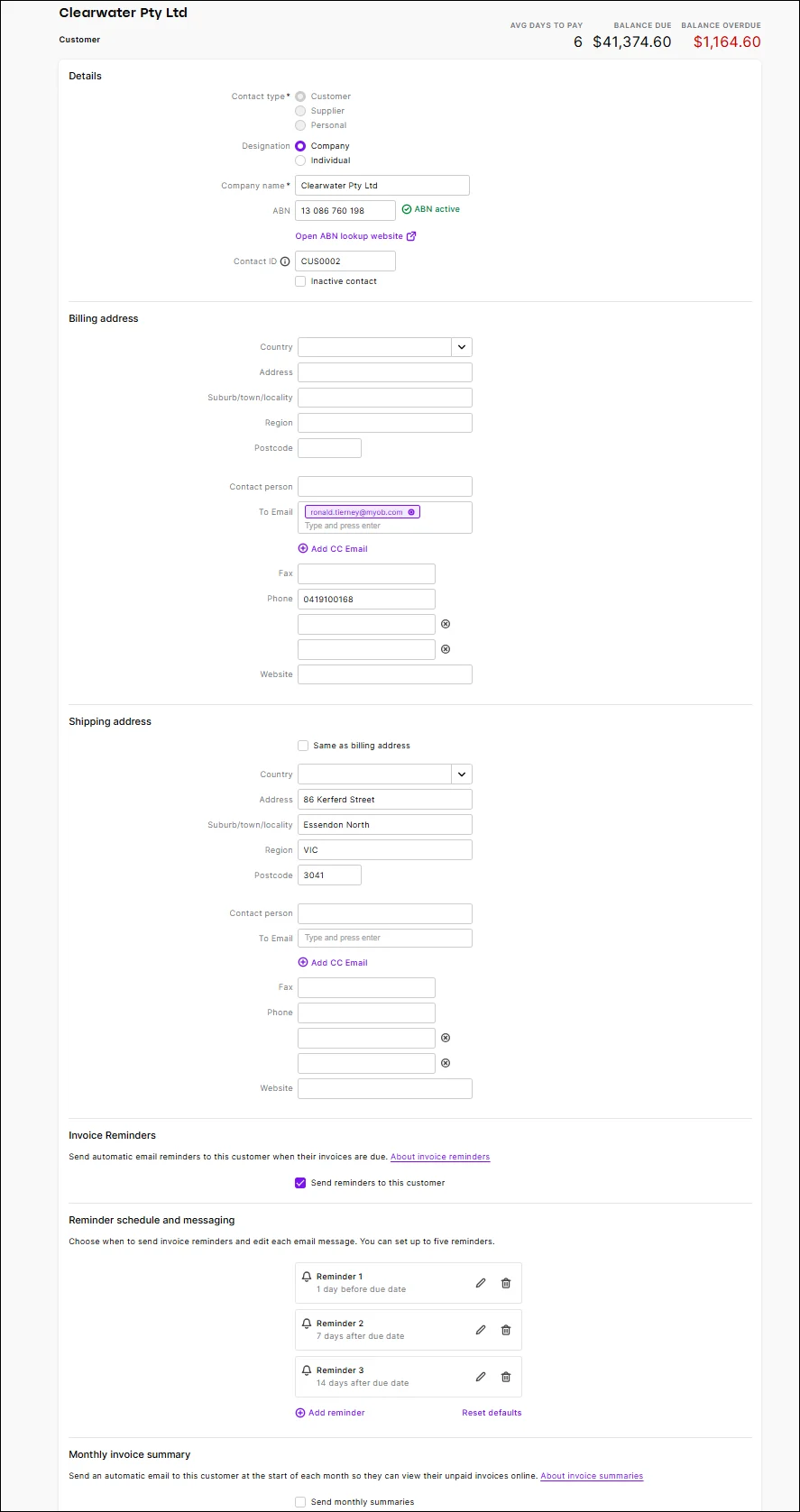
If required, in the Invoice reminders section, select the Send reminders to this customer
option.
In the Reminder schedule and messaging section, click the pen icon of the invoice reminder you want to customise:
Choose when to send the reminder (for example, a certain number of days before or after the due date).
Choose a tone – Friendly, Neutral, Firm or Urgent – to match the message strength you want.
(Optional) If you want, edit the reminder email subject or message text to customise the default template. Keep the wording short, clear and aligned with the chosen tone. You can also choose what info to automatically include, like customer name or invoice number, by choosing Tags.
Click Save. Future invoice reminders for this customer will be sent according to the settings you’ve chosen.
Repeat these steps for the other invoice reminders. If you don’t want to use an invoice reminder, click the trash icon to delete it. If you want to add more reminders (up to a total of five), click Add reminder.

Tips for choosing tones and schedules
Use Friendly or Neutral tones for regular customers and early reminders, so messages feel like a helpful nudge rather than a demand.
Save Firm or Urgent tones for invoices that are significantly overdue or high value, where you need a stronger message.
For customers who routinely pay on a particular cycle (for example, large organisations that pay at month-end), set schedules that match how they work, so reminders don’t feel too early or too frequent.
If there’s a dispute or you’re already in a conversation about an invoice, consider turning reminders off for that customer or invoice until things are resolved, to avoid sending confusing or conflicting messages.
Overdue invoice visibility and suggested actions
Only available when you view your AccountRight company file in a web browser
Overdue invoice and activity view – The Overdue view on the Invoices page (Sales menu > Invoices > Overdue) shows overdue invoices, how many days they’re overdue, average days to pay, activity on the invoice (including reminders sent) and whether reminders are turned on or off. This view provides visibility of overdue invoices and insight on payer behaviour, all in one place, making it easy to keep track and follow up quickly on overdue payments.
Suggested actions – For each overdue invoice, MYOB can suggest the next step – for example, send a reminder, contact the customer, or watch and wait – based on invoice age, history and activity.
Customer payment insights – See at a glance how long a customer typically takes to pay your invoices.
For the details, see Viewing invoices.
Turning off invoice reminders
You can turn off invoice reminders for all customers or for specific customers.
Let's take a look:
Turn off invoice reminders for all customers
Go to the Setup menu > Preferences > Emailing tab.
Click Invoice Reminders. Your company file opens in the web browser version of AccountRight at the Sales settings > Reminders tab.
Deselect the Send reminders to all customers option.
In the message that appears, click Confirm.
Click Save.
Turn off invoice reminders for a specific customer
In the Card File command centre, click Cards List.
Click the Customer tab.
Click the zoom arrow next to the customer you want to update.
In the Selling Details tab, click Invoice Reminders. Your company file opens in the web version of AccountRight, showing the customer details.
In the Invoice reminders section, deselect the Send reminders to this customer option.
Click Save.
If you need to repeat turn invoices off for other customers, go to the Contacts menu, find and open the customer and repeat from step 5 above. More about viewing and entering contact information
FAQs
Why is an invoice reminder not being sent?
Invoice reminders can only be sent if you email directly from AccountRight.
Also, invoice reminder won't be sent where the invoice Terms is set to Prepaid or C.O.D. To check, go to the Sales command centre > Sales Register > Open Invoices tab > open the invoice > Terms.

Where do I change my email "reply-to" address?
You can change the reply-to email address in your email preferences (Setup menu > Preferences > Emailing tab > Reply-to Email Address). Note that you can only have one reply-to address for each company file, and it will apply to all emails.