
The Invoices page (Sales menu > Invoices) lists all of the invoices you’ve entered into MYOB. You'll see a snapshot of total value of your invoices, the balance due and how much is overdue.
Details of each invoice are shown, including invoice number, customer and amount due.
To find an invoice, use the filters across the top of the page.

To focus on invoices at a particular stage in the invoicing and payment cycle, click one of the options across the top, like In progress, Overdue or Completed:

Follow up late payments in the Overdue view
The Overdue view organises your overdue invoices and gives you information to help you chase them up.
Suggested actions for overdue invoices
The Suggested action column recommends what you should do next for each overdue invoice:

Available suggested actions are:
Send email
Send reminder
Contact customer
Watch and wait
These suggested actions are based on the invoice status, invoice reminder settings and recent activity – for example Send email when an invoice still needs to be emailed, or Contact customer when you've already sent reminders and a more personal follow-up is likely to work better. You'll see Watch and wait when invoice reminders are turned on for that customer, and there’s a been recent reminder sent or one is due to be sent soon, so the best next step is to hold off on extra chasing and let the scheduled reminder run.
See customer payment behaviour
See how many days a customer typically takes to pay after invoicing:

Shortcuts to customer info and tasks
Quickly send an email to a customer, check when they are due to be sent an invoice reminder, see their invoice activity or check their details. Just click the ellipsis next to an invoice to see your options:

Hide, show and sort columns
Click Column options to show and hide what you don't need:
change the order of shown columns by dragging them up or down
hide columns by clicking the eye icon.
Any changes you save only appear for you, not for other users. They're also retained if you log out of MYOB Business and log back in again.
These options are available on the Invoices, Quotes and Sales orders pages.
Invoice status and activity
The Status column indicates the payment status of the invoice. The Activity column indicates whether the invoice has been successfully emailed, whether the customer has viewed or downloaded it or whether automated reminders have been sent to them.
Status
Paid — for invoices that have been paid in full
Open — for invoices that haven't been paid and not yet overdue
Credit — for all customer returns and credits
Overdue — for invoices that are past their due date
Activity
Sending — the invoice email has been sent, but confirmation that it was sent successfully hasn’t been received yet
Emailed — the invoice email was sent successfully
Auto reminder sent – an automated invoice reminder has been sent (if you've turned invoice reminders on). Includes when it was sent and if another one is due to be sent.
Viewed — the online invoice has been viewed
Delivery failed — the invoice email was not sent. It was either rejected, or the email address is invalid (incorrect or doesn’t exist)
E-Invoice sent — this indicates you've sent an eInvoice. eInvoices may also show a status reflecting how the customer has responded to it — see eInvoicing.
View a customer's details
Click a customer's name to open their contact record on a new browser tab.
To search for an invoice
Go to the Sales menu and choose Invoices.
To help you find an invoice, try these filtering options.
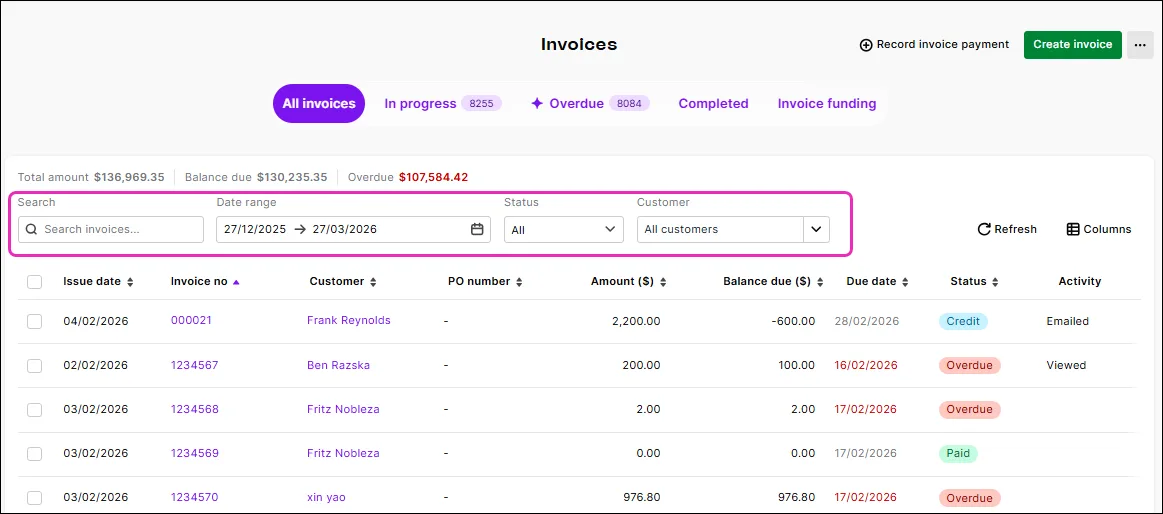
Choose the Customer the invoice was for.
Choose the Status of the invoice you're looking for (All, Open, Overdue, Closed or Credit).
Choose the Type of invoice (All, Invoices, E-invoices — find out more about eInvoicing)
Choose the Period or specify a date range to show invoices issued within that period.
Use the Search box to enter all or part of the customer's name, invoice number or amount. As you type, matching invoices are shown.
Use sorting in addition to searching
If searching gives you lots of results, click a column heading to sort by that column.
To view an invoice's details, click its Invoice number.

To view an invoice's activity
Open an invoice (click its Invoice no) to see its activity at the bottom of the page. For example, you'll see when the invoice was created, if it's been emailed, if any automated reminders have been sent and if the customer has viewed or downloaded the invoice. You'll also see if any payments have been received.

FAQs
Why hasn't a customer received an eInvoice that shows 'eInvoice sent' in its activity?
The customer may not be registered for eInvoicing. Businesses must register to be able to receive eInvoices and invoice responses. You can check the Peppol Directory to see if they are registered to receive eInvoices.
If the customer is registered to receive eInvoices and passed Peppol validation but still not receiving your eInvoice there may be a rounding issue in the amounts of the invoice.
You may be able to fix this by changing the tax settings in the eInvoice.
If the eInvoice amount is Tax inclusive, try changing it to Tax exclusive and send it again.
Where can I view my MYOB subscription invoices?
You must be the primary contact or the billing contact on the MYOB account to be able to view subscription invoices
Your paid subscription invoices are available in My Account.
Log into My Account (myaccount.myob.com).
Click View my bills.
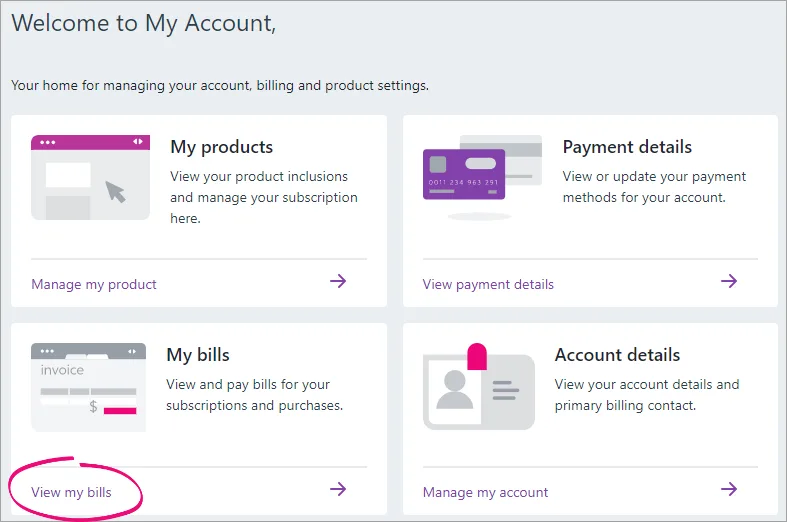
You can now view, download, and pay your MYOB invoices.

Can I email multiple invoices at once?
Yes, in the All invoices or In progress view, just select the invoices you want to email and click the Email button:

MYOB Business checks that each customer has an email address and alerts you if you need to add one.
For more details, see Emailing, printing or downloading invoices.
Can I print multiple invoices at once?
Yes, in the All invoices or In progress view, just select the invoices you want to print and click the Print PDF button.

Not available in AccountRight browser. If you use AccountRight, you can print multiple invoices in your AccountRight desktop software
For more details, see Emailing, printing or downloading invoices.