Get money in your pocket faster by automatically emailing your customers a list of unpaid invoices each month. This a great way to gently remind your customers to pay you. Another great way is to set up automatic reminder emails for individual invoices.
How it works
Once you've switched on unpaid invoice summaries, you'll be emailed a summary notification on the 28th of each month, and your customers will be emailed a list of their unpaid invoices on the 3rd of every month. You can choose to send this list to all of your customers or selected ones.
Unpaid invoice summaries are sent for all open recorded invoices
This includes invoices you haven't yet printed or emailed. If you want to prevent a customer getting an unpaid invoice summary before they receive an invoice, you can easily turn off unpaid invoice summaries as explained below.
We'll show you how to turn on monthly invoice summaries for all or selected customers. Also find out what monthly invoice summaries look to your customers.
Turn on monthly invoice summaries for all customers
Go to the settings menu (⚙️) and choose Sales settings.
Click the Reminders tab.
In the Monthly invoice summary section, select the option Send monthly summaries to all customers.
On the 3rd of every month, a list of outstanding invoices will now be sent to customers. If you don't want to send summaries to some customers, you can turn off reminders for them in their customer record.
Exclude a customer from receiving monthly invoice summaries
After turning on monthly invoice summaries for all customers (see 'Turn monthly invoice summaries on for all customers', above), you can exclude specific customers from receiving them.
Click the Contacts menu to open the Contacts page.
For Contact type, choose Customer.
Click a customer's name to open their record.
In the Monthly invoice summary section, deselect the option Send monthly summaries.
Click Save to save the changes for this customer.
Repeat these steps for other customers you'd like to exclude from summaries.
Turn off monthly invoice summaries for all customers
This is how you can turn off monthly unpaid invoice summaries for all your customers. If you only need to turn it off for specific customers, see 'Exclude a customer from receiving monthly invoice summaries', above.
Go to the settings menu (⚙️) and choose Sales settings.
Click the Reminders tab.
In the Monthly invoice summary section, deselect the option Send monthly summaries to all customers.
Click Save.
Get money in your pocket faster by automatically emailing your customers a list of unpaid invoices each month. This a great way to gently remind your customers to pay you. Another great way is to set up automatic reminder emails for individual invoices.
How it works
Once you've switched on unpaid invoice summaries, you'll be emailed a summary notification on the 28th of each month, and your customers will be emailed a list of their unpaid invoices on the 3rd of every month. You can choose to send this list to all of your customers or selected ones.
Unpaid invoice summaries are sent for all open recorded invoices
This includes invoices you haven't yet printed or emailed. If you want to prevent a customer getting an unpaid invoice summary before they receive an invoice, you can easily turn off unpaid invoice summaries as explained below.
We'll show you how to set up unpaid invoice summaries for all or selected customers. Also find out what unpaid invoice summaries look to your customers.
You complete setting up monthly invoice summaries in the web browser version of AccountRight.
Turn monthly invoice summaries on for all customers
Turn on invoice reminders for all of your customers. Here's how:
Go to the Setup menu > Preferences > Emailing tab and click Invoice Reminders. Your company file opens in the web browser view in the Sales settings > Reminders tab.
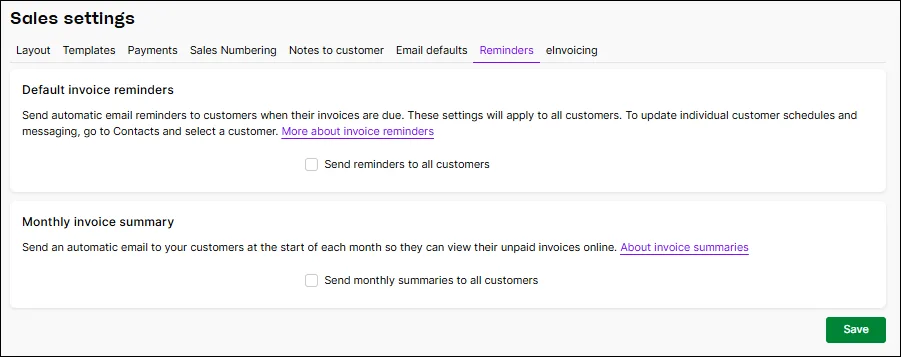
In the Monthly invoice summary section, select the option Send monthly summaries to all customers.

On the 3rd of every month, a list of outstanding invoices will now be sent to customers. If you don't want to send summaries to some customers, you can turn off reminders for them in their customer record.
Exclude a customer from receiving monthly invoice summaries
After turning on monthly invoice summaries for all customers (see 'Turn monthly invoice summaries on for all customers', above), you can exclude specific customers from receiving them.
In the Card File command centre, click Cards List.
Click the Customer tab.
Click the zoom arrow next to the customer you want to update.
In the Selling Details tab, click Invoice Reminders. Your company file opens in the web version of AccountRight, showing the customer details.
In the Monthly invoice summary section, deselect the option Send monthly summaries.
Click Save to save the changes for this customer.
If you need to repeat turn monthly invoices off for other customers, go to the Contacts menu, find and open the customer and repeat from step 5 above. More about viewing and entering contact information
Turn off monthly invoice summaries for all customers
This is how you can turn off monthly unpaid invoice summaries for all your customers. If you only need to turn it off for specific customers, see 'Exclude a customer from receiving monthly invoice summaries', above.
Go to the Setup menu > Preferences > Emailing tab and click Invoice Reminders. Your company file opens in the web browser view in the Sales settings > Reminders tab.
In the Monthly invoice summary section, deselect the option Send monthly summaries to all customers.
Click Save.