Online company files, AccountRight desktop only
Each week, MYOB automatically backs up online company files that have had changes in the previous 7 days. It means you can relax knowing we're saving regular point-in-time versions of your online company file that you can roll back to if needed.
You can also manually create online backups whenever you like, and these will be accessible along with the automatically created ones.
Online backups are stored securely in the cloud for the 6 months, on the same servers we use to store online company files. If anything goes wrong in your company file, like an import that didn't go to plan, you can roll back your company file to the point-in-time the backup was created.
More about backing up and restoring company files
Enable manual online backups
There's an AccountRight preference that controls whether you want to use online or offline backups. You can switch the preference on or off whenever you like, depending on the type of backup you want to create or restore. The automatic weekly online backups are created regardless of this preference. More about online and offline backups
Go to the Setup menu > Preferences > Security tab.
Deselect the option Enable Offline Backups and Restore. This means your back up and restore processes will be online. You can re-select this option any time if you want to create or restore an offline backup.
Click OK.

We'll still automatically back up your online company file
Regardless of this setting, MYOB will still automatically back up your online company file each week (provided there has been some activity in the file). However, to access your automatic backups you'll need to deselect the setting.
Manually create an online backup
You can manually create an online backup at any time between the automatic weekly backups.
Go to the File menu and choose Back Up. If you don't see the window shown here, make sure you've disabled offline backup preference mentioned above.
Enter a name for the backup. This helps identify it later if you need to restore your company file to this point in time.
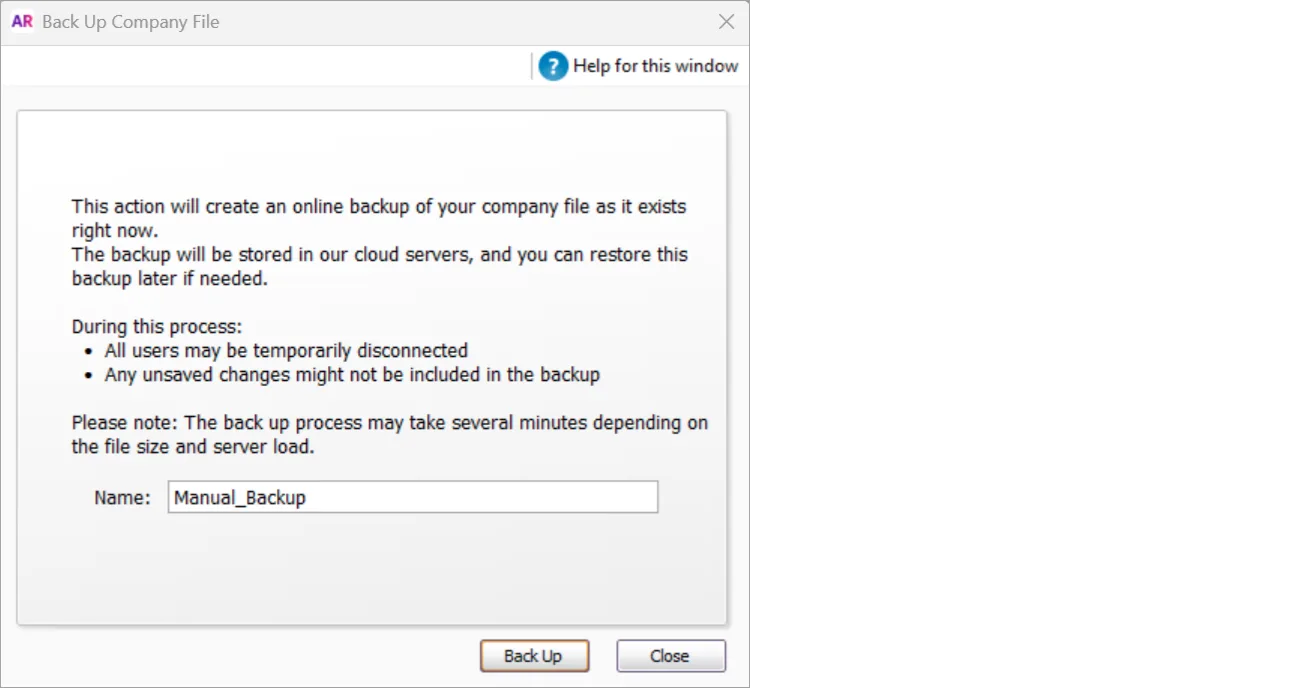
Click Back Up.

View your list of online backups via the File menu > Restore.
