AccountRight desktop only
You can create an offline backup your company file to save a copy of the file for record retention or to refer to the data at any time. The backup contains a snapshot of your company file as at the point you create the backup.
You'll typically keep your offline backups in a safe location, like an external hard drive, another computer or online.
If your company file is online, your data is already safe in the cloud. This means you'll typically only create an offline backup at key times, like EOFY, to create a handy snapshot of your data that you can retain or refer to later. You might also take an offline backup before making significant changes, like importing data, so you have a rollback option by restoring the backup if things don't go to plan.
More about backing up and restoring company files
Turn on the offline backup setting
Online company files only
There's an AccountRight preference that controls whether you want to use online or offline backups. You can switch the preference on or off whenever you like, depending on the type of backup you want to create or restore. If your company file is online, the automatic weekly online backups are created regardless of this preference. More about online and offline backups
Go to the Setup menu > Preferences > Security tab.
Select the option Enable Offline Backups and Restore. This means your back up and restore processes will be offline. You can re-select this option any time if you want to create or restore an online backup.
Click OK.

When you enable offline backups, you can also select the option Prompt for Data Backup when Closing. This is handy if you want to be reminded to take an offline backup each time you close your company file.
Create an offline backup
Go to the File menu and choose Backup. If you don't see the window shown here, make sure you've turned on the preference mentioned above.
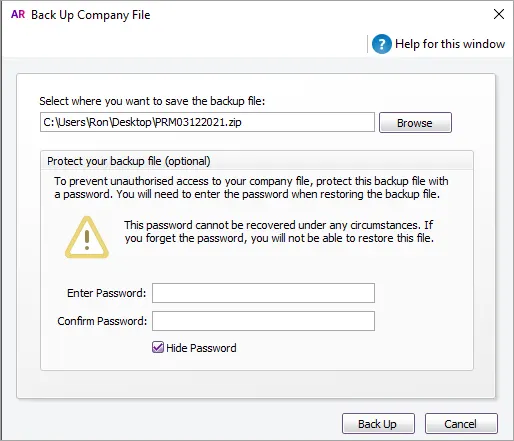
A default filename of MYOBmmddyyyy.zip is assigned, but you can change this if you like.
mmddyyyy is the month, day and year
.zip is the file extension and cannot be changed.
Click Browse and select where you want to save the backup file. If you want to save the backup on a removable USB drive, we recommend saving it to your computer first, then copying it to the USB drive.
If you want to protect the backup from unauthorised use, enter and confirm a password. This password will need to be entered when restoring the offline backup file.
Click Back Up.
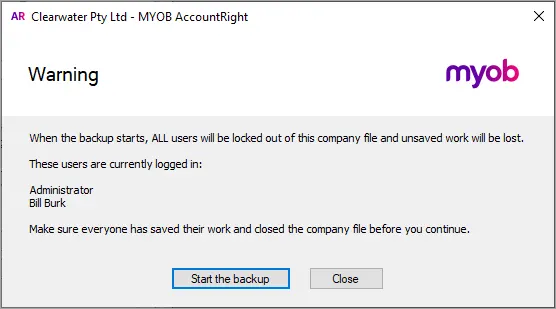
(Online company files only) A list of all users, including you, currently signed in will appear so you can let them know to save their work and sign out. Once you're ready to go, click Start the backup


FAQs
Why am I getting a "connection error" when backing up my online company file?
If there's a minor interruption to the backup process, connection errors can occur.
To prevent this, ask other users to sign out of the company file first, then create the backup. When complete, users can sign back in to the company file.
Why is my file stuck in "Backup in progress"?
If your company file is stuck with a status of Backing up or you persistently see this message, you'll need our help.

Click the chat bubble at the bottom of this page and ask MOCA, our virtual assistant, for help. Or, submit a support request via My Account and our team will get you back up and running.