Key points
-
If a customer pays you too much, record the whole payment in MYOB – a customer return (credit) will be created for the overpaid amount
-
If a customer has paid an invoice twice, record the first payment normally then apply the second payment to a closed invoice to create a customer return (credit)
-
Customer returns (credits) can be refunded or applied to other open invoices (ask the customer their preferred option)
OK, let's step you through how to handle an overpayment and what to do if you receive a double payment.
Processing an overpayment
From the Sales menu and choose Record invoice payment.
Select the Customer and choose the Bank account the payment is going to.
Enter the total amount of the payment (including the overpayment) in the Amount received field against the open invoice. Here's an example where the customer paid $210 instead of $200.
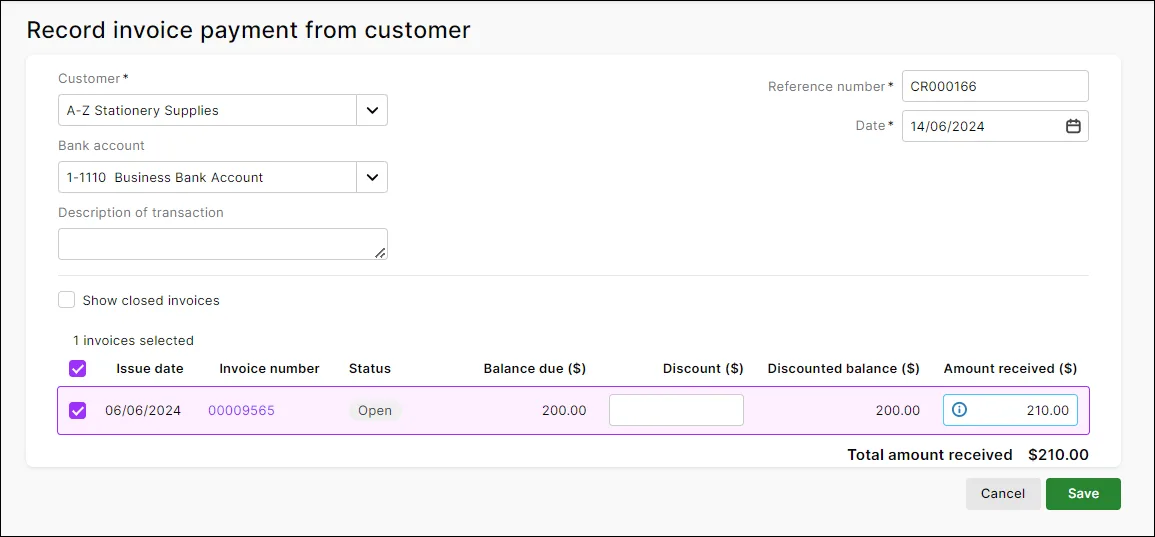
If the customer has no open invoices, create a credit for the overpaid amount, then refund the credit to the customer (or hold onto it to apply to a future invoice).
Ensure all other details of the payment are entered. See Customer payments for more information.
Click Save when you're finished. A customer return (credit) will be created for the overpayment amount.
Process the customer return (Sales menu > Sales returns and credits) and choose whether you want to apply the overpaid amount to an invoice or refund the customer. You can also hold onto the credit to apply to a future invoice. Here's more details about processing customer returns.

Processing a double payment
From the Sales menu and choose Record invoice payment.
Select the Customer and choose the Bank account the payment is going to.
Enter the total amount of the first payment in the Amount received field against the open invoice.
Ensure all other details of the payment are entered. See Customer payments for more information.
Click Save. This will close the invoice.
From the Sales menu, choose Invoices.
Click Record invoice payment.
Select the Customer and choose the Bank account the payment is going to.
Select the option Show closed invoices.
Enter the total amount of the second payment in the Amount received field against the invoice you just closed.
Click Save. This will create a customer return for the second payment.
Process the customer return (Sales menu > Sales returns and credits) and choose whether you want to apply the second payment amount to an invoice or refund the customer. You can also hold onto the credit to apply to a future invoice. Here's more details about processing customer returns.
When paying an invoice, sometimes your customers may accidentally overpay or record the payment twice. Mistakes can happen, but there are a number of ways you can easily handle the overpaid amount:
apply it to another unpaid invoice
create a credit and refund the amount
create a credit and apply it to a future invoice
or write it off.
It's a good idea to first check with your customer on their preferred option; but no matter what route you choose, you'll be back to doing business in no time.
Have you simply recorded the wrong payment amount? Delete the payment and record it again.
To create a credit for the overpaid amount
How you create a credit depends on how the overpayment was made. After creating the credit, you can settle it by refunding the amount or applying it to a future invoice. For more information, see Settling credits.
If your customer overpaid the invoice amount
When recording the payment in the Receive Payment window, enter the full payment in the Amount Received field and in the Amount Applied column in the scrolling list. These amounts must match or you'll get an unbalanced transaction error. A credit for the overpaid amount will be automatically created.

After creating the credit, you can settle it by refunding the amount or applying it to a future invoice. For more information, see Settling credits.
If your customer paid an invoice twice
Apply the first payment to the unpaid (open) invoice as you normally do and then record another customer payment and apply the second payment to the same invoice. As this invoice is now paid (or closed), you'll need to select the Include Closed Sales option to see it. A credit for the second payment will be automatically created.
You record the payment using the Receive Payment window or by selecting the Receive Payment option in the Bank Feeds window.

The Out of Balance amount must be zero before you can record the transaction.
After creating the credit, you can settle it by refunding the amount or applying it to a future invoice. For more information, see Settling customer credits.
To write-off a small overpaid amount
Sometimes the amount is very small, like a rounding error of a few cents. When this happens, you can record a new invoice for the overpaid amount (allocate to a rounding income account, if you have one) and then apply a credit to this invoice to close it (see table above for details on how to create a credit). Learn more about accounting for bad debts.
FAQs
Why am I getting the error "An unbalanced transaction may not be recorded"?
When recording your receive payments transaction the error "An unbalanced transaction may not be recorded" may occur.

This will occur when the Amount Applied column doesn't match the Amount Received. When doing an overpayment remember to enter the Amount Applied column as the full amount received.

Why can't I find the overpayment transaction, or it shows as a different amount to what I actually received?
If you recorded the overpayment using Receive Payments, it's possible a value was entered as a finance charge. For help finding, deleting or reversing finance charges, see Finance charges paid by customers.