The quickest and easiest way to get paid for your invoices is to use online payments. This adds a Pay now button in your customers' invoices so they can pay you with a single click.
If you don't use online payments, you can record your customer payments manually. This might be a full or part payment, and can be for one or more invoices. If a single payment is made for several invoices, you can allocate the individual amounts on the same page.
If you need to change a customer payment, you can edit or delete it.
Ask customers to quote your invoice number when paying electronically. This will save you time by helping to quickly identify payments.
If you use bank feeds or import statements you can match bank transactions directly to your invoices. If you use online invoice payments, see how online payments are automated.
To manually enter a full or part payment
You can only enter a customer payment for an invoice you’ve already created. For more information see Creating, editing and deleting invoices.
From the Sales menu, choose Record invoice payment.
Choose the customer making the payment from the Customer list. (If you’re entering a customer payment from the Invoice page, the customer will already be selected.)
All the unpaid invoices for the selected customer appear in the list. (If you’re entering a customer payment from the Invoice page, only the relevant invoice will appear in the list.)In the Bank account field, enter or select the bank account or credit card the payment is going to.
If you want, enter a Description of transaction.
Make sure that the reference number is correct. If not, enter a new reference number in the Reference field.
Changing the numbering
If you change the number in the Reference field, you’ll change the automatic numbering. For example, if you change the number to 000081, the next time you enter a customer payment, the new reference number will be 000082.
Make sure that the payment date is correct. If not, enter a new date in the Date field, or click the icon next to it to select the date from a calendar.
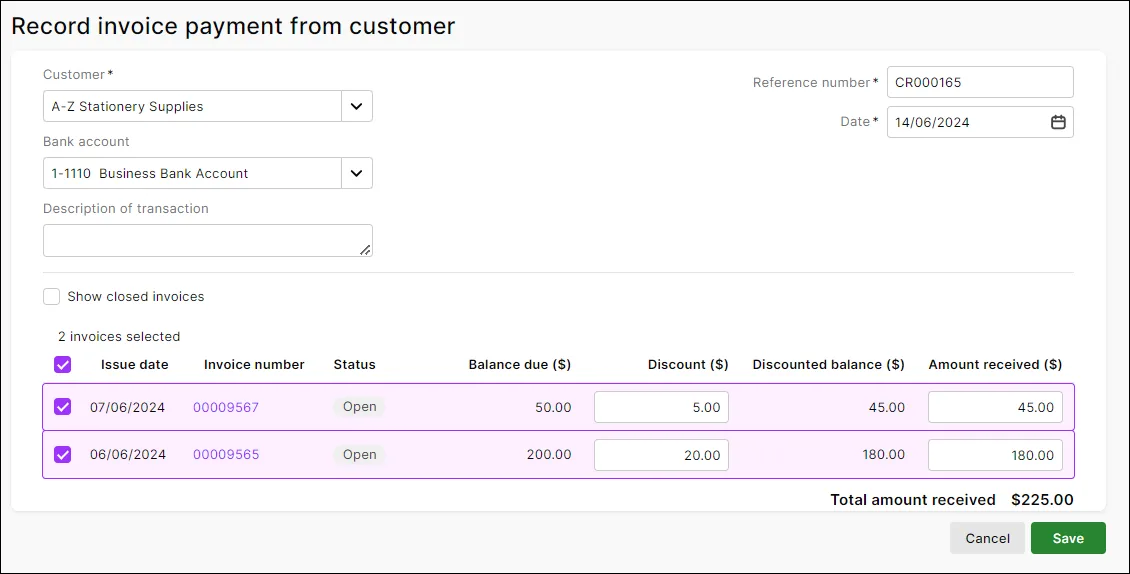
If you want to give the customer a discount, enter the amount in the Discount ($) field for the applicable invoice.
Select the invoices to be paid. The Amount received is automatically calculated against the relevant invoices. Here's an example where 2 invoices are being paid in full (with discounts applied):
There's a built-in calculator in the Discount and Amount received fields. Just enter a calculation in the field and tab out of it:

When you're done, click Save.


Customer overpayments
If the amount received from the customer is more than the sum of their unpaid invoices, enter the total you've received against one or more invoices. A credit will be automatically created for the customer. Learn more about Customer overpayments.
To change a customer payment
You can only change customer payments that haven’t been reconciled or matched to a bank transaction. If you want to change a reconciled or matched payment, you need to unreconcile or unmatch it first, using the Bank reconciliation or Bank transactions page.
The only details you can change are the bank account the payment went into, the description, reference number and date.
From the Banking menu, choose Find transactions.
Click the Transactions tab.
Filter the list of transactions as required.
For the Transaction type, select Invoice payment.
Choose the Period or Date from and Date to for the transaction you're looking for.
(Optional) Choose the Category the transaction was allocated to or the Contact (customer) the payment was from.
Enter all or part of the transaction's description or amount in the Search field. Transactions that meet your search criteria will be displayed.
Click a transaction's reference number to view its details.
Make your changes then click Save.
To delete a customer payment
From the Banking menu, choose Find transactions.
Click the Transactions tab.
Filter the list of transactions as required.
For the Transaction type, select Invoice payment.
Choose the Period or Date from and Date to for the transaction you're looking for.
(Optional) Choose the Category the transaction was allocated to or the Contact (customer) the payment was from.
Enter all or part of the transaction's description or amount in the Search field. Transactions that meet your search criteria will be displayed.
Click a transaction's reference number to view its details.
Click Delete (at the bottom of the page).
At the confirmation message, click Delete.
Provide a receipt
If a customer has paid you via online payments, they receive an email notification that they have paid. In their online invoice, the Pay Now button changes to View Receipt – they can click this to view or download the receipt. Otherwise, when a customer makes a payment, you can provide them a copy of the invoice (showing the payment) as a receipt.
FAQs
How do I enter an overpayment?
Manually enter the full customer payment (including the overpayment) as described above. MYOB will automatically create a credit for the overpaid amount.
Then, refund the overpaid amount to the customer or apply it to another of the customer's open invoices.
For all the details see Customer overpayments.
How can I protect my business against fraud?
Whether you trade online or offline, your business is always at risk of fraudulent transactions resulting from stolen credit cards or other buyer scams.
But don’t worry - here are a few things to look out for to protect your business and minimise the risk of customer disputes and chargebacks.
Is the customer placing an unusually large order, or large quantities of orders in a short period of time?
Is the order being paid for using multiple cards? This could suggest the buyer is trying to avoid card limits.
Do you have an order where the shipping address is different to the billing address?
Are you receiving multiple orders to different customers at the same address, or is the address from an unusual location?
Is it a large order or expensive goods where the customer requests next-day or expedited shipping?
Can't contact the customer via phone or email?
Has the customer asked you to pay for freight which they'll reimburse later?
While these activities won’t always be fraudulent, if it seems suspicious it’s worth taking the time to check.
What you can do if you think there's fraud
If you're suspicious of fraud, here's a few things you can do:
Call the buyer and verify the order
Search the internet for the buyer's name, shipping address, email address and phone number - keeping an eye on consistency between the information
If you can’t verify a customer’s details, or you’re still suspicious - cancel the order.
The quickest and easiest way to get paid for your invoices is to use online payments. This adds a Pay now button in your customers' invoices so they can pay you with a single click. Learn how to get set up.
If you don't use online payments, you can record your customer payments manually.
When you enter a sale, you can record a customer payment at the time the sale was made (by entering the payment in the Paid Today field of the Sales window).
But if you receive the customer payment after entering the sale, then you record payments against their invoice in the Receive Payments window. You can record full or partial payments against one or more of the customer’s outstanding invoices. Customer paid too much? See Customer overpayments and double payments.
If a payment you receive is not for an invoice or order you've created, use the Receive Money window instead. See Receive Money window.
You can also record payments in the Bank Register window. This can save you time if there are several invoices that have been paid and you do not need to record detailed information (such as discounts and finance charges) for each payment.When you use the Bank Register window to record a customer payment, the entire payment is automatically allocated to the customer’s oldest invoices first. For more information, see Entering transactions in the Bank Register window.
To record payments against invoices
Go to the Sales command centre and click Receive Payments. The Receive Payments window appears.
Choose the account that will be used to record the customer payment.
Deposit to Account. Select this option if the customer has made a direct payment to your bank account. This will default to the linked account you've set as your Bank Account for Customer Receipts, but you can change it if the deposit was made to another account.
Undeposited Funds. Select this option if the payment will be deposited at a later time.
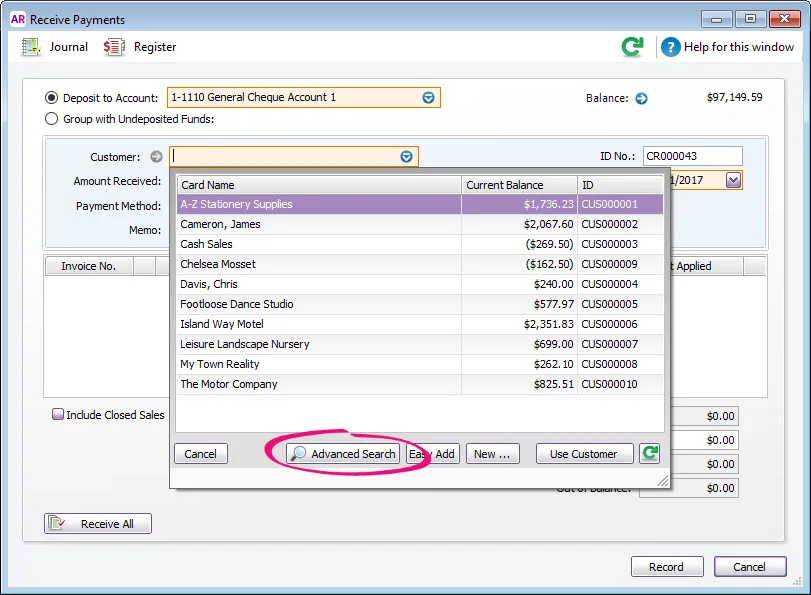
In the Customer field, enter the customer’s name.
Don’t know the customer name but have the invoice number or amount?
Use Advanced Search to search for open invoices by the invoice number or the invoice amount.
Type the Amount Received.
If you want to record the payment method, select the method in the Payment Method field. Click Details if you want to enter further details about the payment. For example, if you are being paid by credit card, you can record the last four digits of the credit card number.
If a customer is paying using multiple payment methods, for example EFTPOS and cash, record a Receive Payment transaction for one payment method, then record a second Receive Payment for the other.
If you want, adjust the memo and payment date. You can change the ID number that is automatically generated. However, we recommend that you use the default number to make sure you don’t use duplicate IDs.

In the scrolling list in the bottom half of the window, indicate which sales are covered by the payment by entering amounts in the Amount Applied column.
If the customer is paying a deposit for an order, look for Order in the Status column:A: Discount – If you intend to offer an early-payment discount for a sale, assign the discount to the appropriate invoice in this column. Note that you won’t be able to assign a discount to an invoice that is not being settled in full. If this is the case, you can give them a customer credit note. See Customer credits.
B: Amount Applied – Enter how much of the payment you want to apply to each sale in this column. If you only applying a part payment, enter the amount you're applying in this column. Ensure that the total of the amounts applied in this column equal the value entered in the Amount Received field.
You can let AccountRight automatically fill this column for you, by applying payments to the customer's oldest invoices first. Select the Apply Customer Payments Automatically to Oldest Invoice First option in the Setup menu > Preferences > Sales tab. The amount received will be distributed automatically based on invoice date, but you can override the allocation.C: Finance Charge – If part of the payment is to pay finance charges, type the finance charge amount here. For more information, see Finance charges paid by customers.
D: Out of Balance – The amount you apply in the Amount Applied column accumulates in the Total Applied field. The Total Received amount (which includes any finance charges) must equal the amount that appears in the Amount Received field in the top half of the window before you can record the transaction. The Out of Balance amount must be zero before you can record the transaction.
Click Record.
If needed, you can print a payment receipt.


FAQs
How do I delete or reverse a payment applied to a sale?
Open the sale the payment was applied to.
Click History.
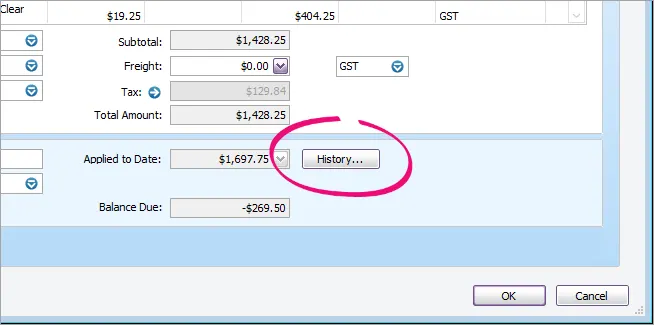
Click the zoom arrow for the payment transaction. The payment transaction will be displayed.
Go to the Edit menu and choose either Delete Payment or Reverse Payment (the option that is displayed reflects your security preference).

What if a customer makes a payment, but has no open invoices?
If a customer has closed sales, select the Include Closed Sales option, and apply the amount received to a closed invoice. A credit invoice for the amount is created automatically. This can either be refunded to the customer or applied to a future invoice, see Settling credits.
If you receive a payment for an invoice you haven't yet issued, see Customer prepayments.
Is it possible to see the customer's purchase order number in the Receive Payments window?
If you want to see your customers’ purchase order (PO) numbers in the Receive Payments window instead of your invoice numbers, select the Show Customer Purchase Number in Receive Payments option in the Setup menu > Preferences > Sales tab.
I make lots of cash sales, is there an easier way to record payments?
Yes! If customers make payments when purchasing merchandise or services and you are issuing them an invoice, you can type the payment amount in the Paid Today field of the invoice.
I used the Receive Money window to record an invoice payment. What do I do now?
You should delete the Receive Money transaction that you recorded, and re-enter the payment using the Receive Payments window. Learn about deleting transactions.
If you've already reconciled the Receive Money transaction, your next bank reconciliation will show an out of balance amount equal to the customer payment. But that's easily fixed - when you select the new Receive Payments transaction that you entered, the out of balance will return to $0.
What does Auto # mean in the ID No. field?
The default number shown in the ID No. field is the next available number. When you click in the ID No. field, Auto # appears to confirm that the number has been automatically selected for you. If you need a different number you can overtype it. Note the sequence will not carry on from that point.
What about payments applied to sales orders?
Payments applied to sales orders are considered deposits, and they're handled a bit differently to other payments. Learn all about Customer deposits.