When you delete a customer payment, it's removed from the invoice it was applied to. If the invoice was closed, it becomes an open invoice again.
Once you delete a payment, you can't undo it. If the payment has been matched or reconciled, you'll need to redo the match or reconciliation.
To delete a customer payment
Open the invoice the payment was applied to (Sales menu > Invoices > click the invoice). Need help finding an invoice?
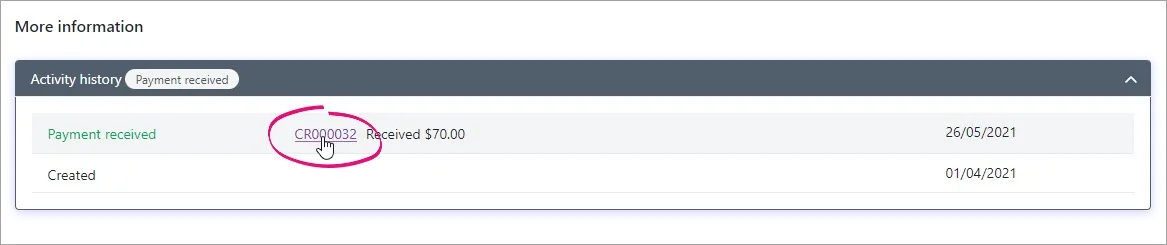
In the Activity history at the bottom of the invoice, click the reference number for the payment you want to delete.
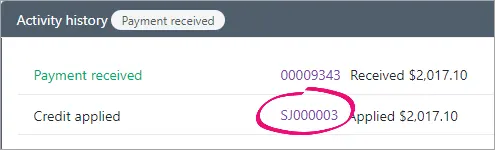
If the invoice was paid using a customer credit, click the reference number for the applied credit.
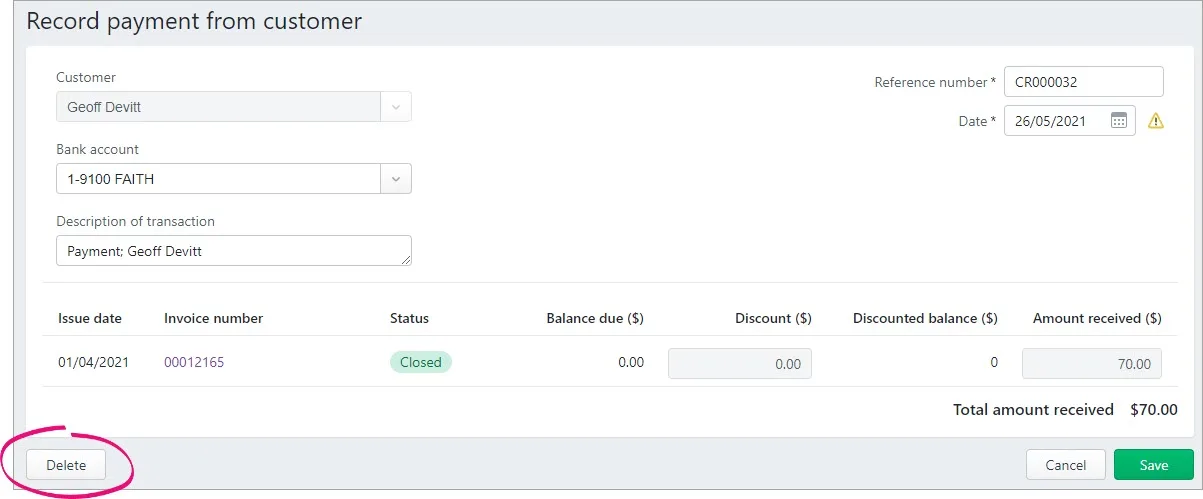
Click Delete.
At the confirmation message, click Delete. If you've deleted the application of a credit, the credit will now be available to refund or be applied to another invoice. Learn about Processing customer returns.


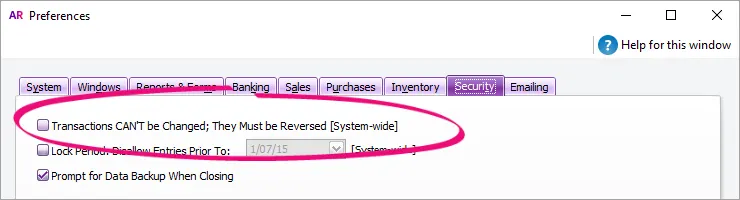
If you need to delete a payment applied to a sale, you'll first need to ensure your AccountRight preference is set to allow transactions to be deleted (you need to ensure that the preference, Transactions CAN'T be Changed; They Must be reversed, is deselected). You can then delete the payment.
If you need to delete a deposit, see Customer deposits.
1. Allow transactions to be deleted
If your user role allows you to change preferences, you can change this option at any time.
Go to the Setup menu and select Preferences.
Preferences option greyed-out?
Your user role needs to be set up with permission to set preferences. If you need to regularly change preferences, ask your administrator to add this permission to your user role.
Select the Security tab,
Deselect the Transactions CAN'T be Changed; They Must be reversed option.
Click OK.

2. Delete the customer payment
Go to the Sales command centre and click Sales Register.
Find and open the sale the payment was applied to.
Click History.
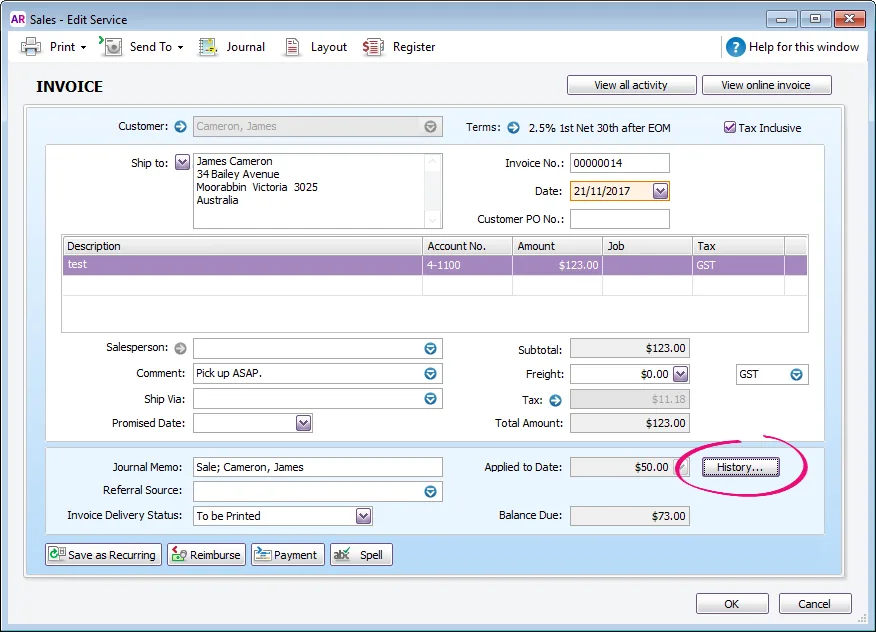
Find the payment transaction to be deleted. Here's an example:
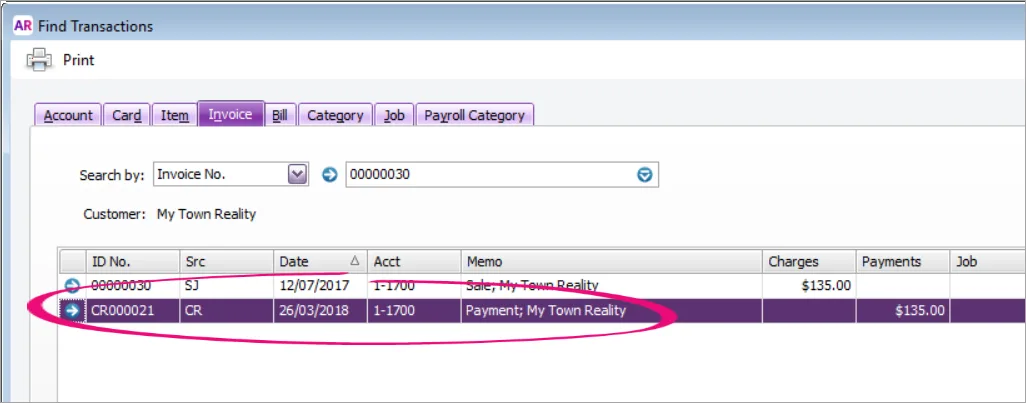
Click the zoom arrow for the payment transaction. The payment transaction will be displayed.
Go to the Edit menu and choose Delete Payment. If you only see the option to Reverse, see the previous task about allowing transactions to be deleted.
Deleting a reconciled payment can put your reconciliation out of balance. If you want to delete a reconciled transaction, you need to undo the bank reconciliation first, then delete the entry and re-reconcile the account. See Reconciliation problems.
If you only have the option to Reverse Payment, check whether:
you need to change your preference as described above
you're trying to delete a payment from a closed financial year (if so, you'll only be able to reverse the payment)
you've grouped the payment with undeposited funds. See Preparing a bank deposit for the steps to delete it
you've rolled back the financial year (if so, you'll only be able to reverse the payment)


Want to change the customer on the invoice?
After deleting the payment, see Changing an invoice, quote or order for a quick method to change the customer on the invoice. If you want to delete the invoice, see Deleting a transaction.