For details on creating quotes and sales orders, see the quotes and sales orders help topics.
Create an invoice for the items you sell, or services you provide. Choose your customer, enter what you're selling and how and when you want them to pay. Then send the invoice from MYOB.
Speed up your invoicing
You can create your customers, sales items, and payment details at the time you create an invoice, but if you set them up beforehand you just simply need to choose them each time. Here is some things you should consider setting up to make invoice entry faster:
1. Start an invoice for the customer
From the Create menu > Invoice or from the Sales menu > Invoices page > click Create invoice.
If you've set up a recurring invoice, and you want to create an invoice similar to it, click Prefill from recurring, select the recurring invoice and click Prefill. This automatically fills in the invoice with the details from the recurring invoice, which you can edit.
Choose the Customer you're selling to from the drop-down list. The customer’s address details appear in the field below. If you've entered a shipping address when you created the customer, this will appear on PDF copies of the invoice.
If you want to add a new customer, click the Customer dropdown arrow and choose Create customer.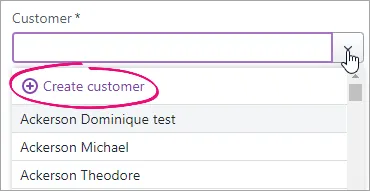
Enter as much (or as little) info as you like and click Save. You can always go back later and fill in additional details.
Once you've entered the customer, the status of their ABN will checked, and the status shown. Click its status to see more details.You're also notified if they haves any open quotes:
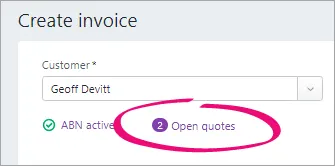
If you want to convert one of these quotes to an invoice:
Click Open quotes.
Select an invoice and click Convert. The invoice is completed with the details of the quote. You can change these details if you want.
If you want to send automatic invoice reminders to the customer to prompt them to pay you, and you haven't turned them on, click Reminders off and choose the option to turn them on.
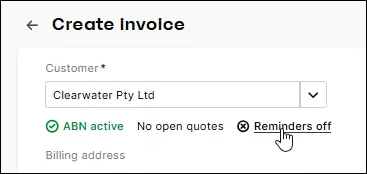
If invoice reminders are already turned on, you can click Reminders on and view or edit the reminder settings.
More about invoice remindersIf necessary, change the Invoice number. This number is automatically generated, based on the last number you used.
Changing the numbering
If you change the invoice number, you’ll change the automatic numbering. For example, if you change the number to 000081, the next time you create an invoice, the new invoice number will be 000082.
If you have one — or you're entering an e-invoice — enter the Customer PO Number.
Customer PO Number
If you're entering an e-invoice, you can enter additional reference numbers in the Customer PO Number field. See the FAQ below for details.


2. Set the payment terms
Use these options to decide when and how the customer will pay the invoice:

Check the Issue date. This defaults to today's date but you can change it if you want.
Click the Due date to set the terms for this invoice. If you want to make these the default payment terms for this customer, click Remember terms for this customer. You can also set your business's default payment terms in your sales settings, and they'll be applied to any new customers you create.
If you're registered for GST, select if the invoice Amounts are inclusive or exclusive of tax.
If you want the prices to include tax, choose Tax inclusive. Note that this is the default tax preference.
If you want the prices to exclude tax, choose Tax exclusive.
If you've verified your business to use online payments, click Edit if you want to change the payment and surcharging options for this invoice. If you're not verified yet, click Add payment options to get started.
3. Enter what you're selling
Click Field layout and select the applicable option based on what you're selling.
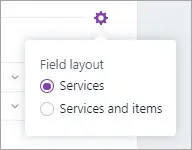
If you're selling items:
In the Item ID column, click the dropdown to choose an item or search for an item by entering all or part of the Item ID or Supplier item ID. As you type, matching items are shown.
Entering a new item?
Click the dropdown arrow in the Item ID column and choose + Create Item. Enter the item details and click Save. Learn more about Creating items.
When you choose an item, the following is automatically displayed:
Description, Category for tracking sales, Unit details and Tax code, based on what you entered when you created the item (you can edit these details if you want)
Discount (%), enabling you to offer a percentage discount
the total price of the items is calculated automatically in the Amount field.
Enter the number of Units of this item you're selling. The calculated Amount is displayed.
Use the built-in calculator
There's a built-in calculator in the No of units, Unit Price, Discount and Amount fields. Just enter a calculation in the field and tab out of it:
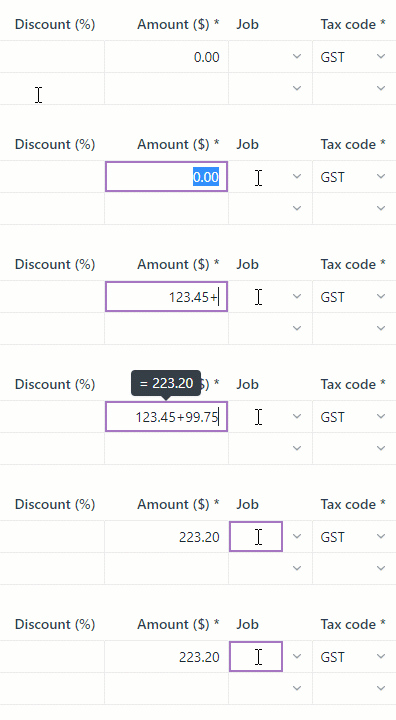
Repeat for each item you're selling. Need to add or remove blank lines or line items?
If you're selling services:
In the Description column, enter a description of the service you're providing.
Choose the Category the income from this service will be allocated to. If you're not sure, check with your accounting advisor.
Enter the Amount of this service.
If required, change the Tax code. If you're not sure, check with your accounting advisor.
Repeat for each service you're selling. Need to add or remove blank lines or line items?
Enter any charges for Freight, and if required, change the default GST code. If you can't enter Freight, you'll be prompted to specify a linked category for freight. (What is a linked category?) The totals are calculated at the bottom of the invoice:
Subtotal—the total for the items added to the invoice
Tax—the amount of tax applied to the invoice
Total amount—the total amount of the invoice including the tax or GST amount
Amount paid—the total of any invoice payments made
Balance due—the invoice total minus the amount paid.
(Optional)
Choose a Job if the line item relates to a specific job. Tell me more about jobs.
If you want to add a note about the invoice, choose a Notes to customer and enter any additional text in the box below it (or edit an existing note). These notes will appear on the customer's invoice. For example, you could use this area to add additional details about payment. You can choose one of the notes that come with MYOB Business, edit an existing one or add your own reusable notes — see Notes to customer.
Save a default note
If you frequently use a note, select Save as default. This note will then appear automatically whenever you create an invoice (you can still choose a different note if you want).
If you want to attach a document to the invoice, drag files or browse and add files into the Attachments area. These files can only be PDF, TIFF, JPEG or PNG and below 10MB.
Check that all the information in the invoice is correct.
Need to cancel an invoice? Click the arrow next to Create invoice:

and click Discard in the message that appears.


4. Send the invoice
Use the buttons and menus across the top right of the page to choose how you want to save and send the invoice.

If you want to:
Record a payment (only available once you've saved the invoice), click Record payment to open the Invoice payment page, showing all the open invoices for the customer. The Amount received for the current invoice is pre-filled (you can change this if you want).
Find out more about receiving customer payments.
Record a deposit or add a part-payment schedule (only available if using Online Payments) after saving the invoice, click Split invoice payment and set up the deposit or part‑payment schedule. Once you've saved the deposit or part-payment schedule, the invoice Activity is updated to reflect it.
Find out more aboutPreview the invoice, click Preview and View online invoice to open a preview of the online invoice in another browser tab. If you use AccountRight browser, you can also choose to preview the invoice in one of AccountRight's PDF templates.
Send or share the invoice, click Share and choose an option. To email the invoice, choose Email invoice. You can also copy an invoice link to share with others so they can open the online invoice, send an invoice link via SMS invoicing (available with online invoice payments) or send an eInvoice if you're using eInvoicing. Learn more about emailing or printing invoices or sending an invoice link via SMS.
Save it, click the Save button or choose one of the options from the Save dropdown:
Save and create new. The invoice is saved, and a new, blank invoice appears.
Save and duplicate. An invoice with the same details and new invoice number is created. Learn more about Duplicating an invoice.
Save as recurring. If you're going to be sending this invoice repeatedly, save yourself some time and set it up as a recurring invoice. Learn more about recurring transactions.
Access sales settings, click the ellipsis (...) and choose one of these options:
Sales settings. Set the default layout of your invoices (Services or Services and items). See Sales settings
Reminder settings. Choose how frequently you send invoice reminders and monthly invoice summaries and which customers get them.
Payment settings. Set your default invoice payment terms and payment options
Ready to take a payment? See Customer payments.
FAQs
How can I record cash sales?
If you want to keep track of cash sales but don't need to issue individual customers an invoice, set up a contact called "Cash Sales" and choose this contact when making a cash sale.
Doing this means you can pull up sales reports and filter them for the "Cash Sales" contact to give you accurate reporting on goods sold.
My business isn't registered for GST - why is GST appearing in my invoice?
In MYOB Business, the invoice tax code is based on the tax code assigned to the item or category:
In item sales, the default tax code is based on the tax code assigned to the item. If your business is not registered for GST, you should edit the item to set its default tax code to N-T.
In service sales, the default tax code is based on the tax code assigned to the category. If your business is not registered for GST, you should edit the category to set its default tax code to N-T.
How do I enter additional reference numbers for e-invoicing?
You can use the Customer PO number field to enter additional reference numbers for e-invoicing. When entering these numbers, use the relevant prefix:
Reference number | Prefix |
|---|---|
Tender Reference Number | TN: |
Project Reference Number | PN: |
Contract Reference Number | CN: |
Buyer Reference Number | BR: |
If you have a customer PO number, enter that first then enclose any additional reference numbers in square brackets [ ] and separate each reference number by semicolons.
Here's an example showing the Customer PO number, followed by a Tender Reference, Project Reference and Buyer Reference:

Why am I seeing the error "You must specify a category"?
If you use cost centres in AccountRight (previously called categories), there's a preference you can turn on which requires a cost centre to be selected for every transaction.
Until we implement cost centre functionality in the web browser version of AccountRight, if you're seeing this message in the browser you'll need to record the transaction in your desktop AccountRight software.
(AccountRight browser users) Why has the default Freight tax code changed?
If you access an AccountRight company file in a browser, you might notice that the default Tax/GST code for the Freight field is different when you enter a sale in the browser.
This is because the default Tax/GST code in the browser is set in the linked income category for freight (Accounting menu > Manage linked categories > Sales > Income category for freight), whereas in the desktop app it's set in the customer's card (Card Information window > Selling Details > Freight Tax Code).
You can easily change the Tax/GST code in the transaction or set a new default Tax/GST code in the browser by editing the freight linked income category.
(AccountRight Premier browser users) Why do I get a message that there’s not enough stock on hand when there is sufficient stock?
If you try to save an item invoice and receive the message, There's not enough stock on hand for item undefined. Check if you have enough stock of the items on this invoice., even though you do have enough stock on hand, this is because you use the multiple inventory locations feature in AccountRight desktop and you store the item at more than one location.
Multiple locations isn’t available in AccountRight browser. When you enter an item sale AccountRight browser, it's only able to check the stock on hand at the primary location and can't count the items at other locations.
Solution: enter the sale in AccountRight desktop instead.
Create an invoice for the items you sell, or services you provide. Choose your customer, enter what you're selling and how and when you want them to pay. Then send the invoice so you can get paid.
If you're receiving income that's not from a customer, like bank interest or a donation, use a receive money transaction instead.
Speed up your invoicing
Before creating your first invoice, it's a good idea to set up your:
You can add these as you go, but it'll be quicker to add them to your invoices if you've already set them up.
1. Create an invoice
If you've created a quote or sales order for a customer and you're ready to turn it into an invoice, do it via the Sales command centre > Sales Register > Quotes or Orders tab > click the quote or order > Change to Invoice.
Otherwise, create an invoice from scratch.
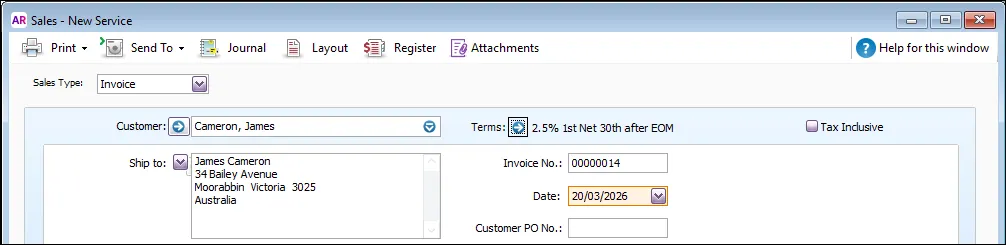
Go to the Sales command centre and click Enter Sales. A new invoice opens with the Sales Type automatically set to Invoice.
Choose the Customer or add a new one.
Confirm the customer's Ship to address. If you've set up additional addresses, you can choose a different one here or type a new one.
Confirm the payment terms – click Terms to make any changes. More about customer terms.
If the invoice amounts include tax (GST), select the Tax Inclusive option. If deselected, tax (GST) will be calculated on top of the invoice amounts.
Confirm the Invoice No. Clicking the number will show Auto # which means it's automatically incremented from the previous invoice. If you change the number, subsequent numbers will increment from the new number. If your invoice numbers include letters, you'll need to add the letters each time.
Confirm the invoice Date.

2. Enter what you're selling
If you've verified your business to use online payments, click Edit if you want to change the payment and surcharging options for this invoice. If you're not verified yet, click Add payment options to get started.
Enter details of what you're selling. Click Layout and choose one that suits your needs based on what you're selling, like items or services. Here are some examples:
Item layout
Adding services to an item invoice
To include a service on an item invoice, create an item for the service, such as Labour Charge, and add the item to your invoice.
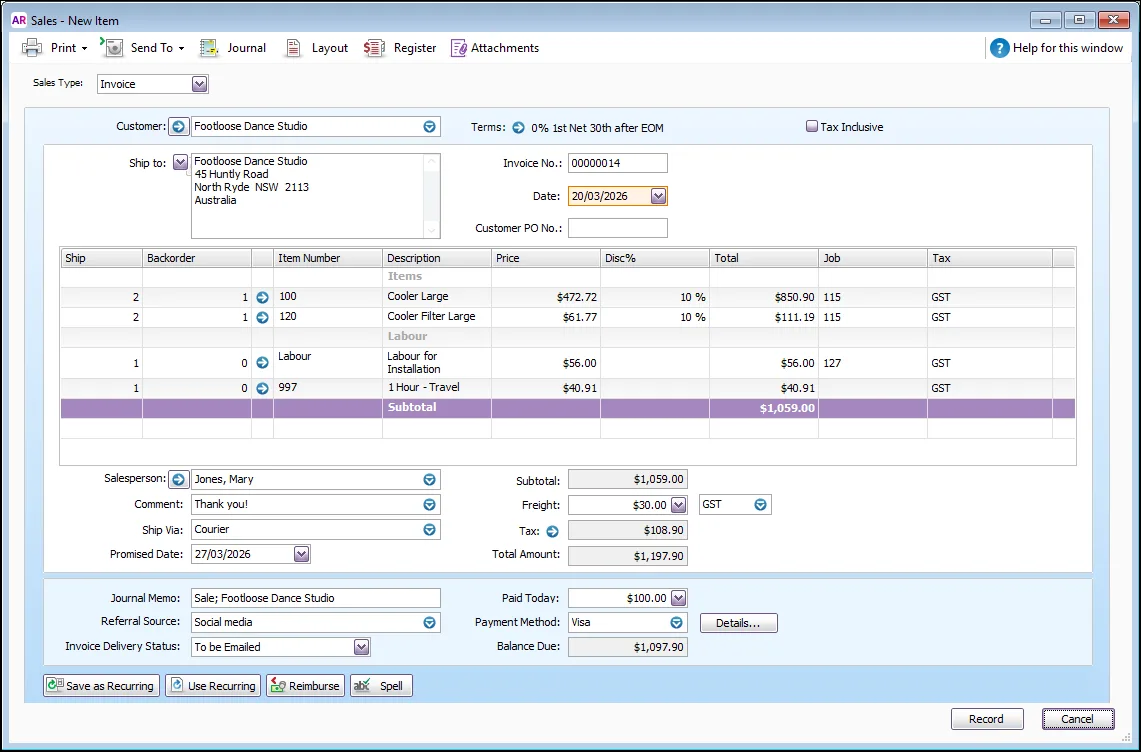
Field
Description
Ship
Enter the quantity to be delivered. If you don't have enough stock on hand, the Backorder List window will appear when you click Record. You can then choose whether you want to backorder, buy or build more items.
Backorder
Enter the quantity of the item to be placed on backorder. An order for this amount will be created automatically when you click Record. Learn more about building, buying or backordering items.
Item Number
Enter an item from your item list. Only active items will be listed.
Description
A description of the item appears automatically. You can change this if you want. If you want to check spelling in this field, click Spell.
Location
[AccountRight Premier 2019.2 and later only] If you sell this item from more than one location, select the location where the item will be delivered from. For more information, see Multiple inventory locations.
Price
The price of the item appears automatically. You can change this if you want.
Disc%
[Optional] If you're giving the customer a discount, type it as a percentage. If you're giving them a dollar discount, enter the updated price in the Total column, and the discount percentage will be calculated for you.
Total
The total price of the items is calculated automatically. If you change the total, the Disc% field is updated to show the discount applicable.
Job
[Optional] Select a job number here to assign a line item to a specific job.
Tax/GST
The default tax (Australia) or GST (New Zealand) code for an item appears here. If you want to change it, enter the required tax/GST code.
Resize columns
You can resize the columns in your list and transaction windows. To resize a column, click and drag a column boundary to a new position.
Service layout
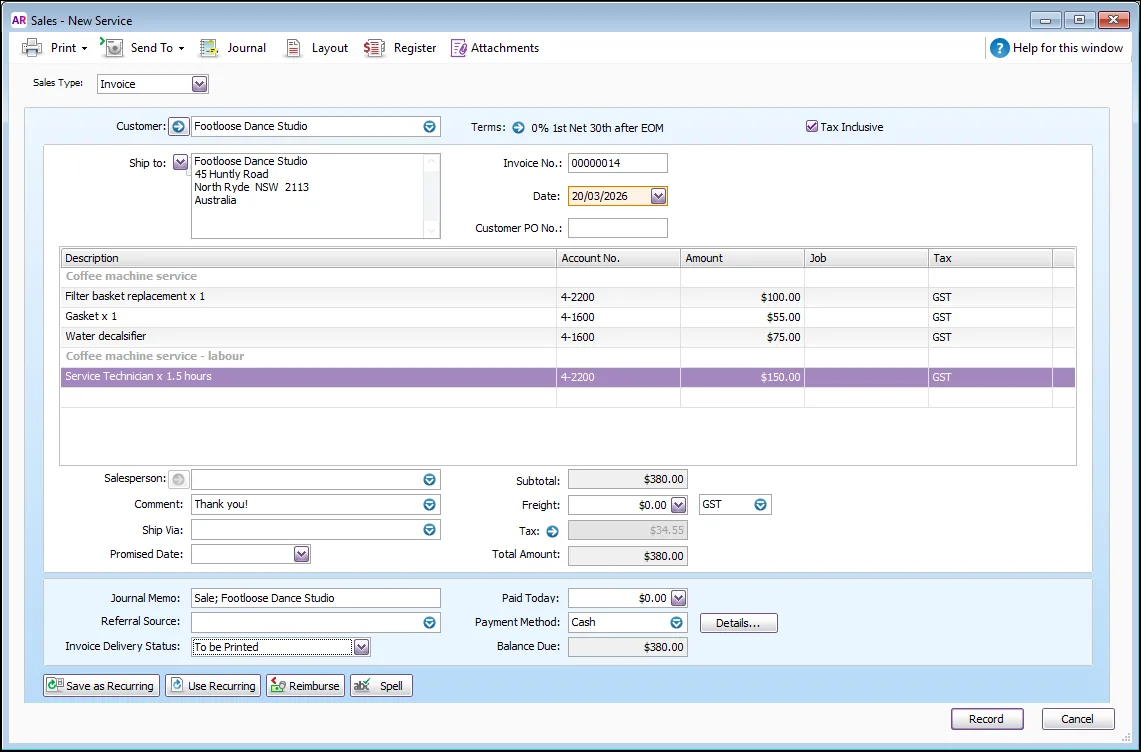
Field
Description
Description
Enter a description of the goods or services being sold. If you want to check spelling in this field, click Spell.
Acct No. or Account Name
Enter the account to which to allocate the sale. This is usually an income account. You should not select your trade debtors account for ordinary sales. An AccountRight preference controls whether this field shows account number or name (Setup > Preferences > Windows > Select and Display Account Name, Not Account Number).
Amount
Enter the amount of the sale.
Job
[Optional] Select a job number here to assign a line item to a specific job.
Tax/GST
Select a tax code (Australia) or GST code (New Zealand) for the sale.
Here are some tips:
Miscellaneous layout invoices can't be printed or emailed.
Professional layout invoices let you enter a date for each invoice line.
Improve readability by adding headings, subtotals and blank lines.
Resize columns by clicking and dragging the edge of a column heading.
Remove a line by right-clicking it and choosing Delete Line.
If you want to attach a document to the invoice, click Attachments and drag files or browse and add files into the Invoice Attachments area. More about attaching documents to transactions
Enter any applicable Freight charges.
To view or change the calculated tax, click the zoom arrow next to the Tax/GST field. Tax changes made here won't be reflected in your BAS/GST return calculations.


3. Take a payment and send the invoice
If the customer makes a payment at the time of the sale, enter it in the Paid Today field. Click Details to enter payment details. Or you can record payments later.
Click Send To if you'd like to email the invoice or save it to disk as a PDF.

Click Print and choose a form to print the invoice. You can customise your forms to suit your needs.

If you only want to save the invoice and send it later, click Record.
Do you regularly record similar invoices?
Save time by saving the invoice as a recurring transaction.
More invoicing tips and time-savers
Customise your invoice templates to communicate your brand.
Set up key sales information with the Easy Setup Assistant (Setup menu > Easy Setup Assistant > Sales).
Set sales preferences to suit the way you work (Setup menu > Preferences > Sales tab).
Install MYOB Assist on your phone so you can invoice on the go (online company files only).
Get paid faster by setting up online payments (online company files only).
FAQs
How do I add the items and expenses related to a job?
Click Reimburse to see a list of all the job purchases and expenses you have assigned a job number to, that can now be reimbursed on the sale.

Can I display tax/GST on each line of an invoice PDF?
Yes. You can personalise the invoice form to add the Line Tax field. Then when you email or print the invoice it will display tax/GST on each line.
Here's how:
Go to the Setup menu and choose Customise Forms.
Select the invoice form to be customised then click Customise.
Right-click on the form where the transaction lines are displayed and choose Show/Hide Columns.
In the Available Columns list, click Line Tax then click Show.
Click OK.
Click Print Preview to see what the form will look like.
Make any necessary changes.
When you're happy with the changes, save the form.
How do I record a note about the sale?
You can enter a brief description in the Journal Memo field when entering the sale.

You can then search for sales using the text you enter in this field. If you don't want this information to appear on printed/emailed sales, ensure the Memo field is not included on the form.
How do I edit the list of comments, shipping methods or referral sources?
To add, edit or delete the list of comments, shipping methods, referral sources and payment methods, go to the Lists menu > Sales and Purchases Information.
You can also type a comment directly into the Comment field. This is an easy way to add a new comment to the customer's invoice.
To set the default comment for a customer, select it in the Sale Comment field in the customer's card (Card File > Cards List > open the card > Selling Details tab > Sale Comment).
Can I print packing slips with invoices and orders?
Yes. You can print a packing slip for sales (invoices, quotes and orders) which have been entered using the Service, Item or Professional layout.