If you sell products or services, you can add these as items in MYOB. This speeds up your invoice entry by being able to select an item, instead of manually typing its description each time you sell it. You can also track the quantities of the item you have on hand.
An item can be:
a physical unit that your company may buy, sell or inventory
a service that your company wants to include on item invoices, for example, ‘On-site service fee’, ’Handling’, ‘1-hour consultation’ and so on.
Do you have lots of items to create? Speed things up by importing them. You can also update or duplicate existing items to use the new inventory features – see Updating items to use stock tracking.
You can add items from the Create menu > Item. You can also create items as you’re creating invoices and bills. For more information see To create an invoice and To create a bill.
Creating inventoried items affects your inventory limit
If you're using the included inventory in MYOB Business and you create a new item with the I track stock for this item field selected, this counts towards your included inventoried item limit of 10 items. If you're at 10 inventoried items and you create another one, you won't be able to select I track stock for this item.
To be able to track stock for the item, you can either:
select Inactive item in one of your other inventoried items, then go back to your new item and select I track stock for this item
add Premium Inventory to your subscription so you can create more than 10 inventoried items. For information on how to upgrade, see Add Premium Inventory.
To create an item
Go to the Crete menu > Item to open the Create item page.
Complete the fields in the Details section:
Name—enter a short item name.
Description—enter a detailed item description, for use on invoices and bills. Note: If you leave this field blank, the Name will be used as the description.
Select whether to Use item description on sales and purchases. If you leave this option deselected, only the item's Name will show in sales and purchases.
Item ID—enter a unique identifier for the item.
Consider how you will name or number your items so that similar items are grouped together.
If you track the on hand quantity of the item, complete the fields in the Inventory section:
Select the option, I track stock for this item.
Asset category for tracking inventory—choose the category to record the on-hand value of this item.
When you select I track stock for this item, the relevant default asset category is chosen for you. You can change this if you need to, but check with your accounting advisor if unsure.
If you sell this item, complete the fields in the Selling section:
Select the option I sell this item. The fields in this section become active.
Selling price ($)—enter the price of the item, excluding tax or GST.
Selling prices is—select either Tax inclusive or Tax exclusive.
Unit of measure—enter a unit of measure for the item, such as boxes, cans, hours, kg, etc.
Items per selling unit—the number of items that comprise a single unit. For example, if you sell by the six-pack, enter 6 as the number of items per selling unit. When you sell one six-pack, your item inventory is reduced by six items. The default value of this field is one.
Income category for tracking sales—choose the category to which you want sales of this item allocated.
Cost of sales category—choose the category for tracking the costs of purchasing this item.
When you select I sell this item, the relevant default income and cost of sales categories are chosen for you. You can change these if you need to, but check with your accounting advisor if unsure.
Tax code—select the relevant tax code to be applied when selling this item. If unsure, check with your accounting advisor or the ATO.
If you buy this item, complete the following fields in the Buying section:
Select the option I buy this item. The fields in this section become active.
Buying price ($)—enter the cost of the item, including tax or GST.
In a future release, you'll be able to enter tax exclusive Buying price if you want.
Unit of measure—enter a unit of measure for the item, such as boxes, cans, hours, kg, etc.
Items per buying unit—type the number of items that comprise a single buying unit. For example, if you buy eggs by the carton and track their purchase individually, enter 12 as the number of items per buying unit. When you buy one carton, your item inventory is updated by twelve items. The default value of this field is one.
Tax code—select the relevant tax code to be applied when buying this item. If unsure, check with your accounting advisor or the ATO.
Supplier Item ID—enter the supplier’s number for the item or SKU (Stock Keeping Unit). Use this to check against supplier bills or to help you to find the item when buying or selling it.
[Optional] Enter the Restocking information:
Enter the Minimum stock level of this item you want to keep in your inventory. When the quantity drops below this level, this will be indicated in the Reorder report.
Choose the Primary supplier for reorders from whom you usually re-order this item.
Enter a Default reorder quantity for the item.
Here's our example of an inventory item: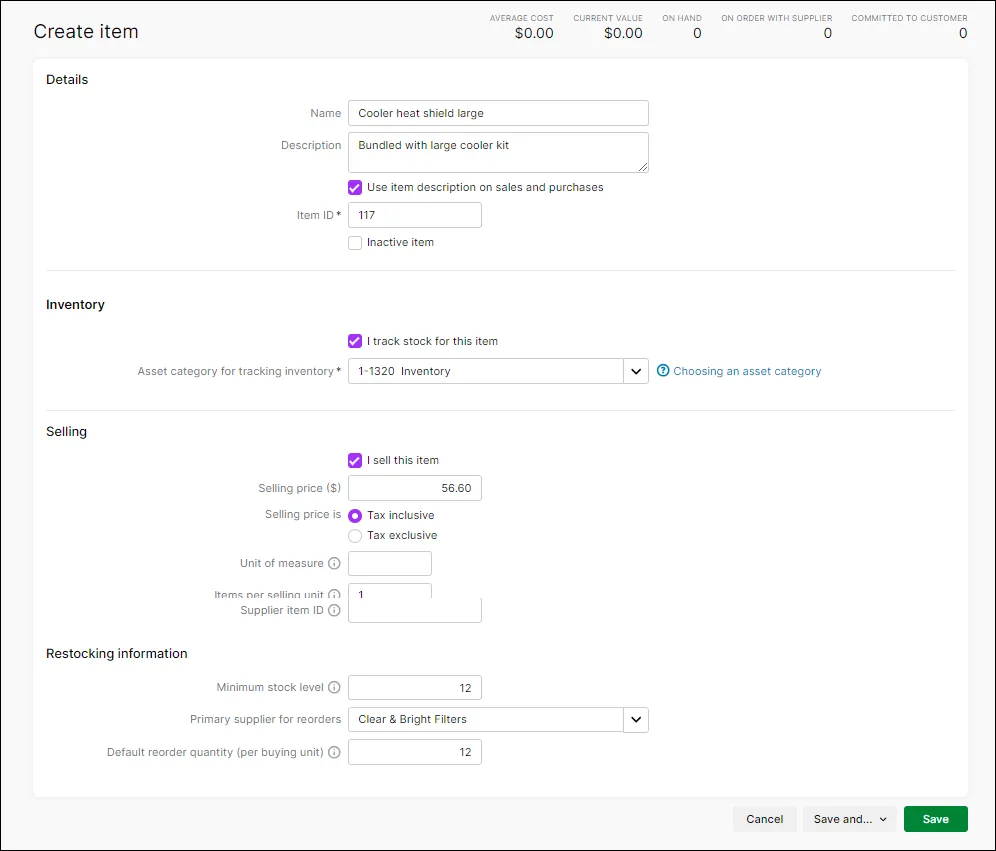
When you're done, click:
Save to save the item.
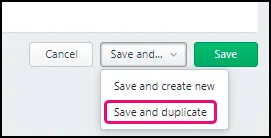
Save and duplicate to save the item and create another item with the same details and a new Item ID. You can then customise the duplicated item – see 'To duplicate an item' below.
Save and create new to save the item and create a new blank item.
The initial on-hand quantity is zero. To add the opening on-hand quantity, we recommend you make an inventory adjustment, allocating the adjustment to the asset account for tracking inventory.

To duplicate an item
If you want to create an item using another item's details, you can duplicate an item. If you have a number of similar items, this can help speed up creating them.
Go to the Products & services menu to open the Products and services page.
Click the Item ID of the item you want to duplicate.
Click Save and duplicate.
Change the Item ID.
You must change the Item ID in order to save the duplicate item.
Complete the fields in the Inventory section:
Select the option, I track stock for this item.
Asset category for tracking inventory—choose the category to record the on-hand value of this item.
When you select I track stock for this item, the relevant default asset category is chosen for you. You can change this if you need to, but check with your accounting advisor if unsure.
[Optional] Enter the Restocking information:
Enter the Minimum stock level of this item you want to keep in your inventory. When the quantity drops below this level, this will be indicated in the Reorder report.
Choose the Primary supplier for reorders from whom you usually re-order this item.
Enter a Default reorder quantity for the item.
Click Save.
If you're replacing the old item, you should make it inactive so it no longer shows up in selection lists and reports.Click the Item ID of the original item you duplicated.
Select Inactive item.
Click Save.
Repeat these steps for any other items you want to duplicate.
The initial on-hand quantity of a duplicated item is zero. To add the opening on-hand quantity, we recommend you make an inventory adjustment, allocating the adjustment to the asset category for tracking inventory.

Need to change an item? See:
FAQs
What if I need to change how I track an item?
You can only change how you track an item (the inventory method) if you haven't used the item in a transaction.
For example, suppose you create an item that you buy and sell, by selecting the options, I buy this item and I sell this item, but you don't want to track stock levels for it and so you don't select the option, I track stock for this item.

If the item
hasn't been used in a transaction, you can select I track stock for this item and start tracking it's on-hand quantity
has been used in a transaction, such as a purchase or sale, those selections are locked in and you're not able to later select I track stock for this item. You could create a new item with similar details and track the stock for it.
For more information, see Updating items to use stock tracking.
Before you begin to track your inventory, you need to create a record for each item of inventory. An item can be:
a physical unit that your company may buy, sell or inventory
a service that your company wants to include on item invoices, for example, ‘On-site service fee’, ’Handling’, ‘1-hour consultation’ and so on.
If you have inventory details stored in a spreadsheet, you can import these into AccountRight. To speed up the process, use an import template.
If an item's details change, like the buying or selling price, you can update it.
If an item hasn't been used you can delete or deactivate it.
Add pictures to your items to make them easy to identify.
Need help setting up inventory?
Book a 30-minute session with an expert to help you get started – it's all part of AccountRight Priority Support.
To create an item
Using AccountRight Basics? See To create an item (AccountRight Basics) below.
Go to the Inventory command centre and click Items List. The Items List window appears.
Click New. The Item Information window appears.
In the Item Number field, type a unique identifier and press Tab.
In the Name field, type the name of the new item.
To copy another item’s information to this item record, click Copy From and choose the item whose information you want to copy. All information for that item will be copied to the current item except the item number, name, supplier number, auto-build information, location and history information.
To search the Item to Copy From window, press the keyboard combination CTRL+SHIFT+F to display a search box.
5. Specify whether you buy, sell or inventory this item by selecting the relevant options. As you select the options, account fields appear next to them. These fields change according to the combination of selections you make.
Select... | For... |
|---|---|
I Buy This Item | Items or services you want to include on an item purchase order. This includes items that are not for resale, such as items for office use only. It can also include raw materials you use as components to build other inventory items. |
I Sell This Item | Items or services you want to include on an item invoice. |
I Inventory This Item | Items you buy or sell and whose quantity and values you want to track. It can also include intermediate goods used in the productions process, such as parts used to manufacture finished goods. Maintaining an accurate record of on-hand levels of these items requires you to do regular maintenance tasks. For example, you need to record inventory adjustments to write-off damaged items or to record a stocktake. Use only if you're running a perpetual inventory management system |
6. Enter the appropriate accounts in the fields that appeared during the previous step.
Account | Description |
|---|---|
Cost of Sales Account | Enter the account to use for tracking the costs of producing or purchasing this item. |
Income Account for Tracking Sales | Enter the account to use for recording income from the sale of this item. |
Asset Account for Item Inventory | Enter the account to use for recording the on-hand value of this item. |
Expense Account for Tracking Costs | Enter the account to use for tracking the costs of purchasing this item. |
7. Click the Item Details tab and enter additional information about the item. To learn more, see Item pictures, Custom item lists and Custom item fields.
8. If you buy this item, click the Buying Details tab and enter your buying details.
A | [Optional] Type the Standard Cost of the item. This needs to be the tax inclusive value. You can set this cost as the default price for purchases, instead of the last purchase price. You can change this cost on each purchase. To use the standard cost, go to the Preferences window, click the Inventory tab, and select the Use Standard Cost as the Default Price on Purchase Orders and Bills option. |
B | Type the unit of measure (such as ‘each’ or ‘unit’) in which you purchase the item. The buying unit is printed on the purchase order. For example, if you buy eggs by the carton unit, when you order five units in a purchase, you are ordering five cartons. |
C | If you track on-hand quantities and values for this item, type the number of items that comprise a single buying unit. This is the number that is added to your on-hand inventory for every buying unit. For example, if you buy eggs by the carton and track their purchase individually, enter 12 as the number of items per buying unit. When you buy one carton, your item inventory is updated by twelve items. If you leave this field blank, the value defaults to one. |
D | [Optional] Enter the restocking information: Type the minimum level of this item you want to keep in your inventory. When the quantity drops below this level, a re-order reminder appears in the To Do List. Enter the supplier from whom you usually re-order this item. Type the supplier’s number for the item. Enter a re-order quantity for the item. |
E | Choose the tax or GST code you want to use when you purchase this item. You can override the code when you record the purchase. |
9. If you sell this item, click the Selling Details tab and enter your selling details.
A | Type the retail price of one selling unit. |
B | Type the selling unit of the item (such as ‘each’ or ‘unit’) . You can type up to five characters. The selling unit can be printed on the item invoice. If, for example, you sell by the six-pack, when you sell five units, you will be selling five six-packs. |
C | If you track on-hand quantities and values for this item, type the number of items that comprise a single unit in this field. This is the number that is subtracted from your on-hand inventory for every selling unit. For example, if you sell by the six-pack, enter 6 as the number of items per selling unit. When you sell one six-pack, your item inventory is reduced by six items. |
D | You can set pricing levels for different kinds of customers. See Custom price levels. |
E | Select the tax or GST code you want to use when you sell this item. You can override the code on invoices. |
F | If the prices on the Selling Details tab are tax or GST inclusive, select the Prices are Tax Inclusive(Australia) or Prices are GST Inclusive(New Zealand) option. If the prices are exclusive of tax or GST, deselect this option. |
10. If this is an item that you build using other components in your inventory, click the Auto-Build tab and enter the required details. For more information, see Auto-building items.
11. (AccountRight Premier 2019.2 and later) If you store inventory at multiple locations, click the Locations tab and select the locations you ship or sell from or build the item at. For more information, see Multiple inventory locations.
12. Click OK.
If you have existing on-hand quantities of inventory items, you need to record the opening inventory level for each item. For more information, see Enter your item opening balances
To delete an item
You can only delete an inventory item if you have zero units in stock and the item has never been used in a transaction. If it has been used, you won't be able to delete it, even after deleting any associated transactions. This makes sure you keep a history of items used in transactions for auditing reports.
To delete an item:
Go to the Lists menu and choose Items. The Items List window appears.
Click the zoom arrow to open the item to be deleted.
Go to the Edit menu and choose Delete Inventory Item.
-
Delete Inventory Item greyed-out? Your user role needs to be set up with permission to delete. If you need to regularly change transactions, ask your administrator to add this permission to your user role.
-
To make an item inactive
An alternative to deleting an item is to make it inactive so it no longer appears in selection lists.
To make an item inactive
Go to the Lists menu and choose Items.
Right-click the item to be made inactive and choose Mark Inactive.
Read the displayed information.
Click OK.
If you later need to activate the item:
Go to the Lists menu and choose Items.
Select the option Show Inactive.
Right-click the item to be activated and choose Mark Active.