When you pay a supplier bill, let your supplier know you’ve paid it with a remittance advice. This saves you from being hassled by suppliers about payments you’ve already put through.
If you send a remittance advice from MYOB, there’s no need to send it through your email software, you can do it right off the bill payment. The email subject and message are prefilled, saving you having to key them in (you can change them if you want).
If you do want to send a remittance advice from your email software as an attachment, or you just want to keep a copy of the remittance advice for your records, you can download it as a PDF.
Send the remittance at the time you record the supplier payment. Or, you can download or email remittance advices later, in a batch.
In order to email a remittance advice to a supplier, ensure that there is an email address in the Remittance advice email field of the supplier. See Editing supplier details.
To send a remittance advice at the time you make a payment
Enter a payment to a supplier, (need a refresher?). The options, Send remittance advice and Send now, will be selected by default.
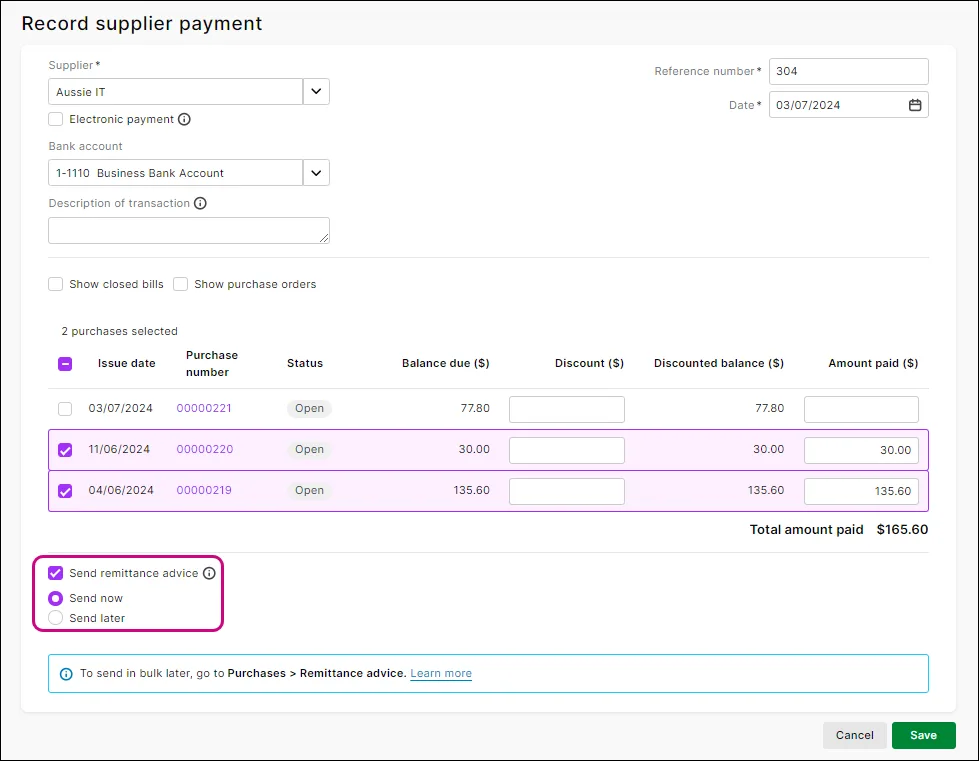
Click Save to record the payment and open the remittance advice.
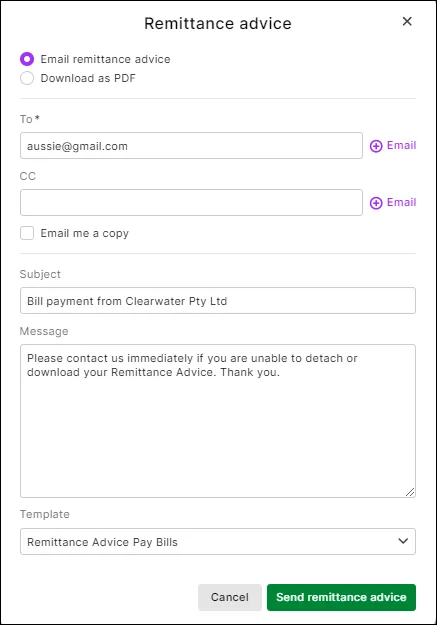
If you want to download a PDF of the remittance advice:
Click Download as PDF.
AccountRight online company file users only: You can choose an AccountRight customised remittance form as your template.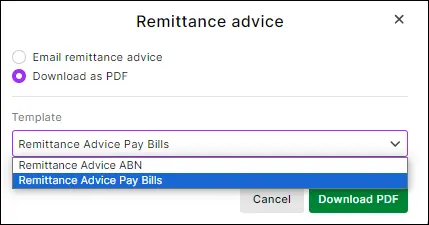
Click Download PDF. The PDF file is downloaded to your computer.
If you want to email the remittance advice, you can:
change the existing email address in the To field
click ⊕Email if you want to send the remittance advice to an additional email address
cc (copy) the email to another email address
click Email me a copy to email a copy of the remittance advice to the email address recorded in your Business settings.
Review the default email subject and message and change them if you want.
AccountRight online company file users only: You can replace the default remittance advice Template by choosing an AccountRight customised remittance form .
Click Send remittance advice to email the remittance advice.


To send a remittance advice later, or in a batch
Enter a payment to a supplier, (need a refresher?). The option, Send remittance advice, will be selected by default.
Click Send later.
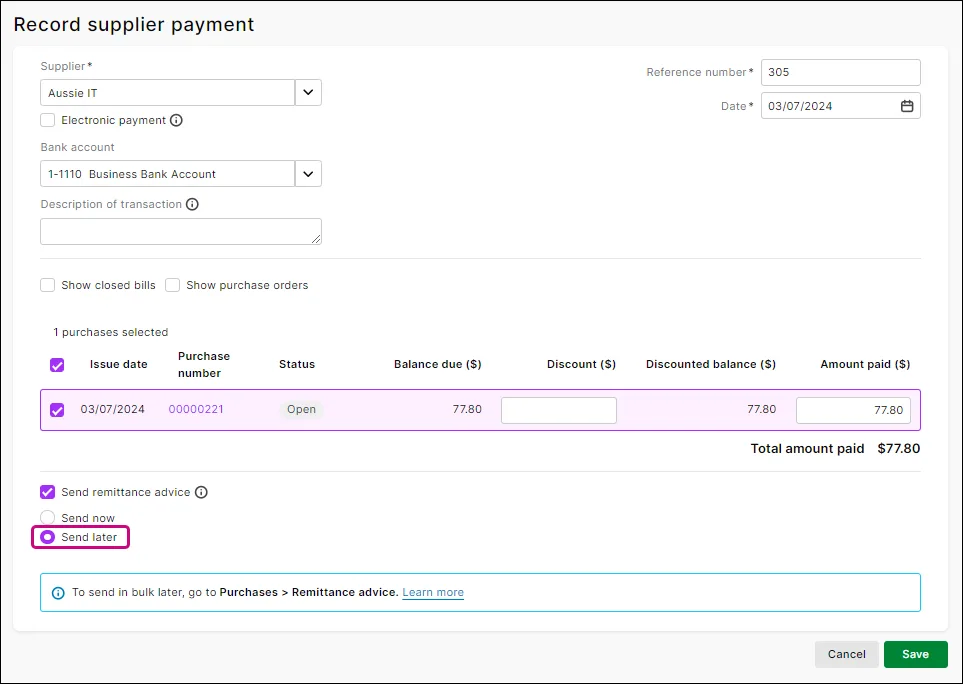
Click Save to record the payment.
Go to the Purchases menu > Remittance advice.
To view the remittance advices you haven't yet emailed or downloaded, choose To do in the Status field.
Choose a Supplier and a date range. If you have a large number of remittance advices you can narrow your search by entering a search term.
Select one or more remittance advices.
If you want to download a PDF of the remittance advice, click Download PDF and choose:
Use default template to use the default remittance advice template. The remittance advice is downloaded to your computer.
AccountRight online company file users only Select template to choose an AccountRight customised remittance form as your template. Choose your template and click Download PDF.
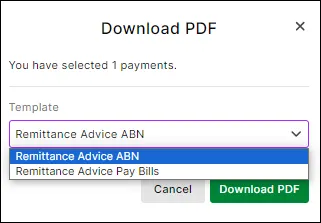
The PDF file is downloaded to your computer in a zip file — just double-click the file to open it. The remittance advice is removed from the To do view of the Remittance advice page. You can still view, download or email the remittance advice again by choosing Done in the Status field.
If you want to email the remittance advice, you can:
Review the default email subject and message and change them if you want.
AccountRight online company file users only: You can replace the default remittance advice Template by choosing an AccountRight customised remittance form .
Click Send remittance to email the remittance advice.


To re-send or download a remittance advice
Go to the Purchases menu > Remittance advice.
Choose Done in the Status field.
Choose a Supplier and a date range. If you have a large number of remittance advices you can narrow your search by entering a search term.
Select one or more remittance advices.
If you want to download a PDF of the remittance advice, click Download PDF and choose:
Use default template to use the default remittance advice template. The remittance advice is downloaded to your computer.
AccountRight online company file users only Select template to choose an AccountRight customised remittance form as your template. Choose your template and click Download PDF.
The PDF file is downloaded to your computer in a zip file — just double-click the file to open it. The remittance advice is removed from the To do view of the Remittance advice page. You can still view, download or email the remittance advice again by choosing Done in the Status field.
If you want to email the remittance advice, you can:
Review the default email subject and message and change them if you want.
AccountRight online company file users only: You can replace the default remittance advice Template by choosing an AccountRight customised remittance form .
Click Send remittance to email the remittance advice.
Changing your remittance advice message
MYOB comes with a default remittance advice email subject and message. To see this, go to the settings menu (⚙️) > Purchases settings page > Email defaults tab:

You can change this if you want. More about Purchase settings.
FAQs
Can I email remittances to multiple suppliers in a batch?
Yes, see the steps in 'To send a remittance advice later, or in a batch', above.
How do I remove a remittance advice from the To do list?
On the Remittance advice page, select one or more remittance advices and click Mark as done.

The remittance advice is moved from the To do view of the Remittance advice page (but still viewable if you change the Status to Done).
Can I create a new remittance advice template?
No, but if you are an AccountRight user, you can create a new AccountRight customised remittance form in your installed AccountRight software and this will be available as a remittance advice template when you're working in a web browser.
A remittance advice is a document sent to a supplier to let them know you've paid them.
In AccountRight you can print a remittance advice when recording a supplier payment. Or, you can print or email remittance advices later, in a batch. Once you've set up AccountRight to send emails, you're good to go.
Remittance advices are generated using the form you choose at the time of emailing or printing, and you can personalise this form to suit your business needs.
You can also set a supplier's preferred method for receiving their remittance advices, or set this when recording a payment.
To set a supplier's delivery preference
Go to the Card File command centre and click Cards List.
Click the Supplier tab.
Click the zoom arrow to open the supplier's card.
Click the Payment Details tab.
Select the Remittance Advice Delivery Status.
If you choose To Be Emailed or To Be Printed and Emailed, the supplier's email address will appear (if it has been recorded on the Profile tab of the supplier's card). The email address can also be changed here should you need to send the supplier's remittance advices to a different email address.
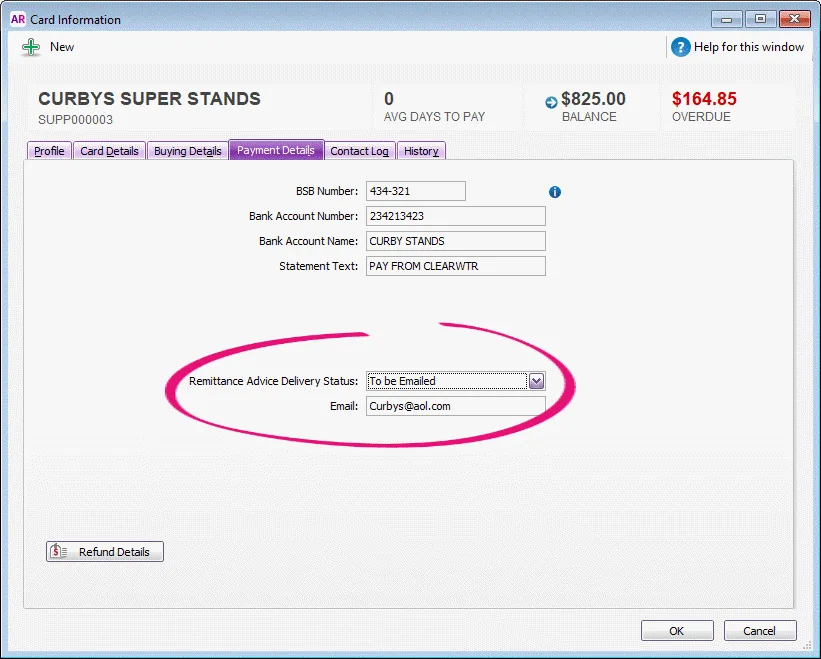
Click OK.

The default delivery status is now set for the supplier's remittance advices, but it can still be changed when recording a supplier payment.

Check your suppliers' remittance advice delivery preference by running the Card List [Detail] report for your suppliers (Reports > Index to Reports > Card > Card List [Detail]). After displaying the report, click Show/Hide (on the Insert/Modify tab) to add the Remittance Method column to your report. Learn more about customising reports.
To print a remittance advice when making a payment
When recording a Pay Bills or Spend Money transaction, click Print to preview or print the remittance advice.

The transaction will be recorded before the remittance advice is previewed or printed.
Send remittance advices - (Desktop)
Instead of printing each remittance advice when you record it, you can print or email them later, in a batch. Remittance advices will be waiting to be printed and/or emailed based on what you choose for the Remittance Advice Delivery Status when paying a bill. If needed you can change this preference at any time on a bill.

To print or email your remittance advices:
Go to the Purchases command centre and click Print/Email Remittance Advices.
Click the To Be Printed or To Be Emailed tab.
(Optional) Select the Payment Type to show only Pay Bills, Spend Money or Credit Refund payments. The remittance advices waiting to be printed or emailed will be listed.
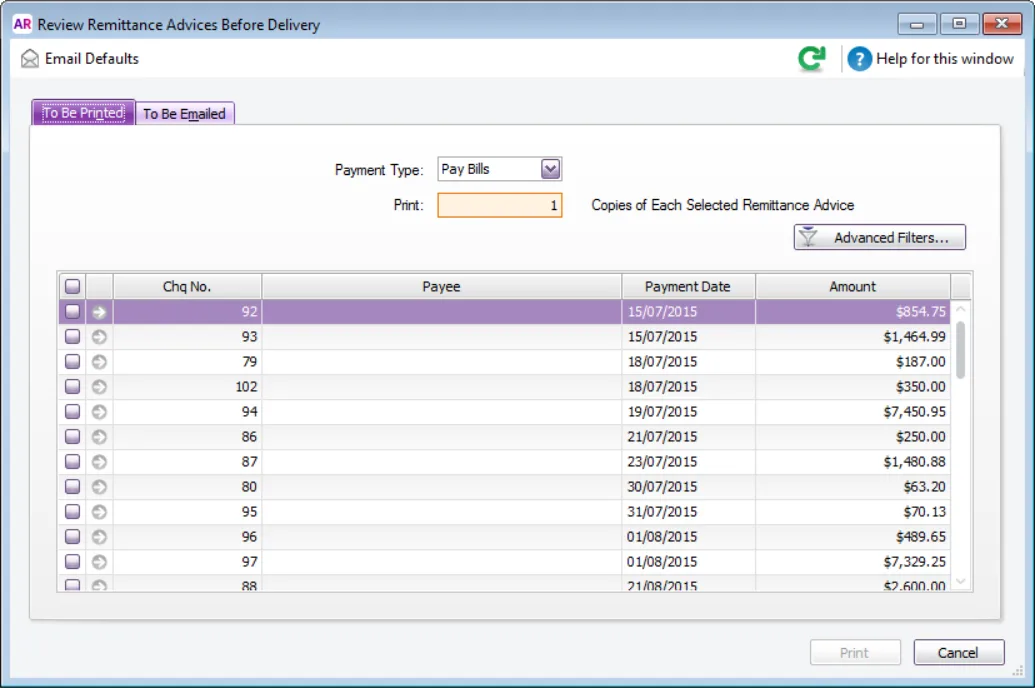
If you want to view the details of a transaction, click the zoom arrow ( ) next to it.
-
Can't find a remittance advice?
-
Check you've selected the correct Payment type (see step 3 above). Also, the remittance advice might have already been printed or emailed. So click Advanced Filters and deselect the option Unprinted or Unsent Remittance Advices Only then click OK. You may need to select other filters in the Advanced Filters window to find the specific remittance advice you want.
-
If you want to change the form template to be used for the remittance advices, or filter the list of remittance advices, click Advanced Filters. For more information, see Advanced batch filters.
If you're printing remittance advices:
Select the remittance advice you'd like to print.
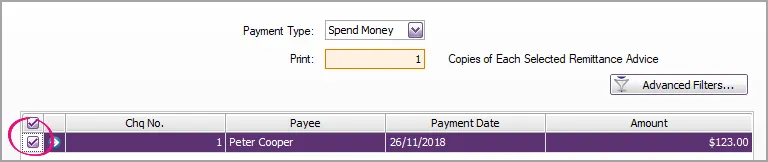
Type the number of copies you want to print in the Print field.
Click Print. The remittance advices will be sent to your printer.
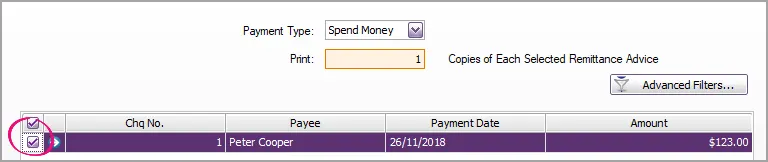
If you're emailing remittance advices:
If you want to change a recipient’s email address, type the address in the Email Address field. You can enter multiple email addresses, separated by semi-colons (;).
Enter the email Subject and Message or accept the default subject and message. Learn how to change the default details.
Select the remittance advice you'd like to email.
Click Send Email. The remittance advices will be emailed as PDF attachments.


To set the default remittance advice form
AccountRight has 3 default remittance advice forms, one for each payment type (pay bills, spend money or credit refunds).
If you've customised a remittance advice form and want to set it as the default for a payment type, here's how:
Go to the Purchases command centre and click Print/Email Remittance Advices.
Click Advanced Filters.
Choose the Payment Type.
Choose your customised form as the Selected Form for Remittance Advices.
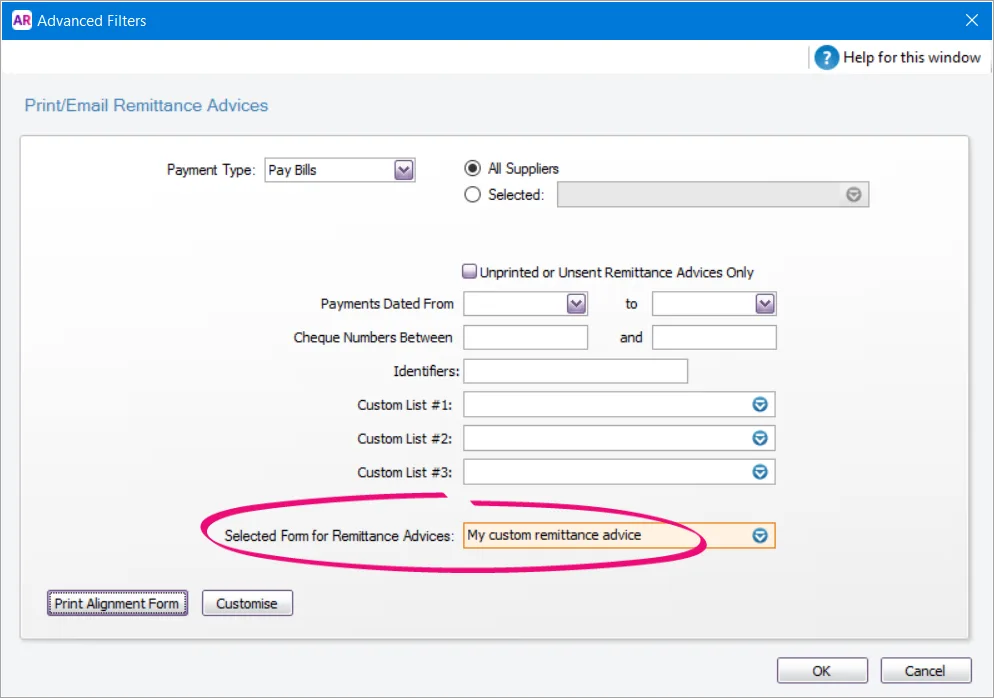
Click OK.

The selected form wiill now be used when printing or emailing remittance advices for that payment type.
FAQs
How do I remove a remittance advice from the print or email queue?
If it's just one or two remittance advices you need to remove, open the associated payment (open the bill, click History then open the payment transaction). You can then change the Delivery Status to Already Printed or Sent.

If there are lots of remittance advices you want to remove, see Removing transactions from the print or email queue.
How do reprint or resend a remittance advice?
If you've already printed or emailed a remittance advice, here's how you can do it again:
Go to the Purchases command centre and click Print/Email Remittance Advices.
Click the To Be Printed or To Be Emailed tab.
Click Advanced Filters.
Deselect the option Unprinted or Unsent Remittance Advices Only.
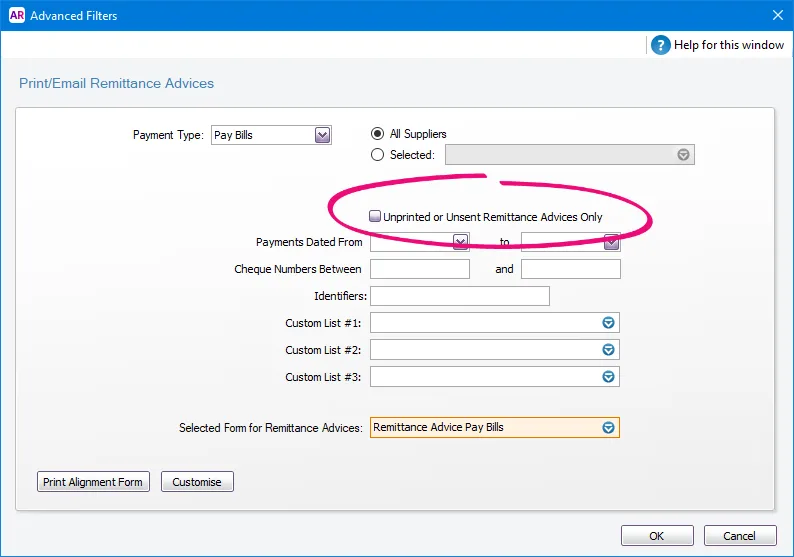
Click OK. Previously printed or emailed remittance advices will be included in the list.
Select the remittance advices to be reprinted or resent. See the information above for more filtering options.
Click Print or Send Email.
