If an employee wants to sacrifice some of their pay to go to their super fund, this will be a before tax deduction. If they want money deducted from their net (after tax) pay for super, see Additional superannuation contributions.
Salary sacrifice payments are in addition to the compulsory superannuation guarantee contributions you make on their behalf. The amount being sacrificed can be a set amount, or it can vary each pay.
If you need more information, the ATO website has some great info on the ins-and-outs of salary sacrificing super.
Here's how to set up a salary sacrifice pay item, then what it looks like being used in a pay.
Setting up salary sacrifice for superannuation
Pay items are the earnings and deductions on top of an employee's regular salary or wages. Here's how to set up a pay item for salary sacrifice deductions:
From the Payroll menu, choose Pay items.
Click the Superannuation tab.
Click to open the Salary Sacrifice pay item. If this doesn't exist:
Click Create super pay item.
Enter a Name for the pay item.
From the Contribution type list, choose Salary sacrifice (deduction).
Select the applicable Linked Payable Account.
Assign the ATO reporting category for Single Touch Payroll reporting.
Set the Calculation basis for the super deduction. The calculation basis determines what other fields then appear.
If the salary sacrifice amount is:an amount you specify each time you do a pay, or a one-off lump sum, choose User entered amount per pay. When you do a pay run, you need to enter the salary sacrifice amount against the salary sacrifice pay item.
a fixed %, choose Equals a percentage of wages and enter the Percentage. Choose what pay item the salary sacrifice will be a percentage of. If you want, you can exclude an amount of the pay item from the super calculation.
a fixed $ amount, choose Equals dollars per pay period and enter the Dollar amount. In the Per field, choose how frequently this amount will be deducted.
If you want, you can also:
limit the amount sacrificed per pay (either a percentage or dollar amount), or choose No limit.
set a wages Threshold amount that must be exceeded before the salary sacrifice is deducted
Under Employees using this pay item, click the dropdown arrow to choose the employees to assign this pay item.
Under Exemptions, choose any pay items to be excluded when calculating the salary sacrifice (for the Equals a percentage of wages calculation basis only).
Click Save.
Here's our example pay item:

The salary sacrifice will now appear when paying the employee as shown in the next task. If you need to re-use this pay item, you can assign it to other employees.
Processing a pay with salary sacrifice
When you pay an employee who's salary sacrificing superannuation, the salary sacrifice pay item will appear on their pay. Need a refresher on processing pays?
Start the pay run as normal.
If required, enter or change the amount being salary sacrificed. For example, if you chose User entered amount per pay as the calculation basis when you set up the salary sacrifice pay item, you need to enter an amount for it.
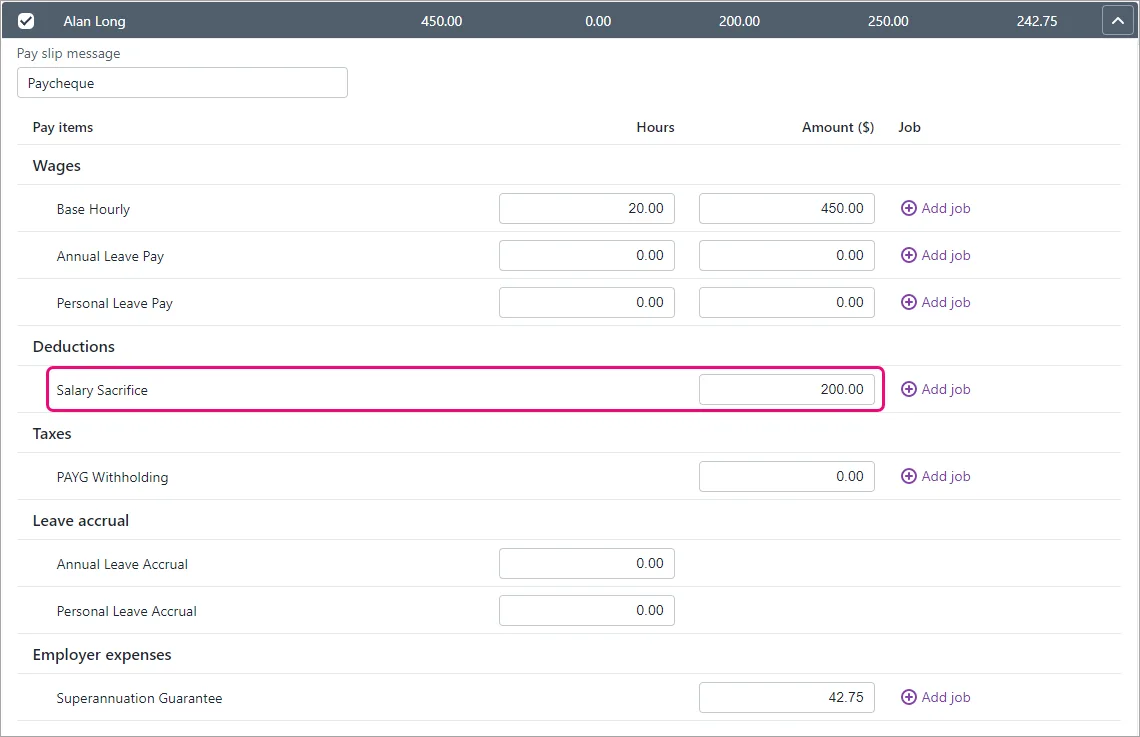
Finish processing the pay as normal.

FAQs
What if I have employees who want to salary sacrifice different amounts?
Alan wants to salary sacrifice $200, but Steven wants to sacrifice $150.
Here's how to do it:
Set up the salary sacrifice superannuation pay item with the Calculation basis set to User entered amount per pay.
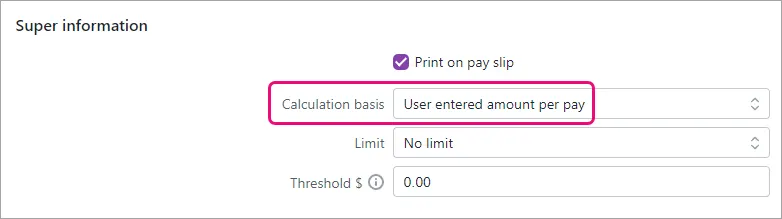
Assign this pay item to both employees.

Open the employee's record and click the Payroll details tab (Payroll menu > Employees > click the employee > Payroll details tab).
Click Standard pay and enter the amount of super to be deducted for this employee next to the Salary Sacrifice pay item.
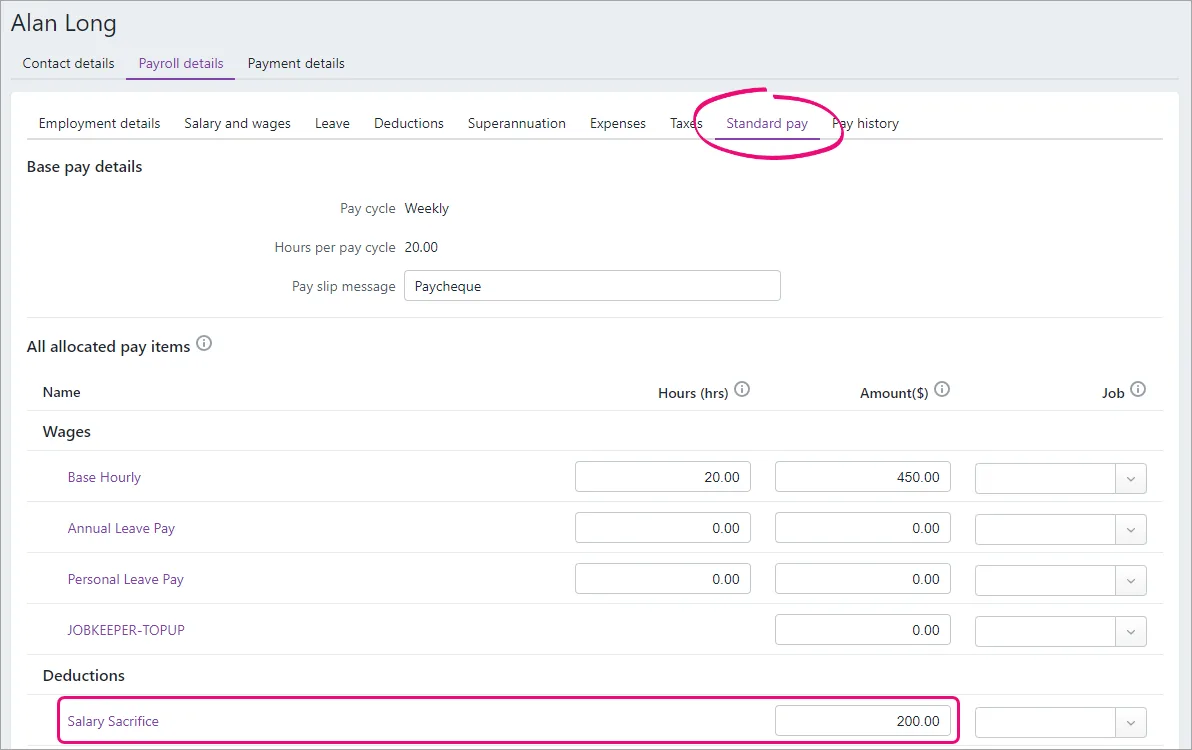
Click Save.
Repeat steps 3 - 5 for the other employee to enter their salary sacrifice amount.


Different amounts for different employees
If one employee wants to sacrifice a fixed amount but another wants to sacrifice a percentage, you'll need to set up separate superannuation pay items for them.
What if an employee wants to salary sacrifice a one-off lump sum payment?
Mary wants to salary sacrifice a one-off payment of $200.
Here's how to do it:
Set up the salary sacrifice superannuation pay item (as shown above) and choose the Calculation basis of User entered amount per pay. This allows you to enter the amount when you pay the employee.
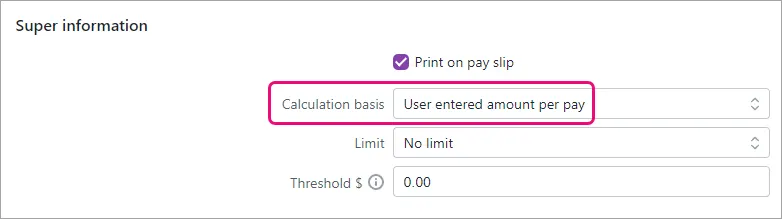
When you pay the employee, enter the one-off lump sum payment against the salary sacrifice pay item.
Here's an example: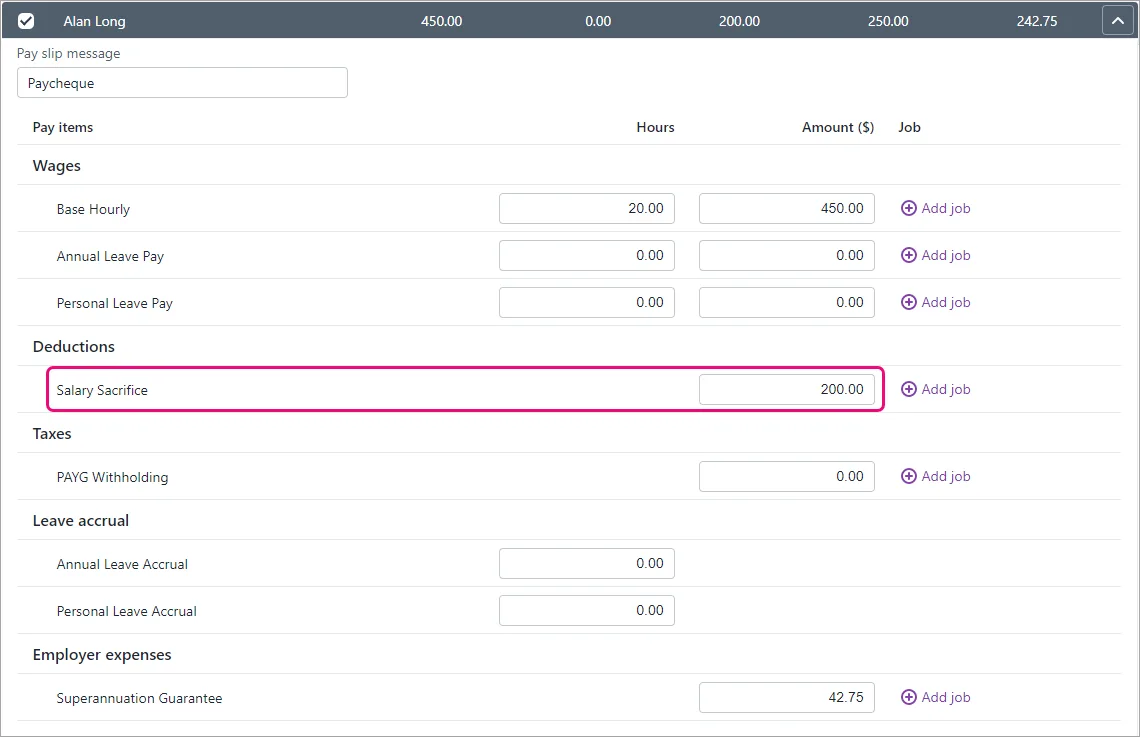
Finish processing the pay as normal. Need a refresher?


After making this one-off payment, you can remove the salary sacrifice pay item from the employee. This prevents it showing in their future pay runs.
Just go to the Payroll menu > Employees and click to open the employee's record. Click the Payroll details tab > Superannuation tab then click the delete icon to remove the salary sacrifice pay item. Now click Save.
AccountRight Plus and Premier only
You can set up salary sacrifice payments for employees who want to make additional superannuation contributions each pay. These payments are deducted from the employee's gross pay and will be on top of the compulsory superannuation contributions you make on their behalf.
The amount being sacrificed each pay will be either:
a fixed % of the employee's pay, or
a fixed $ amount.
Need more info?
The ATO website has some great info on the ins-and-outs of salary sacrificing super.
Below are the steps for setting up a salary sacrifice superannuation payroll category. If you need to set up employee additional or employer additional super contributions, see Additional superannuation contributions. Also, if you want to set up a salary sacrifice for something other than super, see Salary sacrificing.
Setting up salary sacrifice for superannuation
Go to the Payroll command centre and click Payroll Categories.
Click the Superannuation tab.
Click the zoom arrow to open the Salary Sacrifice category. If this category doesn't exist or you want to create a new one, click New to create it.
Use a customised name
You can include additional information in the category name to make it easier to identify, for example Salary Sacrifice 10% - Alan Long.
Choose the applicable Linked Payable Account.
Choose the applicable ATO Reporting Category. According to the ATO, super salary sacrifice deductions are reportable employer superannuation contributions (RESC). If unsure which ATO reporting category to choose, check with the ATO or your accounting advisor. For more information on ATO reporting categories, see Assign ATO reporting categories for Single Touch Payroll reporting.
If you're creating a new superannuation category, ensure the Contribution Type is set to Salary Sacrifice (deduction). This will ensure the deduction is made from pre-taxed earnings. Learn more about other types of Additional superannuation contributions.
Set the Calculation Basis. If the salary sacrifice is for:
a fixed % - Select the first Equals option and specify the Percentage of Gross Wages to be sacrificed.
Example:
If you need to salary sacrifice different percentages for different employees, you'll need to create a separate salary sacrifice superannuation category for each employee.
a fixed $ amount - Select the second Equals option and specify the Dollars per Pay Period to be sacrificed.
Example:
Making a one-off payment?
Select the option User - Entered Amount per Pay Period so you can enter the amount on their pay. See the FAQ below for more details.
Click Employee and select the employee who's sacrificing these payments.
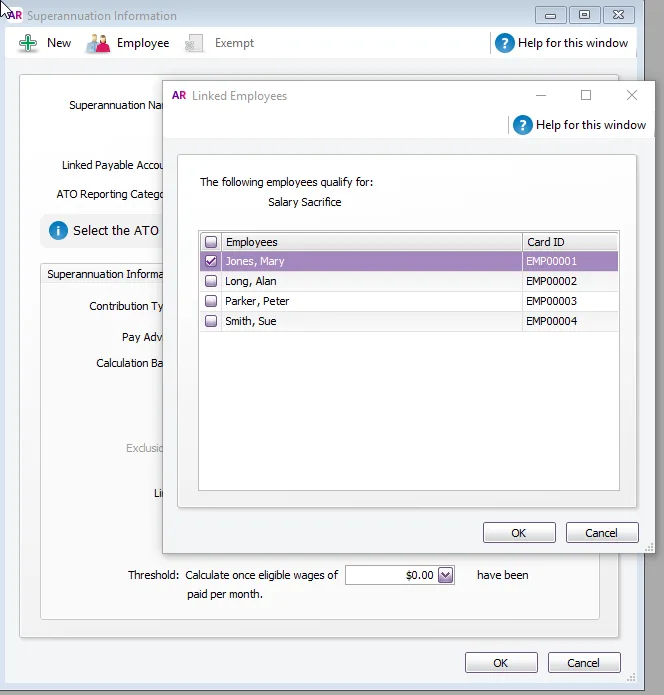
If you're setting up a fixed % salary sacrifice and there are wage categories you want to exempt from the salary sacrifice calculation, for example overtime, click Exempt and select these categories. Check with your accounting advisor or the ATO for clarification.
Click OK to save the salary sacrifice category.


Processing a pay with salary sacrifice
When you pay an employee who's salary sacrificing superannuation, the salary sacrifice payroll category will appear on their pay. Need a refresher on processing pays?
Start the pay run as normal.
If required, enter or change the amount being salary sacrificed. For example, if you chose User entered amount per pay as the calculation basis when you set up the salary sacrifice pay item, you need to enter an amount for it.
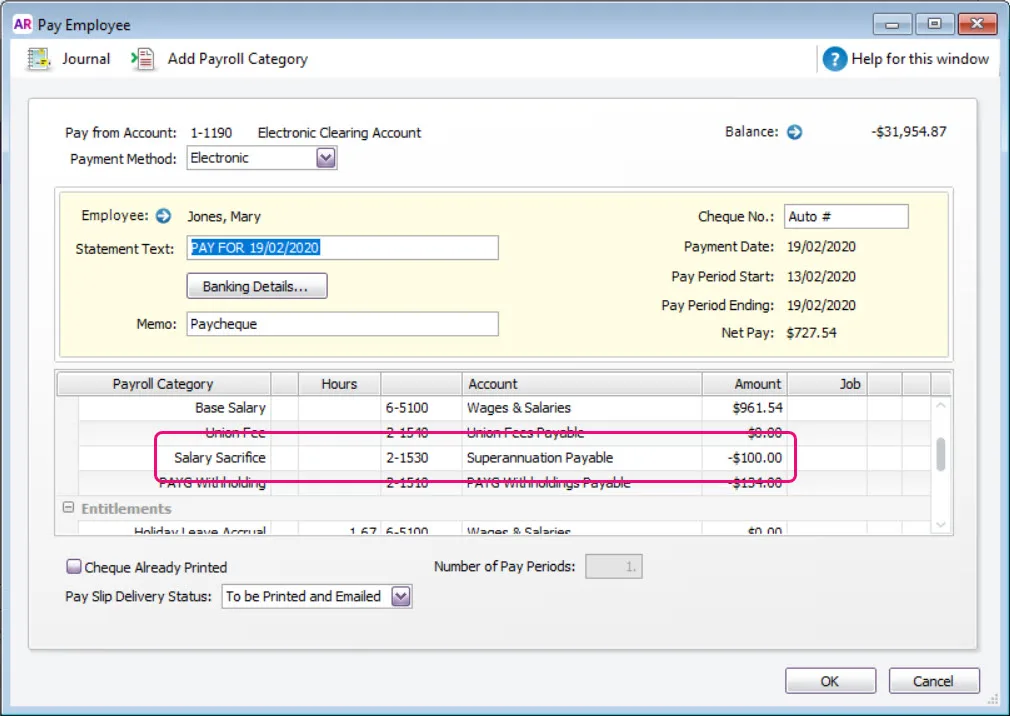
Finish processing the pay as normal.

FAQs
What if I have employees who want to salary sacrifice different amounts?
Alan wants to salary sacrifice $200, but Steven wants to sacrifice $150.
Here's how to do it:
Set up the salary sacrifice superannuation category with the CalculationBasis set to User - Entered Amount per Pay Period.

Open the employee's card and click the Payroll Details tab.
Click Standard Pay and specify the amount of super to be deducted for this employee next to the Salary Sacrifice category. Remember to enter this as a negative value. Here's an example:
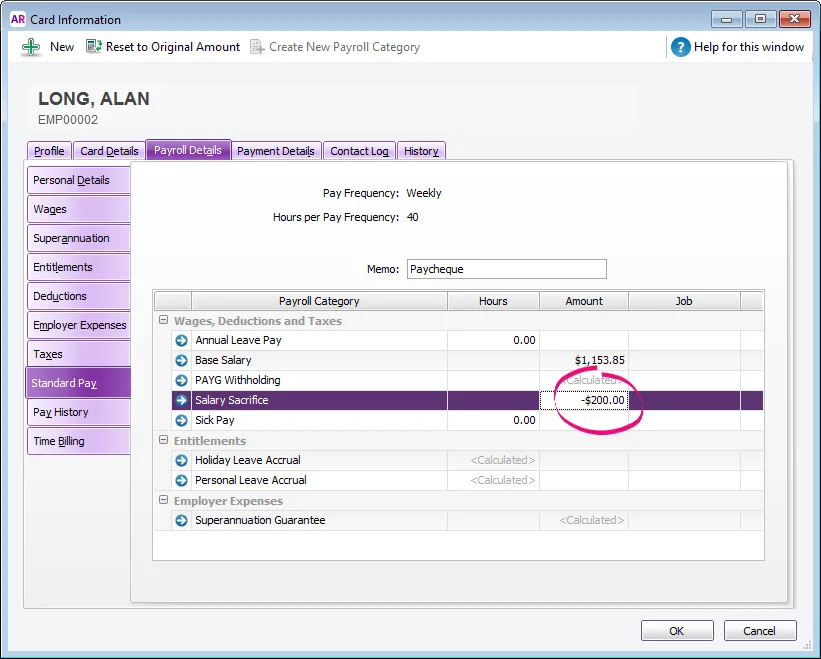
Click OK.
Repeat steps 2 - 4 for each employee who wants to salary sacrifice a different amount.


Different amounts for different employees
If an employee wants to sacrifice a fixed amount but another employee wants to sacrifice a percentage, you'll need to set up separate superannuation payroll categories for them.
What if an employee wants to salary sacrifice a one-off lump sum payment?
Mary wants to salary sacrifice a one-off payment of $100.
Here's how to do it:
Set up the salary sacrifice superannuation category (as shown above) but choose the Calculation Basis of User - Entered Amount per Pay Period. This allows you to enter the amount when you pay the employee.
When you pay the employee, enter the one-off lump sum payment against the salary sacrifice category.
Here's an example: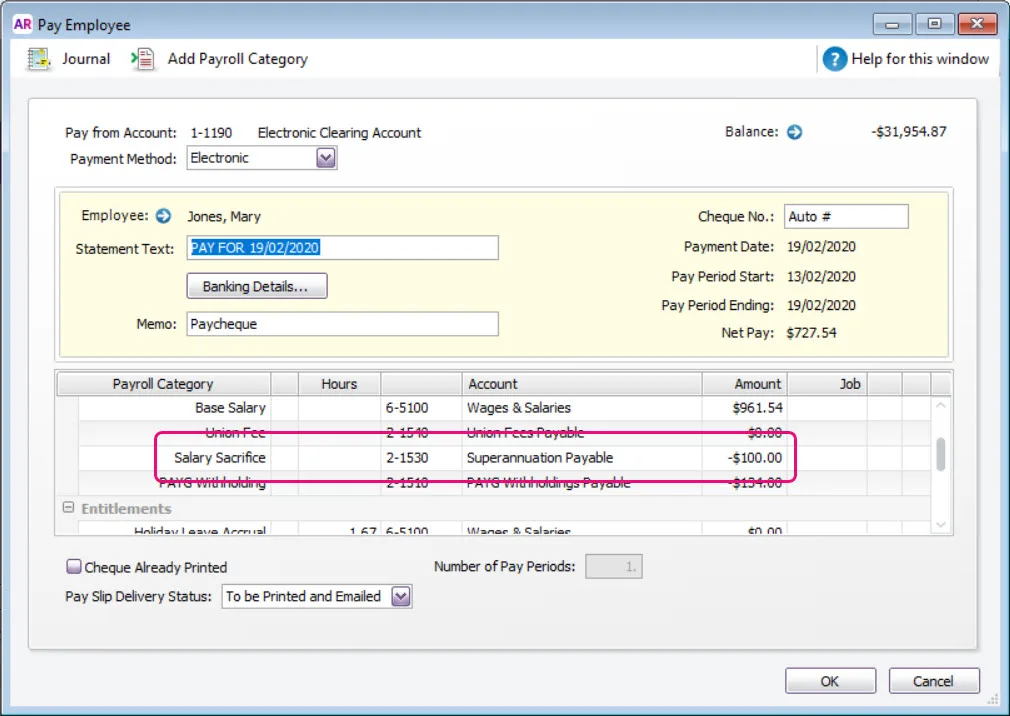
Click OK and finish the pay as normal. Need a refresher?

After making this one-off payment, you can remove the salary sacrifice payroll category from the employee. This prevents it showing in their future pay runs.
Just go to the Card File command centre > Cards List > Employee tab and click to open the employee's card. Click the Payroll Details tab > Superannuation tab then click to deselect the salary sacrifice payroll category. Now click OK.
Why is my salary sacrifice calculating incorrectly?
If you have set up Salary Sacrifice to use a fixed percentage, the calculation will look at the total pay for the month and work out the amount to sacrifice. So, if your salary sacrifice is set up mid-month there may be previous pay amounts used in the calculation.
In these cases, manually enter the correct salary sacrifice amount when recording your pays. The following month the calculation will correct.
How do I delete a super salary sacrifice payroll category?
You can only delete a superannuation category if it hasn't been used in an employee's pay.
Go to the Lists menu and choose Payroll Categories.
Click the Superannuation tab.
Click the zoom arrow to open the superannuation category to be deleted. The Superannuation Information window for that category appears.
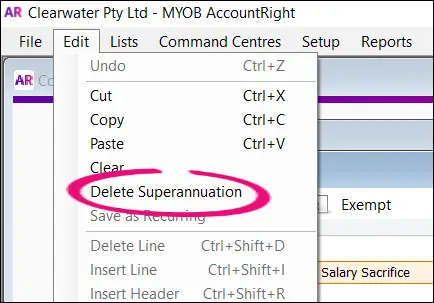
Go to the Edit menu and choose Delete Superannuation.