Payday Super is coming 1 July 2026 - find out how to get ready and stay compliant.
Key points
-
The minimum super guarantee rate is currently 12%. Find out how to automatically stay compliant.
-
Pay your employees' super guarantee contributions at least four times a year, by the quarterly due dates. Learn how to make super payments.
-
Simplify your super payments by setting up Pay Super.
-
Additional contributions such as salary sacrifice may be classified as reportable super contributions. Check the ATO website to work out if a contribution is reportable.
-
Check the ATO website to learn more about super, for help working out if you need to pay super, and for a list of payments counted as salary and wages for super guarantee purposes.
The mandatory superannuation you need to pay on top of your employees' wages is called the Superannuation Guarantee and it's currently 12% of an employee’s ordinary time earnings.
If you need to pay more than this minimum rate, see Additional superannuation contributions.
Super not calculating correctly? See Checking and adjusting superannuation.
Setting up super in MYOB
There are a few things you need to set up before you can pay your employees' super contributions:
Set up Pay Super – make payments directly to your employee's super funds straight from MYOB Business. This service is included with your MYOB subscription.
Add your employees' super funds – add the standard and self-managed super funds that your employees belong to. You can then assign those funds to your employees, and make payments to those funds.
Set your business's default super fund – this is the fund that new employees may choose to use when they start working for you. Go to the settings menu (⚙️) and choose Payroll settings > Default Superannuation Fund. For more details see the ATO guidelines.
Superannuation in your employees' pays
When you pay your employees, you want to know their super contributions are calculated correctly.
To help make sure this happens, MYOB comes with a set of superannuation pay items that are used for calculating and paying different kinds of super payments. Most employees are typically entitled to superannuation guarantee contributions, so there's a Superannuation Guarantee pay item which you can assign to them. Which employees are entitled to super?
Similarly, if an employee wants to make additional super contributions via salary sacrifice, there is a pay item you can use for that.
To view the superannuation pay items, go to the Payroll menu and choose Pay items then click the Superannuation tab.

These superannuation pay items can be set up to suit your needs, or you can create new ones.
Single Touch Payroll
Don't forget to choose the ATO reporting category for each superannuation pay item you use. This ensures the super is reported correctly to the ATO. If unsure, check with your accounting advisor or the ATO.
Learn more about assigning ATO reporting categories for Single Touch Payroll reporting.
Assigning the superannuation guarantee pay item to an employee
Go to the Payroll menu and choose Pay items.
Click the Superannuation tab.
Click to open the Superannuation Guarantee pay item.
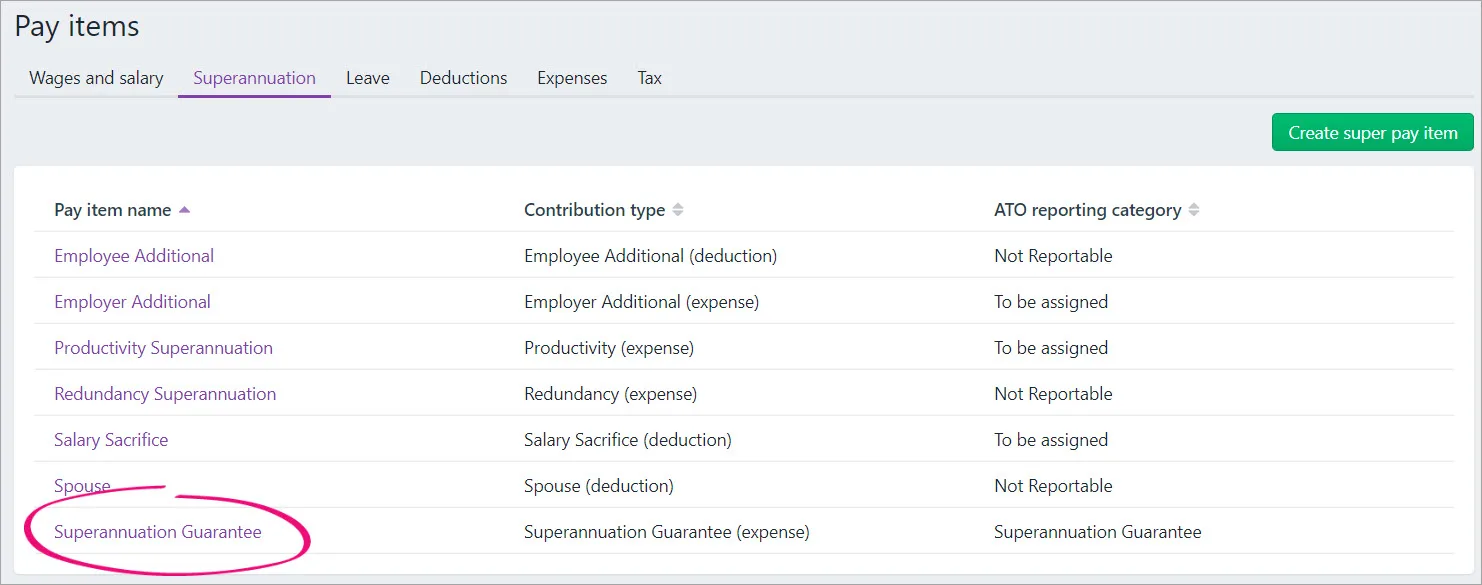
The details of the Superannuation Guarantee pay item are displayed.
Under Allocate employees, choose the employees who are entitled to super guarantee contributions.
Click Save.

If you want to check the setup of the Superannuation Guarantee pay item, see Setting up a superannuation pay item below.
Setting up a superannuation pay item
If the superannuation pay items that come with MYOB don't suit your needs, you can create new ones.
Go to the Payroll menu and choose Pay items.
Click the Superannuation tab
Click Create super pay item.
In the Details sectionEnter a Name for the pay item.
Choose the Contribution type.
Employee additional (deduction) - the contribution will be deducted from the employee's net pay (see Additional superannuation contributions)
Employer additional (expense) - the contribution will be paid by the employer in addition to gross pay (see Additional superannuation contributions)
Productivity (expense) - the contribution will be paid by the employer in addition to gross pay
Redundancy (expense) - the contribution will be paid by the employer in addition to gross pay
Salary sacrifice (deduction) - the contribution will be deducted from the employee's gross pay (see Setting up salary sacrifice superannuation)
Spouse (deduction) - the contribution will be deducted from the employee's net pay
Superannuation guarantee (expense) - the contribution will be paid by the employer in addition to gross pay.
Choose the Linked expense category. This is the category to which you allocate employer expense superannuation pay items.
We recommend you create an expense category called Superannuation Expense and select it as the linked expense category.Choose a Linked payable category. This is the liability category to which the superannuation amounts are allocated each time you do a pay run.
We recommend you create a liability category called Superannuation Liability and select it as the linked payable category.Choose the ATO reporting category for this super pay item. Learn more about assigning ATO reporting categories for Single Touch Payroll.
Helping you stay compliant with ATO super reporting
The ATO reporting category for superannuation pay items with a contribution type of Superannuation guarantee (expense) will be automatically set to Superannuation guarantee.
In the Super information section
(Optional) Select the option Print on pay slip if you want amounts for this super pay item to be shown on pay slips.
Choose the Calculation basis.
Minimum required rate—this option is chosen by default as it's the easiest way to stay compliant with super rate changes. This option means MYOB will automatically calculate the correct amount of super for your employees based on the Date of payment in the pay run. For example, if the date of payment is 1 July 2025 or later, a super guarantee rate of 12% is used. Learn more about staying compliant with super guarantee rate increases.
User entered amount per pay—allows you to enter an amount at the time the pay is processed each pay period. Choose this option if the amount varies regularly or if you want to set a specific amount per employee in their standard pay.
Equals a percentage of wages—allows you to enter a percentage of a pay item (such as a wage, deduction or superannuation) or a percentage of all wage pay items (by choosing Gross Wages or Federal Wages). The superannuation will be calculated until the limit is reached.
Equals dollars per pay period—allows you to enter a specified amount per pay period, per hour, per month or per year until the specified limit is reached.
Enter any applicable Exclusions to exclude an initial amount of eligible wages before this super will calculate.
Choose the Limit. Superannuation limits can be used to place a ceiling on the superannuation calculation.
For example, for an Employee Additional superannuation deduction of $30 per pay period and a limit of 2% of gross wages, a pay with gross wages of $1000 yields superannuation of only $20 (i.e. 2%).
Limit can be one of the following three choices:
No limit signifies no limit to the superannuation calculated for this pay item.
Equals a percentage of wages results in the maximum superannuation calculated being a percentage of wage, deduction or superannuation pay items. For example, an Employer Additional superannuation contribution might be $20 per pay period, but this should not exceed a maximum of 20% of the employee’s base salary.
Equals dollars per pay period results in the maximum superannuation calculated being a fixed amount per pay period, per hour, per month or per year. For example, a Salary Sacrifice superannuation might be 5% of the employee’s gross wages up to $1000 per year.
In the Allocate employees section
Choose the employees to be assigned this super pay item. To remove an employee, click the delete icon for that employee.
In the Exemptions sectionChoose all wage pay items that should not accrue this superannuation. If you're not sure, check with your accounting advisor or the ATO.
When you're done, click Save.
Deleting a superannuation pay item
You can only delete a superannuation pay item if it hasn't been used in an employee's pay.
Go to the Payroll menu and choose Pay items.
Click the Superannuation tab.
Click to open the superannuation pay item to be deleted.
Click Delete.
At the confirmation message, click Delete.
Preventing super from calculating on a wage pay item
There are some payments that are not included in an employee's Ordinary Time Earnings (OTE). You don't need to pay superannuation guarantee contributions on those payments. To see which payments are included in OTE, check the ATO guidelines.
If a superannuation pay item is set up to calculate as a percentage (the Calculation basis is set to Equals a percentage of wages), it can be exempted from calculating on a wage pay item. For example, you might have an allowance that doesn't accrue super.
When you set up a new wage pay item, there's an option to prevent super guarantee from calculating on that pay item. Or you can set this in the super pay item as described below.

To prevent super calculating on a wage pay item
Go to the Payroll menu and choose Pay items.
Click the Superannuation tab.
Click to open the superannuation pay item which shouldn't be calculated on the wage pay item.
Under Exemptions, choose all wage pay items to be excluded from calculating this type of super. If you can't choose any wage pay items, it means the Calculation basis for the super pay item isn't set to Equals a percentage of wages, so you can't prevent it from calculating on wages.
Click Save.
Learn more about wage pay items.
FAQs
What is "Your Future, Your Super"?
'Your Future, Your Super' (YFYS) legislation applied from 1 November 2021 and it ensures an employee's existing super fund is "stapled" to them. And it's not as painful as it sounds.
In a nutshell, if a new employee has already contributed to a super fund, that super fund may follow them from one job to the next.
Under YFYS, you'll need to request a new employee's stapled super fund from the ATO if:
you need to make super guarantee payments for that employee, and
the employee is eligible to choose a super fund, but doesn’t.

If your employee has self-onboarded (by you sending a request for their details), they'll actively choose a super fund so you won't need to request anything from the ATO.
If an employee chooses to use your default super fund, you'll need to contact the fund to obtain a membership number for the employee. You can then enter their membership number into their employee record (Payroll > Employees > open the employee's record > Payroll details tab > Superannuation tab).
To learn more, check out these resources:
Employee onboarding and the ATO's 'Your Future, Your Super' legislation (MYOB Academy free online training)
Your Future, Your Super (Australian Treasury Department)
Requesting stapled super fund details for employees (Australian Taxation Office).
How do I set my business's default super fund?
You need to specify your business's default super fund that your employees' may choose to use when they start working for you.
To set this fund, go to the settings menu (⚙️) and choose Payroll settings > Default Superannuation Fund. To learn more about selecting your default super fund, visit the ATO website.
An employee can choose a different fund which you can specify when adding the employee to MYOB.
If an employee chooses to use your default super fund, you'll need to contact the fund to obtain a membership number for the employee. You can then enter their membership number into their employee record (Payroll > Employees > open the employee's record > Payroll details tab > Superannuation tab).
What super rate do I use for pays that span payroll years?
If you've selected the Minimum required rate calculation basis in your super guarantee pay item, the applicable rate will be used based on the Date of payment in the pay run.

For example:
If the Date of payment is June 30 or earlier, a super guarantee rate of 10.5% will apply.
If the Date of payment is July 1 or later, a super guarantee rate of 11% will apply.
This means if the pay period includes dates in June and July, the Date of payment will determine which super rate will be applied.

How do I pay super for a contractor?
To pay super from MYOB you need to process the super payments through payroll. This means to pay super for a contractor you'll need to set up the contractor as an employee to pay their super. Just manually add them as an employee and enter their super details.
If you pay the contractor via invoices they send you, you will also need to set the contractor up as a supplier so you can pay their bills like any other. Then when you process your payroll to pay super for the contractor, only enter the super amount into their pay (and no other amounts). You can then declare the pay to the ATO as part of your STP reporting.
Key points
-
The minimum super guarantee rate is currently 12%. Find out how to automatically stay compliant.
-
Pay super guarantee contributions to your employees' chosen superannuation funds at least four times a year, by the quarterly due dates.
-
Simplify your super payments by setting up Pay Super.
-
See how AccountRight helps you stay compliant with super rate changes.
-
Additional contributions such as salary sacrifice may be classified as reportable super contributions. Check the ATO website for help working out if a contribution is reportable.
-
Check the ATO website to learn more about super, for help working out if you need to pay super, and for a list of payments counted as salary and wages for super guarantee purposes.
The mandatory superannuation you need to pay on top of your employees' wages is called the Superannuation Guarantee and it's currently 12% of an employee’s ordinary time earnings.
If you need to pay more than this minimum rate, see Additional superannuation contributions.
Super not calculating correctly? See Checking and adjusting superannuation.
Setting up super in AccountRight
There are a few things you need to set up before you can pay your employees' super contributions:
Set up Pay Super – make payments directly to your employee's super funds straight from AccountRight. This service is included with your MYOB subscription.
Add your employees' super funds – add the standard and self-managed super funds that your employees belong to. You can then assign those funds to your employees, and make payments to those funds.
Set your business's default super fund – this is the fund that new employees may choose to use when they start working for you. Go to the Setup menu > General Payroll Information > Default Superannuation Fund. For more details see the ATO guidelines.
Superannuation in your employees' pays
When you pay your employees, you want to know their super contributions are calculated correctly.
To help make sure this happens, AccountRight comes with a set of superannuation payroll categories that are used for calculating and paying different kinds of super payments. Most employees are typically entitled to superannuation guarantee contributions, so there's a Superannuation Guarantee payroll category which you can assign to them. Which employees are entitled to super?
Similarly, if an employee wants to make additional super contributions via salary sacrifice, there is a payroll category you can use for that.
To view the superannuation payroll categories, go to the Payroll command centre and click Payroll Categories then click the Superannuation tab.

These superannuation categories can be set up to suit your needs, or you can create new ones.
Single Touch Payroll
Don't forget to select the ATO Reporting Category for each superannuation category you use. If unsure, check with your accounting advisor or the ATO.
Learn more about assigning ATO reporting categories for Single Touch Payroll reporting.
Assigning the super guarantee category to an employee
Go to the Payroll command centre and click Payroll Categories. The Payroll Category List window appears.
Click the Superannuation tab.
Click the zoom arrow to open the Superannuation Guarantee category.
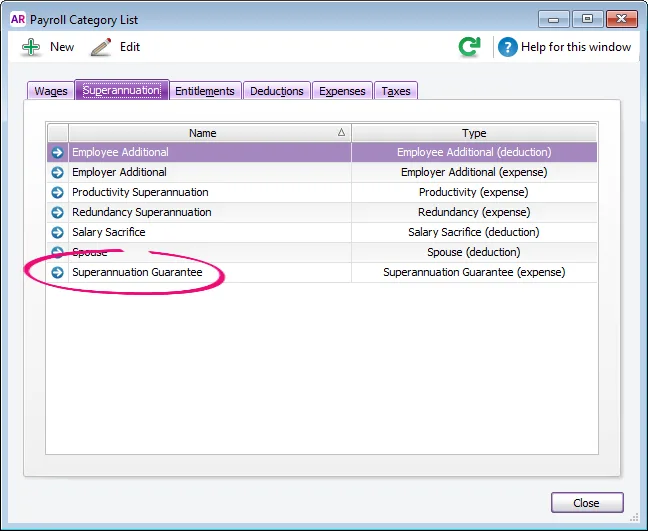
The Superannuation Information window appears.
Click Employee (at the top of the window). The Linked Employees window appears.
Select the employees to be assigned this super category.
Click OK to close the Linked Employees window.
Click OK to close the Superannuation Information window.

If you want to check the setup of the Superannuation Guarantee category, see Setting up a superannuation category below.
Setting up a superannuation category
Go to the Payroll command centre and click Payroll Categories. The Payroll Category List window appears.
Click the Superannuation tab.
If the superannuation category you want to set up already exists, click its zoom arrow to open it. Otherwise, click New and give the category a name.
Make the required selections in the window.
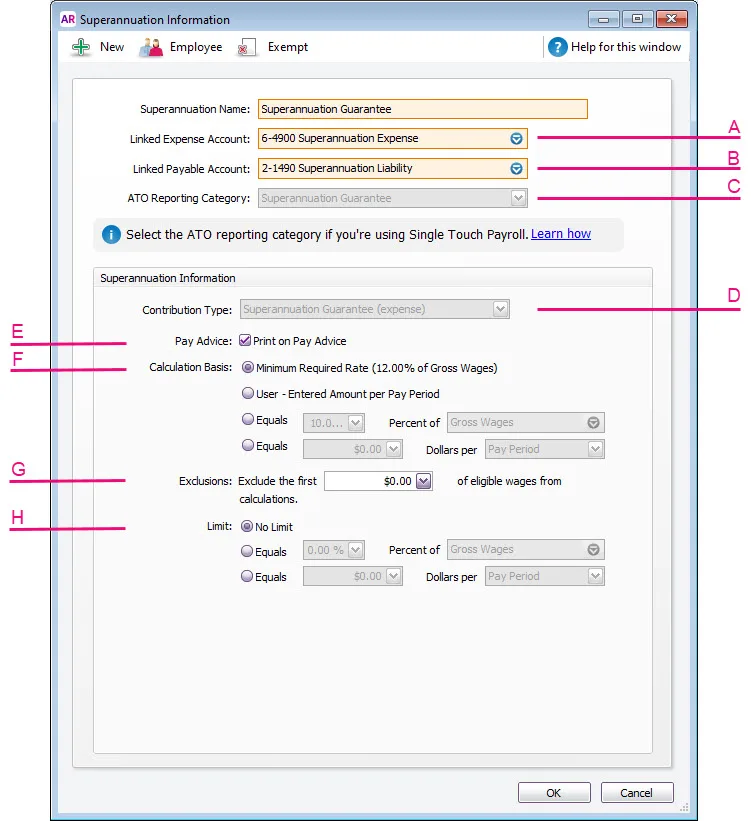
Linked Expense Account is the account to which you charge employer expense superannuation payroll categories. The Default Employer Expense Account you specified when setting up payroll appears as the default.
We recommend you create an expense account called Superannuation Expense and select it as the linked expense account.
(Only applicable for Employer Additional, Productivity Superannuation, Redundancy Superannuation or Superannuation Guarantee category types.)
Linked Payable Account is the liability account to which the superannuation amounts accrue. The Default Tax/Deductions Payable Account you specified when setting up payroll appears as the default.
We recommend you create a liability account called Superannuation Liability and select it as the linked payable account.
For Single Touch Payroll reporting, select the applicable ATO Reporting Category. This field determines what information is sent to the ATO. The selections you can make here depend on the Contribution Type (see D below). Learn more about assigning ATO reporting categories for Single Touch Payroll reporting.
Helping you stay compliant with ATO super reporting
The ATO reporting category for superannuation payroll categories with a contribution type of Superannuation Guarantee (expense) will be automatically set to Superannuation Guarantee.
Select the appropriate Contribution Type from the list.
Employee Additional (deduction) - the contribution is deducted from the employee's net pay (see Additional superannuation contributions)
Employer Additional (expense) - the contribution is paid by the employer in addition to gross pay (see Additional superannuation contributions)
Productivity (expense) - the contribution is paid by the employer in addition to gross pay
Redundancy (expense) - the contribution is paid by the employer in addition to gross pay
Salary Sacrifice (deduction) - the contribution is deducted from the employee's gross pay (see Set up salary sacrifice superannuation)
Spouse (deduction) - the contribution is deducted from the employee's net pay
Superannuation Guarantee (expense) - the contribution is paid by the employer in addition to gross pay.
Once a superannuation category has been created (and saved), the Contribution Type cannot be changed.
If you want the superannuation amount accrued to appear on employees’ pay advice, select the Print on Pay Advice option.
Calculation Basis can be:
Minimum Required Rate – this option is chosen by default as it's the easiest way to stay compliant with super rate changes. AccountRight will automatically calculate the correct amount of super for your employees based on the Payment Date in the pay run. For example if the payment date is 1 July 2025 or later, a super guarantee rate of 12% is used. Learn more about staying compliant with super guarantee rate increases.
User-Entered Amount per Pay Period – allows you to enter an amount at the time the pay is processed each pay period. Choose this option if the amount varies regularly or if you want to set a specific amount per employee in their standard pay.
Equals x Percent of – allows you to enter a percentage of a payroll category (such as wage, deduction or superannuation) or a percentage of all wage categories (by choosing Gross Wages or Federal Wages). The superannuation will be calculated until the limit is reached.
Equals x Dollars per – allows you to enter a specified amount per pay period, per hour, per month or per year until the specified limit is reached.
In the Exclusions field type the amount by which the eligible wage is reduced before the superannuation is calculated.
For example, an employee with a gross wage of $1000 per month and an exclusion of $100 will have the superannuation calculated only on $900.
Superannuation limits can be used to place a ceiling on the superannuation calculation.
For example, for an Employee Additional superannuation deduction of $30 per pay period and a limit of 2% of gross wages, a pay with gross wages of $1000 yields superannuation of only $20 (i.e. 2%).
Limit can be one of the following three choices:
No Limit signifies no limit to the superannuation calculated for this category.
Equals x Percent of results in the maximum superannuation calculated being a percentage of wage, deduction or superannuation payroll categories. For example, an Employer Additional superannuation contribution might be $20 per pay period, but this should not exceed a maximum of 20% of the employee’s base salary.
Equals x Dollars per results in the maximum superannuation calculated being a fixed amount per pay period, per month, per quarter, per year or per hour. For example, you might use this to ensure you don't pay super above the ATO's maximum super contribution base each quarter. Or you might use this to limit the amount an employee salary sacrifices per year.
Click Employee. The Linked Employees window appears.
Select the employees whose pay will include this category, then click OK.
Click Exempt. The Exemptions window appears for the super category you are creating. The Exempt button is only active if the superannuation category is set up with the Calculation Basis set to Equals XX Percent of XX.
Select the wage categories that you don't want to accrue super, then click OK.
Click OK to save the superannuation category and return to the Payroll Category List window.
What are Federal Wages?
Federal wages are the total amount of all wage categories assigned to an employee, except those wage categories which are exempt from PAYG Withholding.
If you're not sure whether to use Gross Wages or Federal Wages in your superannuation calculation, check with the ATO or your accounting advisor.

Deleting a superannuation category
You can only delete a superannuation category if it hasn't been used in an employee's pay.
Go to the Lists menu and choose Payroll Categories.
Click the Superannuation tab.
Click the zoom arrow to open the superannuation category to be deleted. The Superannuation Information window for that category appears.
Go to the Edit menu and choose Delete Superannuation.

Preventing superannuation from calculating on a wage category
If a superannuation category is set up to calculate as a percentage (the Calculation Basis is set to Equals XX Percent of XX), it can be exempted from calculating on a wage category.
Open the superannuation category (Payroll > Payroll Categories > Superannuation tab > open the applicable superannuation category).
Click Exempt. If this button is not clickable, it means the super category isn't set up to calculate as a percentage so can't be exempted from a wage category.
Select any wage categories to be excluded from super calculations.
Click OK then click OK again to save the change.
FAQs
How do I set my business's default super fund?
You need to specify a default super fund for your business (Setup menu > General Payroll Information > Default Superannuation Fund). To learn more about selecting your default super fund, visit the ATO website.
An employee can choose a different fund when they self-onboard or you can set it manually when adding the employee to AccountRight.
If an employee chooses to use your default super fund, you'll need to contact the fund to obtain a membership number for the employee. You can then enter their membership number into their employee card (Card File > Cards List > Employee tab > open the employee's card > Payroll details tab > Superannuation tab).
What super rate is used for pays that span payroll years?
If you've selected the option Minimum Required Rate as the Calculation Basis in your super guarantee payroll category, the applicable rate will be used based on the Payment Date in the pay run.

For example:
If the payment date is June 30 or earlier, a super guarantee rate of 10.5% will apply.
If the payment date is July 1 or later, a super guarantee rate of 11% will apply.
This means if the pay period includes dates in June and July, the Payment Date will determine which super rate will be applied.

What if my business chooses to pay a higher rate of super?
If you pay your employees more than the minimum super guarantee rate, you can either:
select the option Equals x Percent of in the super guarantee payroll category and enter the super rate you're paying, or
use 2 super guarantee payroll categories to clearly show the additional super on your employees' pay slips:
In the first super guarantee payroll category, select the option Minimum Required Rate.
Create a separate super guarantee payroll category for the additional percentage. For example, if you pay 3% above the minimum super rate, set up the additional super payroll category with the Calculation Basis set to Equals 3% Percent of Gross Wages. Both super payroll categories will show on your employees' pay slips making it clear they're receiving a higher contribution. Learn more about Additional superannuation contributions.
How do I pay super for a contractor?
To pay super from AccountRight you need to process the super payments through payroll. This means to pay super for a contractor you'll need to set up the contractor as an employee to pay their super. Just manually add them as an employee and enter their super details.
If you pay the contractor via invoices they send you, you will also need to set the contractor up as a supplier so you can pay their bills like any other. Then when you process your payroll to pay super for the contractor, only enter the super amount into their pay (and no other amounts). You can then declare the pay to the ATO as part of your STP reporting.
What is "Your Future, Your Super"?
'Your Future, Your Super' (YFYS) legislation applied from 1 November 2021 and it ensures an employee's existing super fund is "stapled" to them. And it's not as painful as it sounds.
In a nutshell, if a new employee has already contributed to a super fund, that super fund may follow them from one job to the next.
Under YFYS, you'll need to request a new employee's stapled super fund from the ATO if:
you need to make super guarantee payments for that employee, and
the employee is eligible to choose a super fund, but doesn’t.
If your employee has self-onboarded (by you sending a request for their details), they'll actively choose a super fund so you won't need to request anything from the ATO.
If an employee chooses to use your default super fund, you'll need to contact the fund to obtain a membership number for the employee. You can then enter their membership number into their employee card (Card File > Cards List > Employee tab > open the employee's card > > Payroll details tab > Superannuation tab).
To learn more, check out these resources:
Your Future, Your Super (Australian Treasury Department)
Requesting stapled super fund details for employees (Australian Taxation Office).