You can change an employee's salary or hourly rate in their employee record. The change will take effect from their next pay.
If you've paid an employee the wrong amount, you can adjust their next pay or process a separate adjustment pay. Here are the details. If you've underpaid an employee, you might need to pay back pay.
To change an employee's salary or pay rate:
Go to Payroll > Employees.
Click the employee's name.
Click the Payroll details tab > Salary and wages tab.
Change the Annual salary or Hourly rate.
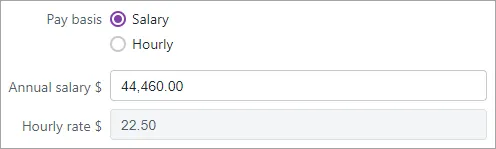
If an employee's Pay Basis is set to Salary, you can only change the Annual Salary value (the Hourly Rate is automatically calculated). Similarly, you can change the Hourly Rate for employees with a Pay Basis of Hourly.
Click Save.
(Hourly employees only) If you're changing an employee's hourly rate or pay cycle and it will affect their standard pay hours, choose if you'd like to revert or keep their current standard pay hours.
Revert to default – reverts their standard pay hours to what's set in Hours in a pay cycle in the employee's record
Keep current – retains their standard pay hours, e.g. you've set this to 0 because the employee works varying hours (like a casual employee) or submits timesheets.


Make a note of this change
Use the Notes field in an employee's record as a reminder of when and why you changed their pay rate (Payroll > Employees > click the employee > Contact details tab > Notes).
FAQs
What if I need to change an employee’s pay rate in the middle of a pay cycle?
Any rate changes you make in an employee's contact record will apply from the start of their next pay period.
If you need to change an employee's rate during a pay period, create a wage pay item called "Old pay rate" or similar and assign it to the employee.
When you then do your next pay run, edit the employee's pay to:
enter the hours/amount they worked on their old rate against the "Old pay rate" pay item, and
enter the hours/amount they worked on their new rate against Base Salary or Base Hourly.
You can change an employee's salary or hourly rate in their employee record. The change will take effect from their next pay.
If you've paid an employee the wrong amount, adjust their next pay or process a separate adjustment pay. Here are the details. If you've underpaid an employee, you might need to pay back pay.
To see the hourly rate of all of your employees, run the Employee Employment Details report. See Payroll reports.
To change an employee's salary or pay rate:
Go to the Card File command centre and click Cards List.
Click the Employee tab.
Click the blue zoom arrow to open the applicable employee's card.
Click the Payroll Details tab.
Click the Wages tab.
Change the employee's Annual Salary or Hourly Rate.
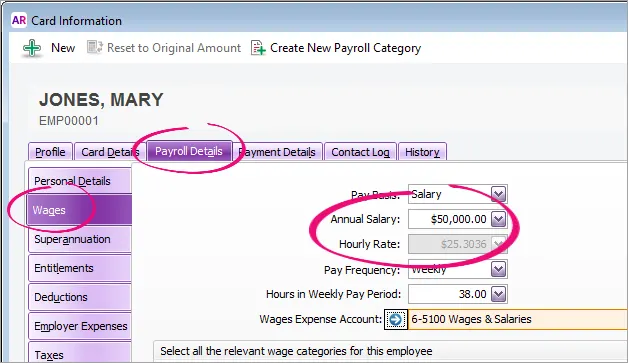
If an employee's Pay Basis is set to Salary, you can only change the Annual Salary value (the Hourly Rate is automatically calculated). Similarly, you can change the Hourly Rate for employees with a Pay Basis of Hourly.
Click OK.
(Hourly employees only) If you're changing an employee's hourly rate or pay frequency and it will affect their standard pay hours, choose if you'd like to revert or keep their current standard pay hours.
Keep Current – retains their standard pay hours, e.g. you've set this to 0 because the employee works varying hours (like a casual employee) and submits timesheets.
Revert to Default – reverts their standard pay hours to what's set in Hours in...Pay Period in the employee's card.


Set a reminder for an annual pay increase
If you have employees whose wage increases each year (say, on their birthday), create a contact log with a Recontact Date a few days before their birthday with a note to check pay rates.

The reminder will appear in the Contact Alert tab of the To Do List on the Recontact Date.
FAQs
What if I need to change an employee’s pay rate in the middle of a pay cycle?
Any rate changes you make in an employee's card will apply from the start of their next pay period.
If you need to change an employee's rate during a pay period, create a wage category called "Old pay rate" or similar and assign it to the employee.
When you then do your next pay run, edit the employee's pay to:
enter the hours/amount they worked on their old rate against the "Old pay rate" wage category, and
enter the hours/amount they worked on their new rate against Base Salary or Base Hourly.