You might owe an employee back pay to account for a wage increase, or to make up for an incorrect pay rate.
Back pay is the difference between:
how much the employee should have been paid over the back pay period, and
how much the employee was actually paid.
Lump sum E payments
If the back pay accrued, or was payable, more than 12 months before the date of payment, the ATO classify it as a lump sum E payment.
Before you begin
-
Work out the back pay amount, including any overtime or allowances owed
-
Use the Payroll activity report to work out what you've actually paid the employee
-
You'll find great info about back pay on the FairWork website
-
If the employee has had a pay rise, increase the employee's salary or hourly rate
Once you've worked out the back pay amount you can include it in the employee's next pay.
Setting up the back pay payment
To include the back pay on the employee's next pay, you'll need to create a Back Pay pay item. This pay item should already exist in MYOB, but you can set it up from scratch if needed.
Go to the Payroll menu > Employees.
Click the employee's name.
Click the Payroll details tab > Salary and wages tab.
Under Allocated wage pay items, click + Add wage pay item and choose Back Pay.
If it isn't listed, click Create wage pay item and set up the pay item:
Enter a Name, such as "Back Pay" or similar.
Choose the applicable ATO reporting category. If unsure, check with your accounting advisor or the ATO. Learn more about assigning ATO reporting categories for Single Touch Payroll. If you choose Lump Sum E, also choose the Financial year the lump sum relates to. Learn more about lump sum E payments.
Under Allocated employees, choose any additional employees who are entitled to back pay. By default, the pay item will be assigned to the employee
Under Exemptions, choose any deductions or taxes that shouldn't be calculated on back pay. If unsure, check with your accounting advisor or the ATO.
Click Save.
You can now pay the back pay.
Paying the back pay
You can include the back pay in the employee's next regular pay.
Go to the Create menu > Pay run.
Choose the employee's Pay cycle, confirm the pay dates and click Next.
Deselect the employee's you don't want to pay.
Click the employee to open their pay.
Enter the gross value of the back pay against the Back Pay pay item.
If required, update the PAYG value to ensure the correct tax is withheld. For help working this out, speak to your accounting advisor or see this ATO information.
Complete the pay as normal. Need a refresher?
After paying the back pay
You can remove the Back Pay pay item from the employee. If needed, you can re-use it later.
Go to the Payroll menu > Employees.
Click the employee.
Click the Payroll details tab > Salary and wages tab.
Click the delete icon to remove the Back Pay pay item.
Click Save.
An employee might be owed back pay to account for a wage increase, or to make up for an incorrect pay rate.
Back pay is the difference between:
how much the employee should have been paid over the back pay period, and
how much the employee was actually paid.
Once you've worked out the back pay amount, you can include it on the employee's next pay.
Lump sum E payments
If the back pay accrued, or was payable, more than 12 months before the date of payment, the ATO might classify it as a lump sum E payment.
Before proceeding, make sure you've updated the employee's pay details to reflect their updated wage.
OK, let's step you through how to handle back pay.
1. Work out what the employee should have been paid
The easiest way to work this out is to review a sample pay for the employee.
Start a new pay run for the employee.
Click the zoom arrow to review their pay details on the Pay Employee window.
Take note of the gross pay and PAYG Withholding values. Here's our example for a weekly pay which we've also multiplied by 4 to get values for a 4 week pay:
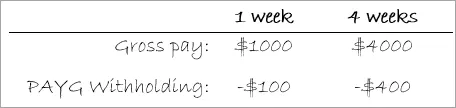
If necessary, multiply the values based on the number of weeks of back pay that is due.
Cancel the pay without saving.

2. Work out what the employee was actually paid
The Payroll Activity (Detail) report provides this information.
Run the Payroll Activity (Detail) report for the back pay period (Reports > Index to Reports > Payroll > Employees > Activity Detail).
Filter the report.
Select the employee who is owed back pay.
Specify a date range to capture the back pay period.
Take note of the employee's Wages and Taxes values.
3. Calculate the back pay
To calculate the back pay, subtract what the employee was actually paid from what they should have been paid.
This example shows the employee should have been paid $1500 in gross pay but was actually paid $1400. This also determines that an additional $10 of tax should have been withheld.

4. Pay the back pay
You can now include the back pay in the employee's next pay.
Start a new pay run for the employee.
Click the zoom arrow to review their pay details on the Pay Employee window.
Determine the PAYG Withholding payable:
Take note of the PAYG Withholding value shown in the employee's pay.
Add the back pay tax amount calculated above to work out the total tax payable.
Click Add Payroll Category.
Select the Back Pay category and click OK.
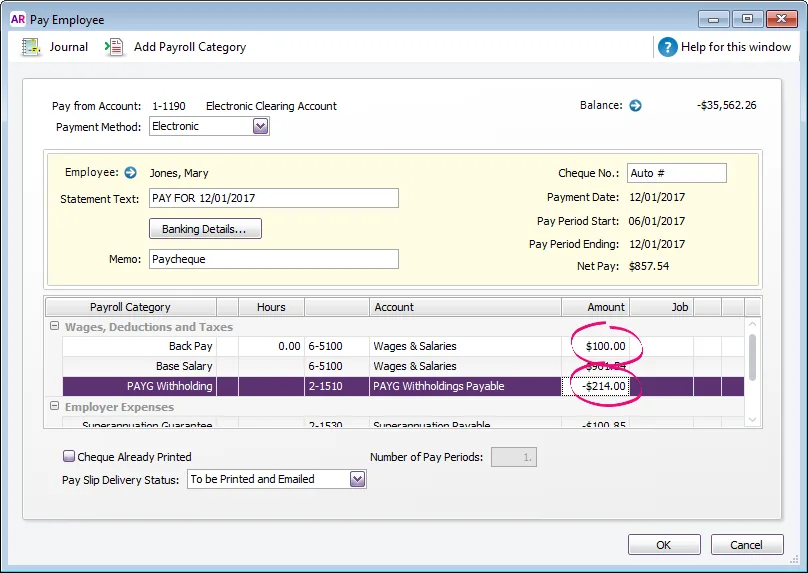
Enter the gross back pay value against the Back Pay category.
Change the PAYG Withholding value to the figure you calculated at step 3. Here's our example with $100 entered against the Back Pay wage category and the PAYG Withholding value adjusted.
Record the pay.

Superannuation
By default, the Back Pay wage category is not exempt from superannuation. This means back pay will be included in superannuation calculations.