Connecting a bank account or credit card to MYOB lets your financial institution send transaction information from that account straight into MYOB Business. It's included with your MYOB subscription and means you don't need to manually enter your bank transactions into MYOB. More about bank feeds
The number of bank accounts you can connect to MYOB depends on your plan. Sign into My Account > Manage my product to see your current limit or upgrade your plan.
Most banks are supported
Check the list of supported banks. If your bank isn't listed, they likely don't currently support bank feeds – but you can still import your bank and credit card statements straight into MYOB.
Who can connect a bank account?
The business owner (typically the person who set up the MYOB subscription) or an Online Admin user can complete the setup.
Connect to your bank
Start the setup process from MYOB via the Banking menu > Banking hub, then click Connect bank or credit card. Choose your bank and follow the prompts.
Depending on your bank and account type, you'll complete the application either online through your bank, or by sending us an application form.
Connecting via Open Banking
Many popular banks support Open Banking, a government-regulated way to share your banking data. It provides a faster, more secure way to connect your account. Plus, once you’re connected you’ll receive faster, more frequent bank feeds.
To connect via Open Banking:
You’ll need a valid ABN in your business settings.
If it’s a business bank account, your bank will need you to appoint at least one nominated representative in your online banking.
You’ll be guided through these requirements as part of the Open Banking connection process in MYOB.
If your bank or account type doesn’t support Open Banking, or you choose not to connect this way, you’ll be guided to other setup methods when you go through the connection process.
Open Banking is being gradually rolled out
Open Banking is being gradually rolled out only for specific banks, so it might not be an available connection method for everyone. When Open Banking is available for your bank, you’ll be guided through the Open Banking connection as part of the setup.
After your application is approved
You can check the status of the bank feed via Banking > Banking hub. This is also where you can choose the category in MYOB that your bank account transactions will be fed into. What's a category?

If you connected via Open Banking, MYOB Business will try to automatically link the connected account to the associated category in your chart of accounts, or it will create a category for you.
Once your connected account is linked to an MYOB category, your bank will start sending your transactions into MYOB. If you connected via Open Banking, transactions are sent daily. Otherwise, delivery frequency depends on your bank - check this list to see your bank's delivery frequency. Also, with Open Banking your bank balance is imported once a day so you can see if your books are balanced at a glance.
To help balance your books, you’ll want your bank transactions to match your MYOB records. Get MYOB set up to do transaction matching for you with its automation and AI tools - you can set up rules, and turn on category suggestions and auto-matching. For all the details see Working with bank transactions.
FAQs
How do I check my application status?
You can see a list of all your current bank feeds via the Banking menu > Banking hub. You'll also see the account details, the account balance and the status of each bank feed.
If you connect via Open Banking, you’ll be connected within minutes. Classic connections (via your online banking portal) are usually processed by your bank within 24 hours, but it can take a couple of days. Application forms take 1 - 2 weeks to be processed.
If you've been waiting longer than this, or you have any questions about your application, contact us.
How do I bring transactions into MYOB that are from before I connected my bank account?
The first bank feed you receive will have transactions dated from when your bank feed was approved. Any transactions that occurred from before this date won’t be included, but you can import these transactions from your bank statements.
How do I swap a bank feed from one bank account to another?
If you change bank accounts, you can continue receiving bank feeds on the new account by:
cancelling the bank feed for the old account
set up the bank feed again for the new account
To cancel a bank feed you'll need the user role of Administrator, Accountant/Bookkeeper or Banking.
To cancel, go to Banking > Banking hub, click the three dots in the account tile and choose Cancel bankfeed application. Read the confirmation message to understand the implications of deleting the bank feed, then click Cancel bank feed. The bank feed status changes to Cancelled.
You can then go through the connection process again to connect the new bank account.
What information is required on an application form?
If your bank requires sending us an application form (instead of applying online) when connecting an account, you need to provide specific information in the correct format. If the information is incomplete or not in the correct format, your application may be rejected.
What is Mastercard’s role in Open Banking?
When you connect an account that’s with a bank which supports Open Banking:
You’re briefly redirected to a Mastercard-hosted consent screen to authorise data sharing from your bank.
Mastercard securely retrieves your approved banking data from your bank.
Mastercard sends that data to MYOB so your bank feeds can update automatically.
Mastercard handles the consent, security, and data delivery. MYOB handles how that data appears and is used inside your software.
What if Open Banking isn’t supported for my bank or account type?
If your bank or account type don’t support Open Banking (you can check here), you’ll see other connection methods available to you when you go through the connection process in MYOB. This could be applying via your bank’s online banking or using an application form.
If you can’t connect an account to MYOB, you’re still able to import bank and credit card statements to bring in your transactions.
Connecting a bank account or credit card to AccountRight lets your financial institution send transaction information from that account straight into AccountRight. It's included with your AccountRight subscription and means you don't need to manually enter your bank transactions into MYOB. More about bank feeds
The number of bank accounts you can connect depends on your plan. Sign into My Account > Manage my product to see your current limit or upgrade your plan.
Most banks are supported
Check the list of supported banks. If your bank isn't listed, they likely don't currently support bank feeds – but you can still import your bank and credit card statements straight into MYOB.
Who can connect a bank account?
The business owner (typically the person who set up the MYOB subscription) or an Online Admin user can complete the setup.
Connect to your bank
Start the setup process from AccountRight via the Banking command centre > Bank Feeds.
If it's your first bank feed
The Manage Bank Accounts window appears.
Click Connect your bank account.
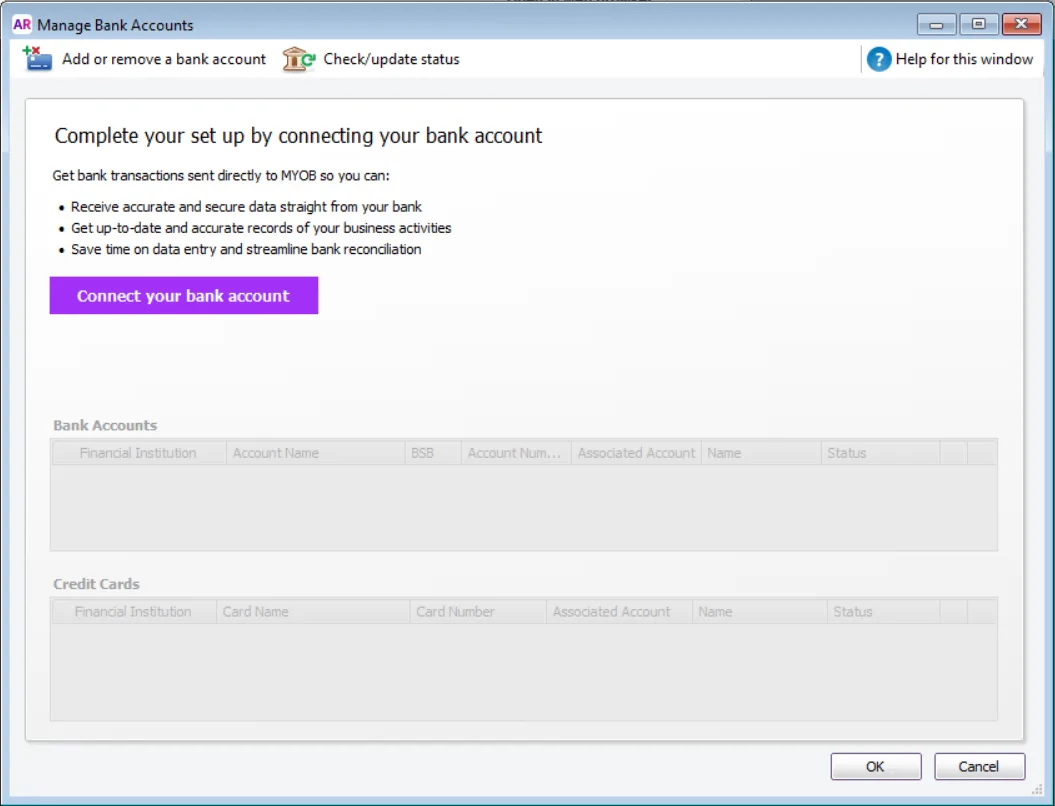
Your company file opens in the web browser version of AccountRight and you'll see the Banking hub.
If you don't see the Banking hub, it means your AccountRight company file is not online. To set up a bank feed, you'll need to put your company file online.

If it's an additional bank feed
The Bank Feeds window appears. Click Manage Bank Accounts.

Click Add or remove a bank account.
Your company file opens in the web browser version of AccountRight and you'll see the Banking hub.
If you don't see the Banking hub, it means your AccountRight company file is not online. To set up a bank feed, you'll need to put your company file online.

In the web browser version of AccountRight, click Connect bank or credit card then choose your bank and follow the prompts.
Depending on your bank and account type, you'll complete the application either online through your bank, or by sending us an application form.
Connecting via Open Banking
Many popular banks support Open Banking, a government-regulated way to share your banking data. It provides a faster, more secure way to connect your account. Plus, once you’re connected you’ll receive faster, more frequent bank feeds.
To connect via Open Banking:
You’ll need a valid ABN in your business settings.
If it’s a business bank account, your bank will need you to appoint at least one nominated representative in your online banking.
You’ll be guided through these requirements as part of the Open Banking connection process in MYOB.
If your bank or account type doesn’t support Open Banking, or you choose not to connect this way, you’ll be guided to other setup methods when you go through the connection process.
Open Banking is being gradually rolled out
Open Banking is being gradually rolled out only for specific banks, so it might not be an available connection method for everyone. When Open Banking is available for your bank, you’ll be guided through the Open Banking connection as part of the setup.
After your application is approved
You can check the status of the bank feed via Banking > Banking hub. This is also where you can choose the category in MYOB that your bank account transactions will be fed into. What's a category?
If you connected via Open Banking, MYOB Business will try to automatically link the connected account to the associated category in your chart of accounts, or it will create a category for you.
Once your connected account is linked to an MYOB category, your bank will start sending your transactions into MYOB. If you connected via Open Banking, transactions are sent daily. Otherwise, delivery frequency depends on your bank - check this list to see your bank's delivery frequency. Also, with Open Banking your bank balance is imported once a day so you can see if your books are balanced at a glance.
To help balance your books, you’ll want your bank transactions to match your MYOB records. Get MYOB set up to do transaction matching for you with its automation and AI tools - you can set up rules, and turn on category suggestions and auto-matching. For all the details see Working with bank transactions.
FAQs
How do I check my application status?
You can see a list of all your current bank feeds via the Banking menu > Banking hub. You'll also see the account details, the account balance and the status of each bank feed.
If you connect via Open Banking, you’ll be connected within minutes. Classic connections (via your online banking portal) are usually processed by your bank within 24 hours, but it can take a couple of days. Application forms take 1 - 2 weeks to be processed.
If you've been waiting longer than this, or you have any questions about your application, contact us.
How do I bring transactions into MYOB that are from before I connected my bank account?
The first bank feed you receive will have transactions dated from when your bank feed was approved. Any transactions that occurred from before this date won’t be included, but you can import these transactions from your bank statements.
How do I swap a bank feed from one bank account to another?
If you change bank accounts, you can continue receiving bank feeds on the new account by:
cancelling the bank feed for the old account
set up the bank feed again for the new account
To cancel a bank feed you'll need the user role of Administrator, Accountant/Bookkeeper or Banking.
To cancel, go to Banking > Banking hub, click the three dots in the account tile and choose Cancel bankfeed application. Read the confirmation message to understand the implications of deleting the bank feed, then click Cancel bank feed. The bank feed status changes to Cancelled.
You can then go through the connection process again to connect the new bank account.
What information is required on an application form?
If your bank requires sending us an application form (instead of applying online) when connecting an account, you need to provide specific information in the correct format. If the information is incomplete or not in the correct format, your application may be rejected.
What is Mastercard’s role in Open Banking?
When you connect an account that’s with a bank which supports Open Banking:
You’re briefly redirected to a Mastercard-hosted consent screen to authorise data sharing from your bank.
Mastercard securely retrieves your approved banking data from your bank.
Mastercard sends that data to MYOB so your bank feeds can update automatically.
Mastercard handles the consent, security, and data delivery. MYOB handles how that data appears and is used inside your software.
What if Open Banking isn’t supported for my bank or account type?
If your bank or account type don’t support Open Banking (you can check here), you’ll see other connection methods available to you when you go through the connection process in MYOB. This could be applying via your bank’s online banking or using an application form.
If you can’t connect an account to MYOB, you’re still able to import bank and credit card statements to bring in your transactions.