The quickest way to get your sales orders in front of your customers is via email. But you can also download PDFs of your sales orders that you can save or print. You can do this when you create the sales order, or any time afterwards.
Email a sales order at the time you create it
When you email a sales order, it'll be sent directly from MYOB and a PDF of the sales order will be attached to the email.
If you haven't already, create the sales order.
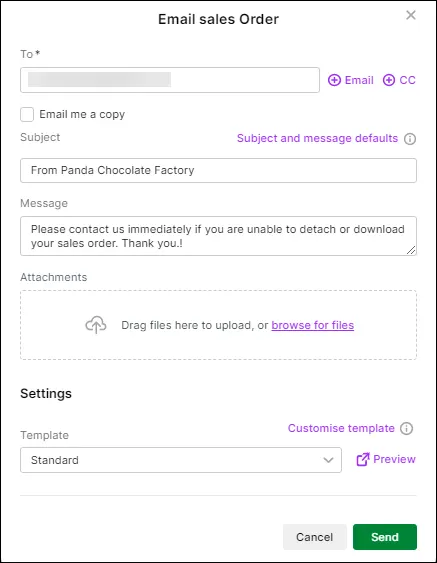
Click Email sales order.
Enter or update your From name and Reply-to email address.
Default subject and message
If you want to create or update the default subject and message for sales orders, click Subject and message defaults and save your changes in Sales settings > Email defaults. For more information about default emails, see Set up default emails.
If an email address has been saved for the customer, it appears in the To field, but you can add one or change it if needed.
If you want to email the invoice to additional recipients, click Email or CC to enter additional recipients.
If you want to email a copy of the invoice to yourself, select the option Email me a copy. The customer will not be able to see this information.
A PDF of the sales order will be automatically attached to the email, but if you'd If you'd like to attach additional files (total size of uploaded documents can't exceed 25MB):
click and drag files onto the Attachments section of the Email sales order page
click browse for files and select files to upload
to remove an attachment, click the remove ( ) icon next to it.
Choose the sales order template that'll be used if the customer prints or downloads their sales order as a PDF. Click Preview to see what it'll look like. Click Customise template to set up your sales templates.
Choosing an AccountRight sales order template
AccountRight browser users – you can choose an AccountRight sales order template.
When you're ready, click Send. The sales order is saved and emailed.

Email a recorded sales order
You can email a sales order later, after you've recorded it.
Go to the Sales menu > Sales orders to open the Sales orders page.
Click the Order number of the sales order you want to email to open it.
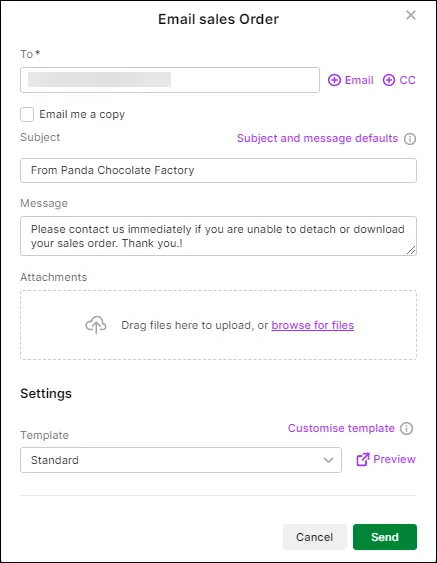
Click Email sales order.
Enter or update your From name and Reply-to email address.
Default subject and message
If you want to create or update the default subject and message for sales orders, click Subject and message defaults and save your changes in Sales settings > Email defaults. For more information about default emails, see Set up default emails.
If an email address has been saved for the customer, it appears in the To field, but you can add one or change it if needed.
If you want to email the invoice to additional recipients, click Email or CC to enter additional recipients.
If you want to email a copy of the invoice to yourself, select the option Email me a copy. The customer will not be able to see this information.
A PDF of the sales order will be automatically attached to the email, but if you'd If you'd like to attach additional files (total size of uploaded documents can't exceed 25MB):
click and drag files onto the Attachments section of the Email sales order page
click browse for files and select files to upload
to remove an attachment, click the remove ( ) icon next to it.
Choose the sales order template that'll be used if the customer prints or downloads their sales order as a PDF. Click Preview to see what it'll look like. Click Customise template to set up your sales templates.
Choosing an AccountRight sales order template
AccountRight browser users – you can choose an AccountRight sales order template.
When you're ready, click Send. The sales order is emailed.

Print a sales order
If you haven't already, create the sales order or open an existing sales order (Sales menu > Sales orders > click the Order number to open the invoice).
Click View PDF.
Choose the Template that'll be used for the PDF. Templates define the look and feel of your sales order PDFs.
Choosing an AccountRight sales order template
AccountRight browser users – you can choose an AccountRight sales order template.
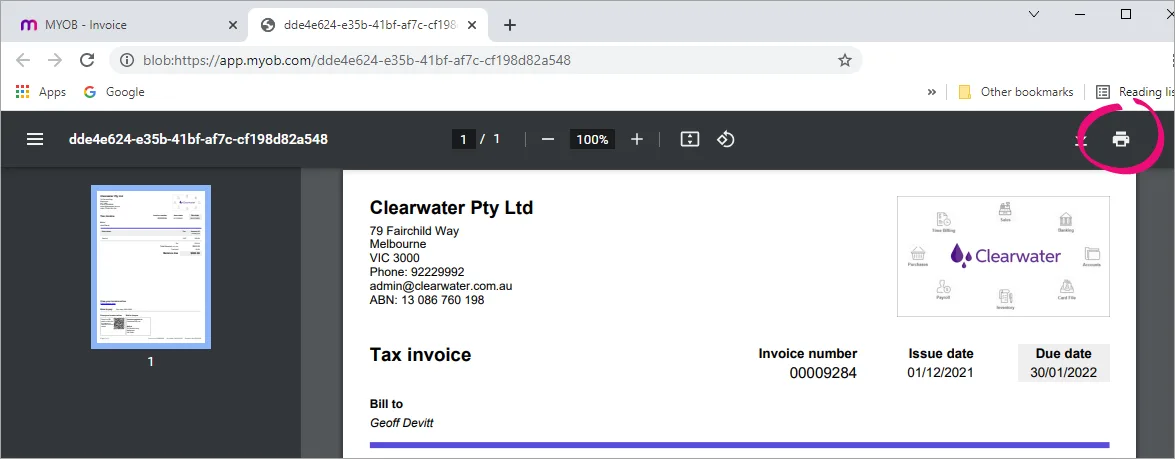
Click Export. A PDF of the sales order appears in a new browser tab. From here you can print the sales order using the print icon in your browser.

Download a sales order PDF
If you haven't already, create the sales order or open an existing sales order (Sales menu > Sales orders > click the Order number to open the invoice).
Click View PDF.
Choose the Template that'll be used for the PDF. Templates define the look and feel of your sales order PDFs.
Click Export. A PDF of the sales order appears in a new browser tab. From here you can download the sales order using the icons in your browser.
FAQs
How do I change the default email subject or message?
To set up your email defaults, click the settings menu (⚙️) > Sales settings > Email defaults tab. Click Save to save your changes.
For all the details see Set up default emails.
Can I email multiple sales orders at once?
Not yet, this feature is coming in a future release.
The quickest way to get your sales orders in front of your customers is via email. But you can also download PDFs of your sales orders that you can save or print. You can do this when you create the sales order, or any time afterwards.
Email a sales order at the time you create it
In the Sales window when you're creating the sales order, click Send To and choose Email.
Check the details of the email and update if required.
(Optional) Click Attach to select an additional file to attach to the email.
(Optional) Click To if you have additional email addresses in a contact’s card which you want to use. Or type email addresses directly into the To field, separated by semi-colons (;)
Click Send. The sale will be emailed as a PDF attachment. The sales order will be recorded before the form is sent.
Learn more about sending emails from AccountRight.
Email a recorded sales order
Go to the Sales command centre and click Print/Email Invoices.
Click the To Be Emailed tab.
Click Advanced Filters then click OK to the prompt about losing changes.
Choose the Sale Type (based on the layout used when creating the sales order, e.g. Item or Service, etc.).
For the Sale Status, choose Orders.
If the sales order you want to email has been printed or emailed before, deselect the option Unprinted or Unsent Sales Only.
For the Selected Form for Sale, choose the form to use for your sales order PDFs. Find out how to customise these forms.
Specify any additional filters, then click OK. Learn more about these filters.
Select the sales orders you want to email.
If required, change the email subject or message. Learn how to change the default details.
Click Send Email. The sales orders will be emailed as PDF attachments.
Print a sales order
If you haven't already, create the sales order or open an existing sales order (Sales command centre > Sales Register > Orders tab > click to open the order).
Click Print and choose the form to use to generate the PDF.
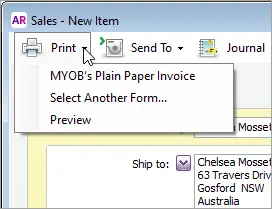
Choose the printer, then click Print.

Learn more about printing from AccountRight.
Download a sales order PDF
If you haven't already, create the sales order or open an existing sales order (Sales command centre > Sales Register > Orders tab > click to open the order).
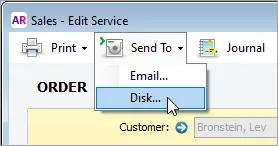
Click Send To and choose Disk.
Choose the form to use to generate the PDF then click Select.
Choose where you want to save the sales order PDF and rename it if you

FAQs
How do I change the default email subject or message?
Go to the Setup menu and choose Preferences.
Click the Emailing tab
Click Email Defaults.
Click the tab for the email type, for example Sales.
If you want, select the option to Include Invoice/Purchase No. in Subject.
Enter the default subject and message text you want to use.
Learn more about setting up default email messages.