Before you can enter a purchase in MYOB, you'll need to add some details about the supplier you're buying from. These details will be saved so you don't have to enter them each time you buy from that supplier. You can create as many suppliers as you need.
Watch this video to see how easy it is to add your suppliers and other contacts:
Speed things up
Do you have lots of suppliers to add? Save time by importing them.
Adding a supplier
Go to the Create menu and choose Contact.
For the Contact type, select Supplier.

For the Designation, Company is selected by default. If the supplier isn’t a company, but a person, change it to Individual. What you select here determines whether you'll enter a company name, or a person's first name and surname.
Enter the supplier's name (company name or first name and surname).
Australia only:
If payments to this supplier are reportable to the ATO, select the option Report payments to ATO via TPAR. Tell me more....
Enter the supplier's ABN. The status of the ABN will be shown which you can click to see more details. Need help finding an ABN? Click Open ABN lookup website.
If purchases from this supplier are typically categorised the same way, choose that Expense category. You can always choose a different category when recording a purchase.
If you use codes to identify suppliers, enter the supplier's code in the Contact ID field.
For the supplier's Billing address:
Choose their Country and enter their Address. As you type the address, you can choose from suggested matching addresses.

Enter other applicable contact info, including a Contact person, Email, Phone and Website.
If you want to copy emails to this supplier to someone else, click Add CC Email and enter another email address.
For the Shipping address, select the option Same as billing address or enter different details.
When you're done, click Save.

What now?
Once you've added suppliers, you can record transactions for them, including:
FAQs
What if I'm adding a supplier who has given me a credit?
If the supplier you're adding has given you a credit, perhaps for some goods you've returned to them, add them as described above then create a supplier return to record the credit (sometimes called a supplier debit).
When creating the return you'll need to categorise the amount as required by your business, so you might need to check with your accounting advisor if unsure.
Can I set default supplier payment terms?
No, in MYOB Business, you're not yet able to set default supplier credit terms, however you can enter a Promised date when you enter a purchase:

Do I need to fill in all the fields when I create a supplier?
The only mandatory fields you need to select or fill in to save a new supplier are:
the Contact type (choose Supplier)
the Designation (Company or Individual)
the Company name/Surname or family name.
Before you can enter a purchase in AccountRight, you'll need to add the supplier into AccountRight. A supplier's details are stored in a supplier card, and they're easy to create.
Import supplier details
If you have supplier details in another program, like a spreadsheet, use an import template to bring these details into AccountRight.
To create a supplier card
Go to the Card File command centre and click Cards List. The Cards List window appears.
Click New. The Card Information window appears.
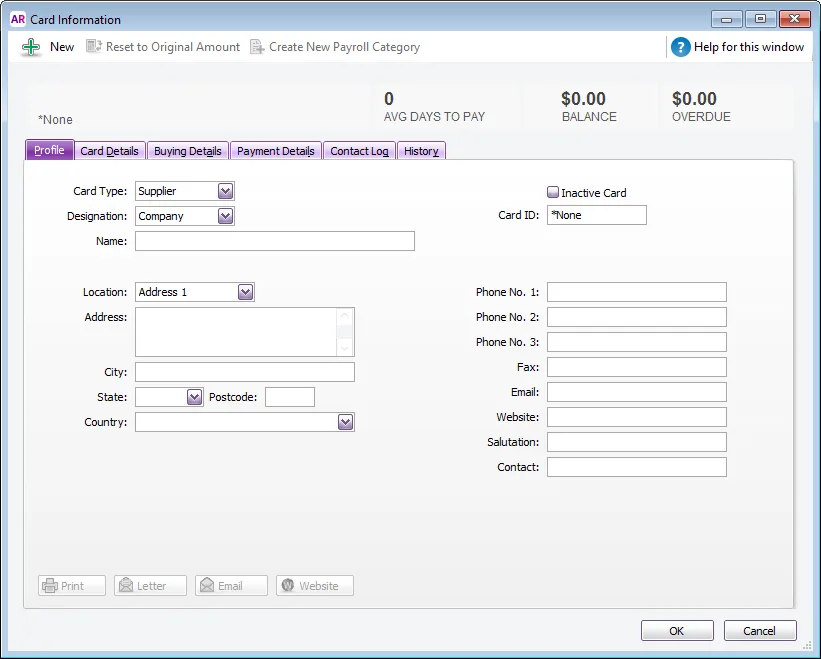
For the Card Type, select Supplier.
For the Designation, select Company or Individual (is it a business or a person?). This selection determines whether you'll enter a company name, or first and last name.
Enter the name of the supplier (business name or first/last names).
If you use codes to identify suppliers, enter the supplier's code in the Card ID field. For more information, see Card identification codes.
Enter the supplier's contact details (address, phone, email, etc.).
If the supplier has additional contact details, such as a second address, email, contact, etc., select Address 2 from the Location list and enter the additional details. This lets you store up to 5 sets of contact details for each supplier.
Click the Card Details tab. On this tab you can:
insert a picture - see Card pictures
assign identifiers to the card - see Identifiers
choose from a list custom attributes that you've set up - see Custom lists
record certain information about your suppliers, but can’t find a suitable card field for it - see Custom card fields
Click the Buying Details tab.
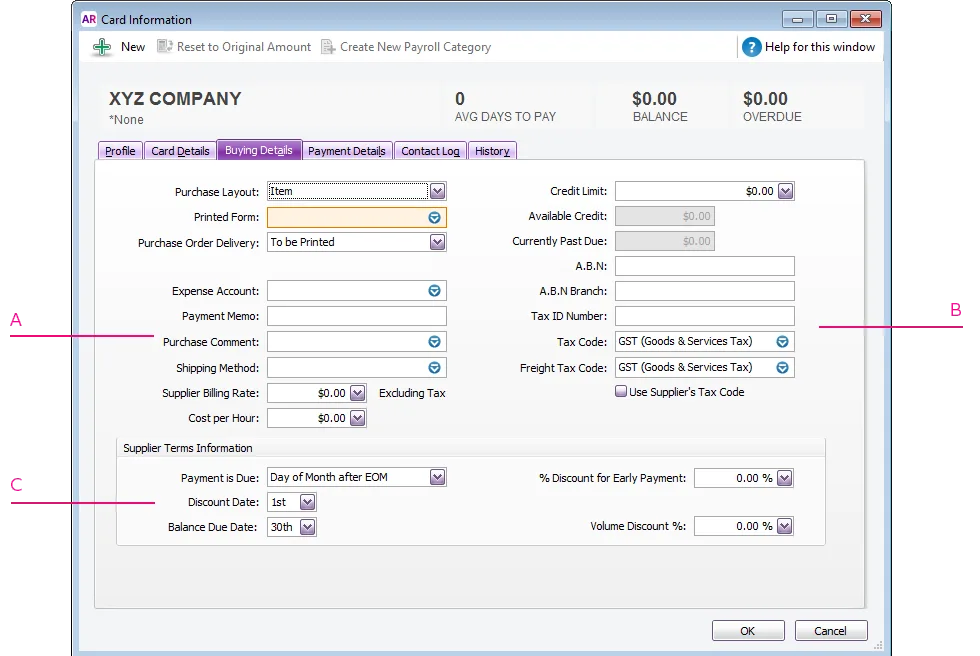
A - Buying information - The selections you make here will be used, by default, on quotes, orders and bills that you create for this supplier. You can override these selections when entering a purchase.
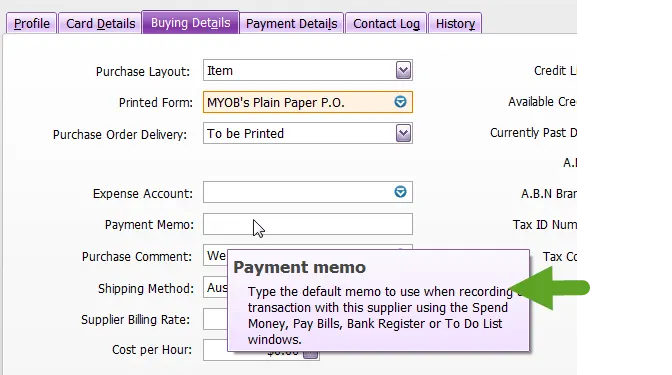
To learn more about each field, hover your mouse over it to display the field help (you'll need field help turned on, go to Help > Show Field Help).
B - Tax/GST information - Enter the supplier’s tax/GST information here.
When entering an ABN, if you're connected to the internet the ABN will be checked with the Australian Business Register. If the number is valid, a green icon will appear next to the ABN field. If there’s an issue with the number, the icon will be yellow. Hover over the icon to get all the details.
For Australia, there's an AccountRight preference you can set to warn about suppliers without an ABN in their card when you choose them on a purchase transaction (Setup > Preferences > Purchases > Warn if Supplier Does Not Have an ABN for Purchases Greater Than $75 Tax Exclusive).
(Australia only) If you've set up reportable taxable payments and this supplier's payments are reportable, select the Report Taxable Payments option and enter their ABN.
If the supplier’s tax/GST status takes precedence over that of the item or service being sold, click the Use Supplier’s Tax Code (Australia) or Use Supplier’s GST Code (New Zealand) option. This tax code will override the item’s tax code in an item purchase, and the allocation account’s tax code in a non-item purchase.
See Setting up tax codes (Australia) or Setting up GST codes (New Zealand).
C - Credit terms - The credit terms entered here are used as the default terms for all purchases from the supplier, but can be changed at any time. If field help is enabled (Help > Show Field Help), hover your mouse over a field to learn more about it.
Click the Payment Details tab to enter your supplier’s bank account details, so you can pay them electronically. You can also specify how you prefer to send remittance advices to the supplier - by print or email (not Basics). Learn more about recording supplier bank details.
(Optional) Click the History tab and enter the Supplier Since date.
Click OK to save the supplier's details.


View your supplier list
Run one of the Card List reports to display your suppliers (Reports menu > Index to Reports > Card tab > Card List [Summary] or Card List [Detail] report).
Alternatively, display your suppliers on the Cards List window, right-click the list and choose Copy List to Clipboard - ready to be pasted into Excel or any other document.