How you fix a pay depends on what needs fixing and whether or not you've paid the employee.
If you've already paid the employee, it's often easiest to adjust the employee's next pay to correct any mistakes. But if it's an urgent fix, you can record an unscheduled pay to make an adjustment.
If you need to fix a termination pay, see Fixing an ETP. If the pay you need to fix is in a finalised payroll year, see Changing a pay after finalising with Single Touch Payroll.
Watch this quick overview:
How fixing a pay affects STP
With STP, your employees' year to date (YTD) figures are sent to the ATO after each pay run. So if fixing an employee's pay affects their YTD figures, the updated figures will be sent to the ATO the next time you do a pay run.
To learn more about your STP reporting obligations for pay corrections, visit the ATO website.
What needs fixing?
We'll cover the most common scenarios, but you'll find the same approach can be used to fix most payroll mistakes. If your situation is a little more complex, or can't be easily fixed, you might need help from your accounting advisor.
I've overpaid or underpaid an employee
I've already paid the employee
Have a chat with the employee about their preferred solution. Also check the Fair Work requirements on overpayments. If the employee agrees, you can adjust their next pay to cater for an overpaid amount.
If you've underpaid the employee and they want to be paid the difference straight away, you can record an unscheduled pay for the underpaid amount.
To adjust the next pay
When it's time do process the employee's next pay:
Start the pay run as usual (Create menu > Pay run). Need a refresher?
Choose the Pay cycle and pay dates then click Next.
Click the employee whose pay you need to adjust.
Adjust the employee's pay as required.
To fix an overpayment, reduce the Hours or Amount as required for the pay item that was overpaid.
To fix an underpayment, increase the Hours or Amount as required for the pay item that was underpaid.
Use the Pay slip message field on the employee's pay to enter a note about this adjusted pay.
Complete the pay run as you usually do.
To record an unscheduled pay
An unscheduled pay is like any other pay, but you do it outside the employee's regular pay frequency.
Go to the Create menu > Pay run.
For the Pay cycle, choose Unscheduled.
For the Pay period start, choose today's date. This date will automatically appear for the other pay dates.
Click Next.
Select the employee you're paying.
Click the employee to open their pay details.
Enter the Hours or Amount against the pay item that was underpaid. The net pay amount amount should be equal to the underpayment.
Complete the pay like any other. Need a refresher?
I haven't paid the employee yet
If you have only recorded the pay in MYOB but you haven't actually paid the employee, you can simply delete or reverse the pay and record it again.
To delete or reverse the employee's pay
Whether you can delete or reverse a pay is based on its status in the STP Payroll Reporting Centre. This ensures pays which have been accepted by the ATO can't be deleted. Instead, you'll only have the option to reverse the pay then report that reversal to the ATO. Learn more about STP report statuses.
If the status is... | You can only... |
|---|---|
Rejected or Not Sent | delete the pay |
Sent, Accepted or Accepted with errors | reverse the pay |
You should only delete or reverse a pay if the amount hasn't been withdrawn from your bank account. If you need to adjust an overpaid or underpaid amount, see the instructions above.
If you've already paid the employee and reconciled your bank account, deleting or reversing the payroll transaction can affect future bank reconciliations. Therefore, you'll need to unmatch or unreconcile it first.
A pay can only be deleted or reversed if...
-
it's NOT part of a processed electronic payment
-
it's NOT part of a Pay Super payment
To delete or reverse an employee's pay:
Go to the Payroll menu and click Pay runs.
Click the Date of payment for the pay run containing the pay you need to delete/reverse.
Click the name of the Employee whose pay you want to delete/reverse. Based on the status of the pay run in the Payroll Reporting Centre, you'll have the option to either delete or reverse the pay. See above for more details.
If deleting the pay:
Click Delete.
At the confirmation message, click Delete.
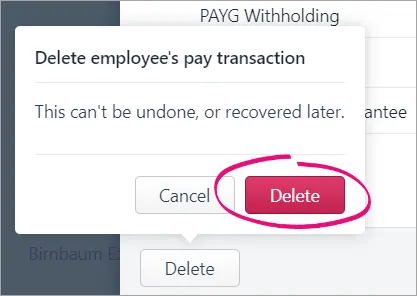
If reversing the pay:
Click Reverse pay.
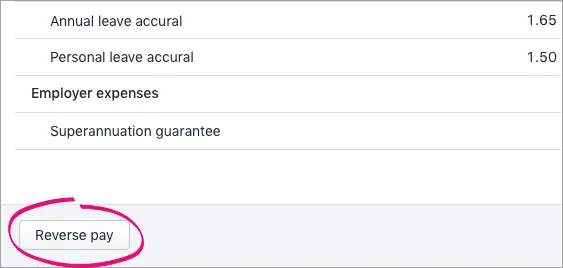
The details of the pay reversal are shown (a negative pay).
Click Record reversal.
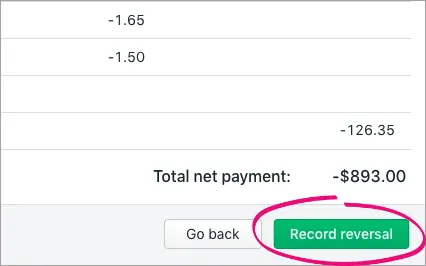
When prompted to send your payroll information to the ATO, enter your details and click Send to submit the reversal to the ATO. The employee's year-to-date payroll amounts are updated accordingly.
The reversed pay will appear in the Payroll Reporting Centre with a negative amount, like this example: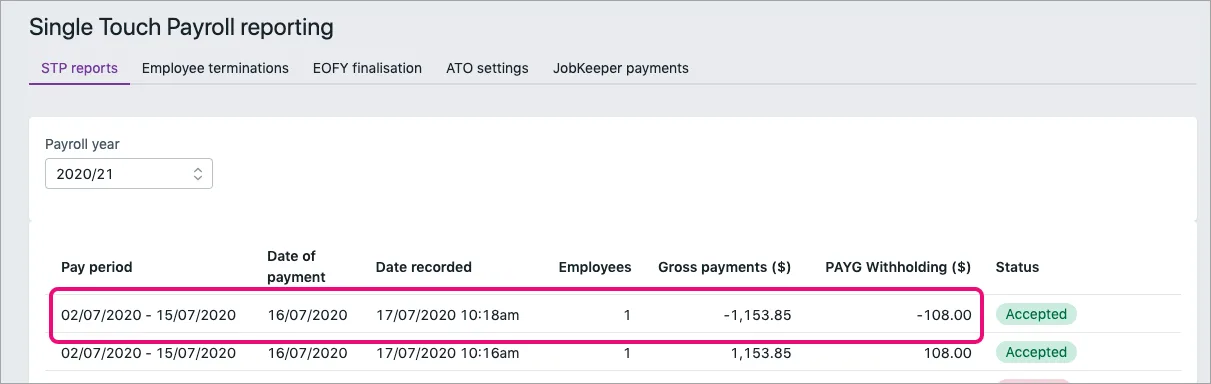


I forgot to pay leave
I've already paid the employee
Have a chat with the employee about their preferred solution. Usually it's easiest to include the leave in the employee's next pay. If the employee also gets leave loading, you can record an unscheduled pay to pay this amount and to adjust the employee's leave balance.
Under Single Touch Payroll, leave payments are reported separately to the ATO. The solutions below ensure the leave payment is reported correctly to the ATO.
To include the leave in the next pay
When it's time do process the employee's next pay:
Start the pay run as usual (Create menu > Pay run). Need a refresher?
Choose the Pay cycle and pay dates then click Next.
Click the employee whose pay you need to adjust.
Add the hours of leave against the applicable leave pay item.
Make sure the employee's Base Salary or Base Hourly pay is reduced to cater for the leave payment. This ensures they're not overpaid.
Use the Pay slip message field on the employee's pay to enter a note about this adjusted pay.
Complete the pay run as you usually do.
To record an unscheduled pay
An unscheduled pay is like any other pay, but you do it outside the employee's regular pay frequency.
Go to the Create menu > Pay run.
For the Pay cycle, choose Unscheduled.
For the Pay period start, choose today's date. This date will automatically appear for the other pay dates.
Click Next.
Select the employee you're paying.
Click the employee to open their pay details.
Add the hours of leave against the applicable leave pay item.
Enter the leave payment amount as a negative value against the Base Salary or Base Hourly pay item. This ensures the leave payment is reported correctly to the ATO.
If you're paying leave loading, enter the number of leave hours against the leave loading pay item.
Ensure all other hours and amounts in the pay are zero.
Complete the pay like any other. Need a refresher?
I haven't paid the employee yet
If you have only recorded the pay in MYOB but you haven't actually paid the employee, you can simply delete or reverse the pay and record it again to include the leave payment.
To delete or reverse the employee's pay
Whether you can delete or reverse a pay is based on its status in the STP Payroll Reporting Centre. This ensures pays which have been accepted by the ATO can't be deleted. Instead, you'll only have the option to reverse the pay then report that reversal to the ATO. Learn more about STP report statuses.
If the status is... | You can only... |
|---|---|
Rejected or Not Sent | delete the pay |
Sent, Accepted or Accepted with errors | reverse the pay |
You should only delete or reverse a pay if the amount hasn't been withdrawn from your bank account. If you need to adjust an overpaid or underpaid amount, see the instructions above.
If you've already paid the employee and reconciled your bank account, deleting or reversing the payroll transaction can affect future bank reconciliations. Therefore, you'll need to unmatch or unreconcile it first.
A pay can only be deleted or reversed if...
-
it's NOT part of a processed electronic payment
-
it's NOT part of a Pay Super payment
To delete or reverse an employee's pay:
Go to the Payroll menu and click Pay runs.
Click the Date of payment for the pay run containing the pay you need to delete/reverse.
Click the name of the Employee whose pay you want to delete/reverse. Based on the status of the pay run in the Payroll Reporting Centre, you'll have the option to either delete or reverse the pay. See above for more details.
If deleting the pay:
Click Delete.
At the confirmation message, click Delete.
If reversing the pay:
Click Reverse pay.
The details of the pay reversal are shown (a negative pay).
Click Record reversal.
When prompted to send your payroll information to the ATO, enter your details and click Send to submit the reversal to the ATO. The employee's year-to-date payroll amounts are updated accordingly.
The reversed pay will appear in the Payroll Reporting Centre with a negative amount, like this example:
I've paid the wrong type of leave
I've already paid the employee
If you've paid sick leave instead of annual leave, or vice-versa, it's easy to fix in the employee's next pay. If the employee is owed leave loading, you can include this in their next pay, or you can record an unscheduled pay to pay this amount and to correct the type of leave you've paid.
To fix the leave in the next pay
When it's time do process the employee's next pay:
Start the pay run as usual (Create menu > Pay run). Need a refresher?
Choose the Pay cycle and pay dates then click Next.
Click the employee whose pay you need to adjust.
Enter the hours of leave taken against the correct leave pay item. For example, if you should have paid annual leave, enter the hours against the annual leave pay item.
Enter the hours (as a negative value) against the leave pay item you paid by mistake. For example, if you accidentally paid personal leave instead of annual leave, enter the hours paid as a negative value against the personal leave pay item.
Here's our example to fix 15.2 hours of annual leave that was accidentally paid as personal leave. We've also added 15.2 hours of leave loading that should have been paid last pay.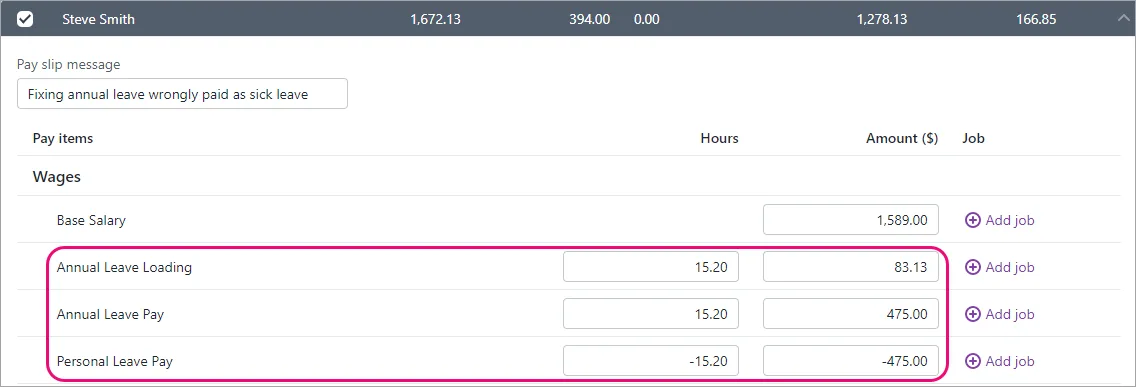
Use the Pay slip message field on the employee's pay to enter a note about this adjusted pay.
Complete the pay run as you usually do.

To record an unscheduled pay
An unscheduled pay is like any other pay, but you do it outside the employee's regular pay frequency.
Go to the Create menu > Pay run.
For the Pay cycle, choose Unscheduled.
For the Pay period start, choose today's date. This date will automatically appear for the other pay dates.
Click Next.
Select the employee you're paying.
Click the employee to open their pay details.
Enter the hours of leave taken against the correct leave pay item. For example, if you should have paid annual leave, enter the hours against the annual leave pay item.
Enter the hours (as a negative value) against the leave pay item you paid by mistake. For example, if you accidentally paid personal leave instead of annual leave, enter the hours paid as a negative value against the personal leave pay item.
If you need to include leave loading, enter the hours of leave against the leave loading pay item.
Here's our example to fix 15.2 hours of annual leave that was accidentally paid as personal leave. We've also added 15.2 hours of leave loading that should have been paid last pay.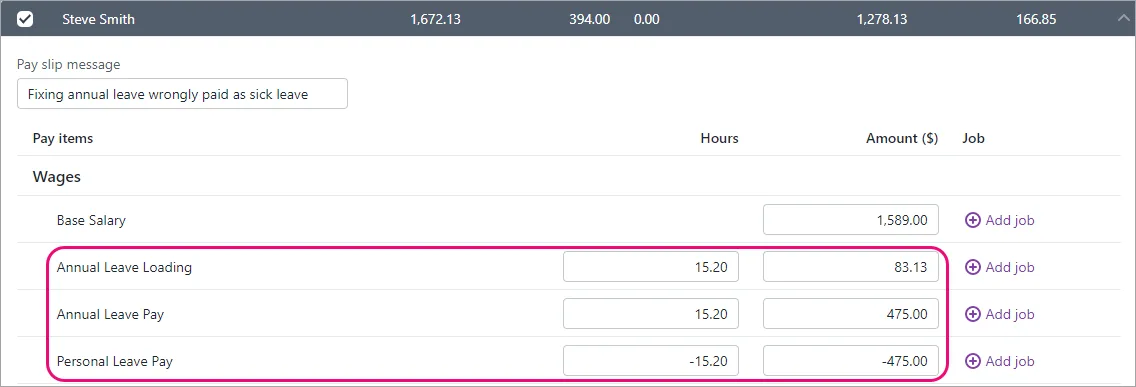
Ensure all other hours and amounts in the pay are zero.
Complete the pay like any other. Need a refresher?

I haven't paid the employee yet
If you have only recorded the pay in MYOB but you haven't actually paid the employee, you can simply delete or reverse the pay and record it again to include the correct leave payment.
To delete or reverse the employee's pay
Whether you can delete or reverse a pay is based on its status in the STP Payroll Reporting Centre. This ensures pays which have been accepted by the ATO can't be deleted. Instead, you'll only have the option to reverse the pay then report that reversal to the ATO. Learn more about STP report statuses.
If the status is... | You can only... |
|---|---|
Rejected or Not Sent | delete the pay |
Sent, Accepted or Accepted with errors | reverse the pay |
You should only delete or reverse a pay if the amount hasn't been withdrawn from your bank account. If you need to adjust an overpaid or underpaid amount, see the instructions above.
If you've already paid the employee and reconciled your bank account, deleting or reversing the payroll transaction can affect future bank reconciliations. Therefore, you'll need to unmatch or unreconcile it first.
A pay can only be deleted or reversed if...
-
it's NOT part of a processed electronic payment
-
it's NOT part of a Pay Super payment
To delete or reverse an employee's pay:
Go to the Payroll menu and click Pay runs.
Click the Date of payment for the pay run containing the pay you need to delete/reverse.
Click the name of the Employee whose pay you want to delete/reverse. Based on the status of the pay run in the Payroll Reporting Centre, you'll have the option to either delete or reverse the pay. See above for more details.
If deleting the pay:
Click Delete.
At the confirmation message, click Delete.
If reversing the pay:
Click Reverse pay.
The details of the pay reversal are shown (a negative pay).
Click Record reversal.
When prompted to send your payroll information to the ATO, enter your details and click Send to submit the reversal to the ATO. The employee's year-to-date payroll amounts are updated accordingly.
The reversed pay will appear in the Payroll Reporting Centre with a negative amount, like this example:
I've paid the wrong amount of leave
I've already paid the employee
If you've paid an employee the wrong amount of leave, it's easy to fix in the employee's next pay. This ensures the employee's leave balance is adjusted accordingly, and the correct information is sent through to the ATO in your STP reporting.
To fix the leave in the next pay
When it's time do process the employee's next pay:
Start the pay run as usual (Create menu > Pay run). Need a refresher?
Choose the Pay cycle and pay dates then click Next.
Click the employee whose pay you need to adjust.
Enter the hours of leave against the applicable leave pay item. For example:
If you underpaid annual leave, enter the number of underpaid hours as a positive value against the annual leave wage pay item.
If you overpaid annual leave, enter the number of overpaid hours as a negative value against the annual leave wage pay item.
To ensure the value of the paid leave is reported correctly to the ATO, make sure the Base Hourly hours or Base Salary amount is adjusted accordingly. Depending on how the leave is set up, this might happen automatically. For example:
If you're fixing underpaid leave, the Base Hourly or Base Salary amount must be reduced by the amount of underpaid leave.
If you're fixing overpaid leave, the Base Hourly or Base Salary amount must be increased by the amount of overpaid leave.
Here's our example to fix 7.6 hours of annual leave that was paid, but not taken. Note the Base Hourly hours has increased from the normal fortnightly amount of 76 hours to 83.6 hours.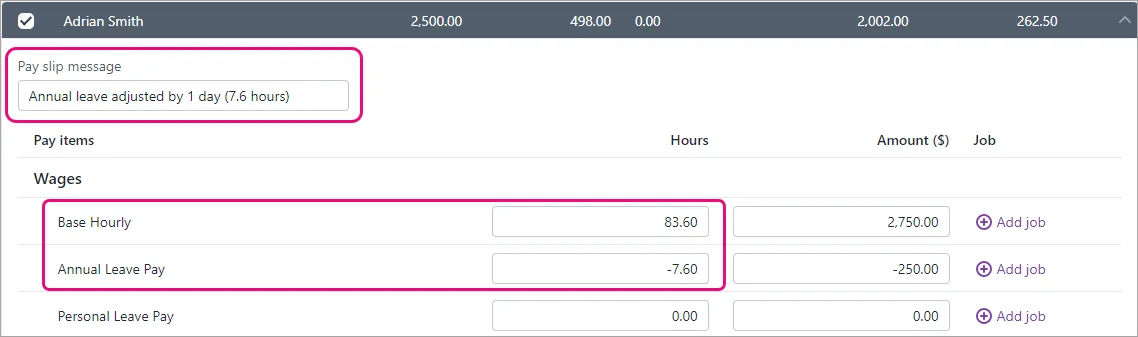
Complete the pay run as you usually do.

Incorrectly paid leave loading?
If you've paid leave loading when you shouldn't have, it means the employee has been overpaid. You can fix this in their next pay by entering the number of hours leave loading they were paid as a negative number in the leave loading wage pay item. This will reduce their total pay.
I haven't paid the employee yet
If you have only recorded the pay in MYOB but you haven't actually paid the employee, you can simply delete or reverse the pay and record it again to include the correct leave payment.
To delete or reverse the employee's pay
Whether you can delete or reverse a pay is based on its status in the STP Payroll Reporting Centre. This ensures pays which have been accepted by the ATO can't be deleted. Instead, you'll only have the option to reverse the pay then report that reversal to the ATO. Learn more about STP report statuses.
If the status is... | You can only... |
|---|---|
Rejected or Not Sent | delete the pay |
Sent, Accepted or Accepted with errors | reverse the pay |
You should only delete or reverse a pay if the amount hasn't been withdrawn from your bank account. If you need to adjust an overpaid or underpaid amount, see the instructions above.
If you've already paid the employee and reconciled your bank account, deleting or reversing the payroll transaction can affect future bank reconciliations. Therefore, you'll need to unmatch or unreconcile it first.
A pay can only be deleted or reversed if...
-
it's NOT part of a processed electronic payment
-
it's NOT part of a Pay Super payment
To delete or reverse an employee's pay:
Go to the Payroll menu and click Pay runs.
Click the Date of payment for the pay run containing the pay you need to delete/reverse.
Click the name of the Employee whose pay you want to delete/reverse. Based on the status of the pay run in the Payroll Reporting Centre, you'll have the option to either delete or reverse the pay. See above for more details.
If deleting the pay:
Click Delete.
At the confirmation message, click Delete.
If reversing the pay:
Click Reverse pay.
The details of the pay reversal are shown (a negative pay).
Click Record reversal.
When prompted to send your payroll information to the ATO, enter your details and click Send to submit the reversal to the ATO. The employee's year-to-date payroll amounts are updated accordingly.
The reversed pay will appear in the Payroll Reporting Centre with a negative amount, like this example:
I've paid an amount against the wrong pay item
Maybe you paid a meal allowance instead of a tool allowance. Or perhaps you paid a bonus instead of an allowance. For all scenarios like this, if you've already paid the employee you can fix it in the employee's next pay, or in a separate (unscheduled) pay.
All you need to do is remove the amount from the wrong pay item by using a negative value, and add the amount to the correct pay item using a positive value. The net pay will remain unchanged, but the amount will be recorded against the correct pay item – and reported correctly to the ATO.
To ensure you meet the requirements of Single Touch Payroll reporting, it's important that you use the correct pay items in your payroll.
To fix it in the next pay
When it's time do process the employee's next pay:
Start the pay run as usual (Create menu > Pay run). Need a refresher?
Choose the Pay cycle and pay dates then click Next.
Click the employee whose pay you need to adjust.
Enter the hours or amount (as a positive value) against the correct pay item.
Enter the hours or amount (as a negative value) against the incorrect pay item.
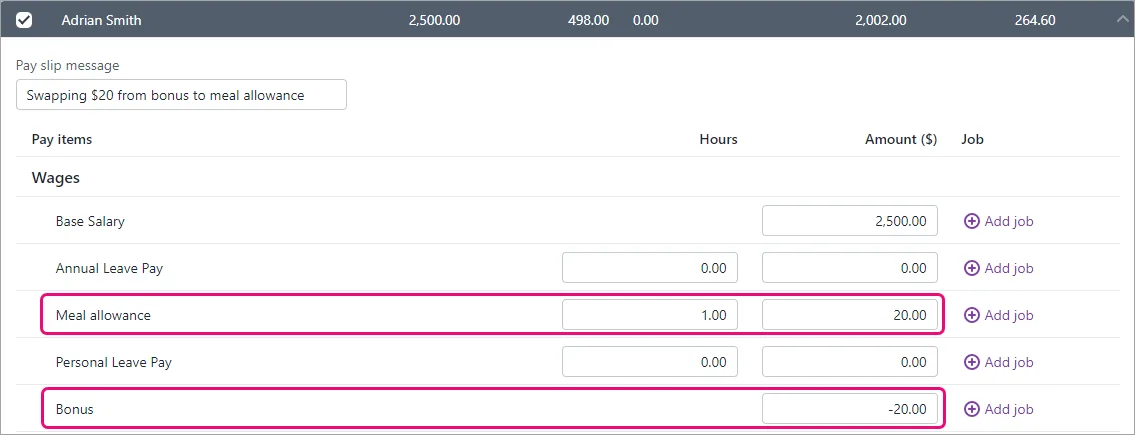
Here's our example to fix a $20 meal allowance that was incorrectly paid as a bonus.
Complete the pay run as you usually do.

To record an unscheduled pay
An unscheduled pay is like any other pay, but you do it outside the employee's regular pay frequency.
Go to the Create menu > Pay run.
For the Pay cycle, choose Unscheduled.
For the Pay period start, choose today's date. This date will automatically appear for the other pay dates.
Click Next.
Select the employee you're paying.
Click the employee to open their pay details.
Enter the hours or amount (as a positive value) against the correct pay item.
Enter the hours or amount (as a negative value) against the incorrect pay item.
Here's our example to fix a $20 meal allowance that was incorrectly paid as a bonus.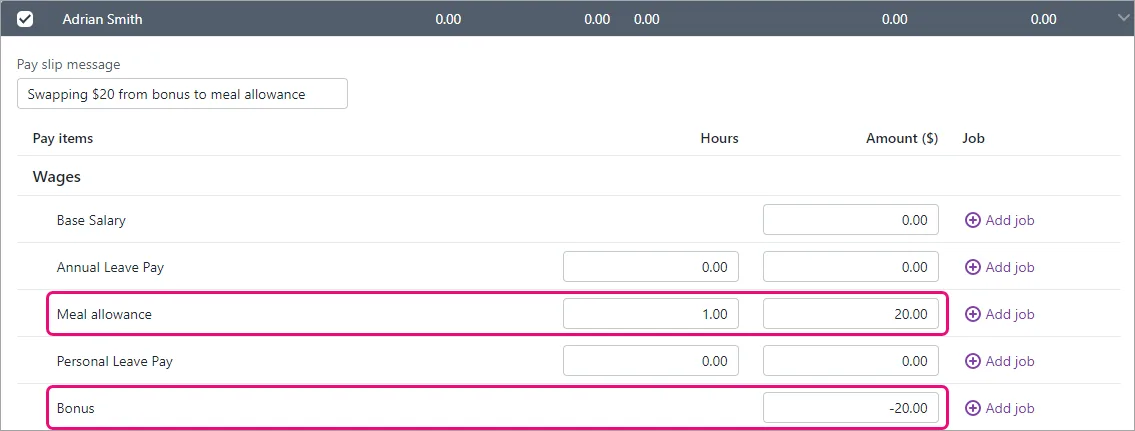
Ensure all other hours and amounts in the pay are zero.
Complete the pay like any other. Need a refresher?

I haven't paid the employee yet
If you have only recorded the pay in MYOB but you haven't actually paid the employee, you can simply delete or reverse the pay and record it again using the correct pay items.
To delete or reverse the employee's pay
Whether you can delete or reverse a pay is based on its status in the STP Payroll Reporting Centre. This ensures pays which have been accepted by the ATO can't be deleted. Instead, you'll only have the option to reverse the pay then report that reversal to the ATO. Learn more about STP report statuses.
If the status is... | You can only... |
|---|---|
Rejected or Not Sent | delete the pay |
Sent, Accepted or Accepted with errors | reverse the pay |
You should only delete or reverse a pay if the amount hasn't been withdrawn from your bank account. If you need to adjust an overpaid or underpaid amount, see the instructions above.
If you've already paid the employee and reconciled your bank account, deleting or reversing the payroll transaction can affect future bank reconciliations. Therefore, you'll need to unmatch or unreconcile it first.
A pay can only be deleted or reversed if...
-
it's NOT part of a processed electronic payment
-
it's NOT part of a Pay Super payment
To delete or reverse an employee's pay:
Go to the Payroll menu and click Pay runs.
Click the Date of payment for the pay run containing the pay you need to delete/reverse.
Click the name of the Employee whose pay you want to delete/reverse. Based on the status of the pay run in the Payroll Reporting Centre, you'll have the option to either delete or reverse the pay. See above for more details.
If deleting the pay:
Click Delete.
At the confirmation message, click Delete.
If reversing the pay:
Click Reverse pay.
The details of the pay reversal are shown (a negative pay).
Click Record reversal.
When prompted to send your payroll information to the ATO, enter your details and click Send to submit the reversal to the ATO. The employee's year-to-date payroll amounts are updated accordingly.
The reversed pay will appear in the Payroll Reporting Centre with a negative amount, like this example:
Can I just delete or reverse the pay?
Sure you can – but it might not be the best thing to do, and might actually make things worse. For example, if you've already paid an employee then you delete their pay, your payroll information in MYOB won't match what's actually happened. Instead, you should adjust the employee's next pay.
Check the scenarios above to work out the best action to take.
The only time we'd recommend deleting a pay is if you've just recorded it and no payment has been made.
If you need to delete an entire pay run, you'll need to repeat the steps below to delete all pays within the pay run.
To delete or reverse the employee's pay
Whether you can delete or reverse a pay is based on its status in the STP Payroll Reporting Centre. This ensures pays which have been accepted by the ATO can't be deleted. Instead, you'll only have the option to reverse the pay then report that reversal to the ATO. Learn more about STP report statuses.
If the status is... | You can only... |
|---|---|
Rejected or Not Sent | delete the pay |
Sent, Accepted or Accepted with errors | reverse the pay |
You should only delete or reverse a pay if the amount hasn't been withdrawn from your bank account. If you need to adjust an overpaid or underpaid amount, see the instructions above.
If you've already paid the employee and reconciled your bank account, deleting or reversing the payroll transaction can affect future bank reconciliations. Therefore, you'll need to unmatch or unreconcile it first.
A pay can only be deleted or reversed if...
-
it's NOT part of a processed electronic payment
-
it's NOT part of a Pay Super payment
To delete or reverse an employee's pay:
Go to the Payroll menu and click Pay runs.
Click the Date of payment for the pay run containing the pay you need to delete/reverse.
Click the name of the Employee whose pay you want to delete/reverse. Based on the status of the pay run in the Payroll Reporting Centre, you'll have the option to either delete or reverse the pay. See above for more details.
If deleting the pay:
Click Delete.
At the confirmation message, click Delete.
If reversing the pay:
Click Reverse pay.
The details of the pay reversal are shown (a negative pay).
Click Record reversal.
When prompted to send your payroll information to the ATO, enter your details and click Send to submit the reversal to the ATO. The employee's year-to-date payroll amounts are updated accordingly.
The reversed pay will appear in the Payroll Reporting Centre with a negative amount, like this example:
FAQs
How do I fix the error "EmployeePaymentTemplateHourlyWagesLine_EntitlementPayrollCategoryMissing"?

If you're seeing this error when declaring your pay run to the ATO for STP, it means either:
one of your wage pay items doesn't have an ATO reporting category assigned, or
one of your leave pay items is incorrectly linked to more than one wage pay item.
Here's how to check both of these.
To check your ATO reporting categories
Go to the Payroll menu > Pay items.
On the Wages and salary tab, check the ATO reporting category for each pay item.
If any show To be assigned:
Click to open the pay item.
Choose the applicable ATO reporting category. If you're not sure which one to choose, check with your accounting advisor. Also see Assign ATO reporting categories for Single Touch Payroll.
Click Save.
Resume the pay run and declare it to the ATO. If you still see the error, try the steps below.
To check your leave pay items
Go to the Payroll menu > Pay items.
Click the Leave tab.
Open each leave pay item and check what's been chosen under Link wage pay item.
If more than one wage pay item is listed:
Make sure this is set up correctly. Leave pay items are typically linked to only one wage pay item unless your business's leave has unique requirements.
If a wage pay item is linked in error, click the remove icon to remove it. If unsure, check with your accounting advisor. Also see Linking a wage pay item and adding leave exemptions.
Click Save to save any changes.
Repeat for all leave pay items.
Resume the pay run and declare it to the ATO.
Still having issues?
Contact us and we'll be happy to help.
What determines if a pay can be deleted or reversed?
A pay can only be deleted or reversed if...
-
it's NOT part of a processed electronic payment
-
it's NOT part of a Pay Super payment
For pays that have been submitted to the ATO via STP, the status of the report submission determines if you can delete the pay or if you'll need to reverse it instead.

This table shows whether MYOB will allow you to delete or reverse a pay based on its status in the STP Payroll Reporting Centre. For example, if the status is Sent you'll only be able to reverse the pay.
Status | Can delete? | Can reverse? |
|---|---|---|
Rejected | Yes | |
Not Sent | Yes | |
Sent | Yes | |
Accepted | Yes | |
Accepted with errors | Yes |
Can I change the dates in a pay?
No, you'll need to delete or reverse the pay (see above) then record the pay again with different dates.
AccountRight Plus and Premier only
If you've made a mistake when recording a pay, it's easy to fix.
How does changing a pay affect Single Touch Payroll (STP)?
With STP, your employees' year to date (YTD) figures are sent to the ATO after each pay run. So if changing an employee's pay affects their YTD figures, the updated figures will be sent to the ATO the next time you do a pay run.
If you want to remove or "undo" a pay that you've sent to the ATO, you'll be able to delete or reverse it based on its status in the payroll reporting centre. For example, you can delete a pay if its status is Rejected, but if the status is Accepted you can only reverse it. This ensures you're not deleting anything which has already been accepted by the ATO. Pay runs will remain listed in the payroll reporting centre even after deleting or reversing a pay in AccountRight.
If the pay you need to change is in a payroll year that's been finalised with the ATO, see Changing a pay after finalising with Single Touch Payroll.
To change a pay
Depending on your scenario, here's how to change a pay:
If you need to... | Do this... |
|---|---|
undo a pay | Reverse or delete the pay, then re-enter it (if needed). See "To reverse or delete a pay" below. |
fix the hours or amounts in a pay | Adjust the employee's next pay, or process a separate pay for the adjustment. See "To fix the hours or amounts in a pay" below |
fix an overpayment or underpayment | Adjust the employee's next pay, or process a separate pay for the adjustment. See "To fix the hours or amounts in a pay" below |
fix a pay which contained wrong leave amounts | Adjust the employee's next pay, or process a separate pay for the adjustment. |
fix a pay which contained wrong superannuation amounts | Adjust the employee's next pay, or process a separate pay for the adjustment. |
fix a termination pay which contained wrong ETP amounts | Reverse the termination pay, then re-enter it with correct ETP amounts. See Fixing an ETP. |
change the pay period, payment method, statement text or whether a cheque or pay slip needs to be printed or emailed | Open the payroll transaction and make your changes. See "To change other pay details" below |
change what's displayed on your pay slips | Edit your pay slip form. |
change the payment date | You can't change the payment date of a recorded pay. Instead you'll need to delete or reverse the pay then record it again with the correct payment date. |
To reverse or delete a pay
If your user role allows transactions to be changed, you can reverse or delete a pay.
To reverse a pay
Reversing a pay instead of deleting it provides an audit trail. This means you'll always have a record of what was reversed and when. You'll also be prompted to submit the reversal to the ATO for STP reporting—the same as any other pay. This cancels out the original pay you reported to the ATO and ensures your employees' STP payroll totals are updated.
Ensure the Transactions CAN'T be Changed, They Must be Reversed preference is selected (go to the Setup menu > Preferences > Security tab).

Display the pay to be reversed:
Click Find Transactions at the bottom of the Command Centre then click the Card tab.
Specify your search criteria to find the pay to be reversed.
Open the pay by clicking its zoom arrow ( ).
Go to the Edit menu and choose Reverse Transaction. If you only see the option to Delete Transaction, check your security preference as shown in step 1.
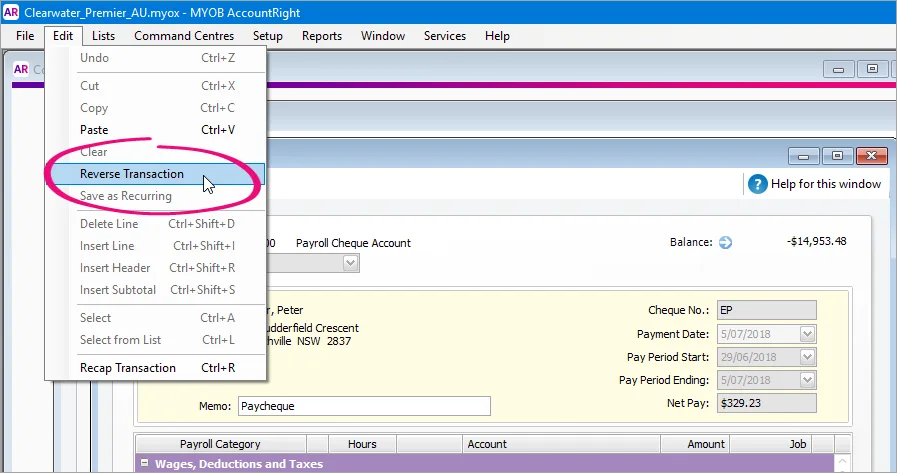
If the pay being reversed is a cheque or electronic payment, a message will be displayed advising it will be recorded as cash. Click Yes to proceed.
Click OK to the following confirmation message:
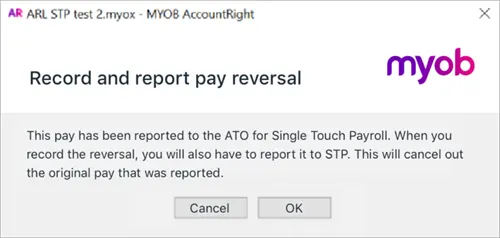
Click Record to process the reversal.
When prompted to declare the reversal to the ATO, enter the name of the Authorised sender and click Send.


If you've had to reverse a pay because an employee left without notice, and you're using Single Touch Payroll, you need to tell the ATO that you won't be sending any more payroll information for that employee. See Terminate an employee in Single Touch Payroll reporting.
To delete a pay
Deleting a pay removes it completely from AccountRight. You should only delete a pay if the amount hasn't been withdrawn from your bank account. If you need to adjust an overpaid or underpaid amount see To fix the hours or amounts in a pay.
If you've reported a pay to the ATO for STP, you might need to reverse the pay instead of deleting it. See the FAQs below for more details about what determines if a pay can be deleted or reversed.
To delete a pay
Ensure the Transactions CAN'T be Changed, They Must be Reversed preference is not selected (go to the Setup menu > Preferences > Security tab).
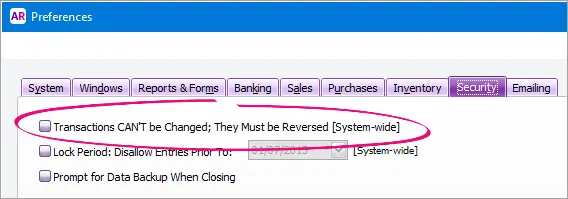
Display the pay to be deleted:
Click Find Transactions at the bottom of the Command Centre then click the Card tab.
Specify your search criteria to find the pay to be deleted.
Open the pay by clicking its blue zoom arrow ().
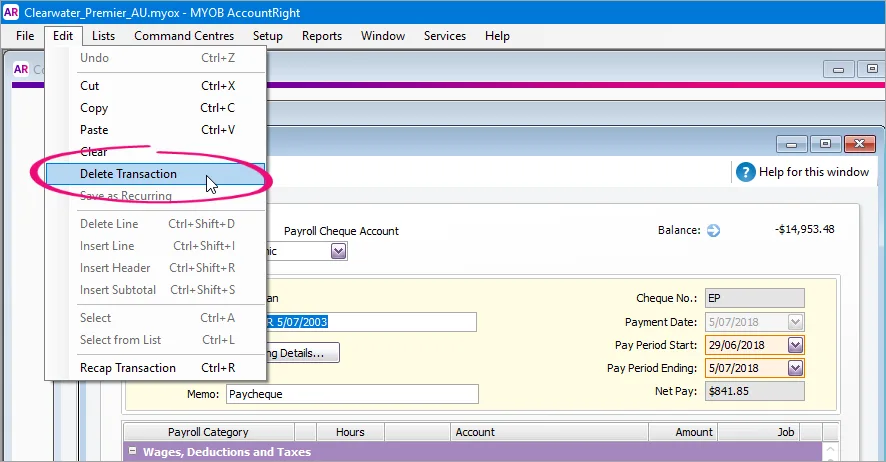
Go to the Edit menu and choose Delete Transaction. If you don't have this option, see the FAQs below for some possible reasons.
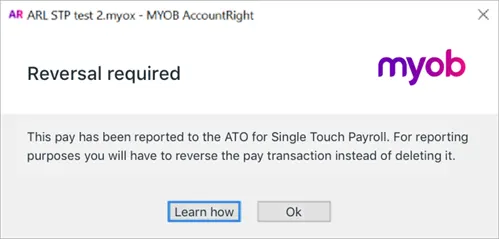
If the pay has been reported to the ATO for STP, you'll be prompted to reverse the pay instead of deleting it. Click OK and follow the steps above to reverse the pay.


If you've had to delete a pay because an employee left without notice, and you're using Single Touch Payroll, you need to tell the ATO that you won't be sending any more payroll information for that employee. See Terminate an employee in Single Touch Payroll reporting.
To fix the hours or amounts in a pay
Here are a few common scenarios where a similar approach is used: include the adjustment in the employee's next pay, or record a separate pay for the adjustment. If your scenario isn't covered, you can reverse or delete the pay then re-enter it.
To fix a pay with incorrect leave or super amounts
To fix a pay which contained incorrect super or leave amounts, either make the adjustment on their next pay, or record a new pay for the employee using the Process Payroll Assistant (Payroll command centre > Process Payroll).
Enter the super amounts or leave hours you need to adjust as positive or negative amounts. Remember to zero out all the categories that you are not adjusting.
The end result should be $0 net pay, and the only amounts/values should be against the categories you are editing. You'll be notified that you are recording a $0 pay, and that it will be a "void" cheque. That's fine in this case.
Also see Adjusting leave entitlements and Checking and adjusting superannuation.
To fix a pay with an incorrect PAYG amount
To fix a pay where the wrong amount of PAYG tax was withheld (check using this ATO calculator), work out how much PAYG tax has been overpaid or underpaid, then adjust the PAYG on the employee's next pay.

Alternatively, you can create a separate pay for the adjustment and enter the adjustment value against the PAYG Withholding category. Remember to zero out all other hours and values on the pay.
If the employee had overpaid PAYG, enter the adjustment as a positive value. If it's to adjust an underpayment, enter a negative value.
To fix an overpayment
If you've overpaid an employee you can make an adjustment on their next pay, or if they have paid back the amount, record a new pay for the employee using the Process Payroll Assistant (Payroll command centre > Process Payroll).
Enter the adjustment as a negative (-) amount in the Hours or Amount columns of the category that was overpaid. Remember to zero out all the categories that you are not adjusting. The net pay amount should be equal to the overpayment, and shown as a negative amount. You can also use the Memo field on the pay to enter a note about this payment.
Note that when recording a pay with a negative net pay amount, the payment method is automatically changed to Cash and the linked bank account for cash payments will be used. This can't be changed.
To fix an underpayment
If you've underpaid an employee you can make an adjustment on their next pay, or if they want the money now, record a new pay for the employee using the Process Payroll Assistant (Payroll command centre > Process Payroll).
Enter the adjustment amount in the Hours or Amount columns of the category that was underpaid. Remember to zero out all the categories that you are not adjusting. The net pay amount should be equal to the underpayment. You can also use the Memo field on the pay to enter a note about this payment.
To change other pay details
Apart from the changes described above, there's only a limited number of other changes you can make to a recorded pay. These include:
pay period
memo
payment method
employee bank account details
statement text
whether a cheque or pay slip needs to be printed or emailed.
To change other pay details
Go to the Payroll command centre and click Transaction Journal.
Find the pay to be changed (use the Dated From and To fields to specify a date range).
Click the zoom arrow to open the pay.
Make your changes. To change the bank account this pay will be paid into (this pay only), click Banking Details and enter the new bank details for this pay.
When you're done, click OK.
To change the details of a job allocated to a pay transaction, go to the Lists menu > Jobs. Click the zoom arrow of the job, make your changes and click OK.
What will prevent me from changing these details?
You won't be able to change these details if:
AccountRight's security preference has been set to prevent transactions from being changed Learn about changing or deleting transactions
the transaction is from a previous (closed) financial year Learn about closing a financial year
the transaction is part of a processed Prepare Electronic Payment Learn about electronic payments
the transaction is part of a Pay Liabilities transaction Learn about paying payroll liabilities
the transaction is part of a Pay Super transaction Learn about making super payments
FAQs
What will prevent me from deleting a pay?
A pay can't be deleted if:
your user role doesn't allow you to delete transactions. If you regularly need to delete transactions, speak to your AccountRight administrator about assigning you this user role.
you've set the security preference in AccountRight which prevents transactions from being deleted (they can only be reversed) Learn about changing or deleting transactions
the transaction is from a previous (closed) financial year Learn about closing a financial year
the transaction is part of a processed Prepare Electronic Payment Learn about electronic payments
the transaction is part of a Pay Liabilities transaction Learn about paying payroll liabilities
the transaction is part of a Pay Super transaction Learn about making super payments
the pay has been sent to the ATO for STP reporting (you'll need to reverse the pay instead)
the pay contains an employment termination payment (ETP) (you'll need to reverse the pay instead)
What determines if a pay can be deleted or reversed?
There's a security preference which controls whether your transactions can be deleted or reversed (Setup menu > Preferences > Security tab > Transactions CAN'T be Changed, They Must be Reversed).
For pays that have been submitted to the ATO via STP, the status of the report submission also determines if you can delete the pay or if you'll need to reverse it instead.
This table shows whether you can delete or reverse a pay based on its status in the STP Payroll Reporting Centre. For example, if the status is Sent you can only reverse the pay.
Status | Can delete? | Can reverse? |
|---|---|---|
Rejected | Yes | Yes |
Not Sent | Yes | Yes |
Sent | Yes | |
Accepted | Yes | |
Accepted with errors | Yes |