If you've transferred money from one bank account to another (for example, from your cheque account to your credit card account), you can make a record of this transfer in MYOB from the Create transfer money transaction page, accessible from the Banking > Transfer money menu.
If you use bank feeds or import your bank statements, if a transaction represents a transfer, find out about Transferring funds from a bank transaction.
If you need to transfer money between other account types (not bank or credit card), record a general journal entry.
To record a transfer between accounts
From the Banking menu, choose Transfer money. The Create transfer money transaction page appears.
Enter the Amount of the transfer.
There's a built-in calculator in the Amount field. Just enter a calculation in the field and tab out of it:

Enter a Description of the transfer.
Make sure the Reference number is correct. If not, enter a new number.
Changing the numbering
If you change the reference number, you’ll change the automatic numbering. For example, if you change the number to 000081, the next time you transfer money, MYOB Business will display the new reference number as 000082.
Make sure Date is correct. If not, enter a new date or click the icon next to it to select a date from the calendar.
Choose the Bank account from. This is the account you're transferring money from. The current balance is shown for the selected account, along with the balance after the transfer.
Choose the Bank account to. This is the account you're transferring the money to. The current balance is shown for the selected account, along with the balance after the transfer.
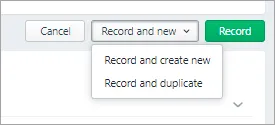
Click Record to transfer the money, or if you need to create another transfer money transaction, choose an option under Record and new:


To delete a transfer between accounts
From the Banking menu, choose Find transactions.
Click the Transactions tab and filter the list to find the transfer money transaction.
For the Transaction type, select choose Transfer money.
Enter a Date from and Date to date to find transactions within a date range.
Enter all or part of the transaction's Description. Matching transactions will be displayed.
Click the Reference number for the transaction to be deleted. The transaction is displayed.
Click Delete at the bottom of the page. A confirmation message appears.
Click Delete to the confirmation message.
You can record the transfer of money between bank accounts, including bank and credit card accounts, using the Transfer Money window. For example, if you have a petty cash account set up as a bank account, you can record a transfer that tops up the balance of your petty cash float. For information on setting up accounts see Set up accounts.
You can also record payments to credit card providers by transferring funds to credit card accounts. If you're working with multiple currencies, also find out how to transfer funds into foreign bank accounts.
To print a transfer money transaction, print the General Journal report for the date of the transfer (Reports menu > Index to Reports > Accounts tab > General Journals).
To transfer money between accounts
Go to the Accounts command centre and click Transfer Money. The Transfer Money window appears.
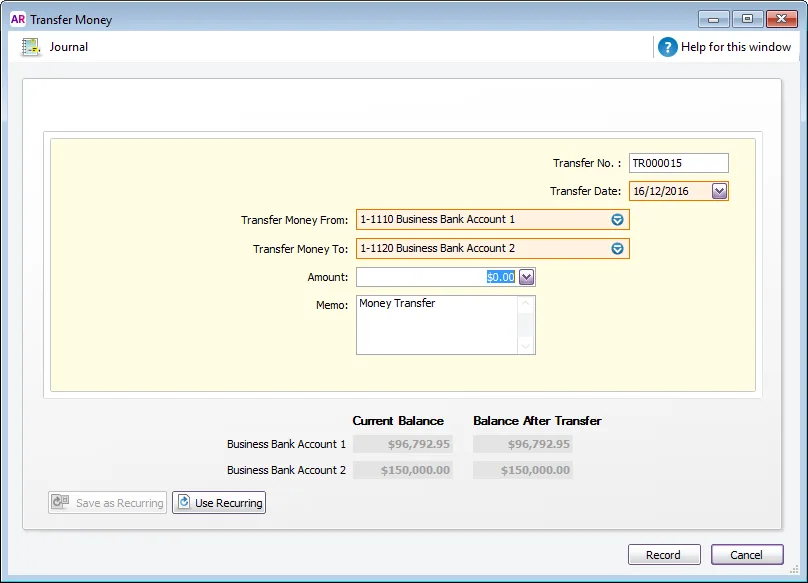
Enter or select a date for the transfer.
The default number shown in the Transfer No. field is the next available number. When you click in the Transfer No. field, Auto # appears to confirm that the number has been automatically selected for you. You can type a different number into the field if you want, but this will not change the numbering for subsequent transfers.In the Transfer Money From field, enter the account from which the funds will be paid.
In the Transfer Money To field, enter the account to which the funds will be paid.
If your accounts don't display, check they are set up as an Asset - Bank or Liability - Credit Card . For more information see Set up accounts.
In the Amount field, type the amount to be transferred.
If you want to record the purpose of the transaction, type a description in the Memo field.
(Not Basics) If you want to assign the transaction to a particular cost centre, select it from the Cost Centre list.
[Optional] If you want to store the transaction as a recurring transaction, click Save as Recurring. Enter details of the recurring transaction in the Recurring Schedule Information window and click OK. For more information about recurring transactions, see Recurring transactions.
Click Record.

Find a previous transfer money transaction
Click Find Transactions at the bottom of any command centre and click the Account tab. Search All Accounts and set a date range. Transactions with an ID No. starting with TR are your money transfers.

Made a mistake?
After you record a transfer, you can’t edit its details. If you entered it incorrectly, you’ll need to delete or reverse it.
To do this:
-
Open the transfer transaction (go to Accounts > Transaction Journal > Disbursements tab. The transfer transaction will have an ID No. starting with TR. Double-click the transaction to open it.
-
Go to the Edit menu and choose Delete Transfer Transaction or Reverse Transfer Transaction.
Note that whether you can delete or reverse depends on your security preferences.