These days a password isn't enough to protect your online data. That's why we use two-factor authentication (2FA) as a second layer of protection. It involves using something only you have access to: either your email inbox or a mobile device.
This makes it harder for unauthorised people to get into your MYOB software.
2FA is only required when you're working in MYOB
You'll only need to sign in with two-factor authentication (2FA) once every 24 hours while you're actively using your MYOB software. You don't need to log in to your account when you're not using MYOB, like on weekends.
How does it work?
You'll still use your email address and password to sign in to MYOB.
Then you'll need to enter an authentication code to verify that it's you.
There are three ways to get this code:
via an authenticator app (recommended) on a mobile device (phone, tablet, etc.) – the code displays in the app
via SMS (recommended as a backup method) – the code is sent to your mobile phone via text message
via email (not recommended) – the code is sent to the email address linked to your MYOB account. Only available if you set it up when you first set up 2FA.
Getting set up
The first time you sign in to your online MYOB software, you'll be prompted to set up 2FA. Here are all the details.
Changed phones? Find out how to set up mobile app 2FA on your new phone.
Set up multiple 2FA methods for more options
When you set up more than one 2FA method (for example, app + SMS), you also have options if one isn’t available. This helps you avoid getting locked out of your account.
For the strongest protection, we recommend using an authenticator app as your main 2FA method, with SMS as your backup. Email 2FA is our least secure option and is only there if you can’t use app or SMS, and over time we’ll be moving away from it.
Comparing 2FA methods and recommended use
Signing in with 2FA
Sign in with authenticator app 2FA
Sign in to your MYOB account as normal, using your email address and password.
A screen appears asking for an authentication code:
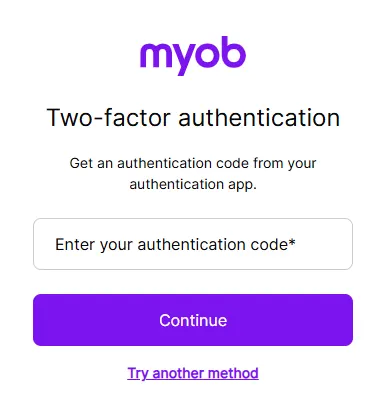
Don't have access to your 2FA app?
Click Try another method and choose another 2FA method (if you've set one up) or choose to enter the recovery code that was provided when you set up SMS 2FA.
If you haven't set up an additional 2FA method or don't have a recovery code, click the chat bubble below to ask MOCA, our virtual assistant, for help. If MOCA can't help, you'll be guided to our other support options, and our team will get you back up and running.
Open your 2FA app and find the code. It will look something like this:
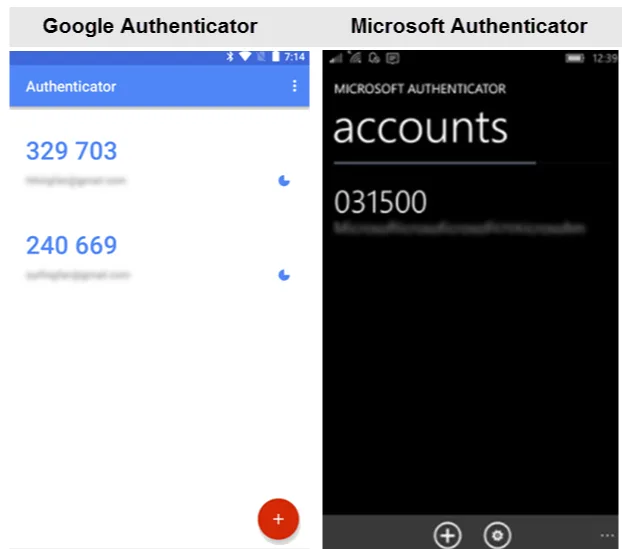
Enter the code into the two-factor authentication screen, then click Continue and you're finished.


Sign in with SMS 2FA
Sign in to your MYOB account as normal, using your email address and password. When you click Sign in, a 6 digit code is sent to your mobile phone via SMS.
Enter the 6-digit code and click Verify code.
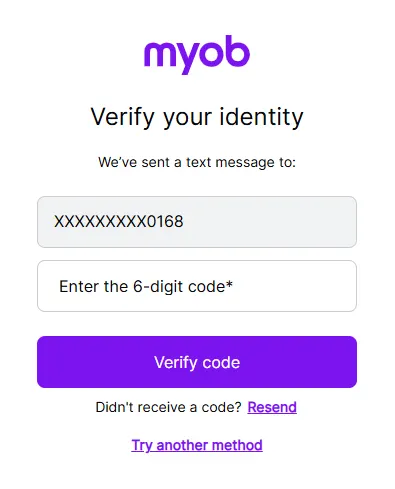

Don't have your phone?
Click Try another method and choose another 2FA method (if you've set one up) or choose to enter the recovery code that was provided when you set up SMS 2FA.
If you haven't set up an additional 2FA method or don't have a recovery code, click the chat bubble below to ask MOCA, our virtual assistant, for help. If MOCA can't help, you'll be guided to our other support options, and our team will get you back up and running.
Sign in with email 2FA
Sign in to your MYOB account as normal, using your email address and password.
When you click Sign in, an email with an authentication code is emailed to you automatically. If you can't see the email in your inbox, check your junk mail, or check the troubleshooting section below.
Copy the code in, then click Verify code, and you're done.
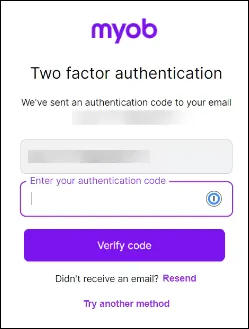

Don't have access to your emails?
Click Try another method and choose another 2FA method (if you've set one up) or choose to enter the recovery code that was provided when you set up 2FA.
If you haven't set up an additional 2FA method or don't have a recovery code, click the chat bubble below to ask MOCA, our virtual assistant, for help. If MOCA can't help, you'll be guided to our other support options, and our team will get you back up and running.
Log out when you’re done
It’s good security practice to log out at the end of every session.
Need some 2FA help?
If you're stuck with 2FA, see this troubleshooting guide.