Once you've completed the tax return, follow the workflow to validate, review, complete, and lodge the FBT return
Step 1. Validate the FBT form against the ATO rules
On the top right of the FBT form, click Validate. This does a pre-lodge check with the ATO.
To validate a tax return, the status must be In review or In progress.If you see an error or warning message at the top of the page, use the information in the message to fix the error.
Step 2. Send the FBT for a review within your Practice
On the top right of the FBT return, click Send for review. The status changes to In Review.
The status changes to help you know where you are in the workflow. It doesn't send anything for review; you actually need to ask someone to review it.Ask someone in your practice to review the FBT.
To help with reviews, you can add comments to a tax return.
Step 3. Approve the FBT after everything has been checked
Review the data in the FBT.
To request changes:
Click Send for rework. The status changes to In Progress.
Ask the appropriate person in your practice to make the changes.
Review the changes.
To approve the data, click Approve all. The status changes to Ready for client review.
Print the FBT
Once your FBT is approved, you can print it for your records or to send to your client for review.
On the right of the FBT, click Preview (PDF).
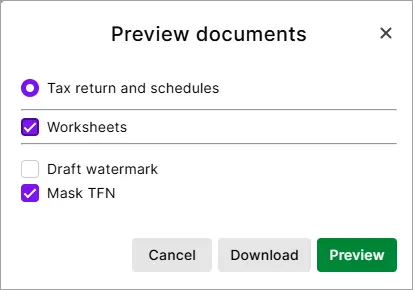
In the Preview documents window, select:
Draft watermark: If you select this option, the word DRAFT will appear across the page when previewing and printing.
Mask TFN: Select this option to hide the TFN in the tax return. The preview and a downloaded copy will show Recorded in the TFN field.
Download: Click to download a pdf copy of the documents.
Preview: Click to preview the document in another tab. use the download arrow to download a PDF copy of the document.

Send it for client review
After validating and approving the tax return, get your client to approve it before lodgment. You can send the return to your client
using the portal, or
Send it manually by downloading a copy of the tax return and sending it via email, post, or other means.

Lodge to the ATO
After your client has signed the tax return, change the status to Ready to lodge and then lodge to the ATO.
Open the return and click Client approved & signed. This updates the status of the return to Ready to lodge. You need to do this for each tax return that is sent and signed manually.
Click Lodge to the ATO to send to the ATO.