There's a few ways you can upload documents, like bills and receipts, to store them in MYOB. One way is to email them as attachments.
The Uploads area in your MYOB business has a unique email address that you can use – or give to your suppliers or anyone else – to email documents straight into your MYOB business.
Find your unique email address
In MYOB, click Uploads.
Click More ways to upload.
Find your unique email address.
Provide your unique email address to your suppliers
Now you've found your unique email address, give it to your suppliers or anyone else you want to email documents into your MYOB business.
OK, we realise the email address doesn't exactly roll off the tongue. So the best way to share it is to click Copy and paste it into an email.
When sharing your unique email address with your suppliers, also let them know:
documents they email you can't be bigger than 10MB in size
documents must be in one of these formats: PDF, JPG, JPEG, TIFF, TIF, or PNG
the email address is not your usual business email address.
Receiving unwanted documents?
Click Generate new email address to create a new unique email address. The old email address will stop working, so remember to let your suppliers know about the change.
When you receive a document
Once a document is in your MYOB business uploads, you can attach it to an existing transaction or use it to create a new transaction. Learn all about working with uploaded documents.
Online company files only
The In Tray lets you store documents, like bills and receipts, in your online company file. It's like an electronic version of a physical in tray, but without the clutter, staples, or paper cuts. Tell me more about the In Tray.
There's a few ways to get documents into your In Tray, but the smartest way is emailing them as attachments. Your In Tray has a unique email address you can give to your suppliers, or anyone else you choose, to email documents directly to your In Tray.
Using bills@accountright.myob.com? That email address has been replaced with a new one, that's specific to your company file.
Remember to delete that email from your address book.
Let's take you through it.
Find your In Tray email address
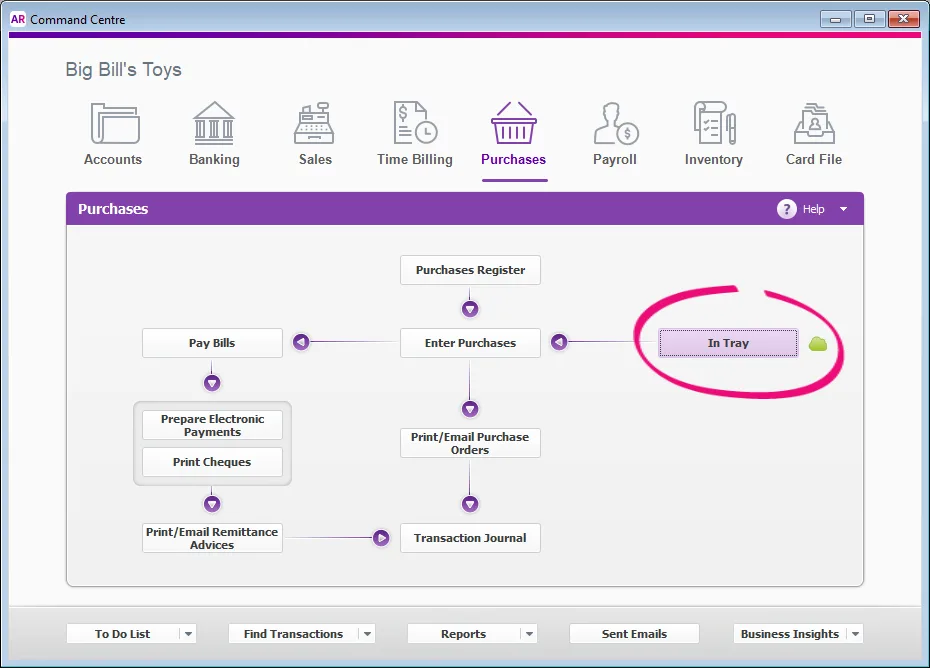
In your online AccountRight company file, go to the Purchases command centre and click In Tray.
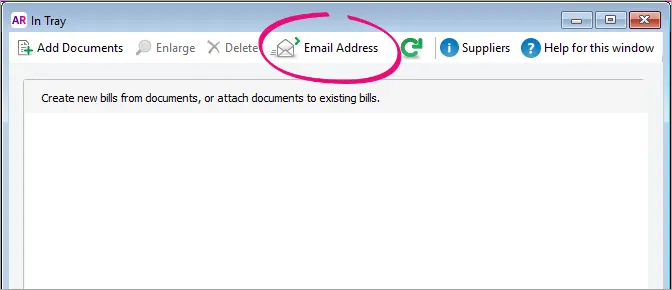
Click Email Address.
Find your unique email address.
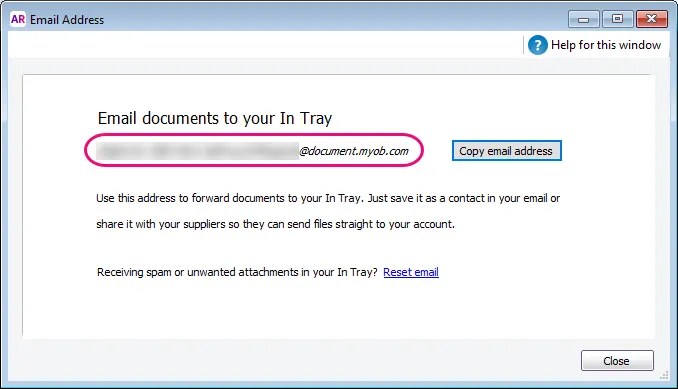


Receiving unwanted documents? Click Reset email to generate a new In Tray email address. The old email address will stop working, so remember to let your suppliers know about the change.
Provide your In Tray email address to your suppliers
Now you've found your In Tray email address, give it to your suppliers or anyone else you want to email documents to your In Tray.
OK, we realise the email address doesn't exactly roll off the tongue. So the best way to share it is to click Copy email address next to the In Tray email address, then paste it into an email.

When emailing your In Tray email address to your suppliers, also let them know:
documents they email you can't be bigger than 10MB in size
documents must be in one of these formats: PDF, JPG, JPEG, TIFF, TIF, or PNG
the In Tray email address is not your usual business email address.
When you receive a document
Once a document's in your In Tray, you can attach it to an existing transaction or use it to create a new transaction. Learn all about working with In Tray documents.