Key points
-
Overtime is time worked in addition to normal working hours, usually paid at a higher rate
-
To add overtime to an employee's pay, set up a new pay item
-
The same approach can be used for penalty rates, weekend rates, or other additional pay rates
When does overtime apply?
Check the FairWork website to learn more about the ins and outs of overtime.
If an employee takes time off instead of receiving paid overtime, see Time off in lieu.
MYOB comes with two overtime pay items you can assign to your employees:
Overtime (1.5x)—used to pay overtime at time and a half
Overtime (2x)—used to pay overtime at double time
If you pay different rates of overtime, like 2.5x or 3x, you can easily set up new overtime pay items.
Assigning overtime to an employee
You'll need to assign the applicable overtime pay item to each employee who is entitled to be paid overtime.
Go to the Payroll menu and choose Pay items.
Click the Wages and salary tab.
Click the overtime pay item you want to assign.
Under Employees using this pay item, choose the employees entitled to this overtime.
When you're done, click Save.
Setting up a new overtime rate
If the overtime pay items which come with MYOB don't suit your business needs, you can create a new ones.
Go to the Payroll menu and choose Pay items.
Click the Wages and salary tab.
Click Create wage pay item.
Enter a Name for the pay item, such as Overtime 2x or Overtime 1.5x
If you'd like a different, more personalised, name to show on pay slips for this overtime pay item, enter a Name for pay slip, such as "Saturday rate". If you leave this blank, the pay item Name will display instead.
Choose the ATO reporting category. If you're not sure, check with your accounting advisor or the ATO. Learn about assigning ATO reporting categories for Single Touch Payroll.
For the Pay basis, choose Hourly.
For the Pay rate, choose Regular rate multiplied by and enter the overtime rate in the next field. For example, for double time you'd enter 2.
(Optional) If you want to track these overtime payments through a separate account, select the option Override employees' wage expense account and choose the override account in the field that appears. How do I create accounts?
To prevent super guarantee from calculating on overtime payments, select the option Do not include in Superannuation Guarantee calculations. Which payments should super be calculated on?
Under Employees using this pay item, choose the employees entitled to this overtime.
Under Exemptions, choose any deductions or taxes that shouldn't be calculated on these overtime payments. If you're not sure, check with your accounting advisor or the ATO.
When you're done, click Save.
Preventing super calculating on overtime
According to the ATO guidelines, overtime payments aren't part of ordinary time earnings (OTE) for super guarantee purposes.
Here's how to check if your overtime payments are set up to be excluded from super calculations:
Go to the Payroll menu and choose Pay items.
Click the Superannuation tab.
Click the superannuation pay item you want to exclude from overtime.
Under Exemptions, if the overtime pay item isn't listed, you can select it here. This will prevent super from calculating on those payments.
Repeat steps 3-4 for all other superannuation pay items you want to exclude from overtime.
When you're done, click Save.
Paying overtime
When an employee works overtime, enter the overtime hours on their pay.
Go to the Create menu and choose Pay run.
Choose the Pay cycle and confirm the pay dates.
Click Next.
Click the employee to open their pay.
Enter the hours of overtime being paid against the applicable overtime pay item.
Continue processing the pay as normal. Need a refresher?
AccountRight Plus and Premier only
Overtime is time worked in addition to normal working hours. Depending on your workplace agreement or award, overtime can be paid at an increased hourly rate, sometimes 1.5 or 2 times the employee's normal hourly rate.
If you're not sure when overtime applies, the FairWork website is a good place to start.
AccountRight comes with 2 overtime categories you can assign to your employees:
Overtime (1.5x)—used to pay overtime at time and a half
Overtime (2x)—used to pay overtime at double time
If you pay higher rates of overtime, like 2.5x or 3x, you can easily set up a new overtime category.
Assigning overtime to employees
You'll need to assign the applicable overtime payroll category to each employee who is entitled to be paid overtime.
Go to the Payroll command centre and click Payroll Categories.
Click the Wages tab. Any overtime categories will be listed. Here's AccountRight's 2 default overtime categories:
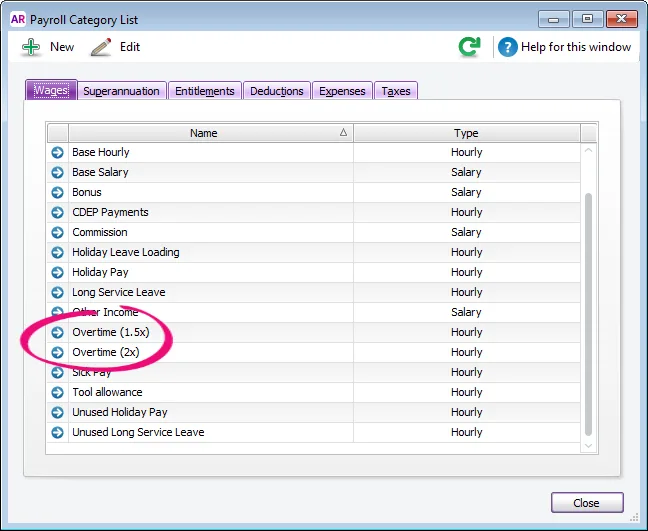
Click the blue zoom arrow ( ) to open an overtime category.
Click Employee.
Select the employees entitled to this overtime rate.
Click OK.
Repeat steps 3-6 to assign additional overtime categories to your employees.

The overtime payroll category is now assigned to your employees and you'll be able to pay overtime as explained below.
Setting up a new overtime rate
If AccountRight's default overtime wage categories don't meet your requirements, here's how to set up a new overtime category:
Go to the Payroll command centre and click Payroll Categories.
Click the Wages tab.
Click New.
Enter a Wages Name, such as Overtime (2.5x).
For the Type of Wages, select Hourly.
Choose the applicable ATO Reporting Category. If unsure, check with your accounting advisor or the ATO. Learn more about assigning ATO reporting categories for Single Touch Payroll reporting.
For the Pay Rate, select Regular Rate Multiplied by and enter the overtime rate, such as 2.5000. Here's our example overtime category setup:
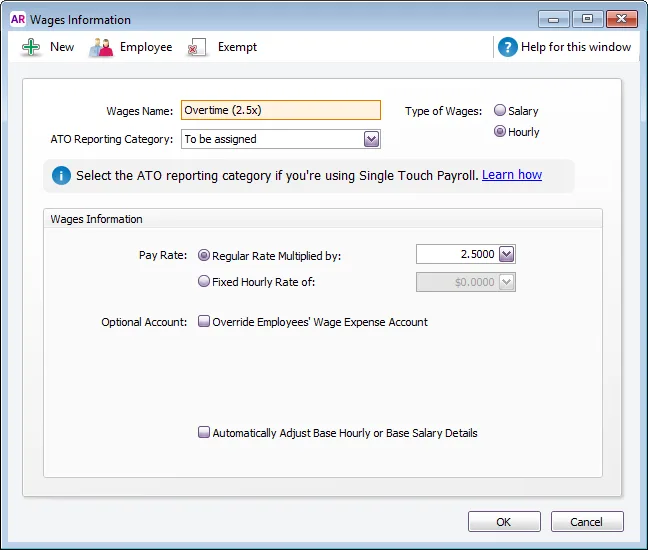
(Optional) If you want to track overtime using a separate account, e.g. to show overtime separately on your profit and loss statement, select Optional Account and choose the applicable account.
Click Employee.
Select the employees entitled to this overtime rate.
Click OK then click OK again.
Complete the next task to stop super calculating on new overtime categories.

Preventing super calculating on overtime
According to the ATO guidelines, overtime payments aren't part of ordinary time earnings (OTE) for super guarantee purposes.
Super is already excluded from AccountRight's default overtime categories. But if you've created a new overtime category, here's how to stop super calculating on it:
Go to the Payroll command centre and click Payroll Categories.
Click the Superannuation tab.
Click the blue zoom arrow to open the Superannuation Guarantee category.
Click Exempt.
Select your new overtime category.
Click OK then click OK again.
Repeat steps 3-6 for all other super categories assigned to the employee.
Paying overtime
Once you've assigned overtime categories to your employees, you can pay them overtime.
Start a pay run as you normally would.
Click the blue zoom arrow ( ) to review the employee's pay.
Enter the number of overtime hours against the applicable overtime category. Here's an example of 2 hours time-and-a-half and 1 hour double time.
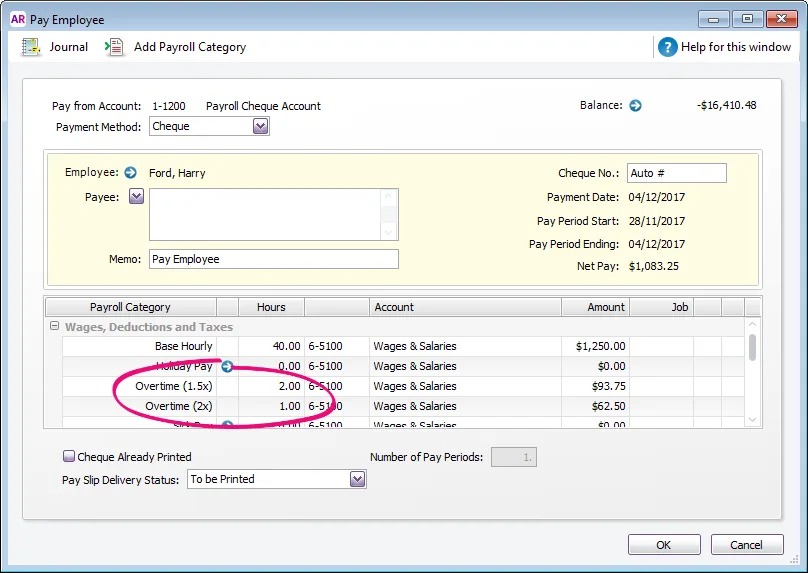
Finish processing the pay as normal.

Paying the same overtime each pay
If an employee is paid the same overtime each pay, add it to their standard pay (Card File > Cards List > Employee tab > open the employee's card > Payroll Details tab > Standard Pay). Enter the number of allowance units in the Hours column.

The overtime hours will now appear automatically on each of the employee's pays.
Find out how much overtime you've paid by running the Payroll Category Transactions report (Reports menu > Index to Reports > Payroll tab > Payroll Category Transactions). You can filter the report for one or more overtime payroll categories and employees. Learn more about Payroll reports.