There are two ways you can pay a bonus or commission:
include the payment in the employee's regular pay, or
process the payment separately.
Either way, you'll need to set up the bonus or commission payment and assign it to the applicable employees. You can then process the payment in a pay run.
Setting up a bonus or commission
MYOB comes with default Bonus and Commission pay items which you can assign to your employees to include in their pays. If an employee requires more than one type of bonus or commission added to their pay, you can create additional pay items.
You can set the bonus or commission amount to include in each employee's pay, or you can enter the amount during the pay run.
Superannuation and leave
Depending on the bonus or commission you're paying, it might need to be included in your superannuation calculations. To clarify your super obligations, speak to your accounting advisor or check the ATO guidelines. If the payment shouldn't accrue super, you'll need to exempt it from super calculations (see below). As per the Fair Work guidelines, leave doesn't accrue on bonus or commission payments, so you'll need to exempt those payments from accruing leave (see below).
To set up a bonus or commission
Go to the Payroll menu and choose Pay items.
Click the Wages and salary tab.
Click to open the Bonus or Commission pay item.
(Optional) Change the Name for his pay item, for example "Christmas Bonus"
(Optional) If you'd like a different, more personalised, name to show on pay slips for this pay item, enter a Name for pay slip, such as "Performance Bonus - Steven". If you leave this blank, the pay item Name will display on the pay slip instead.
If it hasn't already been set, choose the applicable ATO reporting category. If you're not sure, check with your accounting advisor or the ATO. Learn about assigning ATO reporting categories for Single Touch Payroll.
(Optional) If you want to track your bonus or commission payments through a separate account, select the option Override employees' wage expense account and choose the override account in the field that appears. Need to create a new account?
Under Allocated employees, choose the employees to be assigned this bonus or commission. To remove an employee, click the delete icon for that employee.
Under Exemptions, choose any deductions or taxes that shouldn't be calculated on this bonus or commission. If you're not sure, check with your accounting advisor or the ATO.
When you're done, click Save.
If you need to set up an additional bonus or commission payment, click Create wage pay item and follow the same steps above. Learn more about Setting up pay items.
The bonus or commission pay item will now be available in each of the allocated employee's pays. When you do a pay run, you can enter the bonus or commission amount you're paying them. Or you can set a default payment amount for an employee as described below.
To set a payment amount for an employee
If an employee will receive the same payment amount each pay, you can set that amount. This means you won't have to enter the amount each time you pay that employee.
Go to the Payroll menu > Employees.
Click the employee's name.
Click the Payroll details tab > Standard pay.
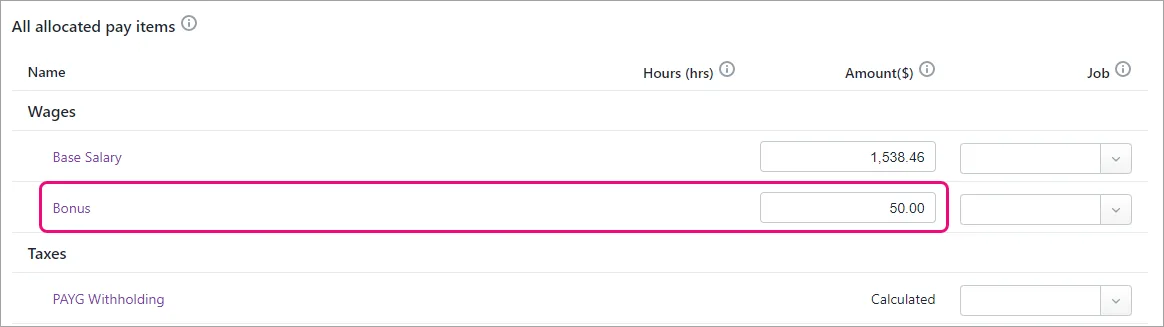
Enter the amount they'll be paid against the applicable bonus or commission pay item.
Click Save.

The set amount will now be included each time you pay the employee. But you can easily change or remove the amount when you pay the bonus or commission as shown below.
To stop leave or super calculating on a bonus or commission
To clarify if super should accrue on a bonus or commission payment, speak to your accounting advisor or check the ATO guidelines. As per the Fair Work guidelines, leave doesn't accrue on bonus or commission payments, so you'll need to stop leave from calculating on those payments.
To stop super calculating on a bonus or commission
Go to the Payroll menu > Pay items.
Click the Superannuation tab.
Click to open the Superannuation Guarantee pay item.
Under Exemptions, choose the pay items you want to exclude from super calculations, e.g. Bonus and/or Commission.
Click Save.
Repeat steps 3-5 for each type of superannuation pay item that applies to the employees receiving the bonus or commission payments.
To stop leave calculating on a bonus or commission
Go to the Payroll menu > Pay items.
Click the Leave tab.
Click to open the Annual Leave Accrual pay item.
Under Exemptions, choose the pay items you want to exclude from annual leave calculations, e.g. Bonus and/or Commission.
Click Save.
Repeat steps 3-5 for each leave accrual pay item that applies to the employees receiving the bonus or commission payments, for example personal leave.
Once you're set up, you can pay the bonus or commission.
Paying the bonus or commission
Once you've set up the bonus or commission, you can include it in an employee's regular pay, or you can run a separate pay for it to make it clear what you're paying.
To pay the bonus or commission
Tax on bonuses and commissions
When paying a bonus or commission, MYOB treats the total gross pay as the employee's regular wage and taxes it accordingly. To avoid withholding the wrong amount of tax, you'll need to calculate and manually adjust the tax on the pay.For help with this calculation check the ATO guidelines.
Go to the Create menu and choose Pay run.
Choose the Pay cycle and confirm the pay dates.
Click Next.
Deselect the employees you're NOT paying.
Click an employee to open their pay.
Enter or confirm the amount being paid against the applicable Bonus or Commission.
If this is a separate pay just for the bonus or commission, remove all other Hours and Amounts from the pay. This ensures they're only paid for the bonus or commission.
Change the PAYG Withholding amount as required (see the note above).
Here's our example of a bonus-only pay: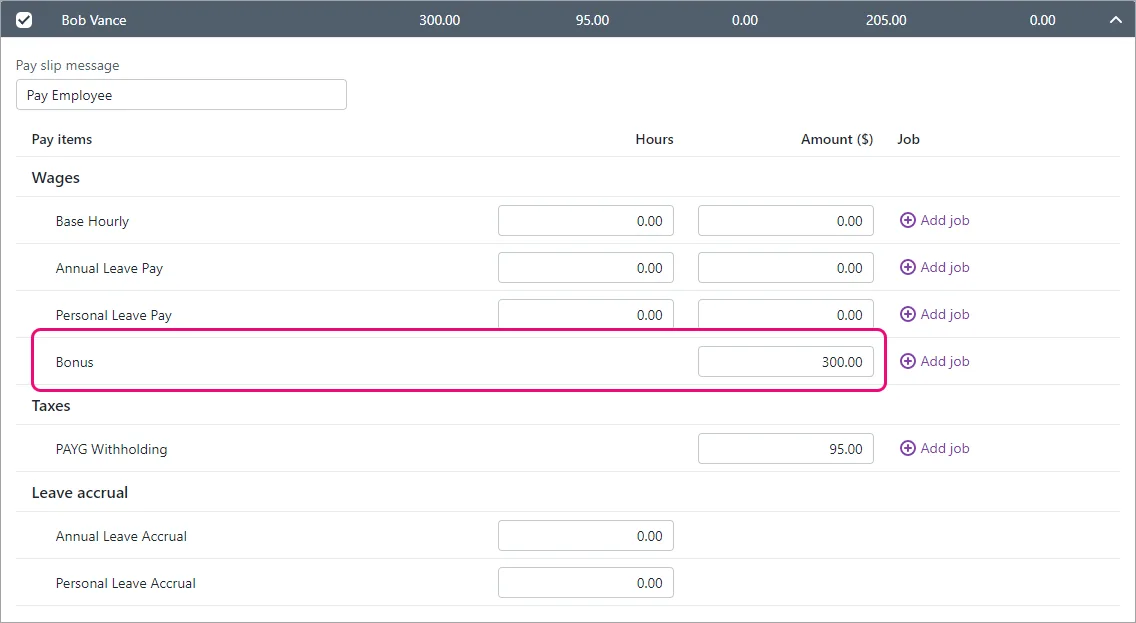
Click Next and continue processing the pay as normal. Need a refresher?

There's two ways to pay an employee a bonus or commission:
include the payment on the employee's regular pay, or
process the payment in a separate pay (if this helps you or the employee keep track of these payments).
Tax on bonus and commission payments
When paying a bonus or commission, AccountRight treats the total gross pay as the employee's regular wage and taxes it accordingly. This means you'll need to calculate and manually adjust the PAYG withholding on the pay.
For the current rates of PAYG withholding on bonuses and commissions, check the ATO's tax tables or speak to your accounting advisor.
Setting up a bonus or commission
AccountRight comes with default Bonus and Commission payroll categories which you can assign to your employees (Payroll command centre > Payroll Categories > Wages tab).

Click the blue zoom arrow to open a payroll category, or click New to create one (if the default ones aren't there). The default Bonus and Commission categories are set up the same way (the Type of Wages can be set to Salary, regardless of an employee's pay basis).
To ensure payments using this wage category are reported correctly to the ATO, choose the applicable ATO Reporting Category. If unsure, check with your accounting advisor or the ATO. Learn more about assigning ATO reporting categories for Single Touch Payroll reporting.
Here's an example:

If a bonus or commission is paid regularly, click Employee and select the employees who receive these payments. Or, you can add a payroll category to an employee's pay when completing the pay run (see the next task for details).
If a bonus or commission payment is the same amount each pay, you can add it to an employee's standard pay so it automatically appears on their pay (Card File command centre > Cards List> open the employee's card > Payroll Details tab > Standard Pay). Or, you can enter the amount when completing the pay run (see the next task for details).
Including a bonus or commission in a regular pay
Start a pay run (Payroll > Process Payroll).
Choose the employees you want to pay and confirm the Payment Date and Pay Period.
Click Next.
Click the zoom arrow to review the employee's pay.
If the Bonus or Commission wage category hasn't already been added to the employee:
Click Add Payroll Category.
Select the Bonus or Commission wage category.
Click OK.
Enter the payment in the Amount column against the Bonus or Commission wage category.
Adjust the PAYG Withholding value as required.
Finalise the pay as normal.
Processing a separate pay for the bonus or commission
Start a pay run (Payroll > Process Payroll).
At the Process all employees paid field, select Bonus/Commission. Information is displayed about the need to manually calculate and enter the tax for this payment.
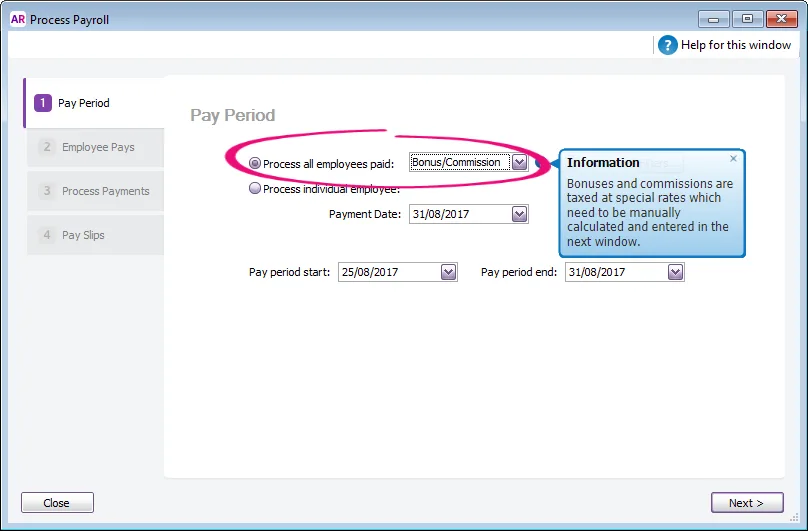
Confirm the Payment Date and Pay Period then click Next.
Click the zoom arrow to review the employee's pay.
If the Bonus or Commission wage category hasn't already been added to the employee:
Click Add Payroll Category.
Select the Bonus or Commission wage category.
Click OK.
Enter the payment in the Amount column against the Bonus or Commission wage category.
Adjust the PAYG Withholding value as required.
(Optional) Record information about the bonus or commission in the Memo field.
Finalise the pay as normal.

Superannuation on bonuses
Some bonus payments need to be included in your superannuation calculations. To clarify if your bonus payments should accrue super, check the ATO guidelines or speak to your accounting advisor.