You'll usually pay employees at a set frequency, like weekly, fortnightly or monthly.
But you can also record a pay outside of the regular frequency, and we call this an unscheduled pay. You might do this to pay a bonus or another one-off payment.
It's like a regular pay, but you'll need to choose who you're paying and enter the pay amount.
Need to fix a pay?
Depending on what needs fixing, there's a few ways to handle it. Here's all the details.
To record an unscheduled pay
From the Create menu choose Pay run.
Set the Pay cycle to Unscheduled.
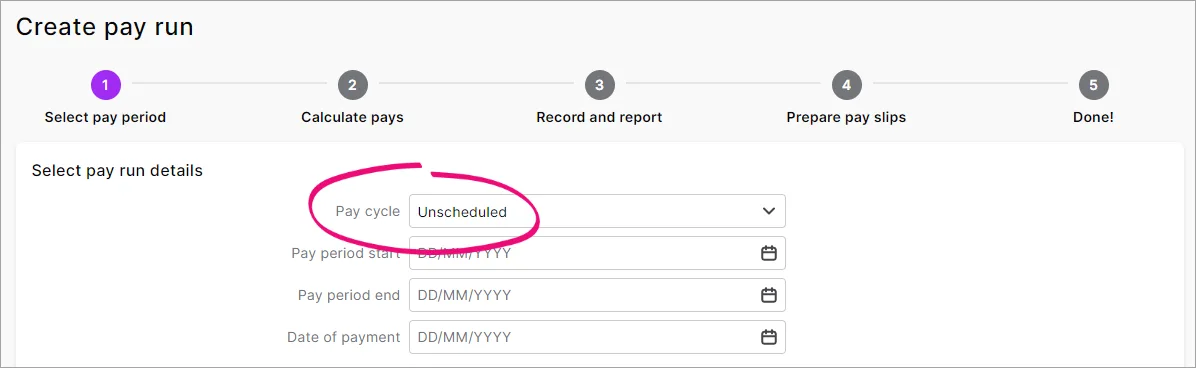
Set the pay dates and click Next.
Select the employees you want to pay.
Click an employee to open their pay.
Enter the hours or amounts you're paying against the applicable pay items. PAYG Withholding (tax) and superannuation will calculate automatically.
Click Next and review the pays you're about to record.
When you're ready, click Record and send the payroll information to the ATO.

Unscheduled pays are listed with your other pays (Payroll > Pay runs).
You'll usually pay employees at a set frequency, like weekly, fortnightly or monthly.
But you can also record a pay outside of the regular frequency, and we call this an unscheduled pay. You might do this to pay a bonus or another one-off payment.
To record an unscheduled pay, you'll use the pay frequency called Bonus/Commission – this lets you choose who you're paying and enter their pay amounts manually.
Need to fix a pay?
Depending on what needs fixing, there's a few ways to handle it. Here's all the details.
To record an unscheduled pay
Start a pay run (Payroll > Process Payroll).
At the Process all employees paid field, select Bonus/Commission. You can dismiss the popup information that's displayed.
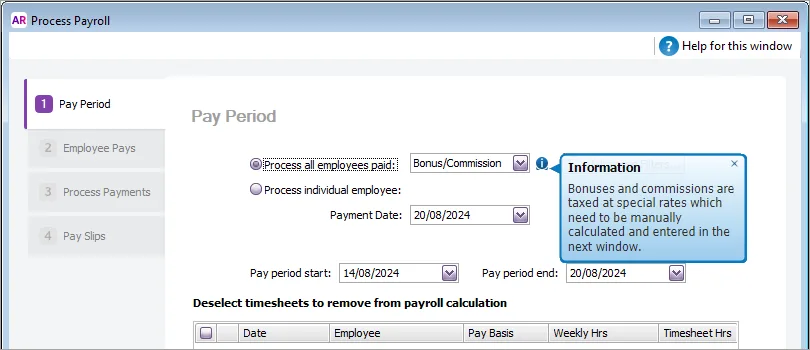
Confirm the Payment Date and Pay Period then click Next.
Select the employees you want to pay.
To enter pay amounts for an employee, click the blue zoom arrow to open their pay.
Enter the hours or amounts you're paying against the applicable payroll category. PAYG Withholding (tax) and superannuation will calculate automatically.
(Optional) Record information about this pay in the Memo field.
When you're ready, click Record and send the payroll information to the ATO.
