You can reinstate (or reactivate) an ex-employee by reusing their employee record. All you need to do is remove the Termination date from their record and ensure their payroll details are up to date.
Alternatively, you can set up a new employee record for the returning employee. You can't have two employee records with the same name, so you'll need to update the name in the old employee record. Maybe add "old" or similar to the end of the employee's name in their old employee record. You can then use the employee's name in their new record. You can also send the employee a self-onboarding request to speed things up.
If you're reinstating an employee in the same payroll year they were terminated and you're re-using their employee record, you'll need to undo their finalisation for Single Touch Payroll reporting.
To reinstate an employee
Go to the Payroll menu and choose Employees.
Select the option Show inactive employees.
Click the employee to open their record.
On the Contact details tab, ensure the employee's details are current and the Inactive employee option is deselected.
Click the Payroll details tab.
Remove the Termination date (highlight the date and press Delete on your keyboard).
Change the Start date to the date the employee is being reinstated.
Click through each of the tabs in the employee's record and ensure their details are up to date.
(Optional) Click the Contact details tab and click Request employee details. This will email the employee a request to check their details and submit any required changes.
If you're reinstating an employee in the same payroll year they were terminated
If you're re-using the employee's card, you'll need to undo the employee's termination and their finalisation for Single Touch Payroll reporting. This lets the ATO know the employee has been reinstated and you'll be paying them again.
Go to the Payroll menu and choose Single touch payroll reporting.
Click Employment terminations.
Click Undo next to the employee's termination.
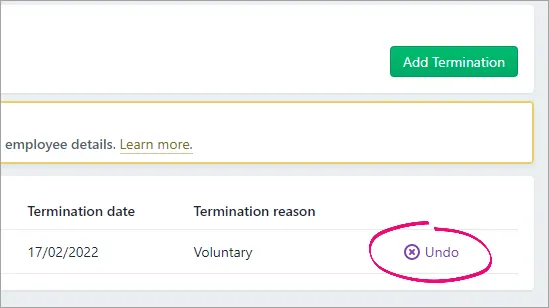
When prompted to send your payroll information to the ATO, enter your details and click Send.
Click the EOFY finalisation tab.
Select the employee and click Remove finalisation and notify the ATO.
When prompted to send your payroll information to the ATO, enter your details and click Send.

AccountRight Plus and Premier
You can reinstate (or reactivate) an ex-employee by reusing their employee card. All you need to do is remove the Termination Date from their card and ensure their payroll details are up to date.
Alternatively, you can set up a new employee card for the returning employee. You can't have two employee cards with the same name, so you'll need to update the name in the old employee card. Maybe add "old" or similar to the end of the employee's name in their old employee card. You can then use the employee's name in their new card. You can also send the employee a self-onboarding request to speed things up.
If you're reinstating an employee in the same payroll year they were terminated and you're re-using their employee card, you'll need to undo their finalisation for Single Touch Payroll reporting.
To reinstate an employee
Go to the Card File command centre and click Cards List.
Click the Employee tab.
Click the zoom arrow to open the employee's card.
On the Profile tab, ensure the employee's details are current and the Inactive Card option is deselected.
Click the Payroll Details tab.
Click the dropdown arrow next to the Termination Date (to display the calendar) then click Clear. Alternatively, you can highlight the date and press Delete on your keyboard.
Change the Start Date to the date the employee is being reinstated.
Click through each of the tabs in the employee's card and ensure their details are up to date (Wages, Entitlements, Deductions, etc.). For more details see Enter employee payroll information.
(Optional) Click the Profile tab and click Save and request employee details. This will email the employee a request to check their details and submit any required changes.
If you're reinstating an employee in the same payroll year they were terminated
If you're re-using the employee's card, you'll need to undo the employee's termination and their finalisation for Single Touch Payroll reporting. This lets the ATO know the employee has been reinstated and you'll be paying them again.
Go to the Payroll command centre and click Payroll Reporting.
Click Payroll Reporting Centre.
Click Employment terminations.
Remove the employee's termination. How you do this depends on what you see in the Payroll Reporting Centre.
If you see an ellipsis button for the employee, click it and choose Remove termination.

If you see Undo next to the terminated employee, click it.
When prompted to send your payroll information to the ATO, enter your details and click Send.
Click the EOFY finalisation tab.
Remove the finalisation. How you do this depends on what you see.
If there's an ellipsis button next to the employee, click it and choose Remove finalisation.
If there is no ellipsis button, select the employee and click Remove finalisation and notify the ATO.
When prompted to send your payroll information to the ATO, enter your details and click Send.
