Some federal and state awards provide for annual leave loading for employees taking annual leave. This is generally calculated at a rate of 17.5% and is subject to certain rules in relation to PAYG Withholdings.
Under the terms of most awards, the loading is strictly payable only on the award rate. It is usually paid on the rate of pay actually received. If you're not sure about this, check with the employee's relevant award or employment agreement. The Fair Work website also has lots of helpful information regarding leave entitlements and how leave loading is calculated.
There's likely a default pay item already set up for you to use for leave loading – if not, it's easy to create one.
Setting up leave loading
On the Payroll menu, click Pay items.
On the Wages and salary tab, click to open the Annual Leave Loading pay item. If it's not listed, click Create wage pay item and name the new pay item "Annual Leave Loading".
Choose the applicable ATO reporting category. If unsure, check with your accounting advisor or the ATO.
For the Pay basis, select Hourly.
For the Pay rate, choose Regular rate multiplied by and enter 0.175 as the rate. This will calculate the leave loading at 17.5%, but you can enter a different rate if applicable for your business.
(Optional) If you want to track leave loading payments through a separate account, select the option Override employees' wage expense account and choose the override account in the field that appears. Need to create a new account?
Under Employees using this pay item, choose all employees who are entitled to leave loading.
Under Exemptions, make sure PAYG Withholding is NOT listed. If it is, click the delete icon to remove it. If you're not sure if any deductions or taxes should be excluded from leave loading calculations, check with your accounting advisor or the ATO.
Here's our example leave loading pay item: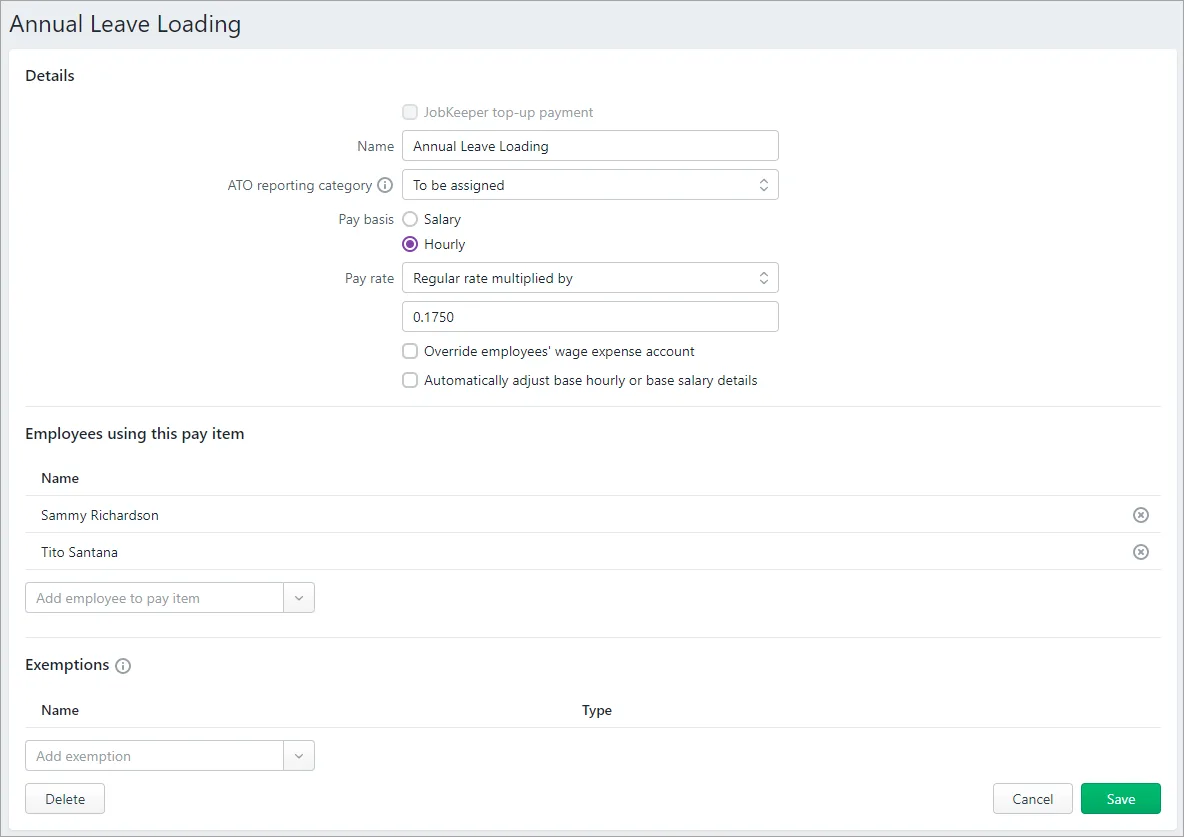
When you're done, click Save.

Preventing leave accruing on leave loading
If your annual or personal leave is calculated as a percentage of hours worked, you'll need to make sure these types of leave don't accrue on holiday leave loading payments.
Go to the Payroll menu > Pay items.
Click the Leave tab.
Click the annual leave accrual pay item.
Under Exemptions, click the dropdown arrow and choose the annual leave loading pay item you created above. If you can't click the dropdown arrow it means the leave isn't calculated a s a percentage, so you don't need to do anything.
Click Save.
Repeat these steps in all other leave accrual pay items you don't want to accrue on holiday leave loading.
Paying leave loading
When an employee who is entitled to leave loading takes annual leave, enter the leave loading hours on their pay as follows:
On the Create menu, click Pay run.
Choose the Pay cycle and confirm the pay dates.
Click Next.
Click the down arrow for the employee to open their pay details.
Enter the number of hours of leave and leave loading for this pay. See our example below.
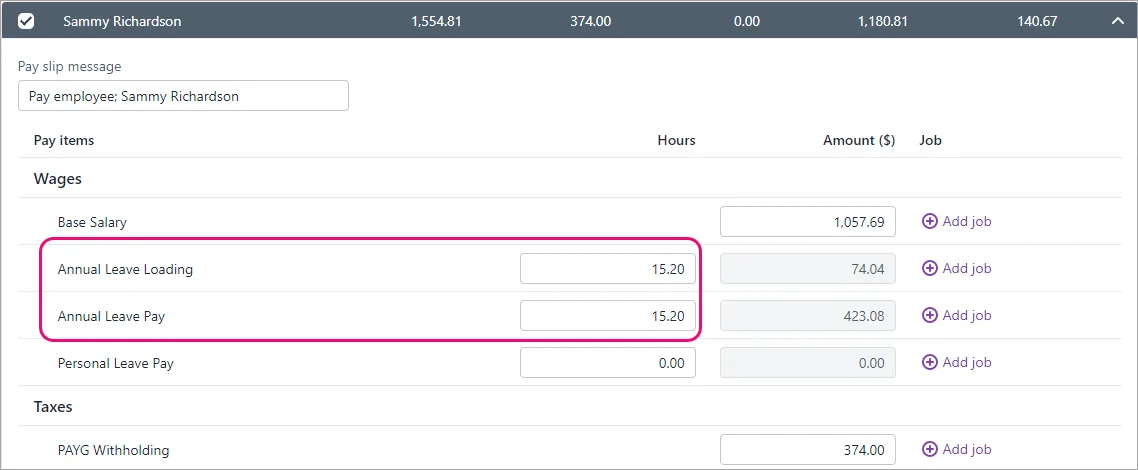
(Hourly based employees only) If required, reduce the number of Base Hourly hours to exclude the hours that were taken as leave.
Repeat steps 4 - 6 for each employee being paid leave loading.
Finalise the pay as normal. Need a refresher?

FAQs
Is super calculated on leave loading?
According to the ATO, superannuation may be payable on leave loading. Check the ATO's website or speak with them for clarification.
To accrue super on your leave loading:
Go to the Payroll menu and click Pay items.
Click the Superannuation tab.
Click to open the Superannuation Guarantee pay item.
Under Exemptions, click the Delete icon to remove the leave loading pay item.
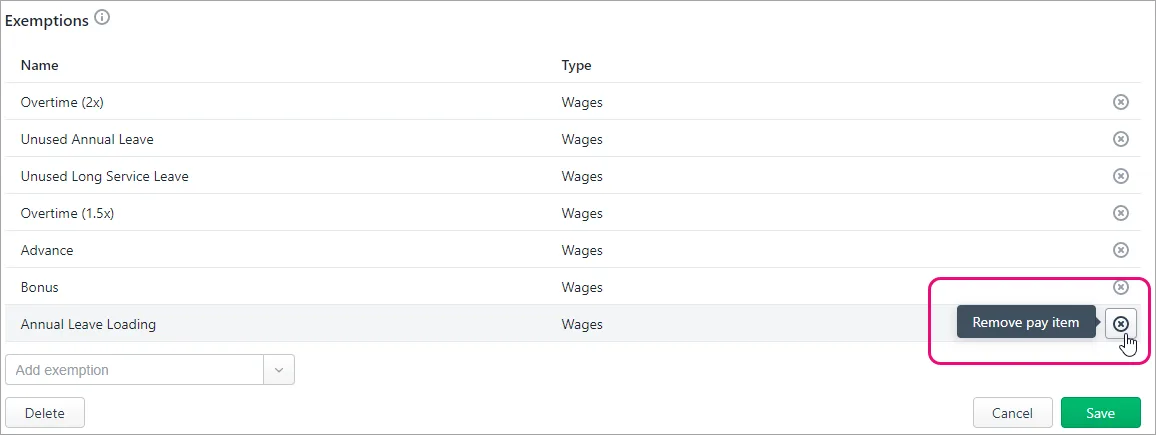
Click Save.

Why is leave loading missing from my STP reports?
If you need to report leave loading through STP but it's not appearing in your STP reports, it's likely caused by the leave loading pay item being incorrectly exempted from PAYG Withholding calculations.
But this is easy to fix.
Go to the Payroll menu > Pay items.
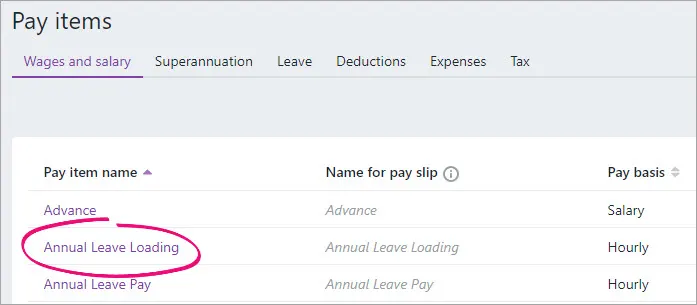
On the Wages and salary tab, click to open Annual Leave Loading.
Under Exemptions, make sure PAYG Withholding is NOT listed. If it is, click the delete icon to remove it.
Click Save.

You should now send an update event to the ATO to ensure they have the latest year-to-date payroll information.
To send an update event
From the Payroll menu, choose Single Touch Payroll reporting.
Click the STP reports tab.
Choose the applicable Payroll year.
Click Send update event.
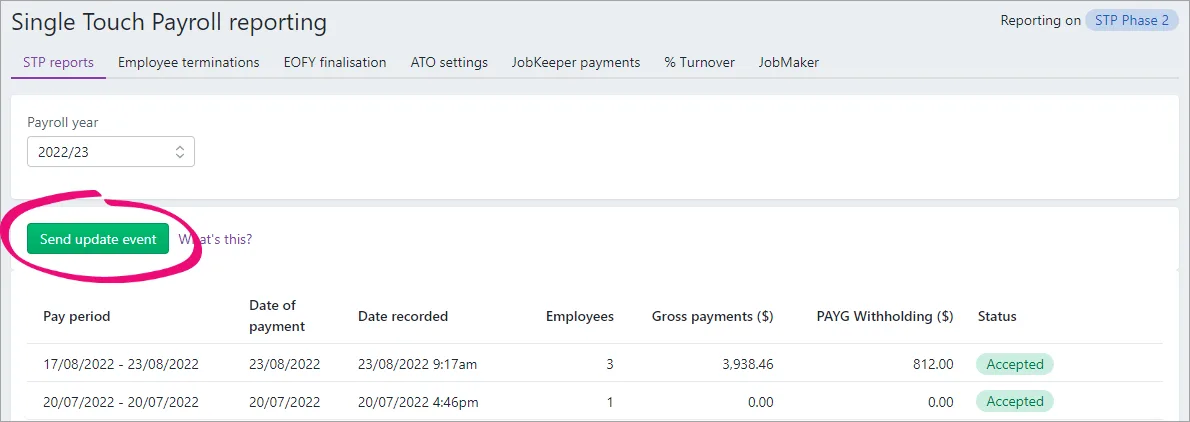
When prompted, enter your details and click Send.

Update events will be listed with your other payroll submissions on the STP reports tab, but with zero (0.00) amounts.
What if my business pays more than 17.5% leave loading?
If your business pays more than the standard 17.5% leave loading, you'll need to change the rate from 17.5% in the standard leave loading pay item. You should also update the rate in the pay item that's used for paying leave loading in an employee's final pay.
On the Payroll menu, click Pay items.
On the Wages and salary tab, click to open the Annual Leave Loading pay item.
For the Pay rate, choose Regular rate multiplied by and enter your business's leave loading rate as a decimal. For example, if your rate is 18% you'd enter 0.1800.
Click Save.
Click to open the FP: AL Loading - ULT pay item. This is the system pay item that's used for paying leave loading on final pays.
For the Pay rate, choose Regular rate multiplied by and enter your business's leave loading rate as a decimal. For example, if your rate is 18% you'd enter 0.1800.
Click Save.
AccountRight Plus and Premier only
Some workplaces include an entitlement called leave loading. Sometimes called holiday leave loading or annual leave loading, this entitlement is paid in addition to an employee's base rate of pay when they take annual leave. Leave loading is generally paid at a rate of 17.5% of an employee's regular pay, but can vary.
Check the leave loading guidelines on the Fair Work website.
AccountRight has a wage category called Annual Leave Loading (or Holiday Leave Loading) which you can use. This category is based on 17.5% leave loading.
Let's show you how to assign the leave loading category to your employees, and how to pay loading when an employee takes leave.
Assigning the leave loading category to employees
Go to the Payroll command centre and click Payroll Categories.
On the Wages tab, click the zoom arrow to open the Leave Loading category.
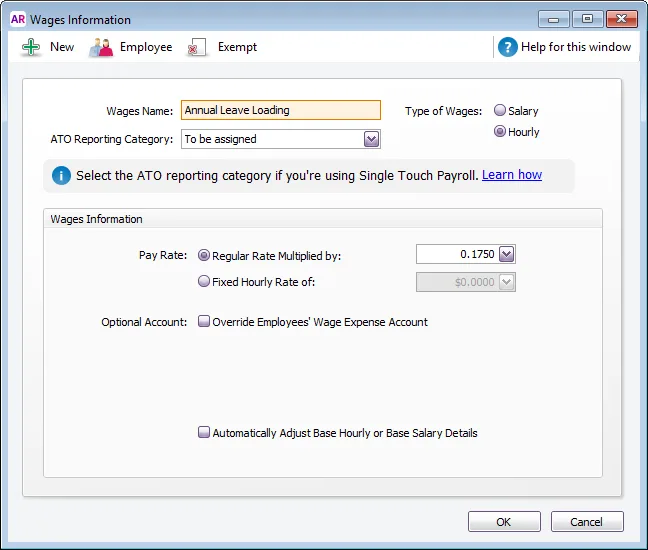
If you report to the ATO through Single Touch Payroll, select the applicable ATO Reporting Category. If unsure, check with your accounting advisor or the ATO. Learn more about assigning ATO reporting categories for Single Touch Payroll reporting.
Click Employee (at the top of the window).
Select the employees entitled to leave loading then click OK.
If needed, adjust the Pay Rate. By default it's set to 0.1750 which is 17.5% of the regular pay rate.
If you have a separate expense account to track leave loading payments, select the Optional Account option and select the account.
Click Exempt and make sure PAYG Withholding is NOT selected.
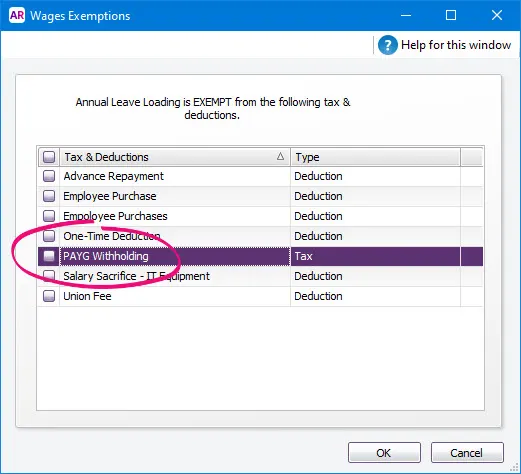
Click OK then click OK again to save your changes.


Paying leave loading
Start a pay run as you normally would. You can then enter the leave hours against the annual leave and leave loading wage categories.
Here's an example where an employee is taking 15.2 hours annual leave. This means we've also entered 15.2 hours against the leave loading wage category.

Continue to process the pay as normal. For a refresher, see Processing your payroll.
FAQs
Is super calculated on leave loading?
According to the ATO, superannuation may be payable on leave loading. Check the ATO's website or speak with them for clarification.
To accrue super on your leave loading:
Go to the Payroll command centre and click Payroll Categories .
Click the Superannuation tab.
Click the zoom arrow to open the Superannuation Guarantee category.
Click Exempt and deselect the leave loading wage category.
Click OK, then click OK again.
Why is too much annual leave accruing when paying leave loading?
This can occur if your annual leave entitlement is calculated on a percentage of gross hours. To check, go to Payroll > Payroll Categories > Entitlements tab > open the Annual Leave Accrual category.
Here's an example where the annual leave accrual is calculated on a percentage of gross hours.

If your annual leave accrual is set up this way and you want to exclude leave loading from accruing leave:
Go to Payroll > Payroll Categories > Entitlements tab > open the Annual Leave Accrual category.
Click Exempt on the Entitlements Information window (as shown above).
Select the Annual Leave Loading wage category. This will ensure this wage category is excluded from annual leave accrual.
Click OK then click OK again.
You may also need to repeat these steps for your personal/sick leave entitlement category if leave loading should be exempted from there too.
Why is leave loading missing from my STP reports?
If you need to report leave loading through STP but it's not appearing in your STP reports, it's likely caused by the leave loading payroll category being incorrectly exempted from PAYG Withholding calculations.
But this is easy to fix.
Go to the Payroll command centre and click Payroll Categories .
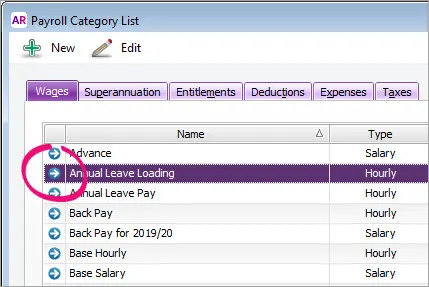
On the Wages tab, click the blue zoom arrow to open the Annual Leave Loading category.
Click Exempt.
Deselect PAYG Withholding.
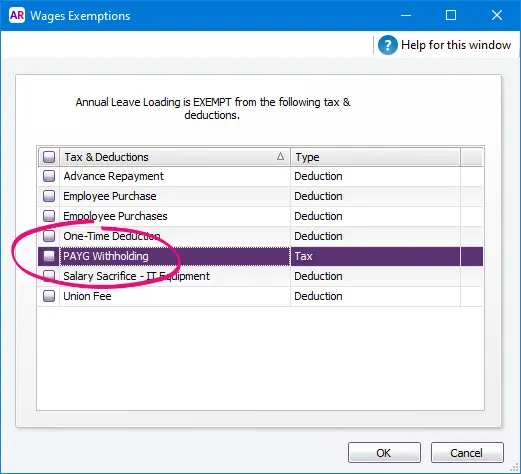
Click OK, then click OK again to save your changes.


You should now send an update event to the ATO to ensure they have the latest year-to-date payroll information.
To send an update event
Go to the Payroll command centre and click Payroll Reporting.
Click Payroll Reporting Centre.
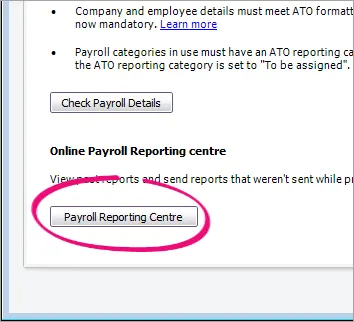
If prompted, sign in using your MYOB account details (email address and password).
Click the STP reports tab.
Choose the applicable Payroll year.
Click Send update event.
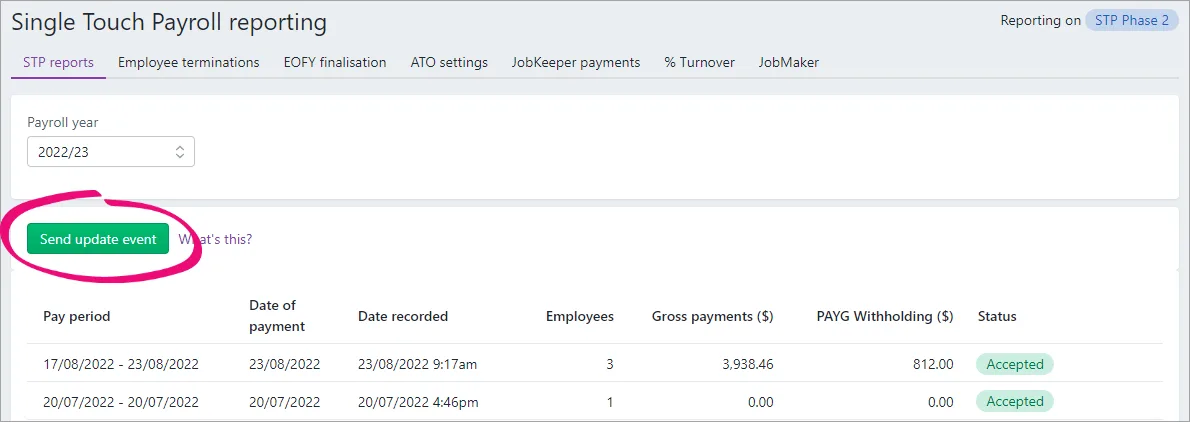
When prompted, enter your details and click Send.


An update event will be listed with your other submissions on the STP reports tab, but with zero (0.00) amounts.
What if my business pays more than 17.5% leave loading?
If your business pays more than the standard 17.5% leave loading, you'll need to change the rate from 17.5% in the standard leave loading payroll category. You should also update the rate in the payroll category that's used for paying leave loading in an employee's final pay.
Go to the Payroll command centre and click Payroll Categories.
On the Wages tab, click the zoom arrow to open the Leave Loading category.
Adjust the Pay Rate as required. For example, if your rate is 18% you'd enter 0.1800.
Click OK.
Click to open the FP: AL Loading - ULT payroll category. This is the system category that's used for paying leave loading on final pays.
Adjust the Pay Rate as required. For example, if your rate is 18% you'd enter 0.1800.
Click OK.