If you have unpaid invoices or bills at the time you start using MYOB, these are called historical transactions. You'll need to enter these transactions into MYOB so when they're paid you'll be able to apply the payment to the right invoice or bill.
Because historical transactions were created before you started using MYOB, their value won't have been included in the opening balances of your trade creditors or trade debtors categories (the categories which track the money you and your customers owe). This means when you enter a historical transaction, you'll also need to update the opening balances of these categories to include the value of the historical transactions.
When you enter a historical transaction, you'll see a prompt that reminds you to include the transaction amount in your opening category balances.
1. Enter historical sales and purchases
You can enter your historical sales and purchases just like any other sale or purchase. The only difference is that the transaction date you enter will be before your Opening balance date (the date you started using MYOB defined in your business settings).
Depending on how many historical transactions you need to enter, and how you want to track them, you can either:
create an individual invoice or bill for each historical sale or purchase, or
create a single invoice or bill for each customer or supplier, for the total amount owing.
To enter a historical transaction:
Create a new invoice or bill (as applicable).
To enter a historical sale, go to the Create menu and choose Invoice. See Creating invoices for more information.
To enter historical purchases, go to the Create menu and choose Bill. See Creating bills for more information.
Choose the Customer or Supplier.
For the Issue date, enter or choose the original transaction date. For example, if you originally recorded an invoice on 1 January last year, enter this as the transaction date.
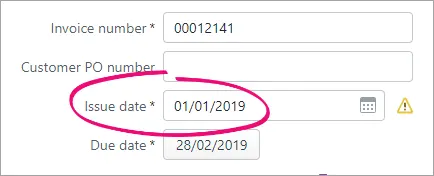
If the Issue date is before MYOB's Opening balance date, the transaction will be identified as historical and a message like this will appear telling you that invoices entered before the Opening balance date won't automatically update category opening balances and that you need to include the transaction amount in your opening category balances, which we explain in the next task.Click Convert to the above message to continue entering the transaction.
Enter the transaction details and click Save. Note that you can't change the Category the transaction lines are allocated to.

Once you've entered these historical sales and purchases, you'll see them on your Invoices or Bills pages, along with the rest of your invoices and bills. Just make sure the date range goes back far enough to show your historical invoices and bills.
You can apply partial or full payments against these transactions in the same way as any other payment. For more information, see Customer payments and Entering payments made to suppliers.
2. Include unpaid invoices and purchases in opening balances
The opening balances of your of your Trade Debtors (accounts receivable) and Trade Creditors (accounts payable) categories should equal the amount owing on historical sales and purchases.
For example, if you have two unpaid historical invoices, one for $700 and another for $300, you have $1000 worth of historical sales. This means the opening balance of your Trade Debtors (accounts receivable) category should be $1000.00.
Likewise, if you have three unpaid bills, for $100, $200 and $400, you have $700 worth of historical purchases. This means the opening balance of your Trade Creditors (accounts payable) category should be $700.
To check or update your opening balances
Go to the Accounting menu and choose Categories (Chart of accounts).
Click to open your Trade Debtors (accounts receivable) category.
Check the Opening balance and change it if required. This should equal the value of historical sales.
Click Save.
Click to open your Trade Creditors (accounts payable) category.
Check the Opening balance and change it if required. This should equal the value of historical purchases.
Click Save.
Customers or suppliers with an opening credit balance
If you're setting up a customer or supplier who has a credit balance, enter the contact's details then create a customer return or supplier return to record their credit balance. When creating the return you'll need to enter the Allocate to category. This category will be specific to your business, so check with your accounting advisor if unsure.
When setting up your company file, you might need to enter customer opening balances and historical sales. This lets you enter customer payments against sales that were made prior to the date you started using AccountRight (your conversion date). The sales you made for which you haven't yet received payment are called pre-conversion sales.
This topic explains how to enter:
the opening balance of your Trade Debtors account - this represents the total of what your customers owe you.
historical (pre-conversion) sales - these are the individual sales, the total of which should equal the opening balance of your Trade Debtors account.
Historical sales will not generate BAS (Australia) or GST return (New Zealand) figures, so your BAS/GST return must be done manually for these periods.
1. Enter the opening balance of your Trade Debtors account
This account represents the amount you owe your customers.
To enter this opening balance:
Go to the Setup menu > Balances > Account Opening Balances to open the Account Opening Balances window.
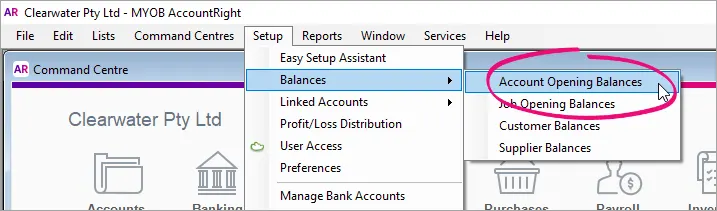
Locate the Trade Debtors account, then in the Opening Balance column enter the sum total of what your customers owe you as at the time you began to keep your records using AccountRight.
Click OK.

2. Enter historical sales
Entering the sales you haven't yet received payment will allow you to record payments against them in AccountRight.
To do this:
Go to the Setup menu > Balances > Customer Balances to display the Customer Balances window. Notice there is an Out of Balance Amount at the bottom of the window as you need to enter your historical sales to match the opening balance you just entered in your Trade Debtors account.
Click Add Pre-Conversion Sale to display the Pre-Conversion Sale window.
Select the applicable customer and enter the details of the sale.
Click Record.
(Australia only) Click OK to the alert regarding cash reporting.
Repeat steps 2 - 5 for all your pre-conversion sales. When the total of your outstanding invoices equals the balance of your Trade Debtors account, you're done!