You can use default email text, including the subject and message for the emails you send from MYOB, like your invoices, quotes and statements. This saves you a lot of time having to enter email text manually and ensures your emails are uniform and reflect your business brand.
MYOB Business already comes with some email default text, like the From name and Subject, which use your company's name – but you can change these if you want.

Set your email defaults
You can set your default email subject and message for the following:
Sales emails (invoices, quotes, sales orders and statements) – click the Settings (⚙️) menu > Sales settings > Email defaults
Purchase emails (purchase orders and remittance advices) – click the Settings (⚙️) menu > Purchase settings > Email defaults
Pay slips – click the Settings (⚙️) menu > Payroll settings > Email defaults
Note also that:
You can't use HTML code in your email defaults (this prevents the email from sending)
You should check your default email messages before sending emails – we tell you how below
When sending emails you can override the default text.
Use email variables to customise your sales emails
You can use email variables in the following sales types:
invoices
sales orders
quotes.
Email variables are not available for customer statements – but you can enter free text to create a default message for customer statements.
You can use email variables to automatically populate customer-specific information in your invoice, sales order and quote emails.
For example, using the email variable {{customer_first_name}} will automatically populate with the customer's first name in the email for customers who are designated as individuals. For customers designated as a company, the email variable {{customer_business_name}} will automatically populate with the customer's business name in the email. Similarly, the email variable {{invoice_number}} will populate with the applicable invoice number.
Take a look at the email variables we've used in this example (on the left) and how they appear in the customer's email (on the right).

What are the email variables I can use?
These are the variables available and where they source the information from:
Email variable | Where to find the information |
|---|---|
Business and customer details | |
{{your_business_name}} | Business name on the Business details page |
{{your_trading_name}} | Trading name on the Business details page |
{{your_business_email}} | Email field in Business details >Contact details |
{{your_business_phone}} | Phone field in Business details >Contact details |
{{your_business_website}} | Website field in Business details >Contact details |
{{customer_full_name}} | First name and Surname or family name fields in Customer >Details (for Individual customers) |
{{customer_first_name}} | First name field in Customer>Details (for Individual customers) |
{{customer_business_name}} | Company name field in Customer>Details (for Companycustomers) |
Invoices | |
{{invoice_number}} | Invoice number field in Create invoice |
{{invoice_total_amount}} | Total field in Create invoice |
{{invoice_amount_due}} | Balance due field in Create invoice |
{{invoice_date_of_issue}} | Issue date field in Create invoice |
{{invoice_due_date}} | Due date field in Create invoice |
{{purchase_order}} | Customer PO number field in Create invoice |
{{foreign_currency_code}} | Code field in Currency List window |
Sales orders | |
{{order_number}} | Sales order number in Sales order |
{{order_total_amount}} | Total in Sales order
|
{{order_amount_due}} | (Field not yet available) Balance due in Sales order
|
{{order_date_of_issue}} | Issue date in Sales order
|
{{order_promise_date}} | Promised date in Sales order
|
{{purchase_order}} | Customer PO number in Sales order |
Quotes | |
{{quote_number}} | Quote number field in Create quote |
{{quote_total_amount}} | Total field in Create quote |
{{quote_date_of_issue}} | Issue date field in Create quote |
{{quote_expiration_date}} | Expiry date field in Create quote |
If you don't want to use email variables, you can enter your own text.
Need an email template? We've created a default email that you can copy and paste straight into your sales settings. See the FAQs below for details.
Once you've set up your default email messages, you should check how they look before sending emails—we tell you how below.
To set up your default sales emails
You can specify the default email subject line and message to use when sending sales, sales orders, quotes and statements. When sending the emails you can override the defaults.
Click the settings menu (⚙️) and choose Sales settings.
Click the Email defaults tab.
In Email settings, edit the From name. By default, this will be your business name, but you can change it if you want.
Enter the Reply-to email address. This is the "from" email address displayed to your customers that they'll be able to reply to.
For the Default invoice/sales order/quote/statement email sections, enter the default subject and message text you want to use. You can:
select the option to Include invoice/order/quote number in subject
change the default subject, which is your business name
enter free text in the message for statement emails
enter email variables in the subject or message for invoices and quote emails. These variables automatically enter information from your business.
You must enter the email variables exactly as they're set out below, in the {{email_variable_name}} format. To avoid errors, copy the variable from the table below and paste it into MYOB.
These are the variables available and where they source the information from:
Email variable | Where to find the information |
|---|---|
Business and customer details | |
{{your_business_name}} | Business name on the Business details page |
{{your_trading_name}} | Trading name on the Business details page |
{{your_business_email}} | Email field in Business details>Contact details |
{{your_business_phone}} | Phone field in Business details>Contact details |
{{your_business_website}} | Website field in Business details>Contact details |
{{customer_full_name}} | First name and Surname or family name fields in Customer >Details (for Individual customers) |
{{customer_first_name}} | First name field in Customer>Details (for Individual customers) |
{{customer_business_name}} | Company name field in Customer>Details (for Company customers) |
Invoices | |
{{invoice_number}} | Invoice number field in Create invoice |
{{invoice_total_amount}} | Total field in Create invoice |
{{invoice_amount_due}} | Balance due field in Create invoice |
{{invoice_date_of_issue}} | Issue date field in Create invoice |
{{invoice_due_date}} | Due date field in Create invoice |
{{purchase_order}} | Customer PO number field in Create invoice |
{{foreign_currency_code}} | Code field in Currency List window |
Sales orders | |
{{order_number}} | Sales order number in Sales order |
{{order_total_amount}} | Total in Sales order
|
{{order_amount_due}} | (Field not yet available) Balance due in Sales order
|
{{order_date_of_issue}} | Issue date in Sales order
|
{{order_promise_date}} | Promised date in Sales order
|
{{purchase_order}} | Customer PO number in Sales order |
Quotes | |
{{quote_number}} | Quote number field in Create quote |
{{quote_total_amount}} | Total field in Create quote |
{{quote_date_of_issue}} | Issue date field in Create quote |
{{quote_expiration_date}} | Expiry date field in Create quote |
6. Click Save.
To check your default email message before emailing
It's a good idea to preview how your emails look before sending them to your contacts. If you've used email variables, check that they work as they should for different types of customers.
You can preview your email when you click Email when you are creating invoices, creating quotes or emailing statements.
If you notice missing information when you preview email variables, refer to the table in 'To set up your default invoices, quotes and statements emails' above to see where in MYOB you can add the missing information to your business.
You're not able to use email variables for customer statements. If these appear in your default statement email message, you should remove them and use free text instead.
You may also need to check if the email variables you've used are relevant for your customers.
In the example below, there's no name after 'Dear':

This is because the email variable, {{customer_first_name}}, didn't pick up a customer first name as the customer is a company rather than an individual and so doesn't have a first name field in their record.
To fix this, go to Sales settings > Email defaults and replace the {{customer_first_name}} email variable with text (for example, 'To Whom It May Concern', 'Hello', 'Hi', etc).
To change your reply-to email address and 'from' name
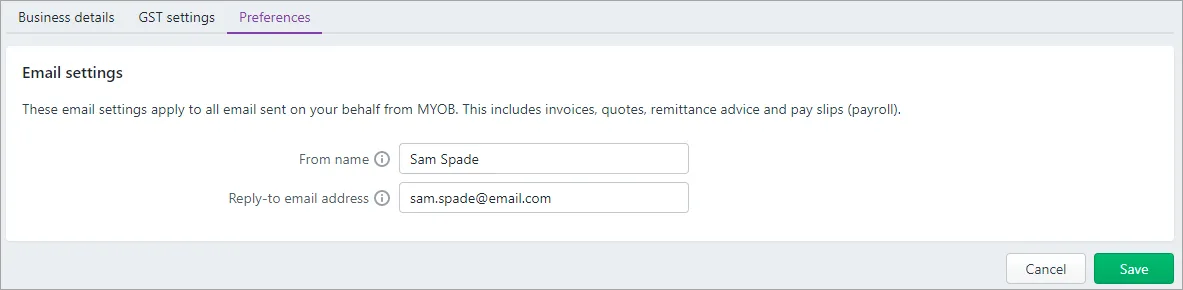
You can set your reply-to email address, and the name your emails come from, in your business settings.
Click the settings menu (⚙️) and choose Business settings.
Click the Preferences tab.
Enter your From name. This can be a business name or a contact person.
Enter your Reply-to email address. This will be the email address used when your clients reply to an email sent from MYOB.
This will also change the Reply-to email address in Sales settings > Email defaults.
When you're done, click Save.

FAQs
Is there a template I can use for my invoice emails?
Not sure how to word your invoice emails? If your invoice email is a little boring and doesn't contain any email variables, we've done the hard work for you. Just copy the text below the picture and past it into the Message field of your Default invoice email setting (click the settings menu (⚙️) > Sales settings > Email defaults tab).
You might even want to tweak the wording, or use other email variables. It's up to you!
You must enter the email variables exactly as shown, in the {{email_variable_name}} format. To avoid errors, copy the text below the picture and paste it into MYOB.

Hi {{customer_first_name}},
Invoice {{invoice_number}} for the amount of {{total_invoice_amount}} is now available.
You have {{invoice_amount_due}} outstanding to be paid by {{invoice_due_date}}.
Feel free to contact us if you have any questions.
Regards,
{{your_trading_name}}
{{email_address}}
{{business_phone_number}}
What is the character limit for default email text?
There's a limit of four thousand characters in default email text. If you want to put really long content in your email, such as legal notices, and the content is online, you can add a link to it instead:

Once you've set up AccountRight to send emails, it's a good idea to set up default email messages and subjects. These save you having to key in information each time you send an email.
Your company file already comes with some email default text, like the Subject, which uses your company's name:

But you can change this if you want.
You can also use email variables to automatically pull in other types of information into your emails, like invoice numbers or your business's phone number.
Take a look:
Automatically fill in customer emails using email variables
You can set up the default email subject and message for your customer emails with email variables. When you send an email, it's filled in with information from your company file.

If you don't want to use email variables, you can use the default email text in the Email Defaults window, or enter your own.

Note also that:
You can't use HTML code in your email defaults (this prevents the email from sending)
Email variables are only available for invoices and quotes
For statements, purchases, remittances and pay slips, you can enter text to be displayed in emails
You should check your default email messages before sending emails – we tell you how below
When sending emails you can override the default text.
To set up your default email subject and message
Go to the Setup menu and choose Preferences.
Click the Emailing tab
Click Email Defaults.
Click the tab for the email type, for example Sales.
If you want, select the option to Include Invoice/Purchase No. in Subject.
Enter the default subject and message text you want to use. You can:
override the default text that appears and enter your own
(invoice, quote and statement emails only) enter email variables in the subject or message. These variables automatically fill in information from your company file when you send an email.
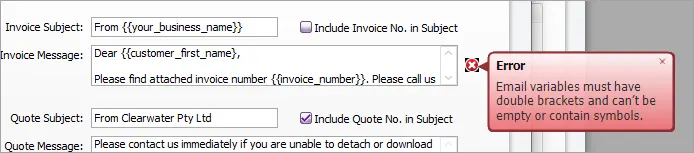
You must enter the email variables exactly as they're set out in table below, in the {{email_variable_name}} format. If you've entered an email variable incorrectly, you'll see an error message in the Email Defaults window:
If you want, add line breaks in the email body, such as after the salutation and before the sign-off.
Click another other tab in the Email Defaults window and repeat from step 4 for the other documents you email.
Click Close.
Click OK on the Preferences window to save your changes.

These are the variables available and where they source the information from:
-
To avoid errors, copy the variable from the table below and paste it into the AccountRight.
Email variable | Where to find the information |
|---|---|
{{your_business_name}} | Company Name field in the Company Information window |
{{your_business_email}} | Email Address field in the Company Information window |
{{your_business_phone}} | Phone Number field in the Company Information window |
{{customer_full_name}} | First Name and Last Name fields in the Profile tab of the Card Information window |
{{customer_first_name}} | First Name field in the Profile tab of the Card Information window |
{{customer_business_name}} | Name field in the Profile tab of the Card information window |
{{invoice_number}} | Invoice No. field in the Sales (Invoice) window |
{{invoice_total_amount}} | Total Amount field in the Sales (Invoice) window |
{{invoice_amount_due}} | Balance Due field in the Sales (Invoice) window |
{{invoice_date_of_issue}} | Date field in the Sales (Invoice) window |
{{invoice_due_date}} | Due Date field in the Credit Terms window for the invoice |
{{purchase_order}} | Customer PO No. field in Sales (Invoice) window |
{{foreign_currency_code}} | Code field in Currency List window |
{{quote_number}} | Invoice No. field in the Sales (Quote) window |
{{quote_total_amount}} | Total Amount field in the Sales (Quote) window |
{{quote_date_of_issue}} | Date field in the Sales (Quote) window |
{{quote_expiration_date}} | Due Date field in the Credit Terms window for the quote |
To check your default email message before emailing
It's a good idea to preview how your emails look before sending them to your contacts. If you've used email variables, check that they work as they should for different types of customers. You should also preview your purchases emails and payroll emails.
Go to the Sales command centre and click Print/Email Invoices (or Print/Email Statements).
Click the To Be Emailed tab.
Select a customer. How the email will appear to the customer is displayed in the To Be Emailed tab.
If there are no customers in the To Be Emailed tab, click Advanced Filters and deselect the option Unprinted or Unsent Sales Only.
If you notice missing information when you preview email variables, refer to the table in 'To set up your default invoices, quotes and statements emails' above to see where in AccountRight you can add it to your company file.
FAQs
Why is there missing information in my customer emails?
If you're using email variables and you notice missing information when you preview an email, you need to check the setup of your email variables and whether the information the email variables refers to has been entered in your company file.
In the example below, there's no name after 'Dear':

This is because the email variable, {{customer_first_name}}, didn't pick up a customer first name as the customer is a company rather than an individual and so doesn't have a first name field in their card.
To fix this, go to the Email Defaults window and replace the {{customer_first_name}} email variable with text (for example, 'To Whom It May Concern', 'Hello', 'Hi', etc).
If you notice missing information when you preview email variables, refer to the table in 'To set up your default email subject and message' above to see where in AccountRight you can add it to your company file.
Is there a character limit for my email messages?
When you email a sale or purchase when recording the transaction (using the Send To > Email function), the email message is limited to 4000 characters (AccountRight 2018.1.1 onwards). In previous versions this was limited to 255 characters. Learn more about Sending forms when you record a transaction.
When you email sales or purchases using the Print/Email function, such as Sales > Print/Email Invoices, the email message is limited to 4000 characters. Learn more about Sending forms in a batch.