If you've started a new financial year in MYOB, the last month in that financial year is locked. The only way you'll be able to change it is to start a new financial year.
Check with your accounting advisor!
When you change your last month you shift your 12-month financial year period — this includes previous financial years. As such, you'll need to consider when you should make this change and any reporting implications it might have. We recommend discussing it with your accounting advisor before making any changes.
Before changing your last month:
Enter all transactions for your previous financial year.
Complete all other end of financial year tasks (Australia | New Zealand).
To change the last month in your financial year
Click the settings menu (⚙️) and choose Business settings.
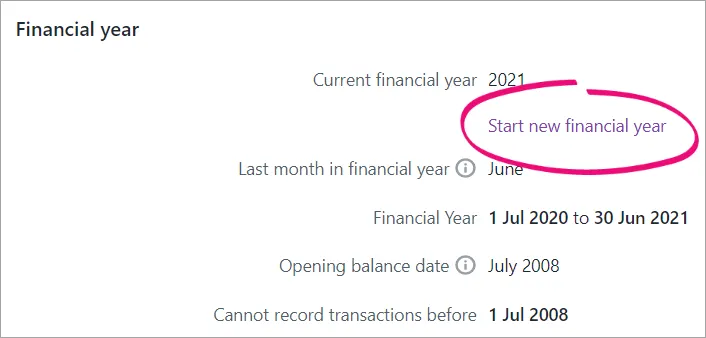
Click Start new financial year.
Choose the new Last month in financial year.
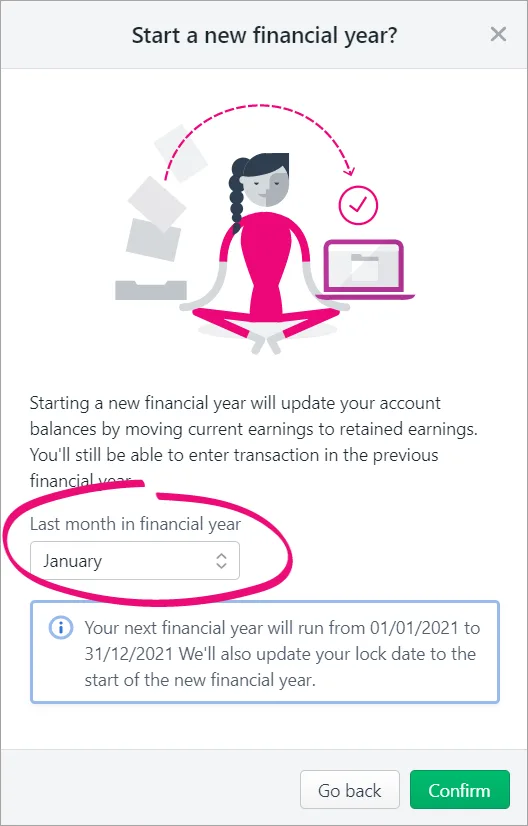
Confirm the dates displayed in the information box—check with your accounting advisor if you're not 100% sure. You won't be able to undo this change once you proceed.
Click Confirm to start the new financial year.


You can change the last month of your financial year when you close a financial year.
Changing your last month will result in a shorter or longer current financial year (it depends on the month you're moving from and to). Check with your accounting advisor about reporting requirements for a short or long financial year.
Changing the last month of your financial year also changes it for your previous financial years. To view historical reports for your previous financial years, you'll need to view those reports in a restored backup file.
When to change your last month
When you change your last month, you shift your 12-month financial year period. As such, you'll need to consider when you can enter transactions in your new financial year. When changing your last month, you'll see a proposed new financial year. Check that you can enter transactions in this year.
In the following example, changing the last month to December shifts the 12-month financial year from 1 July 2015—30 June 2016, to 1 January 2016—31 December 2016.
As transactions can only be entered from 1 January 2016, you would only change the last month after all transactions have been entered for December 2015.

How to change your last month
Before changing your last month:
enter all transactions for your previous financial year
complete all other end of financial year tasks
create a backup of your company file.
You can change the last month of your financial year in step 2 of the Close a Financial Year assistant (File menu > Close a Year > Close a Financial Year).
After changing the last month, check the proposed financial year as it shows you when you can record the first transaction in the new financial year. And don't forget to make a backup before you make this change.