Bank feeds contain your bank account transactions. This means individual deposits and withdrawals come through in the bank feed as individual transactions. But sometimes a bank transaction relates to multiple customer, supplier and employee payments in MYOB Business.
To speed things up and make matching bank feeds a breeze, you can use the electronic payments feature to group electronic supplier or employee payments into a single transaction.
To group similar customer payments, like those taken using an EFTPOS machine, you can use a specific reference number when you enter the payments – making them easier to find and match to the bank feed deposit for that day.
Let's take you through these processes.
To group multiple supplier or employee payments
Payments made to suppliers and employees can be grouped into a single transaction using the Electronic payments feature. You'll first need to set up electronic payments, but this only takes a minute.
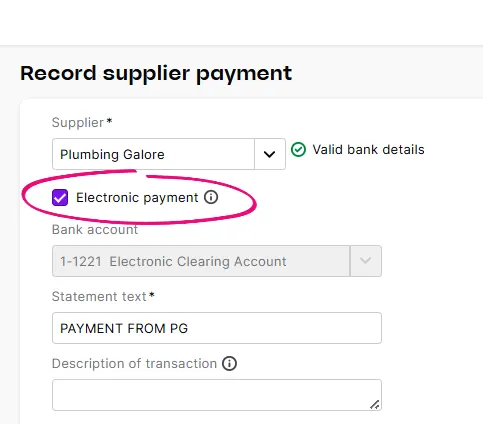
When recording a supplier payment, select the Electronic payment option and choose the Supplier (or Contact for a spend money transaction) the payment is going to. This ensures the bank details you've saved in the supplier's contact record are used for the payment.
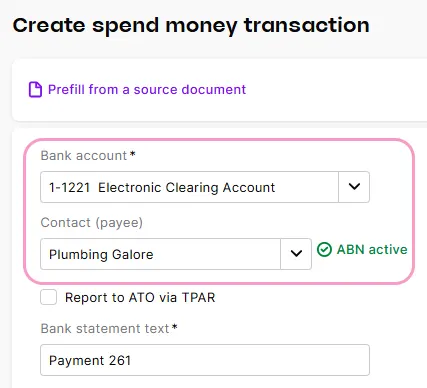
If you're recording a spend money transaction, choose your electronic clearing account as the Bank account and chose the Contact the payment is going to. This ensures the bank details you've saved in the contact's record are used for the payment.
When you're ready, prepare an electronic payment file containing your supplier payments (Banking > Prepare electronic payments).
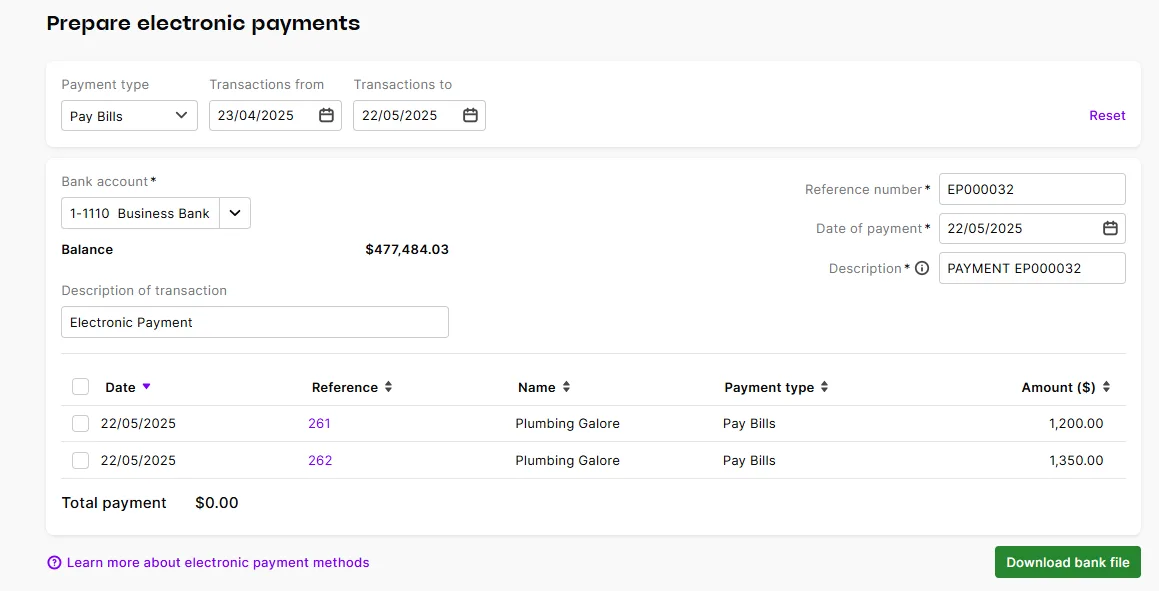
Choose the Payment type you want to process, e.g. Pay Bills, Spend Money, Pay Employees, etc.
Select the payments to be grouped, and then click Download bank file. This creates an electronic payment transaction which is the total of the selected payments.
Save the electronic payment file. This is the file you can send to your bank for processing the electronic payment.


Now when you receive the bank feed, MYOB Business will match the withdrawal from your bank account for this bulk electronic payment, to the grouped electronic payment transaction record.

Click Save to accept the match.
To group multiple customer payments
If a group of customer payments are deposited into your bank account once per day, for example if you're using an EFTPOS machine to take payments, that bulk deposit will come through as a single transaction in your bank feeds.
To make it easy to identify and match the individual payments to that deposit, you can use a specific reference on each of the payments.
When recording customer payments for a specific day that you want to group, enter a unique Reference number for them. For example, if they're EFTPOS payments, add a reference number using what would be in the bank transaction details, like POS and today's date for each of the payments on that day. Here's an example EFTPOS payment for May 22.

When the bank feed for that day comes in, expand the deposit transaction and find and match the individual payments that make up the deposit by searching for the reference number.

You can confirm you're matching the right transactions by hovering your mouse over the information icon in the Type column. Click Save to accept the matches.
Bank feeds contain your bank account transactions. This means individual deposits and withdrawals come through in the bank feed as individual transactions. But sometimes a bank transaction relates to multiple customer, supplier and employee payments in AccountRight.
To speed things up and make auto-matching bank feeds a breeze, you can use AccountRight's handy payment grouping features to match grouped transactions in your bank feed:
The electronic payments feature lets you group supplier or employee payments into a single transaction.
The bank deposit feature lets you group customer payments.
Let's take you through these processes.
To group multiple supplier payments
Supplier payments made through Pay bills or Spend money can be grouped into a single transaction using the Electronic payments feature. You'll first need to set up electronic payments, but this only takes a minute.
Even if you don't process the electronic payment file, this method can still be used to create a single AccountRight transaction to simplify bank feed matching.
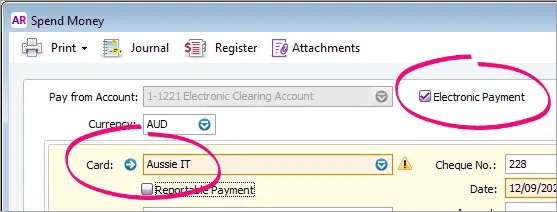
When recording a bill payment or spend money transaction, select the Electronic Payment option and choose the Supplier (or Card) the payment is going to. This ensures the bank details you've saved in the supplier's card are used for the payment.
When you're ready, prepare an electronic payment file containing your supplier payments (go to the Banking command centre and click Prepare Electronic Payments).
Use the Select Payment by field to choose the type of payments you want to process, e.g. Spend Money, Pay Bills, Pay Employees, etc.
Select the payments to be grouped, and then click Bank File. This creates an electronic payment transaction which is the total of the selected supplier payments.
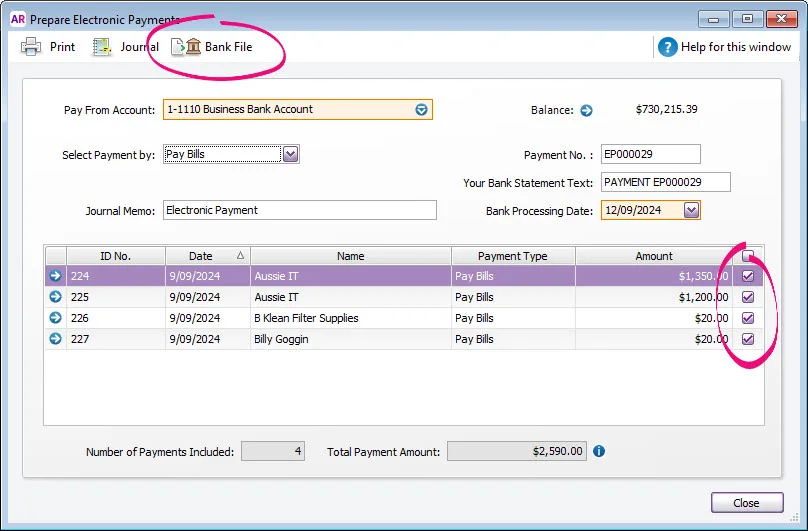
Save the electronic payment file. This is the file you can send to your bank for processing the electronic payment.


Now when you receive the bank feed for the withdrawal from your bank account for this bulk electronic payment, AccountRight will match it to the grouped electronic payment transaction.
To group multiple customer payments
Customer payments made through Receiving payments or Receive money can be grouped into a single transaction using the Prepare Bank Deposit feature. Here's how:
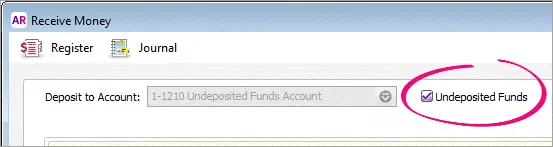
When recording a customer payment select the Undeposited Funds option. Learn more about undeposited funds.
When you're ready, prepare a bank deposit containing your customer payments (go to the Banking command centre and click Prepare Bank Deposit).
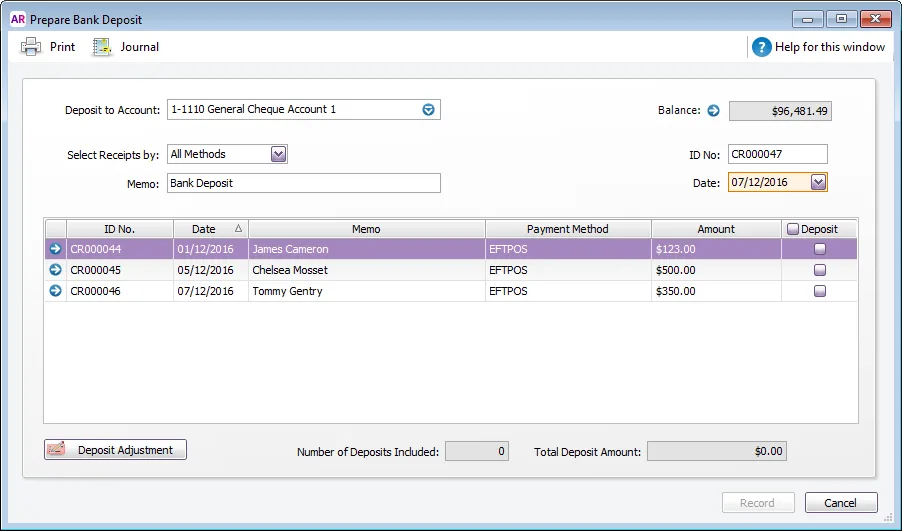
Select the payments to be grouped then click Record. This creates a deposit transaction which is the total of the selected customer payments.
Click Print (if you want to print a bank deposit slip), or click Record to just record the bank deposit transaction.


If you don't use the electronic payment or bank deposit features, and a bank feed transaction relates to multiple AccountRight transactions, you'll need to hide the bank feed transaction then manually reconcile the AccountRight transactions.
To hide the bank feed transaction and manually reconcile
Right-click the bank feed transaction and choose Hide Transaction.
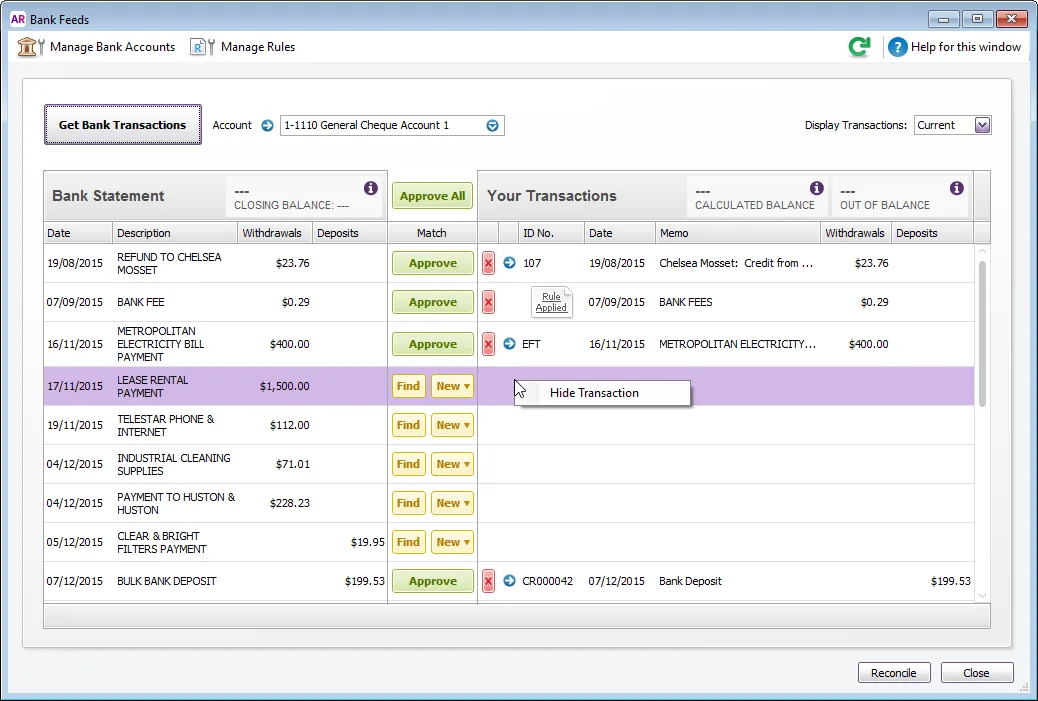
Go to the Banking command centre and choose Reconcile Accounts.
Select the bank feed Account and select the Bank Statement Date.
Mark the transactions associated with the single (now hidden) bank feed transaction.
Close the Reconcile Accounts window.

Learn more about reconciling accounts