Receiving invoice payments
If you’re receiving a payment from a customer for an invoice entered from the Invoices page, enter the payment from the Invoices page. For more information see Customer payments.
You use the Receive money page to record any money you receive that is not a payment for an invoice you’ve issued to a customer. You might use a receive money transaction to record things like interest received from your bank, sale of surplus tools and equipment, tax refunds, donations received, government grants, etc.
You can apply a receive money amount to a single category, or split the amount between two or more categories. You can also track any tax or GST associated with the money received.
OK, let's step you through it.
To record a receive money transaction
From the Banking menu, choose Receive money.
In the Bank account field, select the category the money is being deposited into. This must be a category with the type Banking or Credit Card. Learn about your category list.
If you want, select the Contact (payer) you're receiving the payment from. If you'd like to add a new contact, click the dropdown arrow for the Contact field and choose Create contact. Find out more about Adding, editing and deleting customers and suppliers.
Enter a Description of transaction. This should describe the overall nature of the transaction—for example, one deposit may be for a number of items (e.g. a monthly deposit for bank interest).
Make sure the Reference number is correct. If not, enter a new number.
Changing the numbering
If you change the reference number, you’ll change the automatic numbering. For example, if you change the number to 000081, the next time you enter a transaction the new reference number will be 000082.
Check that the correct date is selected in the Date field. If not, enter a new date or click the icon next to it to display the calendar and choose a date.
Choose whether the transaction amounts are Tax inclusive or Tax exclusive.
Enter the details of the transaction:
In the Category column, select the category to which the deposit amount will be allocated. The tax code for the chosen category will appear in the Tax code column (but you can change this if needed). If you'd like to add a new category, click the dropdown arrow for the Category field and choose Create category. Find out more about Adding, editing and deleting categories.
In the Amount column, enter the amount you want to allocate to this category.
There's a built-in calculator in the Amount and Quantity fields. Just enter a calculation in the field and tab out of it:
There's a built-in calculator in the Amount and Quantity fields. Just enter a calculation in the field and tab out of it:
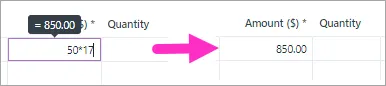
(Optional) If you need to record a quantity associated with this receipt, enter it in the Quantity column.
In the Description column, add a short description about the item for which you’re receiving a deposit.
(Optional) Choose a Job if the line item relates to a specific job. Tell me more about jobs.
If required, change the Tax code.
If you’re receiving a deposit for more than one item in this transaction, repeat step 8 for each item. To delete a line, click the delete icon for that line.
Check that the total amount you’re depositing is equal to the total amount displayed at the bottom of the page, including tax or GST. If it’s not, check that you’ve entered the correct amounts.
If you want, you can save this transaction as a recurring receive money transaction. This is ideal for repeat payments, like interest payments.
Click Save as recurring.
Enter the recurring transaction Schedule name.
Choose the Frequency, such as Daily, Weekly or Monthly.
Choose the date the recurring transaction will start.
Select how many times you want the transaction to recur.
Click Save.
For more information on recurring transactions, see Recurring transactions.
When you're done, click Record, or if you need to create another receive money transaction, choose an option under Record and new:
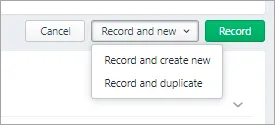
Click Record and create new to record the transaction and create a new one
Click Record and duplicate to record the transaction and create a new one with the same details (which you can then edit).


To edit a receive money transaction
From the Banking menu, choose Find transactions.
Click the Transactions tab and filter the list to find the receive money transaction.
For the Transaction type, select choose Receive money.
Enter a Date from and Date to date to find transactions within a date range.
Enter all or part of the transaction's Description.
Matching transactions will be displayed.
Click the transaction's Reference number to display its details.
Make the required changes to the transaction. If the transaction:
has not been reconciled or matched, you can change any details you require.
has been reconciled or matched, you can change everything except: the category into which the deposit was received, the date, the reference number and the total amount of the transaction. You can change the amounts of individual line items, as long as the Total Amount shown at the bottom of the page remains the same.
If you need to change any other details, you’ll need to unreconcile or unmatch the transaction before editing it. See Undoing a bank reconciliation and Matching bank transactions for more information.
Click Save.
To delete a receive money transaction
From the Banking menu, choose Find transactions.
Click the Transactions tab and filter the list to find the receive money transaction.
For the Transaction type, select choose Receive money.
Enter a From and To date to find transactions within a date range.
Enter all or part of the transaction's Description.
Matching transactions will be displayed.
Click the transaction's Reference number to display its details.
Click Delete at the bottom of the page. A confirmation message appears. If the transaction has been reconciled, deleting it will affect your next bank reconciliation.
Click Delete to the confirmation message.
If the deleted receive money transaction was created from a bank feed transaction, you'll need to categorise the transaction again.
Use the Receive Money window to record money your company receives, other than for sales you've recorded in the Sales command centre (for invoice payments use the Receive Payments window in the Sales command centre).
You can use the Receive Money window to record amounts paid to the business such as interest payments, capital injections or donations. Enter the details of the payment, such as the payment details, payee and whether the amount is GST inclusive or not.
Need to print a Receive Money transaction? See Printing payment receipts.
You can specify whether the payment was made directly to a bank account or whether it will be deposited together with other undeposited funds later.
Speed up data entry
Use bank feeds to bring your bank transactions into AccountRight. For recurring transactions, set up rules to automatically record these transactions.
To record money you receive
Go to the Banking command centre and click Receive Money. The Receive Money window appears.
Choose the account that will be used to record the money.
Deposit to Account. Select this option if the money was deposited directly to your bank account.
Group with Undeposited Funds. Select this option if the money will be deposited at a later time. Learn more about undeposited funds and preparing a bank deposit.
If the deposit amount included tax or GST, select the Tax Inclusive (Australia) or GST Inclusive (New Zealand) option.
If the payment you're recording relates to a contact in AccountRight, choose that contact in the Card field. Otherwise you can leave this field empty.
In the Amount field, type the amount received.
[Optional] In the Payment Method field, select the payment method.
[Optional] If you want to record additional details about the transaction, such as a cheque number, click Details and record the details in the Applied Payment Details window that appears.
Enter the date of the transaction.
[Optional] Type a detailed comment in the Memo field to help you identify the transaction later.
Allocate the amount to the appropriate account.

A - Enter an account to which you want to assign the transaction or part of the transaction.
If you only want to see the account name, rather than the account number, go to the Setup menu > Preferences > Windows tab and select the option, Select and Display Account Name, Not Account Number.
B - Type the amount you want to assign to this account. The total amount in this column must equal the amount in the Amount field before you can record the transaction.
C - [Optional] Assign the amount to a job by entering the job code here.
D - [Optional] Type a memo for each entry in the transaction.
E - The tax/GST code that is linked to the allocation account appears here automatically. You can change it if necessary.
If the payment covers more than one account, repeat step 10 on a new transaction line.
If you want to view or change the tax or GST amounts assigned to the transaction, click the zoom arrow next to the Tax (Australia) or GST (New Zealand) field.
[Optional] If you use cost centres and want to assign the transaction to a particular cost centre, select one from the Cost Centre list.
To store the transaction as a recurring transaction so that you can use it again, click Save as Recurring. In the Recurring Schedule Information window, enter the necessary information and click OK. For more information, see Recurring transactions.
Click Record.

FAQs
Which accounts can I receive money into?
Only banking accounts can be selected as the Deposit to Account in the Receive Money window. Banking accounts have a Bank (for 1-xxxx accounts) or Credit Card (for 2-xxx accounts) account type. If you can't select an account in the Receive Money window, check the account set up (Lists > Accounts > select the account and click Edit). Here's an example of a bank account.

How do I delete a line from a Receive Money transaction?
To delete a line from a Receive Money transaction:
Click to highlight the account number for the line to be removed.
Press the Delete key on your keyboard.
Click out of the account number field. The line will be removed.

What does Auto # mean in the ID No. field?
The default number shown in the ID No. field is the next available number. When you click in the ID No. field, Auto # appears to confirm that the number has been automatically selected for you. If you need a different number you can overtype it. Note the sequence will not carry on from that point.