Online company files only
You can attach documents to many types of transactions in AccountRight, including:
Sales: invoices (including time billing invoices), quotes and sales orders.
Purchases: bills
Banking: spend money transactions
Adjustments: journal entries
Why you should attach documents to transactions
Compliance – helps you to meet record-keeping requirements
Better communication with customers and suppliers – refer to documents to settle disputes, confirm the details or status of work, or send promotional material to encourage repeat business
Centralises storage, making documents easy to find – pull up documents without going through filing cabinets
Increased transparency – attachments are part of the audit trail, adding to the accountability and transparency of your financial records
Security – documents are stored online in MYOB's secure servers
Types of documents you might want to attach
Updated price lists
Catalogues
Promotions
Delivery dockets
Receipts
Statement of work/proof of completed work
Contracts
Terms and Conditions
Compliance certificates
Supported formats and size
File types can be either PDF, TIFF, JPEG or PNG.
Files must be less than 10MB in size.
How to attach a document to a transaction
Your company file must be online to do this
Click Attachments in any sale, purchase or record journal entry transaction.
Click Add Documents or drag and drop your attachment into the Attachments window.
Click Close. The Attachments button now shows you have 1 attachment added.
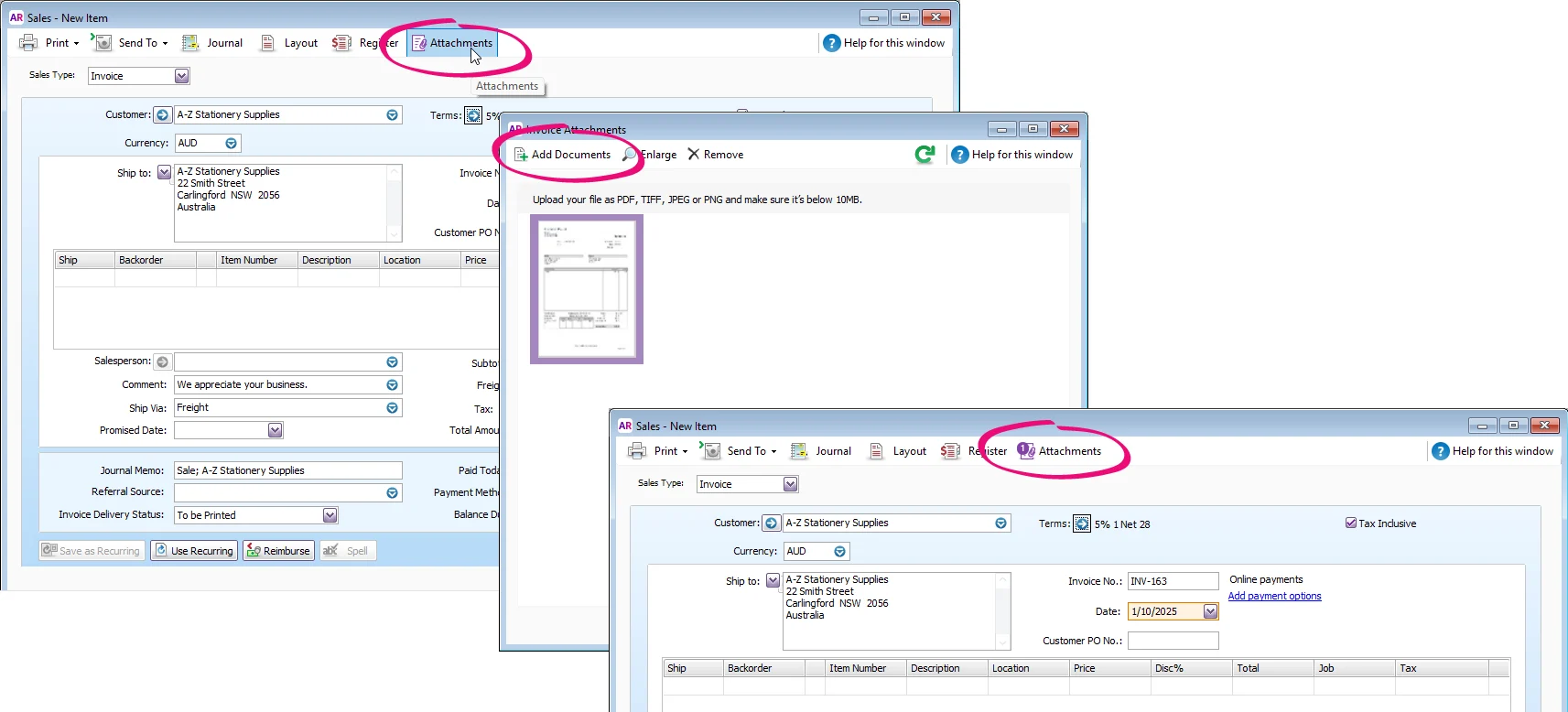
Repeat these steps for any other attachments you want to add.

Finding transactions with attachments
To quickly find which transactions have attachments, go to:
The Sales Register for sales.
The Purchases Register for bills.
The Bank Register for spend money transactions.
The Transaction Journal for journal entries.
Transactions with attachments will show the attachments icon:

Saving an attachment
Open the transaction.
Click Attachments.
Select the attachment.
Click Enlarge to display the attachment full size in a browser.
Click the save icon in your browser.
Choose where you want to save the file and click Save.
Removing an attachment
When you remove an attachment from a transaction, it permanently deletes it from AccountRight. If you want to save it, see 'Saving an attachment', above.
Open the transaction.
Click Attachments.
Select the attachment.
Click Remove and confirm you want to delete it in the message that appears.
Click Close.
Other things you can do with an attachment
Send it as an email attachment
Sales and purchases transactions only
If you want your customer or supplier to see a document, send it as an attachment when you email their invoice or bill. The email recipient can view or download the document, but it's not stored in AccountRight.
Find out more about emailing sales and emailing purchasesCreate a bill by uploading a supplier document to the In Tray
Upload your supplier bills and receipts to AccountRight's In Tray. Use the information in the document to quickly create a new bill transaction in AccountRight, or you can link the document to an existing bill.
Find out more about working with uploaded documents
Converting quotes and orders with attachments
The ability to retain attachments when sales transactions are converted isn't yet available. If you want to retain attachments, save them before you convert the transaction, then reattach them to the new transaction.
When you convert:
A quote to an invoice or order, the attachments aren't brought across to the invoice or order. Before converting the quote, save its attachments (see 'Saving an attachment', above), and then you can reattach them to the invoice or order. You can also email the quote with attachments to your customer (as they will be automatically attached to the email) and then later attach them when you convert them to an invoice or order.
If you have deselected the preference, Delete Quotes upon Changing to and Recording as an Order or Invoice (Preferences menu > Sales tab), the attachments will remain with the quote.
A sales order to an invoice, the documents are not automatically brought across to the invoice. Also, when an order is converted to invoice the order is automatically deleted and can't be recovered so attachments are also lost. Before converting the sales order, save its attachments (see 'Saving an attachment', above), then you can reattach them to the invoice. You can also email the order with attachments to your customer (as they will be automatically attached to the email) and then later attach them when you convert them to an invoice.
Controlling access to attachments
If an attachment is:
attached to a transaction, the document is only viewable to company file users who can access transactions. You can control what users have access to in your file by setting roles and permissions.
sent as an email attachment, the email recipient can view or download the document, but it's not stored in AccountRight.
Attachments to sales transactions are automatically attached to the email when you email the sale. If you don’t want the customer to see a document, you'll need to remove it from the sales email.