If a customer owes you money, but is unlikely to pay, you can write off the bad debt. When you do this, the customer's outstanding balance is removed, your expenses are correctly updated, and any GST liability related to the sale is adjusted.
How does a bad debt affect your GST reporting?
It depends on whether you're reporting on a cash or accrual basis.
If you're cash-based, a bad debt won't affect the GST, because the GST is only reported once the payment has been received from the customer. Since the customer never paid the invoice, no GST has been reported.
If you're accrual-based, writing off a bad debt will only affect your GST if it has already been reported and paid. In Australia, using this method to write off a bad debt will result in the customer return being included in your BAS for this period at G1 (Total sales).
1. Create a Bad Debts expense category
If a Bad Debts expense category doesn't already exist in your category list, you need to create one as described below. Or, if you account for bad debts by posting a provision to an asset category, create a 'Provision for Bad Debts' asset category instead.
Go to the Accounting menu and choose Categories (Chart of accounts).
Look for a category called Bad Debts. It'll have a code starting with 6-. If it's there, great! Skip down to task 2 to create a customer return for the debt.
If the category doesn't exist, click Create category.
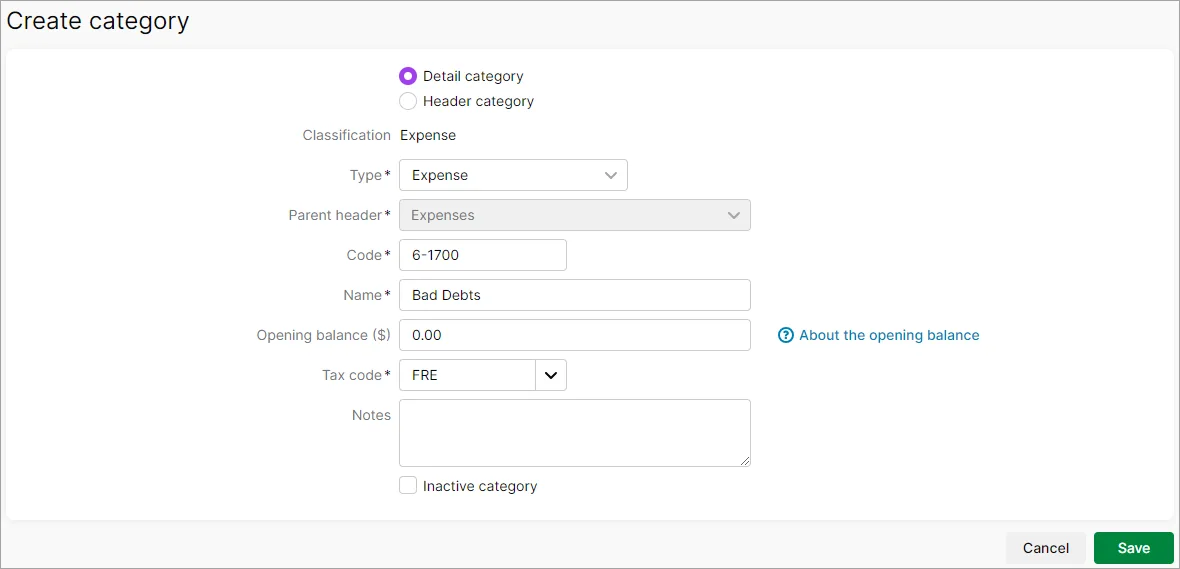
Create a new expense category as shown in the following example. This is an example only - you can use a code and name that suits your category list.
You can select any Tax/GST code when creating this account, because when you create the customer return (in the next task), you need to select the same tax rate used on the invoice which is being written off.
Click Save. Here's our example:

2. Create a customer return for the value of the debt
A bad debt is applied to a customer's account by first creating a customer return. You can then apply the return to the outstanding invoice to write it off.
Go to the Create menu and choose Invoice. An Invoice number is automatically generated, based on the last number used. If you want, you can change this number.
Changing the numbering
If you change the number, you’ll change the automatic numbering. For example, if you change the number to 000081, the next time you create a return, the new number will be 000082.
Choose the Customer whose debt you're writing off.
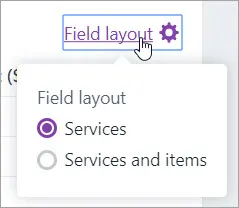
Click Field layout and select Services.
Enter a Description of what's being written off.
In the Category column, choose the Bad Debts expense category.
In the Amount column, enter the amount being written off as a negative number.
For the Tax/GST code, choose the same tax code used on the invoice being written off.
Click Save.

3. Apply the customer return to the unpaid invoice
Finally, apply the customer return to the outstanding invoice to write it off.
Go to the Sales menu and choose Sales returns and credits.
Find the customer return you created in the previous task, then click Apply. Need help finding the return?

Enter a Description of transaction, such as "writing off invoice", or similar.
Enter the Amount applied for the invoice being written off. The return can be applied to one or more invoices, so long as the Total Amount Applied matches the total Balance due on the invoices.
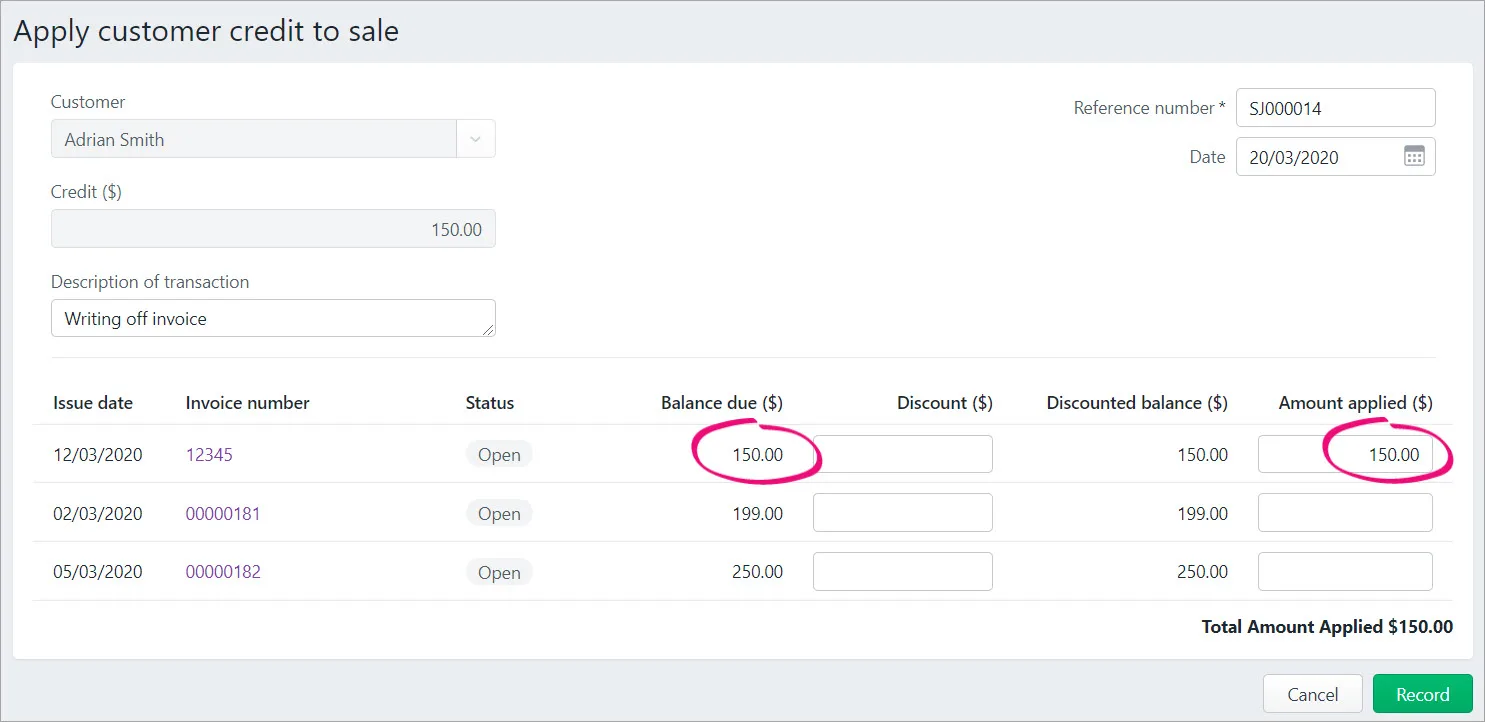
Click Record. The bad debt is written off.


When you know that a debt will not be recovered, you need to write it off. Your company file should have a ‘Bad Debt’ expense account to which you can allocate these amounts. Or, if you account for bad debts by posting a provision to an asset account, you can use AccountRight's ‘Provision for Bad Debts’ asset account.
You can create new bad debts accounts if you like, but it might be best to first check with your accounting advisor for clarification. Learn how to create detail and header accounts.
To write off a bad debt, you enter a negative dollar value sale to create a credit note that can be used to close the sale you won’t be receiving payment for. This enables you to adjust the customer's balance.
Need to write of debt in a previous financial year? You'll need to roll back the financial year first.
Need to write off some stock? Record an inventory adjustment.
How does a bad debt affect your GST reporting?
It depends on whether you're reporting on a cash or accrual basis.
If you're cash-based, a bad debt won't affect the GST, because the GST is only reported once the payment has been received from the customer. Since the customer never paid the invoice, no GST has been reported.
If you're accrual-based, writing off a bad debt will only affect your GST if it has already been reported and paid. In Australia, using this method to write off a bad debt will result in the customer return being included in your BAS for this period at G1 (Total sales).
To write off a bad debt
Go to the Sales command centre and click Enter Sales. The Sales window appears.
Enter the customer’s details.
Click Layout, choose Service, and then click OK.
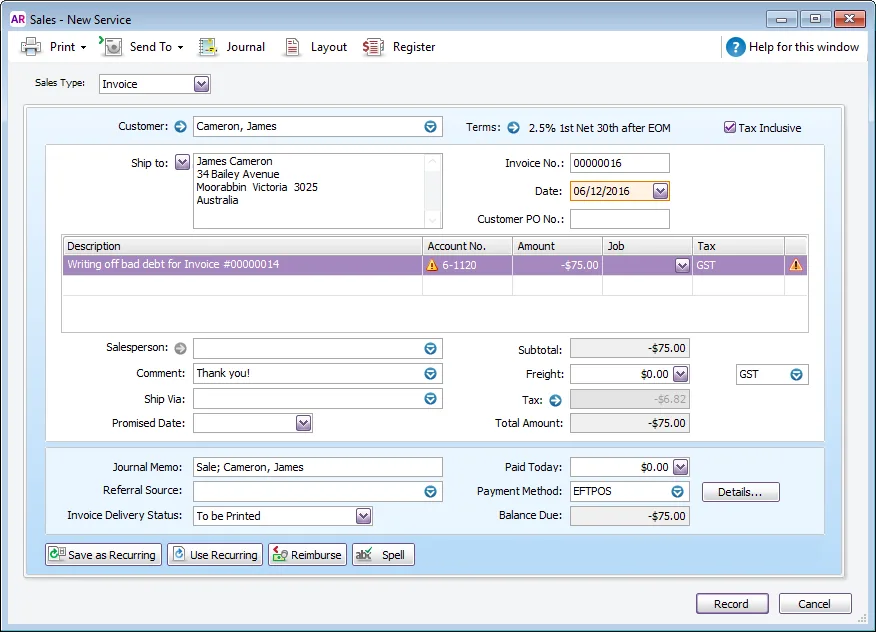
In the Description field, type a description of the transaction.
In the Acct No. field, enter the expense account for Bad Debts or the Provision for Bad Debts asset account. If a warning displays about the account you've selected, this is OK to ignore.
In the Amount field, type the bad debt amount as a negative number.
In the Tax (Australia) or GST (New Zealand) field, enter the required tax/GST code. Typically this will be the same tax/GST code as the invoice you're writing off. Here's our example:
Click Record.
Go to the Sales command centre and click Sales Register.
Click the Returns & Credits tab.
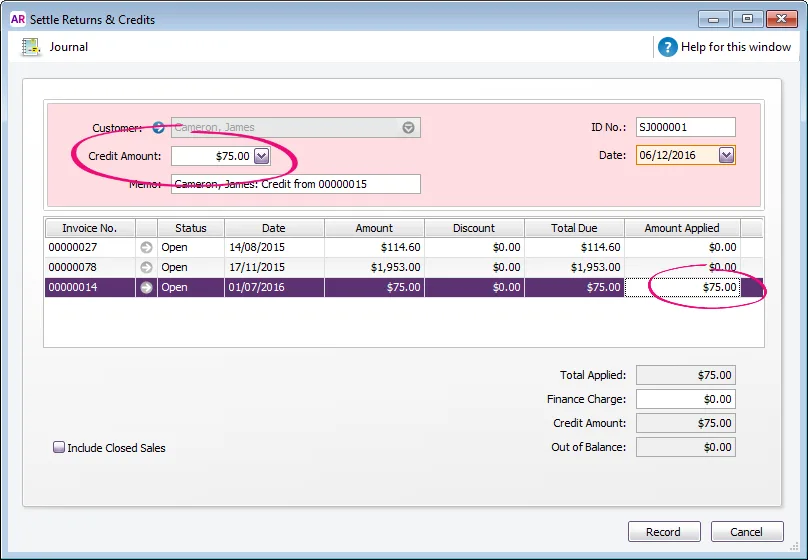
Click to select the credit note created above then click Apply to Sale.
In the Settle Returns and Credits window, apply the credit against the original open invoice and click Record. Here's our example:
Can't see any outstanding invoices?
If you're using categories, make sure the customer credit has the same category allocated as the outstanding invoice. This ensures the bill will display when applying the credit.
For more information, see creating and settling customer credits.

