Online invoice payments offer businesses the option to pass on the surcharge associated with online payments to their customers. That means that the surcharge for card payments can be added to a customer invoice.
When you pass on the surcharge to your customer, your customer pays the 2.7% surcharge for online invoice payments (VISA, Mastercard, Apple Pay or Google PayTM).
GST on surcharges
If you pass on the surcharge and there’s GST on your invoice, GST will also apply to the surcharge. GST is applied to the surcharge because providing a payment service is considered part of the sale. For more information, see IR’s GST on surcharges page.
For example, if you sell taxable goods and services, such as shoes, and provide an online payment service that has a surcharge, then you are selling the:
-
shoes, and
-
payment service.
As a result, the surcharge incurs GST at the same rate as the shoes.
Turning surcharging on and off
When you set up online payments, you chose if you wanted to pass on the surcharge to customers. You can turn this on or off whenever you like.
Next, you just need to create and send invoices like you normally would.
Turn surcharging on or off for all new invoices
Click the settings menu (⚙️) and choose Sales settings.
Click the Payments tab.
Click Edit preferences.
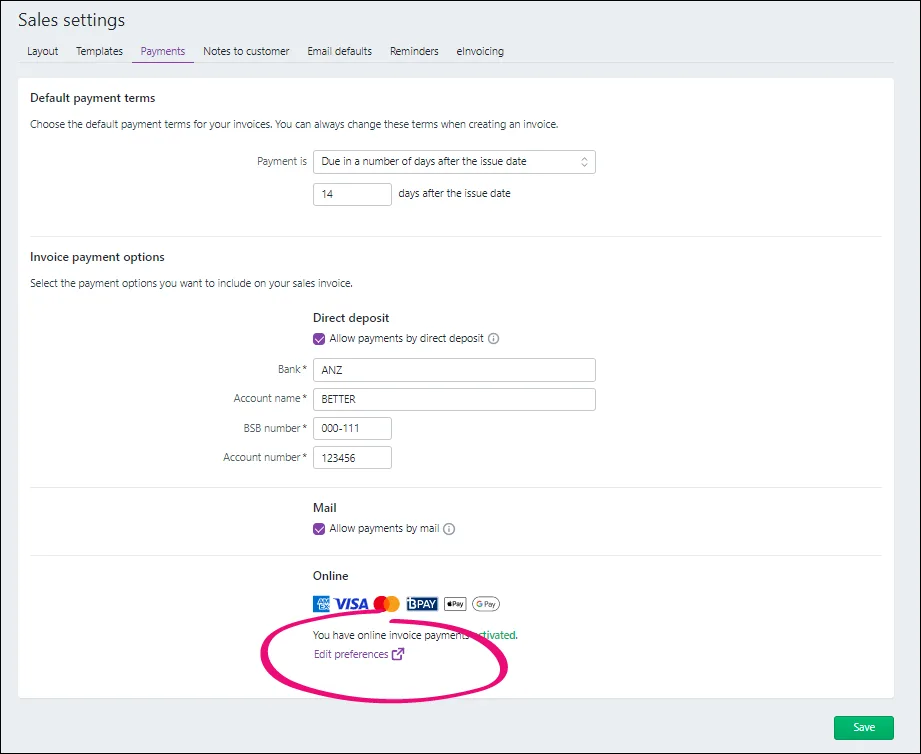
Select the option Your customers pay the surcharge.
Click Save. Now, you just need to create and send invoices like you normally would. See Creating invoices and Emailing, printing or downloading invoices if you need a refresher.
Do you create recurring invoices? The option to pass on customer surcharging for all invoices isn't available yet for invoices created from recurring transactions. Instead you'll have to enable this before you send each invoice, by opening it and selecting the Apply Surcharge option. See 'To turn surcharging on or off for a single invoice', below.

To turn surcharging off for all invoices, repeat these steps and select the option Your business pays the surcharge.
Turn surcharging on or off for a single invoice
Once you've turned on customer surcharging (see the steps above), you can choose to turn surcharging on or off for individual invoices.
Create the invoice as you normally would.
Select or deselect the Surcharge cards and wallets option.
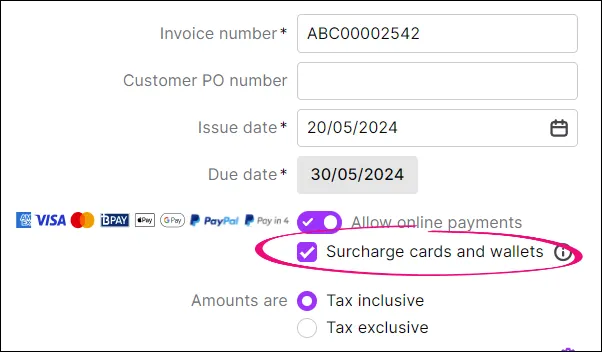
If you change this setting on an invoice you've already sent, you'll need to save your changes and re-send the invoice.
Complete the invoice as normal and send it to your customer.

How the surcharging looks to your customers
The customer will receive the invoice as they normally would. When they click on Pay Now, they'll be asked to select their payment method.
When they select Credit or Debit Card, they'll be asked to enter their card details. The amount owing, the surcharge fee, any applicable GST and total amount due (invoice and surcharge fee) will be listed.
When they click Submit, the payment will be processed.
FAQs
What are the fees and charges for online payments?
When your payer pays via Visa, Mastercard, Apple Pay or Google Pay, and you've enabled surcharging, they'll be charged 2.7% of the invoice value.
The 2.7% surcharge will be applied to the invoice total and the invoice amount (minus the $0.25 merchant fee) will be settled to your bank account. For example, if the invoice is $100, and you've enabled surcharging, your customer will pay $102.7, and you'll receive $99.75.
If a surcharged invoice contains goods or services with GST, you'll also receive the surcharge GST.
Where do I find the surcharge amounts?
Typically, the surcharge isn't recorded in your accounts, as it is paid by your customers and debited before the funds settle. The surcharge can, however, be calculated as 2.7% of the invoice value.
If the surcharge incurred GST, we'll record the surcharge and its GST in your nominated merchant fee account. To check or change the account you nominated, click the settings menu (⚙️) > Sales settings > Payments tab > Edit preferences.
You can always view the fees and, where applicable, the surcharge GST in the Transaction Details report.
How do I change the bank account my online invoice payments (minus fees) are deposited into?
Only the Owner or an Online admin user can change the bank details. Tell me more about user access.
Click the settings menu (⚙️) and choose Sales settings.
Click the Payments tab.
In the Invoice payment options section, click Edit preferences.
Select the Stripe account settings tab. If prompted, sign in to your Stripe account.
Click Edit for Payout Details to change the business bank account that will be debited for fees and charges.
Update your account details.
Click Save.
Online company files only
Online invoice payments offer businesses the option to pass on the surcharge associated with online payments to their customers. That means that the surcharge for card payments can be added to a customer invoice.
When you pass on the surcharge to your customer, your customer pays the 2.7% surcharge for online invoice payments (VISA, Mastercard, Apple Pay or Google PayTM).
GST on surcharges
If you pass on the surcharge and there’s GST on your invoice, GST will also apply to the surcharge. GST is applied to the surcharge because providing a payment service is considered part of the sale. For more information, see IR’s GST on surcharges page.
For example, if you sell taxable goods and services, such as shoes, and provide an online payment service that has a surcharge, then you are selling the:
-
shoes, and
-
payment service.
As a result, the surcharge incurs GST at the same rate as the shoes.
How does it work?
When you set up online payments, you chose if you wanted to pass on the surcharge to customers. You can turn this on or off whenever you like.
Next, you just need to create and send invoices like you normally would.
To turn surcharging on or off for all new invoices
Go to the Sales command centre and click Online Invoice Payments to open Online payments settings in a browser.
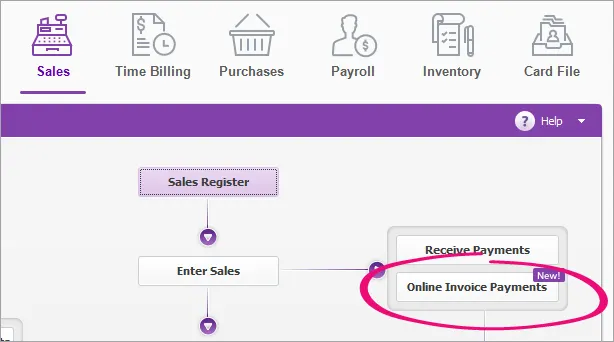
If prompted, log in with your MYOB account details.
In the Online payment settings page, in the Surcharging section, select:
Enable surcharging on invoices – to turn on surcharging for all invoices
Never pass on the surcharge – to turn off surcharging for all invoices
Click Save. Now, you just need to create and send invoices like you normally would.

To turn surcharging on or off for existing invoices you will need to do this for each individual invoice. See 'Turn surcharging on or off for a single invoice' below.
To turn surcharging on or off for a single invoice
Once you've turned on customer surcharging (see the steps above), you can choose to turn surcharging on or off for individual invoices.
Create the invoice as you normally would.
Select or deselect the Apply surcharge option.
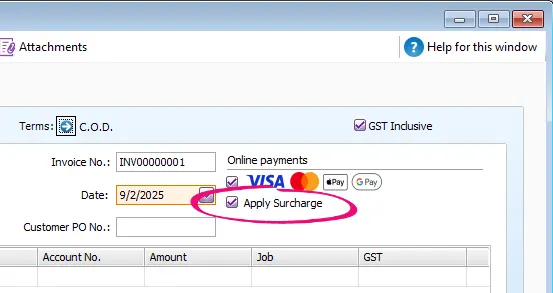
If you change this setting on an invoice you've already sent, you'll need to save your changes and re-send the invoice.
Complete the invoice as normal and send it to your customer.

How the surcharging looks to your customers
The customer will receive the invoice as they normally would. When they click on Pay Now, they'll be asked to select their payment method.
When they select Credit or Debit Card, they'll be asked to enter their card details. The amount owing, the surcharge fee, any applicable GST and total amount due (invoice and surcharge fee) will be listed.
When they click Submit, the payment will be processed.
Handling the payment in your company file
When a customer makes a payment, the details will automatically be entered into your company file for you, and the invoice will be closed off. Here's how it'll work:
The individual payments you receive for a day will be recorded in your Undeposited Funds Account.
To check the account you've nominated, go to Setup > Linked Accounts > Accounts & Banking Accounts > Bank Account for Undeposited Funds.
The fees and, if applicable, surcharge and surcharge GST, will be recorded in your nominated merchant fees account.
To check the account you nominated, go to Sales command centre > Online Invoice Payments > Online payments settings.
A bank deposit will then be automatically created to include all undeposited funds that were settled. This will not work if you have selected Undeposited Funds as the income account to record your payments.
If you use bank feeds, the lump sum deposit for the day's customer payments will be automatically matched to the bank deposit.
If you need more details about your online invoice payments, see the Transaction Details report.
Google Pay is a trademark of Google LLC.
FAQs
What are the fees and charges related to online payments?
When your payer pays via Visa, Mastercard, Apple Pay or Google Pay, and you've enabled surcharging, they'll be charged 2.7% of the invoice value.
The 2.7% surcharge will be applied to the invoice total and the invoice amount (minus the $0.25 merchant fee) will be settled to your bank account. For example, if the invoice is $100, and you've enabled surcharging, your customer will pay $102.7, and you'll receive $99.75.
If a surcharged invoice contains goods or services with GST, you'll also receive the surcharge GST.
Where do I find the surcharge amounts?
Typically, the surcharge isn't recorded in your accounts, as it is paid by your customers and debited before the funds settle. The surcharge can, however, be calculated as 2.7% of the invoice value.
If the surcharge incurred GST, we'll record the surcharge and its GST in your nominated merchant fee account. To see or edit the account you nominated, go to Sales command centre > Online Invoice Payments > Online payments settings.
You can always view the fees and, where applicable, the surcharge GST in the Transaction Details report.
How do I change the bank account my online invoice payments (minus fees) are deposited into?
Only the Online owner or an Online administrator can change the bank details. Tell me more online access levels.
Go to the Sales command centre and click Online Invoice Payments to open Online payments settings in a browser.
If prompted, log in with your MYOB account details.
Select the Stripe account settings tab. If prompted, log in with your Stripe account details.
Click Edit for Payout Details to change the business bank account that will be debited for fees and charges.
Update your account details.
Click Save.