Looking for your MYOB subscription invoices?
Sign into My Account > View my bills. Learn more...
The quickest way to get your invoices in front of your customers is via email. But you can also download PDFs of your invoices that you can save or print. You can do this when you create the invoice, or any time afterwards.
You can also email or print multiple invoices at once. This is great if you use recurring invoices or if you like to send your invoices in a batch on a particular day of the week.
*SMS invoicing is only available in Australia
Emailing an invoice
You can email an invoice directly from MYOB Business at the time you create it, or you can send it later. If you prefer to send your invoices in a batch, you can send multiple invoices at once.
Email an invoice at the time you create it
When you email an invoice, it'll be sent directly from MYOB and a PDF of the invoice will be attached to the email. The email also has a link to view the invoice online. If you've set up online invoice payments, customers will be able to make an immediate payment—straight from the online invoice.
Send an online invoice link
If you don't want to email the invoice directly from MYOB, just click View PDF > Copy Link and send the copied link however you like. Learn more...
If you haven't already, create the invoice.
From the Share menu, click Email invoice.
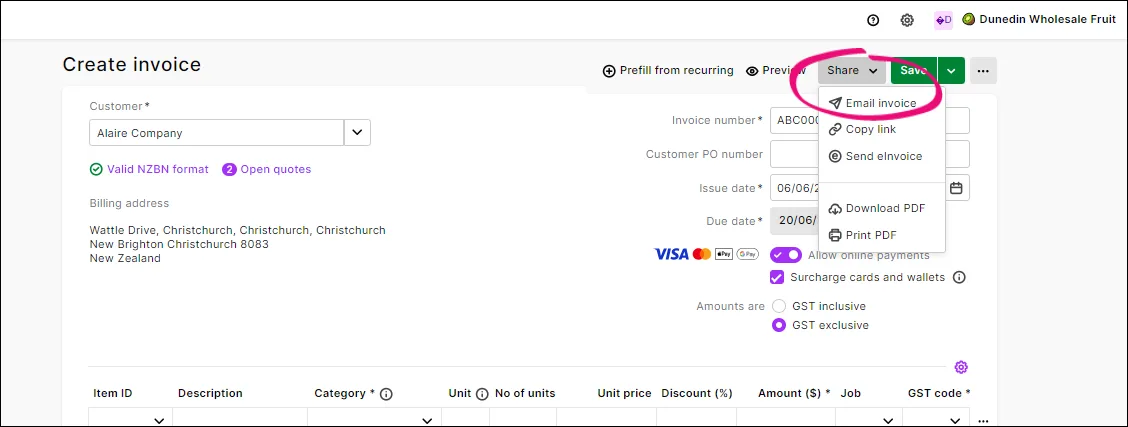
In the Email settings popup, enter a From name and a Reply-to-email address (if you haven't already set these up in Sales settings) and click Save.
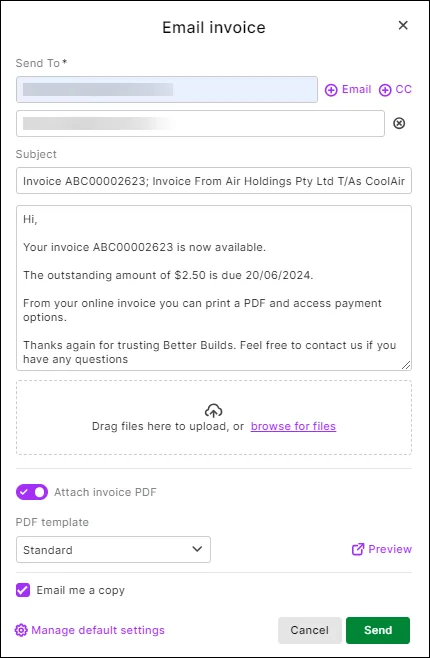
If an email address has been saved for the customer, it appears in the Send To field, but you can add one or change it if needed.
If you want to email the invoice to additional recipients, click ⨁ Email or ⨁ CC to enter additional recipients.
Add CC email address to a customer
You can also add a CC email address to the customer's details — see Adding customers.
If you want to email a copy of the invoice to yourself, select the option Email me a copy. The customer will not be able to see this information.
If required, change the text in the Subject and message fields. Click Manage default settings to change your email defaults.
Select Attach invoice PDF to attach a PDF of the invoice to the email. If you'd If you'd like to attach additional files (total size of uploaded documents can't exceed 25MB):
click and drag files onto the Email invoice window
click browse for files and select files to upload
to remove an attachment, click the remove icon next to it.
Choose the PDF template that'll be used if the customer prints or downloads their invoice as a PDF. Click Preview to see what it'll look like. (You can set up your sales templates in Sales settings.)
When you're ready, click Send.


If you open the invoice again, the Activity history (at the bottom of the invoice) shows the invoice has been Emailed. This activity will also show when the customer has viewed the email.
Email multiple invoices
You can send invoices to several customers at the same time.
Go to the Sales menu > Invoices to open the Invoices page.
Select one or more invoices to email.
Click the Email button.
Can't see the Email button?
You need to select one or more invoices to make it appear.
MYOB Business checks that each customer has an email address. If they don't, you'll see a message and a warning icon next to the invoice:
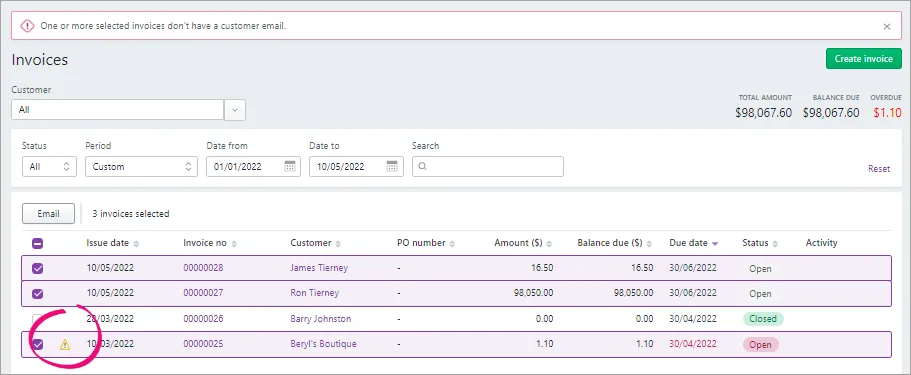
To add the email address:
Click the name of the customer to open their record.
Enter an email address in the Email field and click Save.
Refresh the Invoices page and repeat from step 2.
Enter your email Subject and Message.
Choose the Invoice template that'll be used if the customer prints or downloads their invoice as a PDF. Click Customise template to set up your sales templates.
Click Send invoices to email the invoices.

Printing an invoice
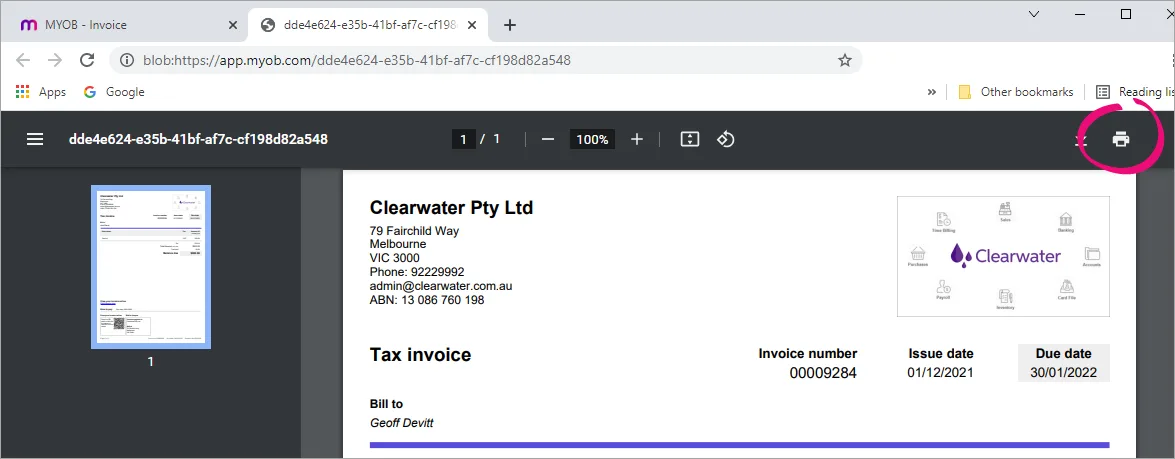
You can print an invoice at the time you create, which is handy if you want to check how it will look for the customer. You can also print multiple invoices later. When you print an invoice, it appears in a new browser tab. From there you can print it using the print function in your browser.
Print an invoice at the time you create it
If you haven't already, create the invoice or open an existing invoice (Sales menu > Invoices > click to open the invoice). Need help finding an invoice?
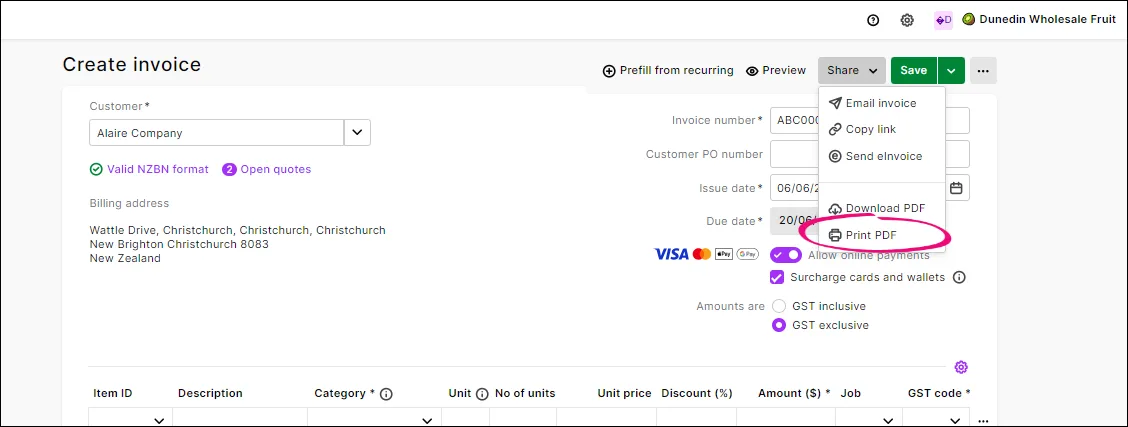
From the Share menu, click Print PDF.
Choose the PDF Template that'll be used for the PDF. Templates define the look and feel of your invoice PDFs. (You can set up your sales templates in Sales settings.)
Click Preview to open a preview of the invoice PDF in a new tab.
Click Print. A PDF of the invoice appears in a new browser tab. From here you can print the invoice using the print icon in your browser.


Send an online invoice link
Make it easier for your customers to view and pay your invoices by sending them an online invoice link. From the Share menu, click Copy link and send it to them however you like. Learn more...
Print multiple invoices
Not available in AccountRight browser. If you use AccountRight, you can print multiple invoices in your AccountRight desktop software
You can generate PDFs for multiple invoices at the same time, which you can then save or print.
Go to the Sales menu > Invoices to open the Invoices page.
Select one or more invoices to email.
Click the Print PDF button. If you can't see the Print PDF button, make sure you've selected at least one invoice. Also, this button isn't available for AccountRight files accessed in a web browser.
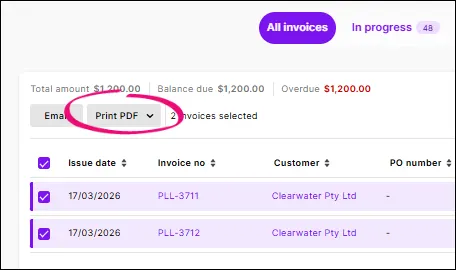
Choose the invoice template that'll be used for the PDF. Templates define the look and feel of your invoice PDFs. Find out how to set up your sales templates.

Your invoice PDFs appear in a new browser tab. From here you can download or print the invoices using the icons in your browser.
Downloading an invoice
If you need to save an invoice for your records, share it or attach it to an email, you can download the invoice as a PDF.
Download a PDF invoice
If you haven't already, create the invoice or open an existing invoice (Sales menu > Invoices > click to open the invoice). Need help finding an invoice?
From the Share menu, click Download PDF.
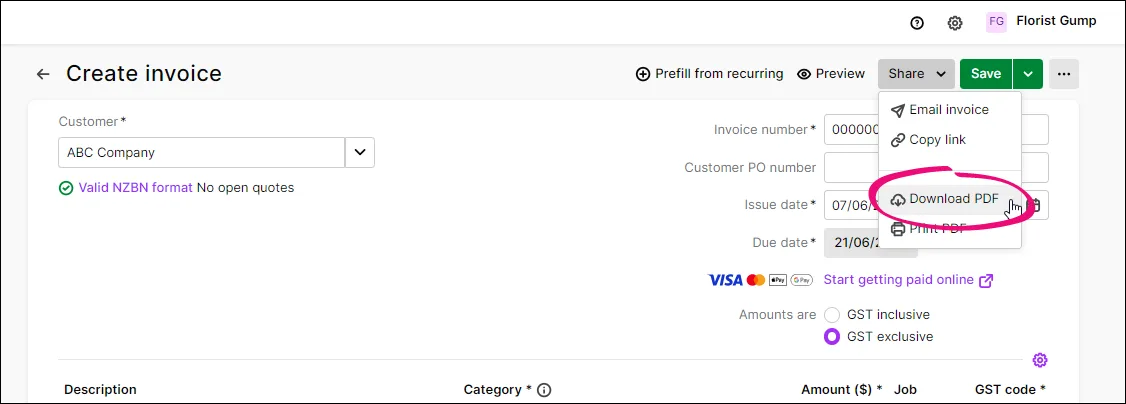
Choose the PDF Template that'll be used for the PDF. Templates define the look and feel of your invoice PDFs. (You can set up your sales templates in Sales settings.)
Click Preview to open a preview of the invoice PDF in a new browser tab.
Click Download. A PDF of the invoice is downloaded to your computer (check your Downloads folder). From here you can save the PDF for your records, attach it to an email or print it.

Provide a receipt
If a customer has paid you via online payments, they receive an email notification that they have paid. In their online invoice, the Pay Now button changes to View Receipt – they can click this to view or download the receipt. Otherwise, when a customer makes a payment, you can provide them a copy of the invoice (showing the payment) as a receipt.
Emailing and printing quotes and sales orders
You can email or print a quote or sales order at the time you create it, or later by going to the Sales menu > Quotes or Sales orders and clicking the number to open it. You can also resend or reprint quotes and sales orders.
Email or print a quote
To email a quote or sales order:
Click Email quote or Email sales order.
If an email address has been saved for the customer, it appears in the To field—you can change this if you want. If no email address exists, enter one in the To field.
If you want to email additional recipients, you can:
click + Email and enter additional To recipients
click + Add CC email and enter an email address in the CC field
If you want to email a copy to yourself, select the option Email me a copy. The customer will not be able to see this information.
If required, change the text in the Subject and Message fields. If you'd like to change the default text, see Set up default emails.
If you'd like to attach files to the email (total size of uploaded documents can't exceed 25MB):
click and drag files into the Drag files to upload section
click browse for files and select files to upload.
Choose the template that'll be used if the customer prints or downloads their quote or sales order as a PDF. Click Preview PDF to see what it'll look like. (Click Customise template to set up your sales templates in Sales settings.)
Click Send quote or Send sales order to email it.
To print or download a quote or sales order:
Click Preview in a quote or View PDF in a sales order.
Choose the template that'll be used for the PDF. Templates define the look and feel of your PDFs. (You can set up your sales templates in Sales settings.)
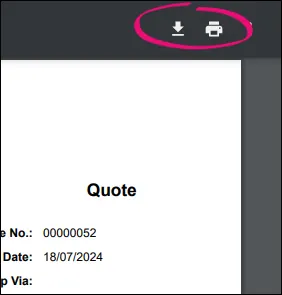
Click View for a quote (or Export for a sales order) to open a preview of the quote PDF in a new tab. You can then print or download the PDF using the options in the PDF or your browser:

FAQs
How do I change the default email message?
Set up your email defaults in the invoice and quote settings (click the settings menu (⚙️) > Sales settings > Email defaults tab).
For all the details see Set up default emails.
What do emailed (online) invoices look like to my customers?
The email your customers receive will have a View invoice button. When they click it, they'll see the invoice details and options to download a PDF of the invoice or print it. This is also what they'll see if you've sent them a link to an online invoice.
If you've also set up online invoice payments (Australia only), your customer will also be able to click Pay now in the online invoice to make a payment.

You can print sales (invoices, sales orders and quotes) when recording the transaction. Or, you can print or email your sales documents later, in a batch. If your company file is online, you can track invoice activity and get paid faster. Learn more about online invoicing.
If you've set up AccountRight to send emails, you're good to go.
Sales are generated using the form you choose at the time of emailing or printing, and you can personalise these forms to suit your business needs.
You can also set a customer's preferred method for receiving their invoices, or choose this when recording the sale.
Automatic printing
There's a few time-saving preferences you can turn on to magically print your sales, packing slips and mailing labels.
You'll find these preferences via Setup menu > Preferences > Sales tab.

To set a customer's delivery preference
Go to the Card File command centre and click Cards List.
Click the Customer tab.
Click the zoom arrow to open the customer's card.
Click the Selling Details tab.
Select the Invoice Delivery. If you choose To Be Emailed or To Be Printed and Emailed, invoices will be sent to the email address recorded on the Profile tab of the customer's card.
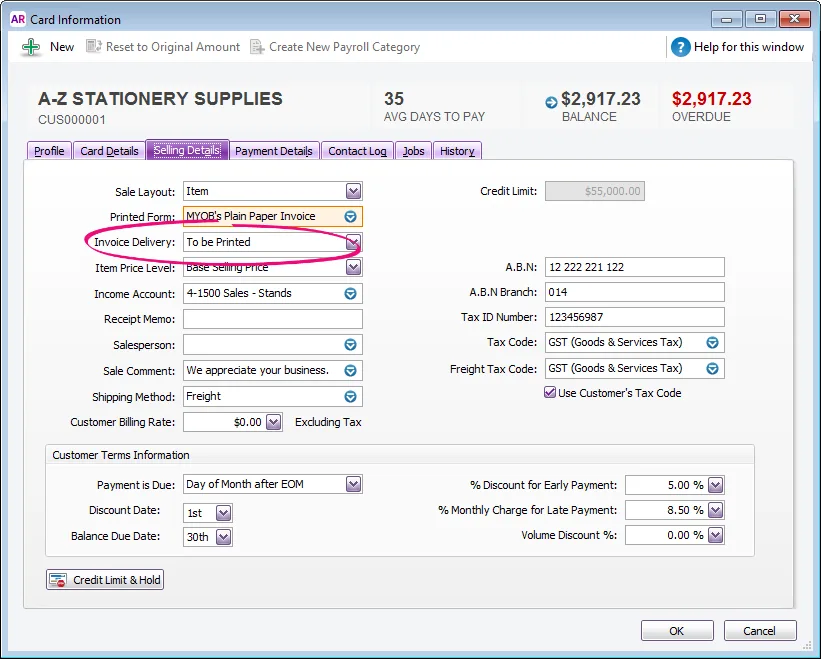
Click OK.

The default delivery status is now set for the customer. This can be changed when recording the sale.

To print or email a sale when recording
When recording an invoice, quote or order choose if you want to print or email.

The transaction will be recorded before the sale is previewed or printed.
To print the invoice
Click Print.
Choose the form you want to use.
Print the sale.
To email the invoice
Click Send To and choose Email.
Check the details of the email and update if required.
Click Attach to select additional files to attach to the email. You can attach multiple files, each up to 10MB in size, for a total of up to 25MB in size.
(Optional) Click To if you have additional email addresses in a contact's card in a contact’s card which you want to use. Or type email addresses directly into the To field, separated by semi-colons (;).
Click Send. The sale will be emailed as a PDF attachment.
To print or email recorded sales
Instead of printing each sale when you record it, you can print or email them later, either one at a time or in a batch.
Go to the Sales command centre and click Print/Email Invoices.
Click the To Be Printed or To Be Emailed tab, depending on how you want to send the sale.
Select the Sales Type to show only Service, Item, Professional, Time Billing or Packing Slip. The sales waiting to be printed or emailed will be listed.
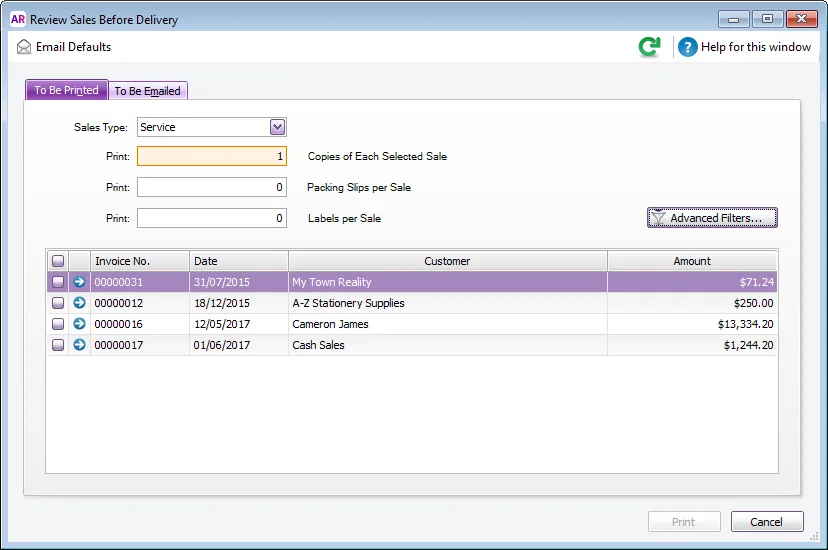
If you want to view the details of a transaction, click the zoom arrow next to it.
Can't find a sale?
It might have already been printed or emailed. Click Advanced Filters and deselect the option Unprinted or Unsent Sales Only.
If you want to change the form template to be used for the sales, or filter the list of sales, click Advanced Filters. For more information, see Advanced batch filters.
If you're printing sales:
Type the number of copies you want to print in the Print field.
Select the sales you want to print.
Click Print. The sales will be sent to your printer.
If you're emailing sales:
Select the sales you want to email.
If you want to change the recipient email address, subject or message, click to highlight the sale and update the details at the top of the window. Learn how to change the email defaults.
(Optional) To email an invoice to multiple email addresses, enter the addresses in the Email Address field, separated by semi-colons (;).
Click Send Email. The invoices will be emailed as PDF attachments.

To reprint or re-email sales
If you've already printed or emailed a sale, here's how to do it again:
Go to the Sales command centre and click Print/Email Invoices.
Click the To Be Printed or To Be Emailed tab.
Select the Sales Type to show only Service, Item, Professional, Time Billing or Packing Slip.
Click Advanced Filters.
Deselect the option Unprinted or Unsent Sales Only.
Click OK. The sales you've previously printed or emailed will be listed again.
If you're printing sales:
Type the number of copies you want to print in the Print field.
Select the sales you want to print.
Customise the invoice you're resending
If you want to change the invoice to indicate that it's being re-sent, for example, by adding a text box with the word 'Copy', you can customise an invoice on the spot. Just click Advanced Filters > Customise, select the form you want to customise and make your changes. For more information, see Add text and fields to forms.
Click Print. The sales will be sent to your printer.
If you're emailing sales:
Select the sales you want to email.
If you want to change the recipient email address, subject or message, click to highlight the sale and update the details at the top of the window. Learn how to change the email defaults.
(Optional) To email an invoice to multiple email addresses, enter the addresses in the Email Address field, sparated by semi-colons (;).
Click Send Email. If you send emails using:
AccountRight's built-in email feature, your customer will be able to view the invoice online (and you'll be able to track if the email's been delivered)
Microsoft Outlook, the invoices will be emailed as PDF attachments.
To set the default sales form
Go to the Sales command centre and click Print/Email Invoices.
Click Advanced Filters.
Choose the Sales Type. (this is the layout used for the sale: Service, Item, Professional, Time Billing)
Choose your customised form as the Selected Form for Sale.
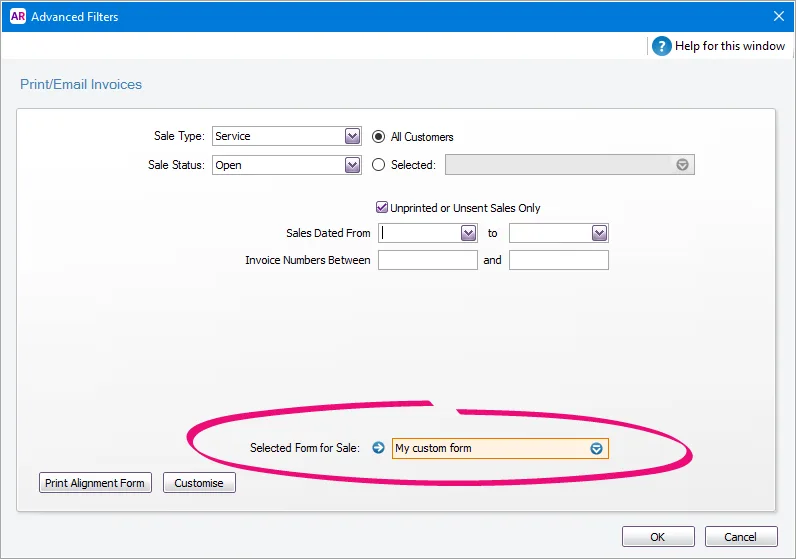
Click OK.

The selected form will now be used when printing or emailing sales for that sale type.
To print a packing slip
Go to the Sales command centre and click Print/Email invoices.
In the Sales Type field, select the applicable Packing Slip. This is based on the layout used for the sale (Service, Item or Professional).
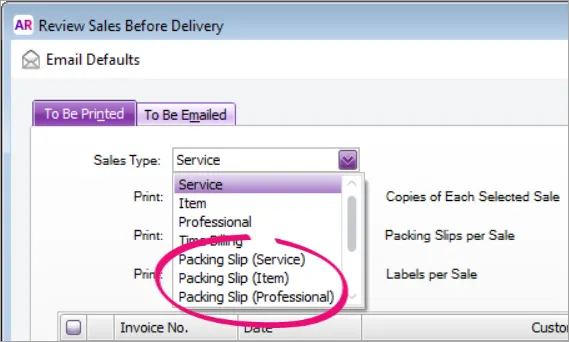
The associated sales will be listed.
If you want to:
print a packing slip for an order or quote: click Advanced Filters and change the Sale Status to Orders or Quotes.
re-print a packing slip for a sale which has already been printed: click Advanced Filters and deselect the option Unprinted or Unsent Sales Only.
Select the sales for which you want to print packing slips.
Click Print.

FAQs
How do I remove a sale from the print or email queue?
If it's just one or two sales you need to remove, open the sale and change the Delivery Status to Already Printed or Sent.

If there are lots of sales to be removed, see Removing transactions from the print or email queue.