On the Sale returns and credits page, you can credit or reimburse customers for goods returned or services not used. You can also credit customers for invoice overpayments.
Before you begin
-
Create a customer return using the procedure outlined in To create a customer return.
If the customer:
has an unpaid invoice which you can apply the return to, see 'To apply a return to an unpaid invoice' below
wants a refund, see 'To pay a refund' below
has no unpaid invoices, you can issue a refund (see below) or hold onto the customer return to apply to an unpaid invoice in the future.
To apply a return to an unpaid invoice
First, complete the procedure outlined in Creating customer returns.
Go to the Sales menu and choose Sales returns and credits. The Sale returns and credits page appears, displaying a list of all customer returns awaiting crediting or refunding.
Choose the Customer you're applying the return to.
Click Apply for the return you want to apply.
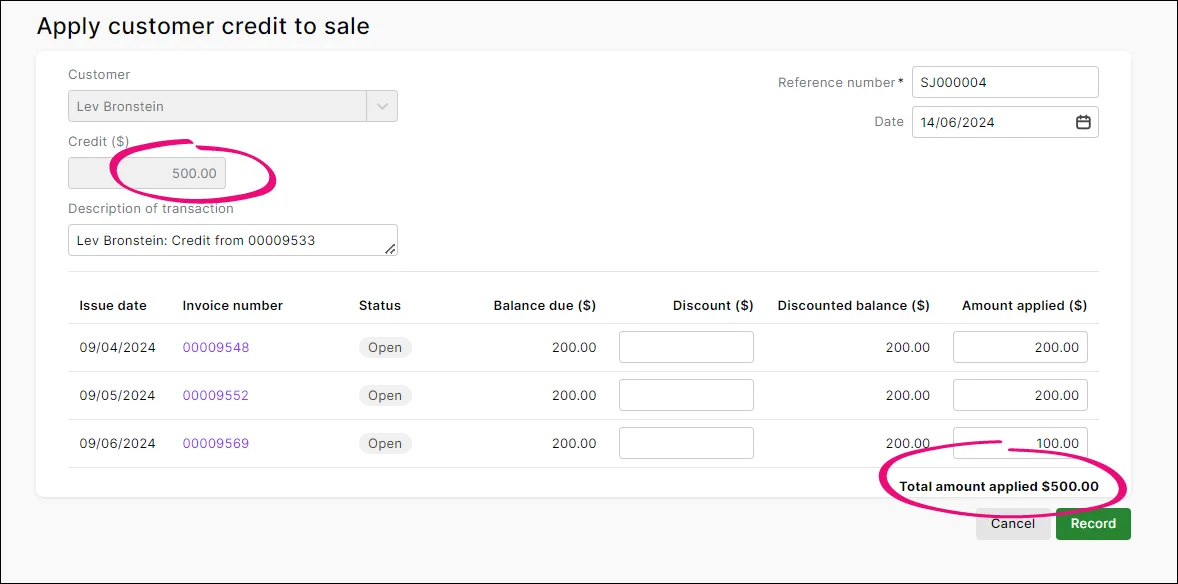
The Apply customer credit to sale page appears, displaying details of the return, as well as a list of any unpaid invoices for the customer. The value of the return to be applied appears in the Credit field.
Enter the Amount applied to one or more invoices. This example shows a $500 credit being applied to 3 unpaid invoices (the bottom one will still have an outstanding amount to be paid).
Applying partial credits
If you apply only part of a credit, the credit balance will be updated and can be applied to other open invoices or refunded.
When you're done, click Record.

Invoices with returns applied to them still need to be sent to customers for acknowledgement. For more information about sending invoices, see Emailing, previewing and printing invoices.
To pay a refund
First, complete the procedure outlined in To create a customer return.
Go to the Sales menu and choose Sale returns and credits. The Sale returns and credits page appears, displaying a list of all customer returns awaiting crediting or refunding.
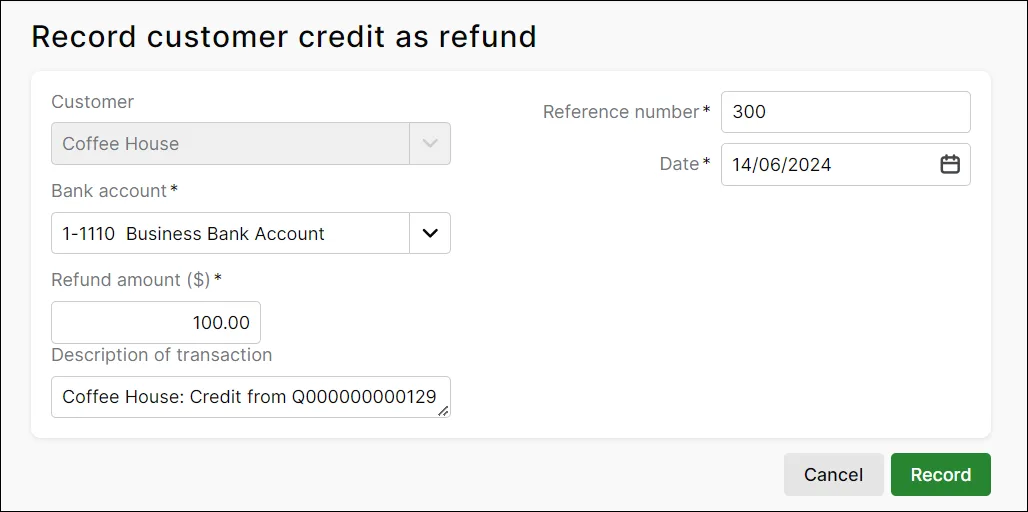
Click Refund on the return to be refunded. The Record customer credit as refund page appears, displaying details of the return.
Check that the Date, Reference and Refund amount fields are correct.
Select the Bank account from which you want the refund debited. You can only allocate a refund to a cash or cheque account. For more information about accounts, see Categories (Chart of ccounts).
The Description of transaction appears automatically, which you can edit if you want. Here's our example:
Click Record to debit the refund amount from the selected account.
Repeat from step 1 for any other returns to be refunded.
Prepare and send the cash or cheque refund to the customer.

FAQs
How do I undo a credit that's been applied to the wrong invoice?
Open the invoice the credit was applied to (Sales menu > Invoices > click the invoice). Need help finding an invoice?
In the Activity history at the bottom of the invoice, click the reference number for the applied credit.

Click Delete.
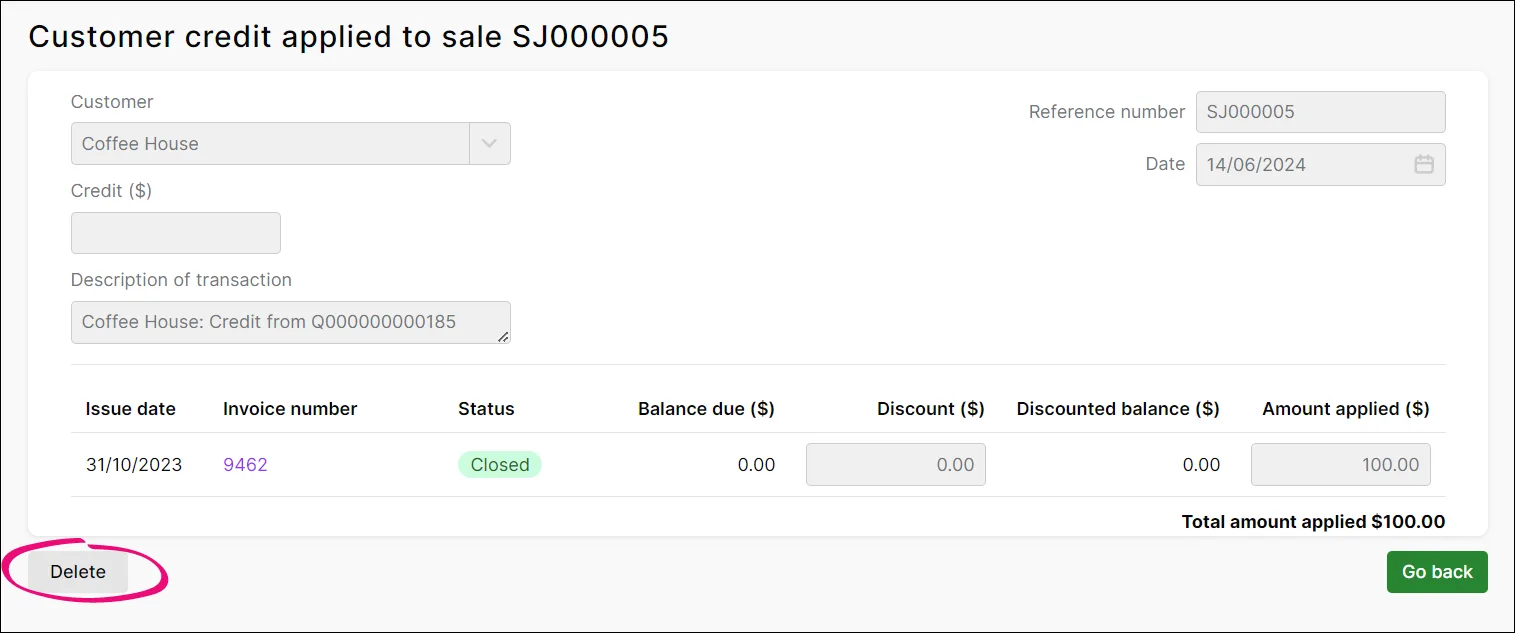
At the confirmation message, click Delete. The credit is now available to refund or be applied to another invoice as described above.


Once you've created a credit note, you can choose to settle it in the following ways:
Apply the credit to an open invoice. Applying the credit to one or more of the customer’s open invoices reduces the amount the customer owes you. If they have no open invoices, you can hold onto the credit note and apply it to a future invoice or record a refund.
Record a refund. If the customer does not have any open invoices, you can record a refund payment for the amount of the customer credit.
Received an overpayment? See Customer overpayments and double payments.
Want to apply credits to your oldest invoices first?
If you want to apply credits to your oldest invoices first select the preference, Apply Customer Payments Automatically to Oldest Invoice First in the Preferences window > Sales tab. Note that if you have any windows open when you select this preference, you'll need to close and reopen them for the preference to take affect.
To apply a customer credit to an open invoice
Go to the Sales command centre and click Sales Register. The Sales Register window appears.
Click the Returns & Credits tab. A list of customer credits appears.
Locate and select the credit you want to apply and click Apply to Sale. The Settle Returns & Credits window appears, listing all open invoices assigned to the customer.
Can't see any outstanding invoices?
If you're using categories, make sure the customer credit has the same category allocated as the outstanding invoice. This ensures the invoice will display when applying the credit.
Enter the amounts you want to apply to one or more open invoices in the Amount Applied column.
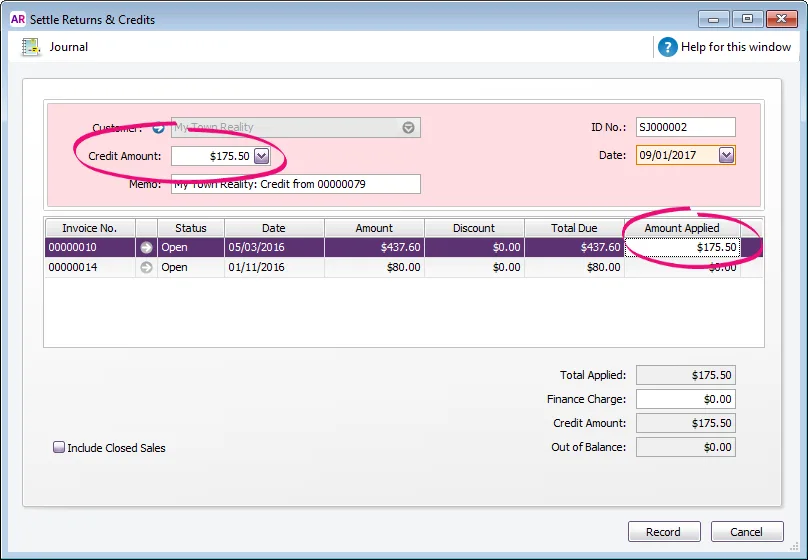
If the Apply Customer Payments Automatically to Oldest Invoice First preference is set, amounts will appear next to the oldest invoices in the Amount Applied column. However, you can apply the credit amount to any one transaction or you can divide it among many transactions in the list. Note that the total amount you apply in the Amount Applied column must equal the amount that appears in the Credit Amount field.
If you want to apply part of a customer credit to any unpaid finance charge, enter an amount in the Finance Charge field.
Click Record to apply the credit.

To record a refund
Go to the Sales command centre and click Sales Register. The Sales Register window appears.
Click the Returns & Credits tab. A list of customer credits appears.
Locate and select the credit you want to refund and click Pay Refund. A refund cheque for the amount of the credit appears in the Settle Returns & Credits window.
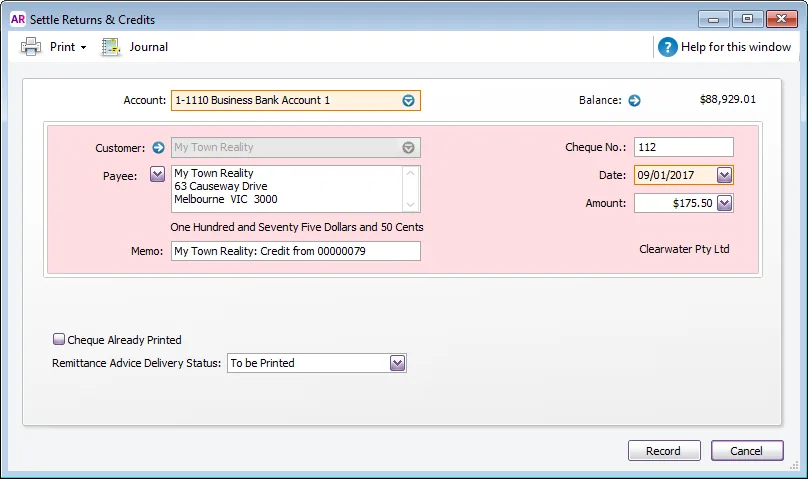
In the Account field, enter the bank account you're making the payment from.
If required, change other information in the window, such as the transaction date.
If you're paying by cheque and you have already written it, select the Cheque Already Printed option.
Specify how you want to send a remittance advice by selecting a delivery option from the Remittance Advice Delivery Status list.
Click Record.

Want to pay refunds electronically? See Paying customer refunds electronically.