Once you've recorded an invoice, the Customer field can't be changed. But there's a handy workaround that uses the recurring transaction feature to save all the invoice details as a template. You can then use that template to create a new invoice for a different customer.
To change the customer on an invoice
Open the invoice to be modified (Sales menu > Invoices > click the invoice to open it). Need help finding an invoice?
Click Save as recurring at the bottom of the invoice.
Enter a Schedule name (anything you like) and leave the Frequency set to Never.
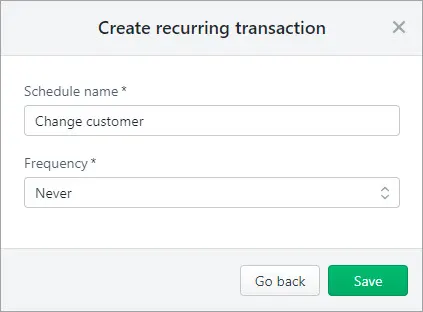
Click Save.
If you don't need to keep the original invoice, you can delete it (click Delete at the bottom of the invoice, then click Delete at the confirmation).
Go to the Sales menu > Recurring transactions.
Click to open the recurring transaction you just created.
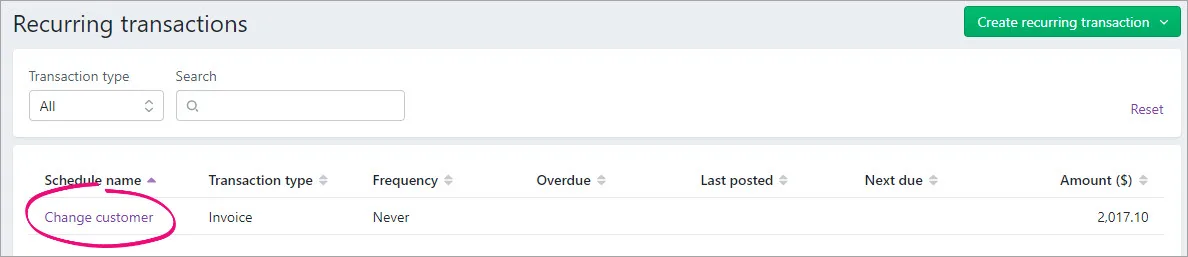
The invoice displays and you can choose a different Customer.
Make any required changes to the invoice and click Save.
You can now delete the recurring transaction template (Sales menu > Recurring transactions > click to open the recurring transaction template > Delete > Delete).


If you need to change the customer on a recorded invoice, here's the fastest way to do it.
To change the customer on an invoice
Find and open the invoice to be modified and save it as a recurring transaction.
Delete the original invoice (open the invoice, go to the Edit menu and choose Delete Sale. Learn more about deleting invoices.)
Go to Lists > Recurring Transactions, select the recurring transaction you just created and click Use Recurring. A new sale transaction is displayed.
Select the correct customer for the transaction.
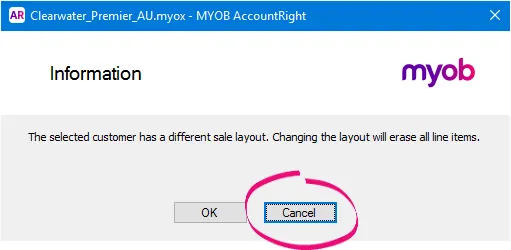
If this message appears, click Cancel.
Ensure all details of the invoice are correct then click Record.
Go to Lists > Recurring Transactions, select the recurring transaction then click Delete.
