MYOB's online payments reports are an excellent resource to see details of the payments you've received and fees you've paid for online payments.
You can access these reports via the Reporting menu > Reports tab > Online invoice payments tab The reports and their functions are listed below.
Note that you need to be using online payments service to view these reports.
Transaction details
This report contains a summary of invoices and their settlement status, as well as details of the invoice payments that have already been deposited to assist reconciliation.
Click the Transaction details report from the Reporting menu > Reports tab > Online invoice payments tab.
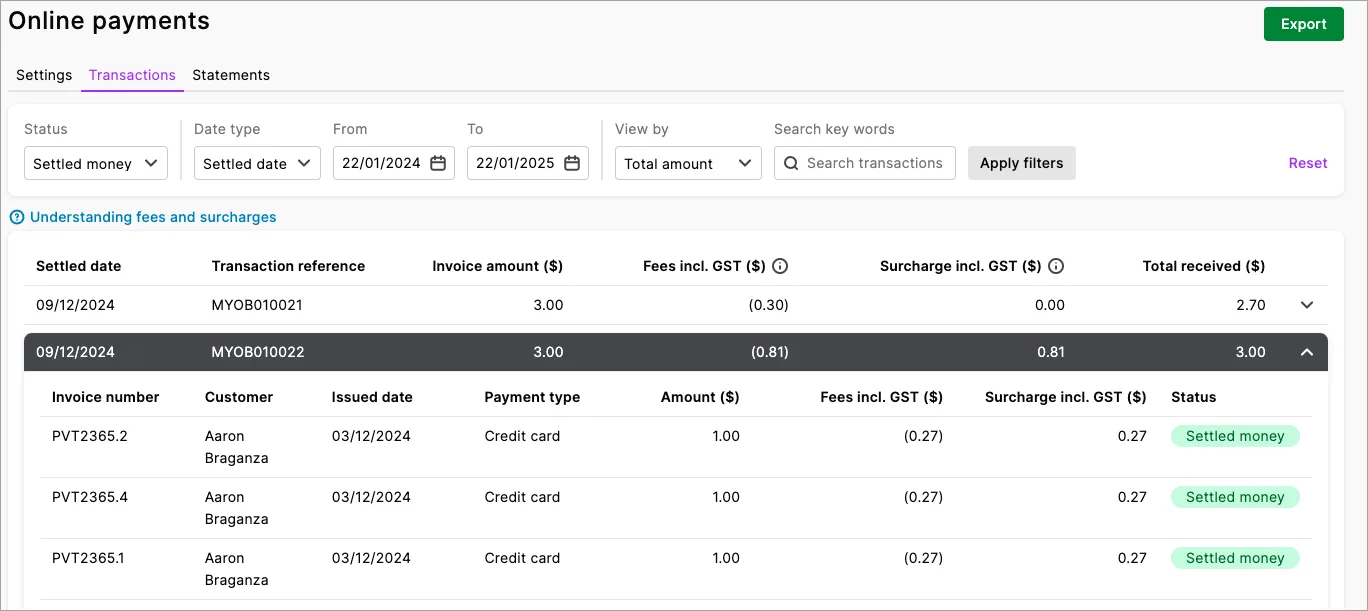
Filter the report to see specific payments using these options:
Status – choose Settled money, Processing or Cancelled payments
Date type – choose Settled date or issued date then specify a date range using the From and To dates
Search by – choose Total amount, Invoice number or Invoice amount then enter Search text
If you're using a vertical display, click More filters to search.
Click Apply filters to show the filtered results.
This is what the report will show:
Settled money status shows a header for each settlement and its details, and below this is listed the invoices paid in this settlement. The Transaction description text is what you see on your bank statement or bank feeds description for the settlement.
Processing status lists the invoices that have been paid, and the settlement funds which are still being processed.

Exporting
You can export the report as an Excel spreadsheet or PDF by clicking Export. For PDFs, you can also choose which style template you want to use.
Note that you must enable editing of the spreadsheet from within Excel. If editing is disabled, the spreadsheet will not display the totals calculated in the report.
Transaction statements
This report is generated monthly and provides a summary of the fees associated with using the online payments service. It helps you track and account for these costs.
After a year of using online payments, you'll be able to access a rolling 12 months' worth of statements.
To open a statement, click the Transaction statements report from the Reporting menu > Reports tab > Online invoice payments tab and then click a month to open a PDF statement for that month.
MYOB's online payments reports are an excellent resource to see details of the payments you've received and fees you've paid for online payments.
You can access these reports via the Reports menu > Index to reports > Sales. In the Online invoice payments section, click View reports to display the reports in a web browser.
The reports and their functions are listed below.
Note that you need to be using online payments to view these reports.
Transaction details
This report contains a summary of invoices and their settlement status, as well as details of the invoice payments that have already been deposited to assist reconciliation.
Go to the Reports menu and choose Index to Reports.
Click the Sales tab.
In the Online payments section, click View reports then click Display Report. The report displays in a web browser.
On the Reports page, click Transaction details to open the Transaction details report.
The Transaction Description will appear in your bank feed description (or if you reconcile manually, in the bank statement) and in the bank deposit memo to help you identify your online payments when you're Reconciling your bank accounts.
Filter the report to show the payment Status: Settled money, Processing or Cancelled payments.
Choose a Settled date or a date range.
Click More filters to search by amounts.
Exporting
You can export the report as an Excel spreadsheet or PDF by clicking Export. For PDFs, you can also choose which style template you want to use.
Note that you must enable editing of the spreadsheet from within Excel. If editing is disabled, the spreadsheet will not display the totals calculated in the report.
Statements
This report is generated monthly and provides a summary of the fees associated with using the online payments service. It helps you track and account for these costs.
After a year of using online invoice payments, you'll be able to access a rolling 12 months' worth of statements.
To open a statement
Go to the Reports menu and choose Index to Reports.
Click the Sales tab.
In the Online payments section, click View reports then click Display Report. The report displays in a web browser.
On the Reports page, click Statements.
Click a month to open a PDF statement for that month.