You can export any of your MYOB reports in Excel or PDF formats so you can share them with others (such as adding them as an attachment to an email), manipulate report data in Excel, or save copies for your records.
Using Office 365?
You can only export a report as an Excel file if Microsoft Excel 2010 or later is installed.
Make sure Excel is installed on your computer and not accessed via a web browser
What you see is what you get
What's in the exported report reflects whatever customisation you've done to the report while it's displayed in your browser. So if you've filtered the report's information, or added, removed or reordered columns, these changes will be in the exported report. If you're exporting a report that has account levels, such as the Profit and Loss report, then the account level you've chosen cannot be changed in the exported report.
Exporting reports as PDFs?
Consider creating PDF style templates—these let you personalise your PDF reports with images, headers and footers, watermarks and more.
To export a report
Produce the report you want to export.
If you want, customise the report by filtering the information that appears, or adding, removing and reordering columns.
From the Export menu, choose the export format you need:
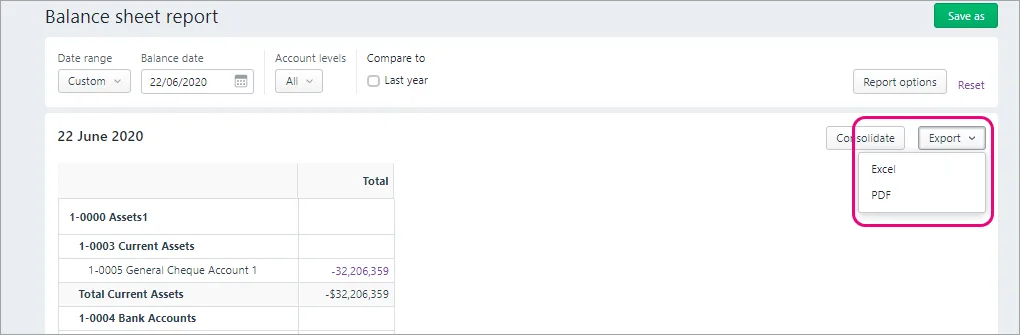
Excel - Microsoft Excel spreadsheet: Choose Excel if you want to view the report in Microsoft Excel, or use Excel's features to further analyse the data or edit the report. If you save the report as an Excel document, the person who receives the document will need a program that can open Microsoft Excel spreadsheets, to view the report. Note that you must enable editing of the spreadsheet from within Excel. If editing is disabled, the spreadsheet will not display the totals calculated in the report.
PDF - Portable Document Format: Choose PDF if you want to view or print the report later. In PDF export options, choose or add a PDF style template, or choose Default. If you save a report as a PDF, the person who receives the report will need a PDF viewer, such as Adobe Reader, to view or print the report.
Click Export.
If you're exporting as a PDF, the report displays on a new browser tab where you can view, print or download it.
If you're exporting to Excel, the Microsoft Excel file will be in your Downloads folder.

When viewing a report, click View and print to display the report as a PDF in a new browser tab, where you can save or print it.
FAQs
I use AccountRight - can I use my Excel report templates?
If you're an AccountRight browser user, you'll need to use the AccountRight desktop app to use the Microsoft Excel templates.
You can export reports in various file formats so that they can be viewed and edited in other programs.
There is currently two reports which can't be exported due to the complex format of the report.
-
Card List [Detail]
-
Employee Employment Details
Alternatively you can print or export employee details or export card details to get the information you need. You can also customise the Cards List, copy the list and paste it into a spreadsheet or another document.
To export reports
Display the report you want to export.
If you customise the report, click the Print Preview tab to ensure your changes are saved for export.
Go to the File menu (as circled below).
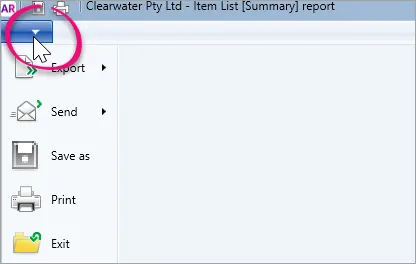
Hover over Export to view the list of file format options.
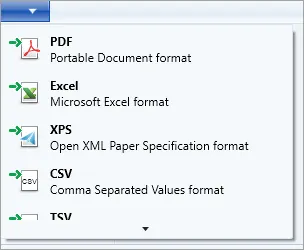
Click the file format option you need:
PDF: Portable Document Format: Select the PDF option if you want to view or print the report later and keep the same format and appearance that's used in AccountRight. If you save a report as a PDF, the person who receives the report will need a PDF viewer, such as Adobe Reader, to view or print the report.
Excel: Microsoft Excel spreadsheet: Select the Excel option if you want to view the report in Microsoft Excel, or use Excel's features to further analyse the data. You can edit the default spreadsheet templates that AccountRight uses. If you save the report as an Excel document, the person who receives the document will need a program that can open Microsoft Excel spreadsheets, to view the report.
You can only export a report as an Excel file if Microsoft Excel 2010 or later is installed. If you're exporting a custom report, the Export to Excel button is not available in the Index to Reports window, but you can export it after displaying the report.
Using Office 365? Make sure Excel is installed on your computer and not accessed via a web browser.
XPS: XML Paper Specification: Select the XPS option if you don't need to edit the report and want to use the XPS Viewer provided with Windows to view or print the report
CSV: Comma-separated values text file: Select the CSV option to save a text file where all the report data is separated with commas. This is a file format that can be opened and edited by most spreadsheet programs.
TSV: Tab-separated values text file: Select the TSV option to save a text file where all the report data is separated by tab characters. This is a file format that can be opened and edited by most spreadsheet programs.
Depending on the report format you chose, one of the following will happen:
Depending on the report format you chose, one of the following will happen:
the Export report as window will appear. Specify the file name and location, and then click Save.
the report is displayed in the selected program (such as Excel). Save the report in the program as you normally would.


FAQs
How do I include account numbers on exported reports?
Account numbers are not included on all account reports by default. This includes the Balance Sheet, P&L, accounts list and trial balance reports. To add account numbers, you need to add the Account No. column to the report (if available).
Open the report, such as the Accounts List [Summary] report.
Select the Insert/Modify tab.

Click Show/Hide (in the Report Columns section of the ribbon). A list of available columns appears.

Select the Account No. column and then click Show.
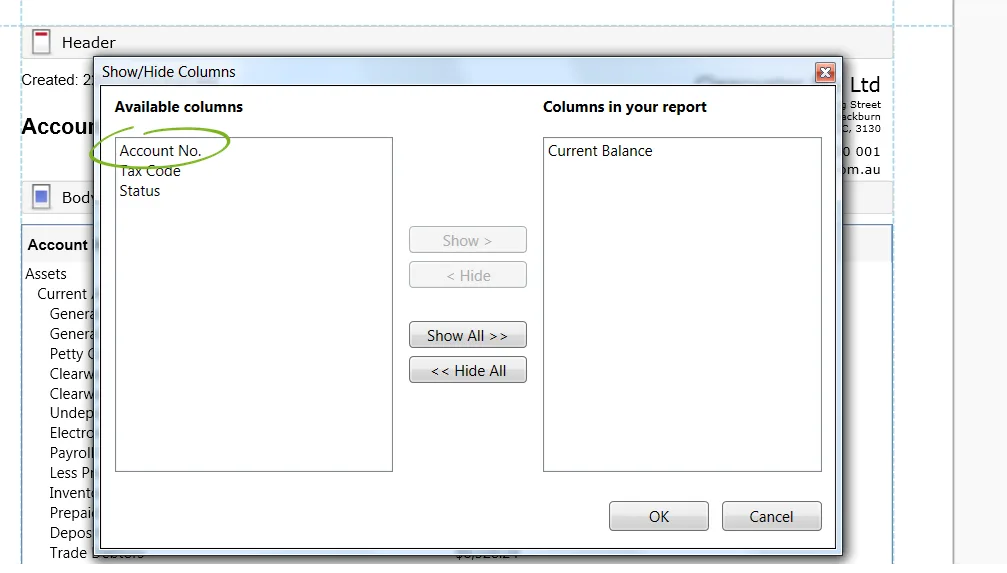
Click OK.
Click the Print Preview tab to save the changes as printable and exportable.


Why am I getting an error referring to a .XLT file when exporting to Excel?
When you export a report to Excel, AccountRight uses an Excel report template to display your report. If the template for your report is missing, an error like this will display:

To fix it, you'll need to uninstall then reinstall AccountRight. This will restore your Excel templates with the default ones that come with AccountRight. Be aware that if you've edited any of the Excel templates, take a copy of the edited templates before uninstalling AccountRight.
Your Excel templates are found here:
C:\Users\<Username>\Documents\MYOB\AccountRight\20xx.x\Reports\Spreadsheet