A supplier deposit is a payment for products or services that you haven't been billed for yet. This means if you make a payment against a purchase order, it's considered a deposit.
Once a purchase order is converted to a bill, payments you apply are just regular supplier payments.
Setting up MYOB for supplier deposits
If you want to apply deposits to purchase orders, you'll need to activate an MYOB preference. You'll also need to specify the category you want to use to track your supplier deposits.
Why am I doing this?
From an accounting perspective, deposits are different to other supplier payments because you haven't been billed for the goods or services you've ordered. To account for this in MYOB, supplier deposits are posted to an asset account. When you're billed for the things you've ordered and you convert the purchase order into a bill, the deposit is transferred to your trade creditors account.
Activating the supplier deposit preference and specifying the linked asset account ensures this process happens behind the scenes.
Go to the Accounting menu and choose Manage linked categories.
Click the Purchases tab.
Select the option I track deposits paid to suppliers.
Choose the Asset category for supplier deposits. If needed, you can create a new category for this purpose. Check with your accounting advisor if you're unsure.
Click Save.
Recording a deposit
You can record a supplier deposit at the time you create the purchase order or after it's saved.
When creating a purchase order, enter the deposit amount in the Amount paid ($) field.

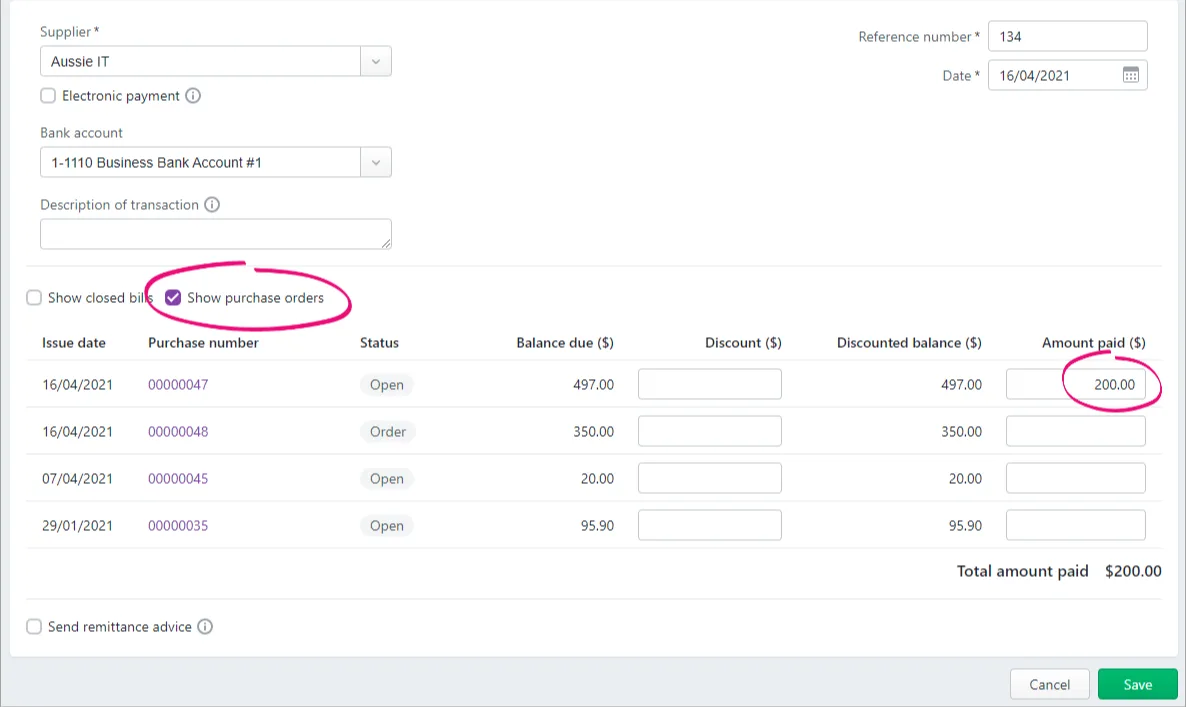
After you've saved a purchase order, and before it's converted to a bill, you can apply a deposit in a similar way to other supplier payments:
Go to the to Purchases menu and choose Bills.
Click the ellipsis (...) and choose Record supplier payment.
Select the option Show purchase orders.
Enter the deposit amount against the applicable purchase order.
Click Save.

Deleting a deposit
Because of how a deposit is handled in MYOB, you can't simply delete it. Instead, you'll need to "undo" it.
How you do this depends on the purchase order the deposit was applied to.
If the purchase order has not been converted to a bill
Depending on whether or not the deposit is being refunded, here's how to proceed:
If the deposit is being refunded
To handle the refunded deposit, you'll need to create a supplier debit note.
Here's how:
From the Purchases menu, choose Purchase orders.
Click to open the purchase order which has the deposit which is being refunded. If needed, use the filters at the top to help find the order.
Click Convert to bill at the top or bottom of the order. The details of the bill are displayed.
Change the bill Amount to zero (0.00).
Click Save.
This will create a supplier debit note (supplier return) for the refunded deposit that you can see via Purchases > Purchase returns and debits. You can then process a refund for this amount or apply it to other bills from this supplier.
If the deposit is not being refunded
Here's how to handle the deposit so it's reflected as an expense to your business:
From the Purchases menu, choose Purchase orders.
Click to open the purchase order which has the deposit which is being refunded. If needed, use the filters at the top to help find the order.
Click Convert to bill at the top or bottom of the order. The details of the bill are displayed.
Change the bill Amount to the deposit amount. For example, if you paid a $20 deposit, change the bill amount to $20.00.
Click Save. The bill will be closed and the deposit is now recorded as an expense to your business.
If the purchase order has been converted to a bill
Let's say you apply a deposit to a purchase order, convert the order to a bill—then the order is cancelled. What about your deposit?
You'll first need to "undo" the bill by creating a supplier debit for the original bill. You can then settle that debit to close the bill and take care of the deposit.
This ensures:
the deposit can be refunded or forfeited
there's an audit trail of what happened
your MYOB category balances will be correct
your GST reporting will be accurate.
If you need to delete a deposit because the wrong amount has been applied, after completing the tasks below you'll need to create a new purchase order and apply the correct deposit amount.
1. Create a supplier debit for the original bill
By creating a supplier debit (sometimes called a debit note or supplier return) for the original bill, you'll be able to apply that debit to the bill to cancel it out and effectively undoing or reversing it.
From the Create menu, choose Bill.
Choose the same Supplier as the original bill.
Select whether the amounts in the original bill were Tax inclusive or Tax exclusive.
Enter a Description, for example "Supplier debit to reverse bill 000123".
Select the same Category as the original bill.
Enter the Amount of the original bill as a negative number. For example, if the original bill was $100, enter -100.00
Click Save.
At the confirmation about creating a supplier debit, click Save.
Now, based on whether or not you're being refunded the deposit, you can settle this supplier debit against the original bill. See below for details.
2a. Settle the debit (if the deposit is being refunded)
You can use the supplier debit you've created to:
settle (close) the outstanding balance of the original bill (minus the deposit amount), and
record the deposit refund.
In this example, the original bill was for $100 and we paid a $20 deposit which is being refunded.
Go to the Purchases menu and choose Purchase returns and debits.
Choose the Supplier you created the debit for.
Click Apply next to the debit to be settled.
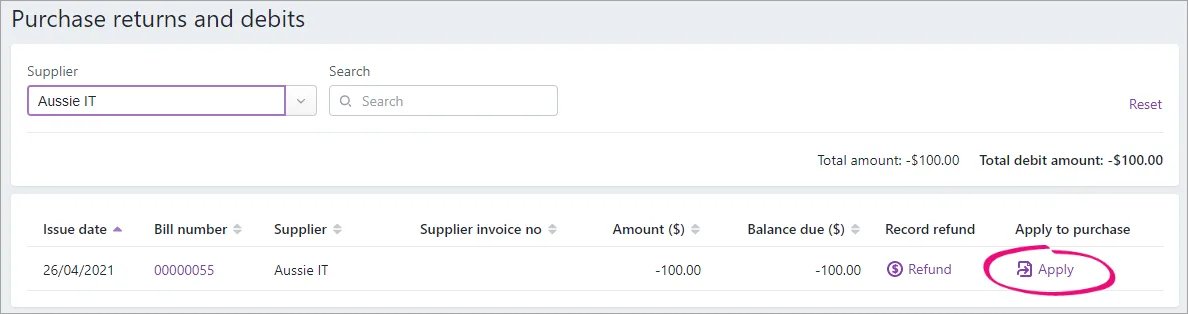
In the list of displayed bills, find the original bill. The outstanding balance will be the amount of the original purchase order minus the deposit.
In the Amount applied field for the original bill, enter the amount left owing on the bill.

Click Record. This settles (closes) the bill and leaves a debit balance equal to the value of the deposit.
Click Refund next to the remaining debit amount.
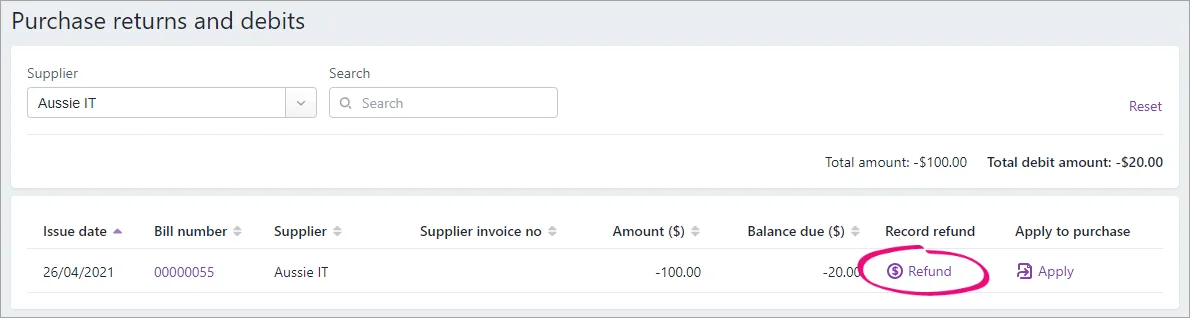
Choose the Bank account the refund is being paid into.
Click Record. This refunds the deposit and settles the remaining balance of the supplier debit.


2b. Settle the debit (if the deposit is not being refunded)
If the deposit is non-refundable, you need to:
create a bill for the deposit amount (to account for the payment of this money to the supplier), then
apply the supplier debit you've created to:
close the deposit bill, and
settle the outstanding balance of the original bill (minus the deposit amount)
In this example, the original bill was for $100 and we paid a $20 deposit which is not being refunded.
Create a bill for the deposit amount
Record a new bill (need a refresher?) and use the following details:
Choose the same Supplier as the original bill.
If your business operates on a GST accrual/invoice basis, make sure the Date is in the same GST reporting period as when the purchase order was converted to a bill.
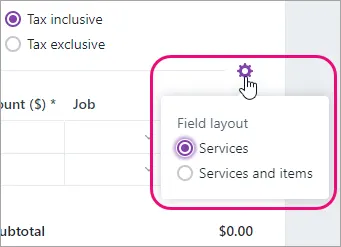
Use the Services field layout
Enter a Description which describes the transaction, such as Non-refundable deposit for order XXXX
For the Category, choose the original category from the original order/bill.
For the Amount, enter the deposit amount.

Apply the supplier debit
Go to the Purchases menu and choose Purchase returns and debits.
Choose the Supplier you created the debit for.
Click Apply next to the debit to be settled.
In the list of displayed bills, find the bill you just created for the deposit amount, and the original bill.
In the Amount applied field for the deposit bill, enter the deposit amount. In our example this is $20.
In the Amount applied field for the original bill, enter the amount left owing on the bill. In our example this is $80.
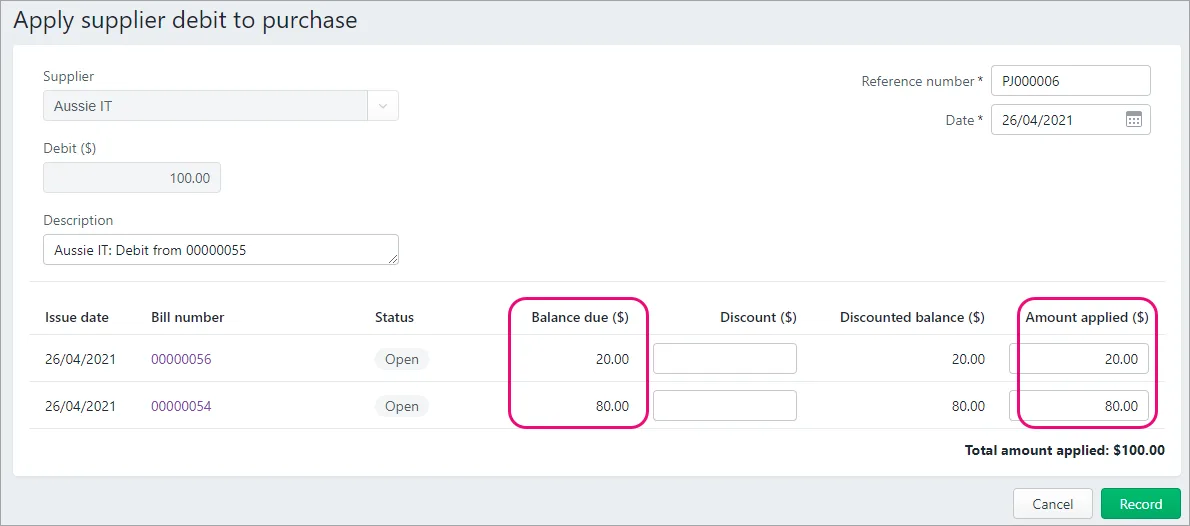
Click Record. The debit is applied across the deposit bill and the original bill—closing them both.

FAQs
What happens to a deposit when the order is converted to a bill?
When a deposit is paid for a purchase order, the deposit amount is typically posted to an asset category. When the purchase order is converted to a bill, MYOB needs to transfer the deposit amount from the applicable category and post it to your trade creditors category.
This will appear in your transaction journal as a Transfer from deposits.
A deposit is a payment for goods or services that you haven't been billed for yet. This means if you make a payment against a purchase order, it's considered a deposit.
Just started using a new company file?
If you've paid any deposits on supplier orders yet to be fulfilled, you'll need to enter these pre-conversion deposits.
How AccountRight treats supplier deposits
Because no goods or services have changed hands or a bill received, AccountRight treats deposits differently to other payments. A supplier deposit is typically posted to an asset account because it's not yet considered a payment to the supplier. When you receive the supplier's bill (for the goods you've ordered), the purchase order is converted to a bill and the deposit is transferred from the asset account to your trade creditors account.
To set up AccountRight to track supplier deposits, or to check the asset account used for deposits, go to Setup > Linked Accounts > Purchases Accounts.

Recording a supplier deposit
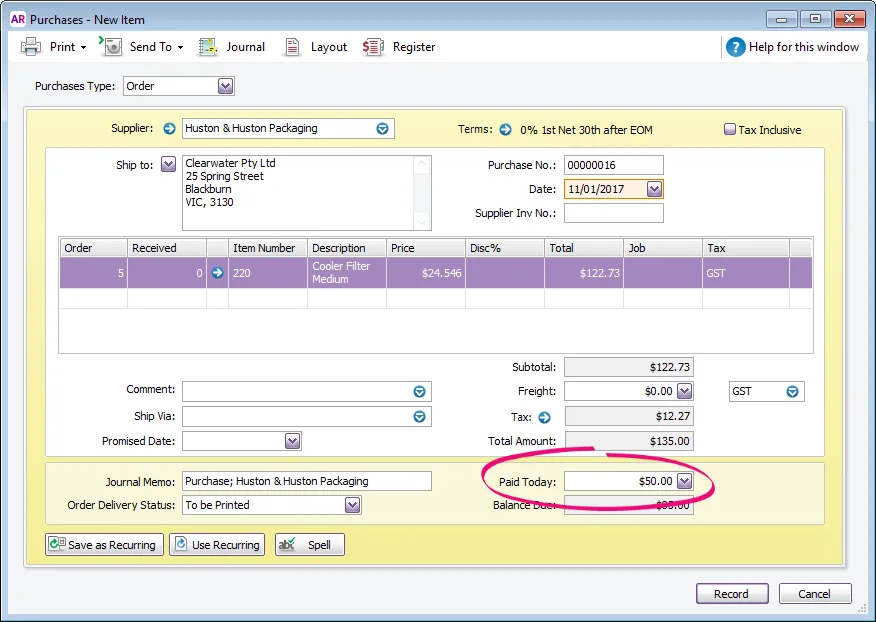
If the deposit is paid when the order is created, enter the deposit amount in the Paid Today field on the order.
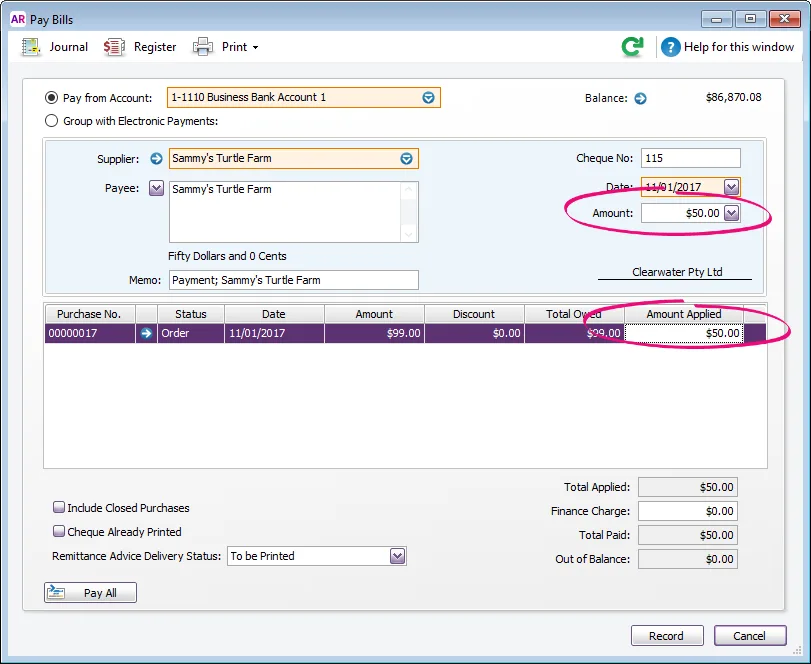
If the deposit is paid after the order is created, use Pay Bills to apply the deposit to the order.


Deleting or reversing a deposit
How you delete the deposit depends on the purchase order.
If the purchase order hasn't be converted to a bill
To ensure any GST on the deposit is accounted for correctly, and to provide an audit trail, we recommend you reverse the deposit.
Go to the Setup menu and choose Preferences.
Click the Security tab.
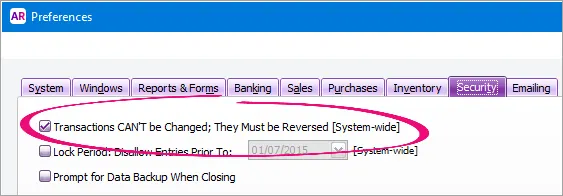
Select the option Transactions CAN'T be Changed; They Must be Reversed.
Click OK.
Open the order (Purchases > Purchase Register > Orders tab > click the zoom arrow to open the order).
Click History to display the payment transaction.
Click the zoom arrow to open the payment transaction.
Go to the Edit menu and chose Reverse Payment. The deposit reversal transaction is shown.
Click Record. The deposit is reversed and removed from the purchase order.

If the purchase order has been converted to a bill
You can't simply delete the deposit; the bill will first need to be reversed. This provides an audit trail of the transaction and allows the deposit to be refunded.
Let's step you through how to do this. The scenario we'll use is where an order has been created and a deposit applied, then the order is converted to a bill but is subsequently cancelled.
If you need to reverse the deposit because the wrong amount has been applied, after completing the steps below you'll need to recreate the order and apply the correct deposit amount.
1. Reverse the bill
Reversing the bill will create a supplier debit for the total amount of the original order. To allow transactions to be reversed, you need to set a preference in your software. Then you can reverse the bill.
To set the preference
Go to the Setup menu and choose Preferences.
Click the Security tab.
Select the option Transactions CAN'T be Changed; They Must be Reversed.
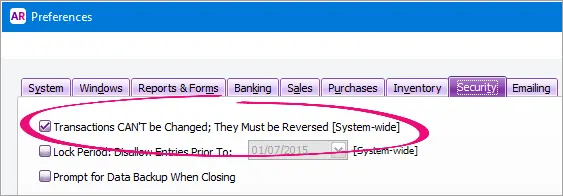
Click OK.

To reverse the bill
Open the bill you want to reverse. See Finding a transaction for instructions.
Go to the Edit menu and choose Reverse Purchase. A new transaction containing corresponding negative amounts to that of the original transaction appears.
If you want, alter the date and memo.
If you're running on an accrual basis, ensure the date is set in the correct reporting period.
If you're running on an accrual basis, ensure the date is set in the correct reporting period.
Click Record Reversal. A supplier debit will be created for the value of the reversed bill.
2a. Settle the debit (if the deposit is being refunded)
You can use the supplier debit created in the previous task to:
settle the outstanding balance of the original bill (minus the deposit amount), and
record the deposit refund.
Here's how:
Go to the Purchases command centre and click Purchases Register.
Click the Returns and Debits tab.
Click to select the supplier debit then click Apply to Purchase. A list of open bills appears.
Click to select the supplier's original bill. This bill will have an outstanding balance of the original order amount minus the deposit.
Change the Debit Amount field to match the amount left owing on the bill.
Click the Amount Applied column for the bill. This will change the value to match the Debit Amount field.
Click Record. This settles the bill and leaves a debit balance equal to the value of the deposit.
Click to select the supplier debit again, then click Receive Refund.
Select the applicable account in the Deposit to Account field.
Click Record. This refunds the deposit component of the transaction, and settles the remaining debit.
2b. Settle the debit (if the deposit is not being refunded)
If the deposit is non-refundable, you need to:
create a bill for the deposit amount (to account for the payment of this money to the supplier), then
apply the supplier debit to:
close the deposit bill, and
settle the outstanding balance of the original bill (minus the deposit amount)
Here's how:
Create a bill for the deposit amount
When recording the bill, use the following details:
Use the Service layout.
Select the same supplier as the original bill.
Enter a Description which describes the transaction, such as Non-refundable deposit for order XXXX
If you're running on an accrual basis, make sure the Date is in the correct reporting period.
Enter the deposit amount.
Apply the debit
Go to the Purchases command centre and click Purchases Register.
Click the Returns and Debits tab.
Click to select the supplier debit then click Apply to Purchase.
Click to select the bill you created for the deposit amount.
Change the Debit Amount field to match the deposit value.
Click the Amount Applied column for deposit bill. This will change the value to match the Credit Amount field.
Click Record. This settles the deposit component of the transaction which is now considered a payment to the supplier.
Click to select the supplier debit again, then click Apply to Purchase.
Click to select the supplier's original bill. This bill will have an outstanding balance of the original order amount minus the deposit.
Click the Amount Applied column for the original bill. The value will change to match the remaining balance of the debit.
Click Record. The remaining debit is applied and the original bill is closed.
Supplier deposits FAQs
What if the order was paid in full and then cancelled?
If the order was paid in full, you can treat the payment the same as a deposit. You can then follow the steps above to:
Convert the order into a bill.
Reverse the bill to create a supplier debit.
Settle the debit (based on whether or not the payment is refundable).
Why can't I find the deposit transaction, or it shows as a different amount to what I actually received?
If you recorded the deposit using Pay Bills, it's possible a value was entered as a finance charge. For help finding, deleting or reversing finance charges, see Finance charges paid to suppliers.
What is a 'Transfer from deposits' transaction?
When a deposit is paid for a purchase, the deposit amount is typically posted to an asset account. When the purchase order is converted to a bill, AccountRight needs to transfer the deposit amount from the applicable account and post it to your trade creditors account. This will appear in your transaction journal as a Transfer from deposits.