You can make a payment when recording a supplier's bill or any time afterwards. If you'd like to pay multiple bills, you can do it on the Record supplier payment page (go to the Purchases menu > Bills > Bills page. Then click the ellipsis (...) and choose Record supplier payment).
Payments can be full or partial, and if you need to make any changes you can always edit or delete the payment.
When you pay a supplier bill, let your supplier know you’ve paid it with a remittance advice.
Speed up bill payments
-
Pay your suppliers quickly and securely by paying directly into their bank accounts
-
Eliminate the need to manually record payments by using bank feeds or importing statements
-
Pay by card for incidental payments and allocate the transactions when they appear on your bank feed
-
Save time by setting up bank feed rules to automatically record your supplier payments.
To pay a supplier's bill
If you're recording a bill in MYOB or you've already recorded it, here's how to apply a payment.
Click Record payment at the bottom of the bill you want to pay. To open a bill you've already recorded, go to the Purchases menu, choose Bills then click to open the bill.
Want to pay more than one bill? Click Record multiple payments. See the next task below for details.
Want to pay more than one bill? Click Record multiple payments. See the next task below for details.
If you're paying this bill directly into the supplier's bank account:
If you're in Australia, select the option Electronic payment.
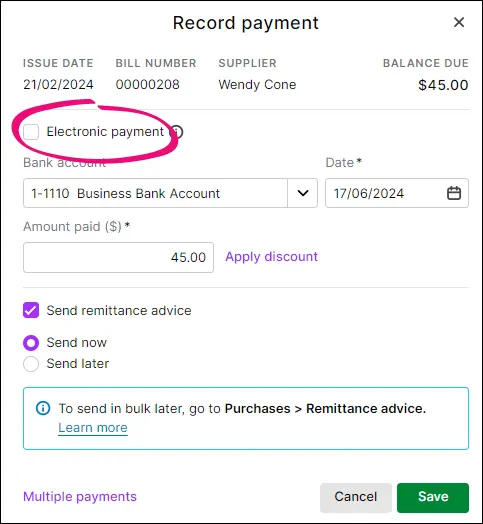
If you're in New Zealand, choose the Electronic Clearing Account as the Bank account.
In the Bank account field, choose the MYOB account you’re paying this bill from.
Make sure the Date is correct. If not, enter a new date or click the icon next to it to select the date from a calendar.
If the supplier has given a discount:
Click Apply discount to display more fields.
Enter the discount value in the Discount ($) field. The Discounted balance $ updates automatically.
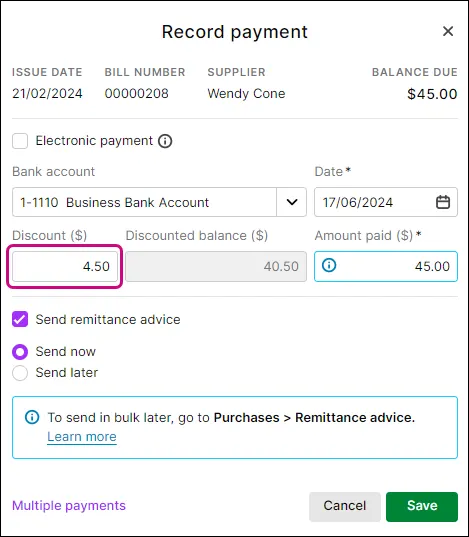
If the amount you're paying is different to the bill total, change the Amount paid ($) value. This can be a full or part payment.
If you want to send the supplier a remittance advice, select Send remittance advice and choose to Send now or Send later. Learn more about sending remittance advices.
If you want to pay other bills for this supplier, click Multiple payments to open the Record supplier payment page filtered to show all of the supplier's open bills.
When you're done, click Save.


If the payment was more than the bill amount, a debit note will be created for the overpayment. Find out how to settle supplier debits.
To pay multiple bills
You can pay the bills you've recorded in MYOB on the Record supplier payment page.
Go to the Purchases menu and choose Record supplier payment.
Choose the Supplier whose bill you’re paying. All the supplier's unpaid bills will be listed.
(Optional) To include this supplier's paid bills in the list, select the option Show paid bills.
If you're paying the supplier directly into their bank account, select the Electronic payment option.
In the Bank account field, choose the bank or credit card account you’re paying this bill from.
(Optional) In the Description of transaction field, enter a note that describes this payment. This can help you find or identify the transaction later.
Make sure the Reference number is correct. If not, change it.
If you change the reference number, you’ll change the automatic numbering. For example, if you change the number to 000081, the next time you make a supplier payment, the reference number will be 000082.
If you change the reference number, you’ll change the automatic numbering. For example, if you change the number to 000081, the next time you make a supplier payment, the reference number will be 000082.
Make sure the Date is correct. If not, enter a new date or click the icon next to it to select the date from a calendar.
If the supplier has given a discount, enter the amount against the relevant bill in the Discount ($) field for the bill you're paying.
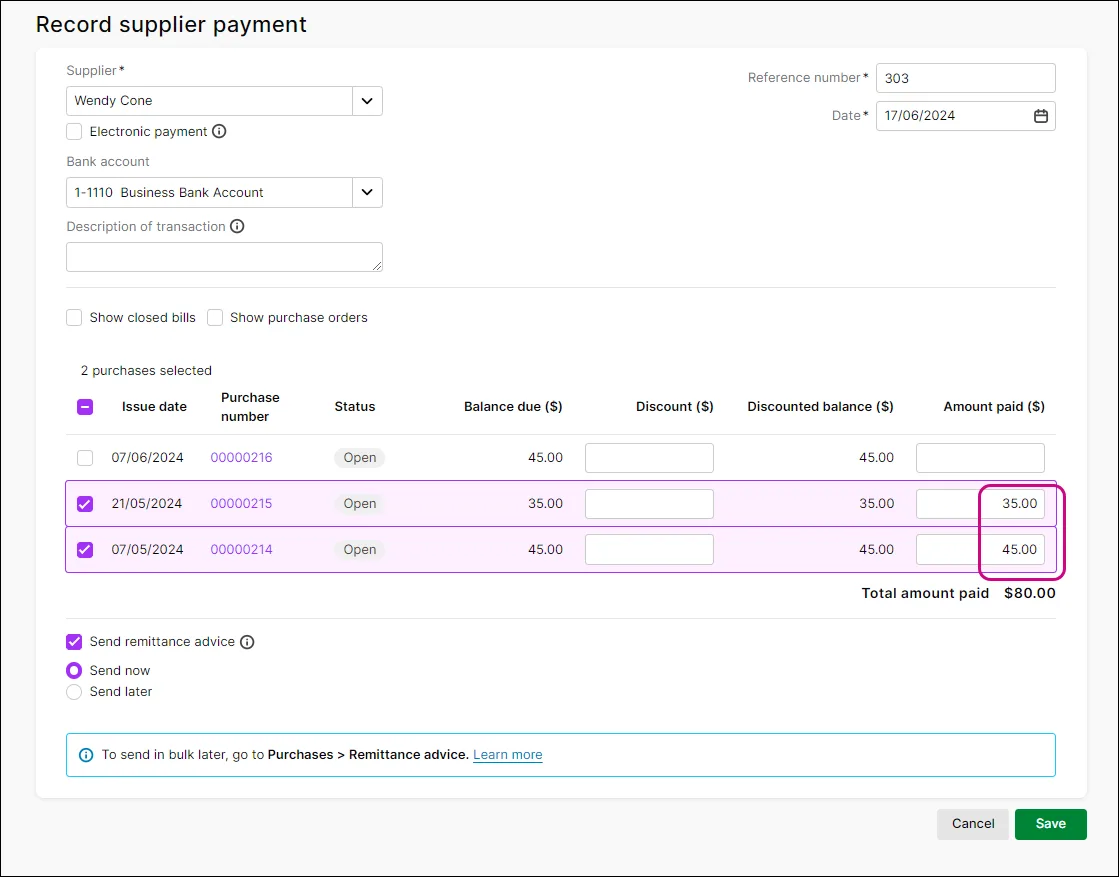
Enter the Amount paid ($) against each bill. Start allocating the payment against the oldest bill.
Here's our example multiple bill payment:
If you want to send the supplier a remittance advice, select Send remittance advice and choose to Send now or Send later. Learn more about sending remittance advices.
When you're done, click Save.

If you've paid more than the amount due on a bill, a debit note will be created for the overpayment. Find out how to settle supplier debits.
To delete a supplier payment
You can only delete supplier payments that haven’t been reconciled or matched to a bank transaction. If you want to delete a reconciled or matched payment, you need to unreconcile or unmatch it first, using the Bank reconciliation or Bank transactions page.
Open the bill the payment was applied to (Purchases menu > Bills > click to open the bill). Need help finding the bill?
At the bottom of the bill, under Activity history, click the reference number for the payment to be deleted.

Click Delete.
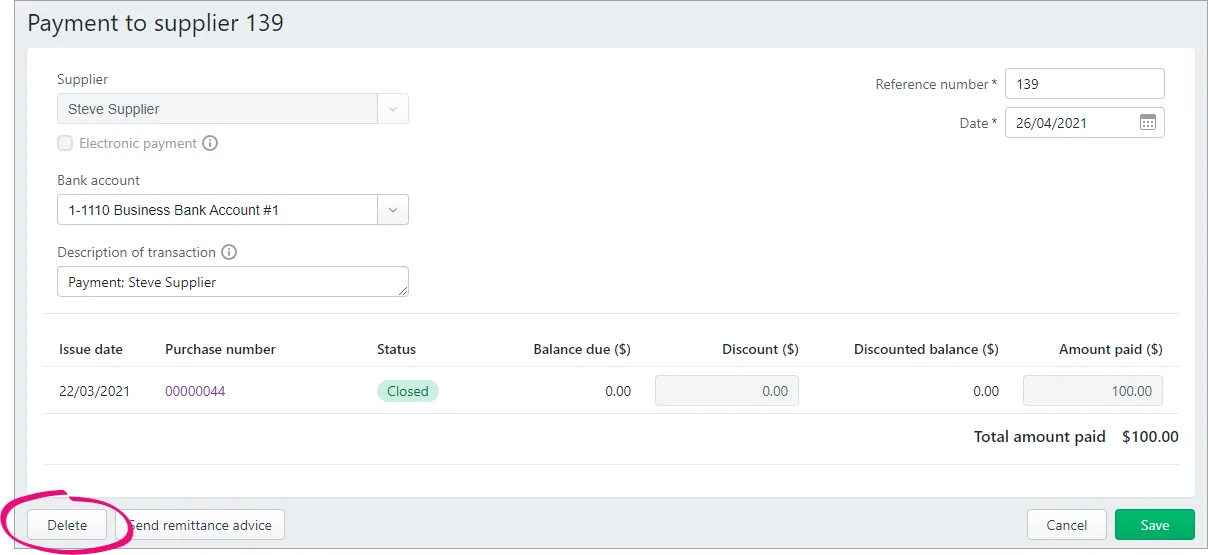
At the confirmation message, click Delete.


FAQs
What if I pay a bill using cash?
One way to handle this is to create a "Cash on Hand" bank category in MYOB (how do I create a category?). You allocate this category when you record the withdrawal of funds from the ATM or get cash out, which in turn will increase the amount in the Cash on Hand category. You can then use the Cash on Hand bank category as the Bank account when you pay a supplier using cash.
This solution might not suit all businesses, so if you're not sure it's best to discuss the right solution with your accounting advisor.
Use the Pay Bills window to record supplier payments against bills you've recorded in AccountRight. In this window you can record full or partial payments to one or more of your outstanding bills. You can also let the supplier know you've paid them by producing a remittance advice.
Just want to pay a utility bill or general expense? If you don't need to record the bill details or track due dates (such as a phone bill or petrol expense), just pay the bill by credit card, BPAY, direct debit, etc, and record the transaction in AccountRight when it appears on your bank feed. You can make this easier by setting up rules to automatically record these transactions.
You can also make supplier payments in the Bank Register window. Paying bills through the Bank Register window can save you time if you have several purchases to pay and do not need to record detailed information (such as discounts and finance charges) for each payment. When you use the Bank Register window to make a supplier payment, the entire payment is automatically allocated to the supplier’s oldest purchases first. See Entering transactions in the Bank Register window.
You can also pay several outstanding bills at once in the Accounts Payable view of the To Do List window. Find out more...
Electronic payments setup—If you pay your suppliers electronically—that is, by sending an electronic payment file to your bank for processing—you need to complete the electronic payment setup tasks. For more information, see Setting up electronic payments for bank files.
To pay bills
Go to the Purchases command centre and click Pay Bills. The Pay Bills window appears.
Select how the payment is to be made.
If you're paying the supplier electronically—that is, if you will be generating an electronic payment file for this payment—select Electronic Payments option. You can then also enter the Statement Text that will appear on the supplier's bank statement to identify your payment. You can also set the default statement text for a supplier when you set up electronic payments.
If you're paying the supplier by some other means—such as by cash, cheque, credit card or internet banking, select the Pay from Account option and enter an account in the adjacent field. This will default to the linked account you've set as your Bank Account for Paying Bills, but you can change it if the payment is coming from another account.
In the Supplier field, enter the supplier’s name.
If you have an outstanding debit with this supplier, a message may appear. You will have the opportunity to settle the debit now, or later. (See Settling supplier debits).
In the Amount field, type the total amount paid.
Change the memo and payment date if necessary.
In the scrolling list in the bottom half of the window, indicate which purchases are covered by the payment by entering amounts in the Amount Applied column.
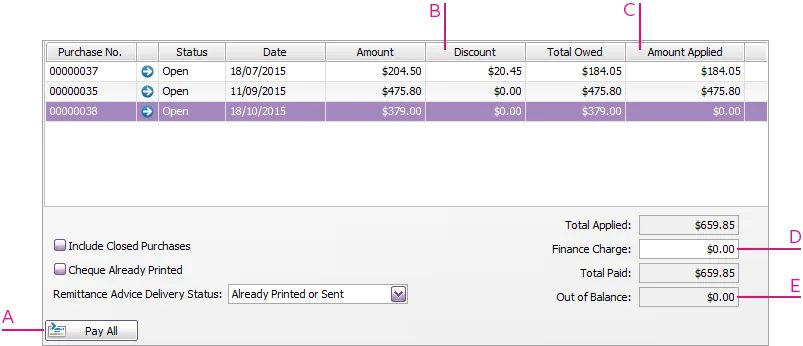
A - Pay All - If you're settling your account in full, click Pay All. The total payment amount appears in the Amount field and the individual payment amounts are applied to each open purchase.
B - Discount - If you're taking an early-payment discount for a purchase, assign the discount to the appropriate purchase in this column. Note that you cannot assign a discount to a purchase that you are not settling in full. If this is the case and you want to record a discount that the supplier has given you, create a supplier debit. See Settling supplier debits.
C - Amount Applied - Enter how much of the payment you want to apply to each purchase in this column.
D - Finance Charge - If part of the payment was used to pay finance charges, type the finance charge amount here.
E - Out of Balance - The Out of Balance amount must be zero before you can record the transaction. This field will show an out of balance amount if there is any variance between values in the Total Paid and Amount fields. If you have out of balance amounts, correct the amounts in the Amount Applied and Finance Charge fields.
If you've overpaid a supplier, you should still enter the amount paid. The full payment should be entered in the Amount Paid field and in the Amount Applied column in the scrolling list. When you record the payment, a debit note for the overpaid amount is created automatically. This can either be settled as a refund or applied to a future purchase. For more information, see Settling supplier debits.
If you want to print or email a remittance advice later, select an option from the Remittance Advice Delivery Status list.
If you're recording a cheque payment and the cheque has already been written, or if you are recording a transaction that doesn’t require a printed cheque (such as a petty-cash payment or internet payment), select the ChequeAlready Printed option.
If you want to print a cheque or remittance advice now, click Print and select the form type you want to print, or select to preview the form before printing it. Note that the payment is recorded before it is printed or previewed.
Click Record.

If you've recorded a bill payment that you want to pay electronically, you can prepare the electronic payment file for your bank to process. See Electronic payments.
To pay several bills at once
You can pay several outstanding bills at once in the To Do List window. The linked account for paying bills will be used for all supplier payments made from this window.
Click To Do List in any command centre. The To Do List window appears.
Click the Accounts Payable tab. A list of all unpaid purchases appears.
If you want to view details about a specific bill, click the zoom arrow () next to the bill.Click in the select column () next to each bill you want to pay.
Click Pay Bills.
In the window that appears, enter a date for the selected transactions. This is the date that the transactions will be recorded in your accounts.
Click OK and then click Close.
FAQs
How do I account for a cheque payment if the cheque is cancelled?
If you've cancelled a cheque that you used to pay a bill, you can reverse the payment then record the payment again.
When you next reconcile the account, you'll need to select both the original cheque payment and the reversal as cleared.
How can I show my suppliers’ invoice numbers in the Pay Bills window instead of my purchase numbers?
Close the Pay Bills window, and then go to the Preferences window, click the Purchases tab and select the Show Supplier Invoice Number in Supplier Payments option.
How do I edit or delete a payment applied to a purchase?
To edit or delete a payment applied to a purchase:
Open the purchase the payment was applied to.
Click History.
Click the zoom arrow for the payment transaction. The payment transaction will be displayed.
If you want to:
Delete the payment. Go to the Edit menu and choose Delete Payment. If you only have the option to Reverse Payment, you'll need to change your security preference.
Edit the payment. Make the changes you want and click OK.
How do I pay a supplier via Bpay?
Your supplier will provide their Bpay payment details and you can pay them via your internet banking site. Check the help in your internet banking for more details on Bpay payments.
In AccountRight you simply record the bill payment as described above (select the Pay from Account option and enter an account in the adjacent field.).
How you pay the bill (cash, cheque, credit card, Bpay, etc.) doesn't change how the payment is recorded in AccountRight.
Why am I getting the error 'You have indicated that the transaction is to be paid electronically'?
The error "You have indicated that the transaction is to be paid electronically" in a Pay Bills transaction occurs if the account selected in the Pay from Account field has been incorrectly set up as your bank account for electronic payments.

To prevent this error:
Check which account has been set up as your bank account for electronic payments by going to Setup > Linked Accounts > Accounts and Banking Linked Accounts.
Here you can see the wrong account has been selected in the Bank Account for Electronic Payments field (in this case a main bank account has been incorrectly chosen).

This needs to be set to the bank account you use for electronic payments. Even if you don't use electronic payments, this field should not be set to any of your main bank accounts.

What about payments applied to purchase orders?
Payments applied to purchase orders are considered deposits, and they're handled a bit differently to other payments. Learn all about Supplier deposits.