After adding your inventory items to MYOB Business, you can enter their opening balances. You would do this if you had items on hand before you started using MYOB Business. You can enter opening inventory balances by making an inventory adjustment.
To enter opening inventory balances
Go to the Products & services menu to open the Products and services page.
Select one or more inventory items you want to adjust.
If you select an inventory item that isn't tracked, you'll see a warning icon next to it. If you want to make the item a tracked inventory item, you can edit it (depending on how many inventory items you already have, you may need to add Premium Inventory to do this).
Click Adjust inventory. This opens the Adjust inventory page.
All of the details of the items will be automatically prefilled. You just need to enter details of the adjustment and the account to record the adjustment in.
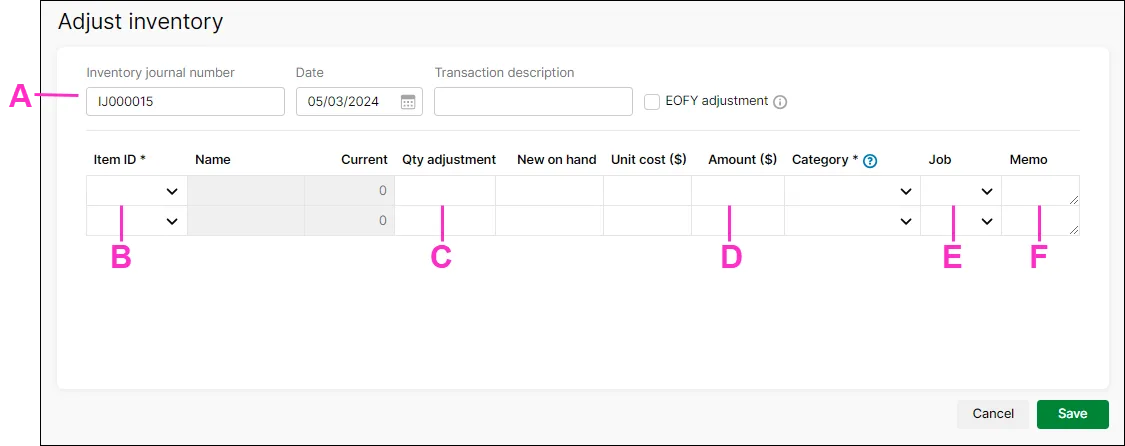
A - The Inventory journal number appears by default. You can change this is if you want, as well as the date of the adjustment. You can also enter a description of the inventory adjustment transaction.
Select whether you want this adjustment to be allocated as an end-of-financial-year adjustment. EOFY adjustments can be excluded from your financial reports.B - The Item ID of the item you want to adjust appears by default. The name and the current on-hand quantity of the item also appear. You can also find add other items the Adjust inventory page by typing the item number or item name into this field.
Entering a new item?
Click the dropdown arrow in the Item ID column and choose + Create Item. Enter the item details and click Save. Learn more about Creating items.
If you want to see information about an item, such as the quantity on order, click the information icon:
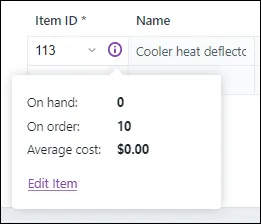
You can also make changes to an item by clicking Edit item.
C - In the Qty adjustment column, enter the quantity of the item held. Only enter the quantity variation. Enter the quantity in inventory units, not buying or selling units. Enter a positive number — that number is added to your on-hand inventory. If you enter a negative number, that number is subtracted from your on-hand inventory.
When you enter the adjustment:the New on hand column displays what the on-hand quantity of the item will be after recording the adjustment
the Unit cost of the item appears by default. This is calculated as the total cost of the item divided by the number of units on hand (or the 'average cost'). You can edit the Unit cost if you want.
For new items, with no stock on hand or average cost, the Unit cost will be the purchase cost.
the Amount field displays the value of the adjustment.
D - Choose the category you want to assign the adjustment amount to. If you’re reducing the inventory value, this category is usually a cost of sales or expense category.
E - If the item is related to a job, choose the Job.
F - You can add a description of the adjustment line in the Memo field.
Click Save to save the inventory adjustment.
You can also make inventory adjustments to account for stock damage and losses, or to change the value of your inventory — for examples, see Making inventory adjustments.


Review your inventory items and quantities
After setting up your items and entering your opening balances, you can get a quick view of your inventory by going to the Products & services menu > Products and services page:

You can open an item and edit its details by clicking the Item ID.
If everything looks good, you can start buying and selling your inventory items.
You can use item records to store information about a product, track the quantities you buy (Not Basics), and how much you sell. You can also create records for each type of service you provide.
Do you have stock on-hand? We'll show you how to quickly enter your item opening balances.
Do you need to complete this task?
If you buy and sell items, such as finished goods, components used in production and raw materials, you need to create records for them.
Create item records
Item records enable you to view the sales history of the products you sell or use in production, spot sales trends and see which items are your best sellers. In AccountRight Standard, Plus and Premier, you can track what’s in stock so you can reorder items before you run out of them.

You can also create item records for the services you provide. This enables you to list the items and services you buy and sell on the same purchase order or invoice.
For example, if you are a plumber, you could set up items for the materials you use in order to carry out your work. You could also set up item records for the services you provide, such as installation and repairs. You can then record the labour and material charges on the same invoice.
For information about creating item records, see Creating items.
Enter your item opening balances
If you had items on hand as at the first day of your conversion month, and you want to track the on-hand quantities and values of these items, you need to enter your inventory opening balances.
Before you enter your opening inventory balances, you need to do a stocktake of the actual items in your inventory. To help you do this, you can print the Inventory Count Sheet report, which lists all your inventoried items, and manually record quantities on it.
To print the inventory count sheet
Go to the Inventory command centre and click Count Inventory. The Count Inventory window appears.
Click Print. The Inventory Count Sheet report is printed, displaying a list of all your items.
Enter all your on hand quantities on this sheet.
To enter opening on-hand inventory items and values
Go to the Inventory command centre and click Count Inventory. The Count Inventory window appears, displaying a list of your inventory items.
In the Counted column, type the quantity counted for each item. The Difference column will change to show the difference between the On Hand column and Counted column.

When you have entered all your item quantities, click Adjust Inventory. The Adjustment Information window appears advising you to provide a default adjustment account. For your opening balance, this should be your inventory asset account. This should be the only time you use this account for inventory adjustments.
Click Continue. The window that appears depends on whether you have entered an opening balance for your inventory asset account (see Enter account opening balances).
▪ If you entered an inventory opening balance, the Adjust Inventory window appears.
▪ If you did not enter an inventory opening balance, the Opening Balance window appears. Click Adjust Balances. The Adjust Inventory window appears.
The Adjust Inventory window appears and displays a line for each item whose opening quantity you entered in the Count Inventory window. The line items display each item's number, name, quantity and the account to which the opening balance will be posted. This account is either your inventory asset account, or, if you have not entered an opening balance for your inventory asset account, your historical balancing account.
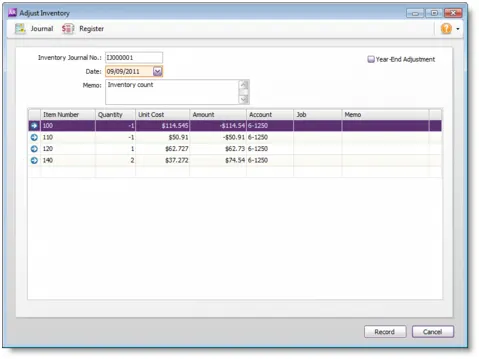
Enter any changes to the default entries in the Inventory Journal Number, Date and Memo fields.
Type the unit cost of each item (that is, how much a unit of each item costs you, not how much you are selling it for).
Do not change the account number in the Account column.The selection you made at step 4 determines the default account used to record your opening balances.
Do not change the account number in the Account column.
The selection you made at step 4 determines the default account used to record your opening balances.
Click Record. The value of each item in the list is updated.
You can print the Items List Summary report to check your inventory status.


Optional item setup tasks
You may want to do the following tasks if they are relevant to your business.
Import items - see Importing data to learn how to import item information from:
another company file
another accounting system
a spreadsheet
a text file.
Set up pricing levels (not Basics) - Customise item pricing according to customer status and sales quantities. See Custom price levels
Group items using custom lists - Group and sort items by assigning attributes to your items from custom lists you define. See Custom item lists
Create custom fields - Set up fields to record additional information about your items. See Custom item fields
Add pictures - Add pictures to your item records for easier identification. See Item pictures