An opening balance (or starting balance) is the dollar value of a category when you started using MYOB. This might be at the beginning of a period (e.g. a new financial year), or when you add a new category.
You need to assign opening balances to your detail categories so you can accurately track your business performance. The balance of the header categories will show the total of the detail categories which sit under them. What are header and detail categories?
The opening balances you enter should be as at the Opening balance date specified in the Financial year setting of your Business settings. This date was set when you first started using MYOB and cannot be changed.
Where do I get my opening balances?
You can find your opening category balances on a trial balance report, a balance sheet or a profit & loss report prepared immediately prior to when you started using MYOB. You can either ask an accounting advisor (such as your accountant) to prepare these reports, or find your opening category balances using your previous accounting software or paper-based records.
If you began using MYOB:
at the start of your financial year, enter the opening balances of your asset, liability and equity categories only. The opening balances of your income, cost of sales and expense categories should be zero.
at any other time of the financial year (for example, in September, when your financial year started in July), enter the opening balances of all your categories.
To enter an opening balance
Go to the Accounting menu and choose Categories (Chart of accounts).
Click Edit categories.
Enter amounts in the Opening balance column.
Enter opening balances as positive numbers
Don’t, for example, enter your liability category balances as negative numbers. Enter negative amounts only if categories truly have negative balances. As a rule, these will be asset categories that record accumulated depreciation.
After entering all of your opening balances, check that the REMAINING BALANCE amount shows $0.00. If this displays an amount other than $0.00, check your opening balances again because they are either incomplete or incorrect.
However, you can continue the setup process if there is a REMAINING BALANCE amount. The amount will be assigned to a special equity category called Historical Balancing.About historical balancing amounts
A frequently-used financial report is the Balance Sheet. It lists everything your business owes and owns, and the net amount equals your real share of the business (equity). This is commonly expressed as: Assets less Liabilities = Owner's Equity. If when entering your opening balances, you don't enter all the figures, or there's an error in one of the balances, then the Balance Sheet won't balance. To overcome this temporary issue, MYOB enters the balancing amount in the Historical Balancing category. When you eventually enter all the asset, liability and equity amounts (or find the incorrect values), the Historical Balancing category's balance will return to zero.
So if you're seeing an amount in the Historical Balancing category, don't panic. Just check that you've entered all the assets, liability and equity balances correctly as at your conversion date. You might find it helpful to compare the balances you've entered with a balance sheet provided by your accountant, dated as at your conversion date.
When you're done, click Save.
Changing opening balances
Your opening category balances are directly related to the Opening balance date specified in your Business settings, so don't change your opening balances without discussing the implications with your accounting advisor.
Account opening balances are the balances of your accounts as at the first day of your conversion month. You selected the conversion month when you created your company file, and it can't be changed. Check your conversion month via Setup menu > Company Information > Conversion Month.
If you were in business prior to your conversion month, most of your accounts probably already have balances. To produce reports that include these balances (such as a balance sheet), or to track your bank accounts, inventory, receivables and payables, you need to enter these balances.
Take a look at this quick overview of opening balances:
Invite your accountant or bookkeeper to help you
If your company file is shared online and you want your accountant or bookkeeper to help you with this task, invite them to work on your file.
What to enter
The balances you enter depend on whether your conversion month is also the first month of your financial year. If your conversion month:
is the first month of your financial year, you enter the opening balances of your asset, liability and equity accounts only.
is not the first month of your financial year (for example, if your financial year starts in July but your conversion month is September), you can enter the opening balances of all your accounts.
You can find your account opening balances on a trial balance report, a balance sheet or a profit & loss report prepared for the period immediately prior to your conversion date. You can ask your accountant to prepare these reports. You may also be able to find your account opening balances using your previous accounting software or paper-based records.
A note about bank account balances
You can enter the following amounts as the opening balance of a bank account:
the bank account balance that appears on your balance sheet or trial balance reports as at the day prior to your conversion date. For example, if your conversion date is 1 July, this is the bank account balance as at 30 June.
These reports can be provided by your accountant, or, if you were previously using other accounting software, printed using that software.the cashbook balance of the account as at the end of the day prior to your conversion date. You can calculate your cashbook balance by taking into account the transactions not yet cleared by your bank as at the conversion date and the balance that appears on your bank statement at that date.
For example, assume that $500 worth of deposits and $1000 worth of payments were uncleared as at your conversion date (that is, they had not appeared on a bank statement). The cashbook balance would be calculated as shown below:
Bank statement balance as at the conversion date | $21,000 |
ADD uncleared deposits | + $500 |
SUBTRACT uncleared payments | – $1,000 |
Cashbook balance as at the conversion date | = $20,500 |
To enter opening balances
Go to the Setup menu, choose Balances and then Account Opening Balances.
The Account Opening Balances window appears.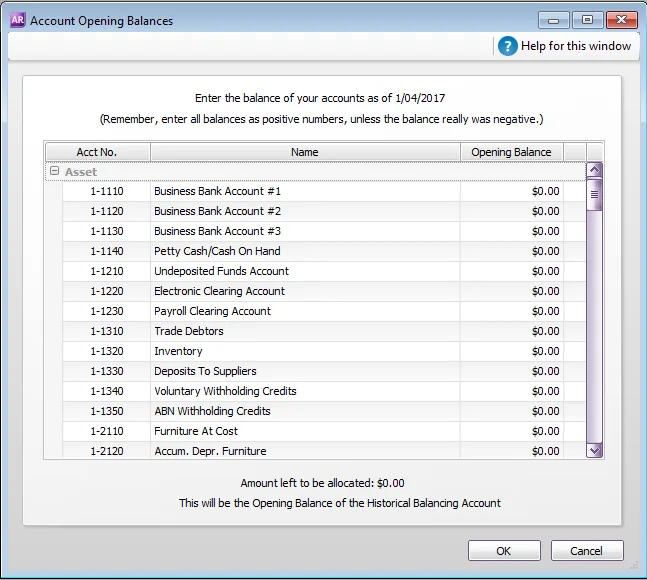
Enter the balances in the Opening Balance column.
Enter opening balances as positive numbers
Don’t, for example, enter your liability category balances as negative numbers. Enter negative amounts only if categories truly have negative balances. As a rule, these will be asset categories that record accumulated depreciation.
Check that the amount in the Amount left to be allocated field at the bottom of the window shows $0.00. If this field displays an amount other than $0.00, check your opening balances again because they are either incomplete or incorrect.
However, you can continue the setup process if there is an amount in the Amount left to be allocated field. The amount will be assigned to a special equity account called Historical Balancing.About historical balancing amounts
A frequently-used financial report is the Balance Sheet. It lists everything your business owes and owns, and the net amount equals your real share of the business (equity). This is commonly expressed as: Assets less Liabilities = Owner's Equity. If when entering your opening balances, you don't enter all the figures, or there's an error in one of the balances, then the Balance Sheet won't balance. To overcome this temporary issue, AccountRight enters the balancing amount in the Historical Balancing account. When you eventually enter all the asset, liability and equity amounts (or find the incorrect values), the Historical Balancing account's balance will return to zero.
So if you're seeing an amount in the Historical Balancing account, don't panic. Just check that you've entered all the assets, liability and equity balances correctly as at your conversion date. You might find it helpful to compare the balances you've entered with a balance sheet provided by your accountant, dated as at your conversion date.
Click OK.
