When working with bank feeds, if a transaction record hasn't been entered into MYOB that matches a bank transaction, you can match the bank transaction directly to one or more of your MYOB categories. This means you won't have to waste time manually entering a transaction record.
If you need to, you can split a bank transaction between categories, or select multiple transactions and match them to the same category.
If you've already entered a corresponding transaction record in MYOB, you should match the bank transaction to that instead. See Matching bank transactions.
Regularly make the same payments?
You can set up rules automatically matching them to your MYOB categories, saving you from manual data entry.
How matching to categories works
When you match a bank transaction to a category, a matching transaction record is created in MYOB. For example, if you match a withdrawal to a category, a spend money record is created. If you match a deposit to a category, a receive money record is created.
If you're unsure which categories to match bank transactions to, consult your bookkeeper or accountant.
Take a look at these category-matching scenarios:
To match a transaction to a single category
On Bank transactions page (Banking > Bank transactions) click in the Match column.
If you:
know the category number or name, start entering it and choose the category from the list.
don't know the category number or name, click the down arrow to expand the transaction. In the Category column, cick the down arrow and choose the category. Complete any other details you want, like the Line description or Job, and click Save.
To match a transaction to more than one category
On Bank transactions page (Banking > Bank transactions) click the dropdown arrow for the transaction.
If required, click the Select categories tab.
Choose the categories to match the transaction to, and specify the amount or percentage being categorised to each.
There's some handy features that can help you allocate transactions faster.
To split amounts without having to do any calculations, simply click in the Amount ($) field and hit = on your keyboard. The remaining allocated amount and amount percentage appears:

There's also a built-in calculator in the Amount ($) and Amount (%) fields. Just enter a calculation in the field and tab out of it:
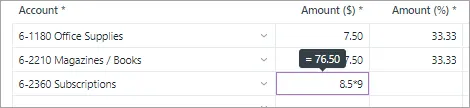
If needed, enter a Line description, Job (find out more about Jobs) or change the Tax codes for the chosen categories.
Click Save. The transaction will now show Matched to multiple categories.


To match multiple transactions to the same category
On Bank transactions page (Banking > Bank transactions) select the transactions to be categorised.
Click Select Category.
Choose the Category and Tax code, then click Categorise.
Add a new account on-the-fly
If you need to create a new account to allocate to, click Create account from the Account dropdown list when you're allocating the transaction.


To unmatch a transaction from a category
On Bank transactions page (Banking > Bank transactions), click Matched to display matched transactions. If required, change the date filter or enter a search term to find the transaction you want.
Click the dropdown arrow for the transaction to be unmatched.
Click Unmatch.
Click Unmatch again in the message that appears. The spend money or receive money transaction record that was automatically created is now deleted and you can now match the bank transaction again.
You can unallocate multiple transactions. Select each transaction and click Unallocate:


Smart Reconciliation (Beta)
If you're part of the Smart Reconciliation beta, you'll get automatic category matches and suggestions. These use AI 'confidence scores' to match or suggest categories based on past matches.
These smart category matches and suggestions mean that when it’s time to reconcile, your books are already prepared. You just need to review and finalise your reconciliation.
See Get reconciliation-ready faster with Smart Reconciliation (Beta)
Keyboard shortcuts
A range of keyboard shortcuts is available on the Bank transactions page to help match transactions faster.
To reveal these shortcuts, press CTRL and / (PC) or CMD and / (Mac) simultaneously. Then click the help icon at the top right.

You can see if there are transactions to be categorised from your Dashboard. You can then click to action them. See The Dashboard.
FAQs
How do I match a $0 transaction to a category?
If you need to match a category to a $0 transaction, click on the dropdown arrow to the right of the transaction, then enter 100% in the Amount % field and enter any additional information.
When you’re done, click Save.
Why am I getting the error 'An unbalanced transaction may not be recorded' when it does balance?
This is a bug and our experts are looking into it.
Until we fix it, you'll need to manually create a receive money or spend money transaction record for the money you've paid or received, then match the bank feed amount to that transaction record.
How do I change the category a transaction is matched to?
Go to the Banking menu and choose Bank transactions.
Clikc Matched.
If required, specify a date range.
Click the dropdown arrow for the matched transaction.
On the Select categories tab, change the category as required.
Click Save.
When you change an allocation this way, the expense or income transaction that was automatically created for this allocation will also be updated.
If you click Unmatch and allocate the transaction differently, a new expense or income transaction will be created and the old transaction is automatically deleted.
How do I change a match from a category to a transaction record?
Go to the Banking menu and choose Bank transactions.
In the filters, click Matched.
If required, specify a date range to find the matched transaction.
Click the dropdown arrow for the match transaction.
On the Select categories tab, click Unmatch and click Unmatch in the message that appears. The spend money or receive money transaction record that was automatically created when the bank transaction was matched to the category is now deleted.
On the Match to existing record tab, find and select the transaction you want to match. Need help with matching?
Save.
Why can't I see unmatched transactions?
Ensure you've clicked the Not matched filter on the Bank transactions page. If you still can't see the transactions you want, try changing the date filter.
Can I attach documents to a bank transaction?
Yes, you sure can. Here's how:
From the Banking menu, choose Bank transactions.
Click the down arrow next to the transaction you want to attach a document to.
Attach the document. There are a couple of ways to do it, depending on whether you've saved the document to your computer or have uploaded it to MYOB Business:
Click Attach files, select the document to be attached then click Open.
Click Link from uploads, select the document and click Link.
The document is attached to the transaction. For more details, see Attaching documents to bank transactions and Attaching documents to spend money transactions.
How do I resolve 'An unrecognised error occurred - PAPI_ModelBindingError'?
You could receive this error when trying to categorise transactions or when you click Reconcile on the Bank transactions page.
There could be a number of causes for this error. To resolve it, check:
if you've connected an MYOB category to your bank account – go to the Banking menu > The Banking hub and check that a category has been chosen to the bank feed. If it hasn't, there will be a message indicating you need to add a category:

Click Add a category and choose a category from the Linked category list. This will be the category that the bank feed transactions will be fed into. You can only choose categories set up as a bank account or credit card. Learn more about categories.
if you've imported transactions from bank feeds and a bank statement, causing duplication of transactions. If so, delete the imported bank statement and download a new bank statement from your bank, ensuring the date range doesn't include transactions already in MYOB. Import the new statement and try categorising transactions again.

Some users have been able to resolve this error by undoing a previous reconciliation.
Can I delete bank feed transactions?
We recommend contacting us to discuss your options.