When you're reconciling a bank account, an out of balance amount tells you that something isn't quite right. So you need to work out what's gone wrong.
What can cause an out of balance?
-
Unmatched transactions: Bank transactions haven’t been matched to a transaction or category in MYOB.
-
Data entry errors: Mistakes in data entry, such as transposing numbers or entering the incorrect date.
-
Duplicate transactions: A transaction may have been recorded twice, causing the ending balance to be off.
-
Forgotten transactions: Transactions that were not recorded in financial records or the bank statement can cause a discrepancy.
-
Deleted or edited transactions: If a transaction is deleted or edited after it has been reconciled, it can cause a discrepancy between the financial records and the bank statement.
-
Timing differences: Transactions recorded in MYOB may have cleared the bank after the statement cut-off date, leading to a timing difference.
An out of balance will be caused by a problem in your current reconciliation or a previous reconciliation.
Get expert help resolving out of balance reconciliations – invite your accountant or bookkeeper into your MYOB file so they can investigate the issue and help you fix it.
To check where the out of balance occurred
The key to determining where the out-of-balance amount occurred is by narrowing it down to current or previous reconciliations.
Here's how to do this:
Go to the Banking menu and choose Reconcile accounts.
Enter the Bank statement closing date as the same date as your Last reconciled date.
Enter your Closing bank statement balance as the closing balance on your Last reconciled date (you might need to check your previous bank statement for this).
Deselect all transactions on the Reconcile account page.
If there is no Out of balance, the problem is with your current reconciliation. If there is an Out of balance you'll need to check your previous reconciliations as a previously reconciled transaction may have been changed or deleted.
Check the current reconciliation
Here are some things to look out for:
if this is your first reconciliation, check that your category opening balance doesn't include any uncleared transactions. If it does include uncleared transactions, change the opening balance.
did you type the correct figure in the Closing bank statement balance field? You need to type the closing balance from your bank statement, not the opening balance.
did you enter the correct date (that of the closing balance from your bank statement) in the Bank statement closing date field? An incorrect date may prevent some transactions from appearing in the list.
did you select all the transactions that appear on the bank statement? If not, some transactions might not have been accounted for in the reconciled balance.
did you select, by mistake, a transaction that didn’t appear on your bank statement? If yes, you need to deselect this transaction.
Check previous reconciliations
Go to the Reporting menu and choose Reports.
From the Banking section click to run the Banking reconciliation report.
For the Bank statement date, enter or select the date of your previously reconciled bank reconciliation. If you're not sure of the dates, check the Banking reconciliation report (Reporting menu > Reports > Banking tab > Banking reconciliation).
Work back until you find a month where the out of balance is zero ($0.00). This identifies that the suspect transaction(s) will have occurred in the following month.
Identify which transaction(s) are causing the out of balance by comparing the Banking reconciliation report with the corresponding bank statement.
Correct the transaction(s) causing the out of balance. You can open a transaction to edit or delete it by clicking its reference number. See Editing bills, Editing invoices or Deleting transactions.
Re-reconcile the corrected transaction(s).
Repeat with each subsequent reconciliation until no more out of balances are found.
If no reports balance it is possible you have changed your category opening balance.
Undoing a reconciliation
If your issue relates to a previous reconciliation (perhaps a transaction was incorrectly reconciled, or a wrong date was used) and you haven't been able to fix these issues, try undoing the last reconciliation. All transactions for that period will return to an unreconciled state, and you'll need to reconcile them again using the previous bank statement.
To undo a bank reconciliation
From the Banking menu choose Reconcile accounts.
If you only want to show reconciliations you've completed on a particular bank account, choose it from the Bank account dropdown list.
Click Undo last reconciliation.
Click Yes to the confirmation message.
When you're reconciling a bank account, an out of balance amount tells you that something isn't quite right. So you need to work out what's gone wrong.
What can cause an out of balance?
-
Unmatched transactions: Bank transactions haven’t been matched in AccountRight.
-
Data entry errors: Mistakes in data entry, such as transposing numbers or entering the incorrect date.
-
Duplicate transactions: A transaction may have been recorded twice, causing the ending balance to be off.
-
Forgotten transactions: Transactions that were not recorded in financial records or the bank statement can cause a discrepancy.
-
Deleted or edited transactions: If a transaction is deleted or edited after it has been reconciled, it can cause a discrepancy between the financial records and the bank statement.
-
Timing differences: Transactions recorded in AccountRight may have cleared the bank after the statement cut-off date, leading to a timing difference.
The out of balance will be caused by a problem in your current reconciliation or a previous reconciliation.
Get expert help resolving out of balance reconciliations - invite your bookkeeper or accountant so they can take a look.
To check where the out of balance occurred
Follow the steps below to determine if your out of balance is caused by your current reconciliation or a previous reconciliation.
Enter the Bank Statement Date as the same date as your Last Reconciled Date.
Enter your Closing Statement Balance as the Closing balance on your Last Reconciled Date. (You may need to check your previous bank statement)
Deselect all transactions from the Mark Cleared Transactions section.
If there is no Out of Balance, the problem is with your current reconciliation. If there is an Out of Balance you'll need to check your previous reconciliations as a previously reconciled transaction may have been changed or deleted.
Check current reconciliation
Here are some things to look out for:
did you set up a bank account and carry over an opening balance? If so, have you performed an initial bank reconciliation?
did you type the correct figure in the Closing Statement Balance field? You need to type the closing balance from your bank statement, not the opening balance.
did you enter the correct date (that of the closing balance from your bank statement) in the Bank Statement Date field? An incorrect date may prevent some transactions from appearing in the list.
did you select all the transactions that appear on the bank statement? If not, some transactions might not have been accounted for in the reconciled balance.
did you select, by mistake, a transaction that didn’t appear on your bank statement? If yes, you need to deselect this transaction.
Check previous reconciliations
Go to the Reports menu and click Index to Reports.
From the Banking section click Reconciliation Report.
Enter the date of your previously reconciled bank reconciliation.
Work back until you find a month where the out of balance is zero ($0.00). This identifies that the suspect transaction(s) will have occurred in the following month.
Identify which transaction(s) are causing the out of balance by comparing the Reconciliation Report with the corresponding bank statement.
Correct the transaction(s) causing the out of balance.
Re-reconcile the corrected transaction(s).
Repeat with each subsequent reconciliation until no more out of balances are found.
If no reports balance it is possible you have changed your account opening balance. You might need to restore an early backup to check the account's original opening balance.
If you've checked the causes listed above and your reconciliation still doesn't balance, it might relate to an incorrectly displayed Calculated Statement Balance in the Reconcile Accounts window. This is a rare issue that only affects the displayed balance, not the actual balance.
Here's a quick check to see if this is your issue:
To check the Calculated Statement Balance
On the Reconcile Accounts window:
Enter the closing date of your latest bank statement in the Bank Statement Date field.
Enter $0.00 in the Closing Statement Balance field.
Select all transactions as cleared and take note of the Calculated Statement Balance .
Go to Find Transactions > Accounts tab.
Select the bank account you're trying to reconcile.
Enter the closing date of your latest bank statement in both the Dated From and To fields.
Press the TAB key on your keyboard and take note of the Ending Balance in the bottom-right of the screen.
If the Ending Balance is the same as the Calculated Statement Balance, it's fine. If not, contact us and we'll help you.
Undoing a reconciliation
If your issue relates to a previous reconciliation (perhaps a transaction was incorrectly reconciled, or a wrong date was used) and you haven't been able to fix these issues, try undoing the last reconciliation. All transactions for that period will return to an unreconciled state, and you'll need to reconcile them again using the previous bank statement.
To undo a bank reconciliation
Go to the Banking command centre and click Reconcile Accounts. The Reconcile Accounts window appears.
In the Account field, enter the account for which you want to undo the reconciliation.
Click Undo Reconciliation. If this button is inactive, it means the account hasn't been reconciled, or your user role doesn't allow this function.
The Undo Last Reconciliation window appears, confirming the account and date of the reconciliation you are undoing.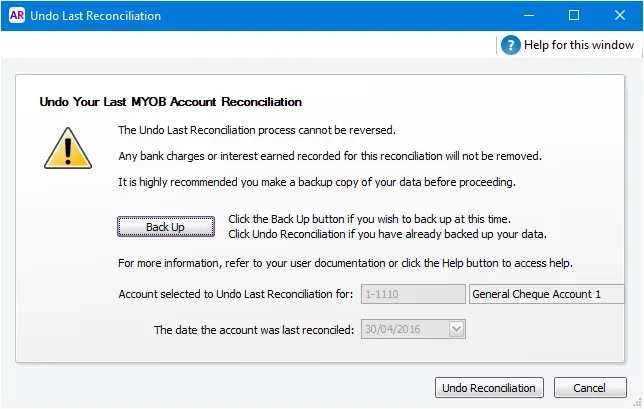
Undoing a bank reconciliation can't be reversed, so it's strongly suggested you click Back Up to create a backup before proceeding.
Click Undo Reconciliation. A confirmation window appears.
Click OK. The Reconcile Accounts window reappears.
