You can use MYOB to record the receipt of a loan and to record the repayments. Because there's lots of loan types, interest rates, terms and conditions, you might need help from your accounting advisor. They'll be able to help advise on your financing options, the tax implications, and how to handle the finance transactions in MYOB. Start by inviting your accounting advisor to your MYOB business.
To accurately track a loan in MYOB, you'll need to know:
the initial loan amount
the value of your repayments, and
the repayment breakdown (how much of the repayment reduces the principal, and how much relates to interest charges)
Here's how to handle a basic loan, where you'll receive the loan amount then make repayments.
1. Create a liability category for the loan
You need a liability category to represent the loan. When the loan is received you'll allocate it to this category .
Go to the Accounting menu and choose Categories (Chart of accounts).
Click Create category.
Leave Detail category selected.
For the Type, choose Other current liability.
Will you be setting up a bank feed for the loan category?
You'll need to set up this category with the Type of Credit Card to be able to associate it with a bank feed.
Choose the applicable Parent header. This determines where the category will sit with your other liability categories. If unsure, check with your accounting advisor.
Specify a Code that suits your account list.
Enter a suitable Name.
For the Tax code, choose N-T.
Choose the applicable Classification for statements of cash flows. What is this?
When you're done, click Save.
2. Record the receipt of the loan
When you receive the loan, use a Receive money transaction to allocate it to the loan category created earlier. Here's how:
Go to the Banking menu and choose Receive money.
In the Bank account field, choose the bank account that the loan money was deposited into.
If you've set up a contact for the lender, select them in the Contact field.
Enter a Description of transaction.
Make sure the Reference number is correct. If not, enter a new number.
Changing the numbering
If you change the reference number, you’ll change the automatic numbering. For example, if you change the number to 000081, the next time you enter a transaction the new reference number will be 000082.
Check that the correct date is selected in the Date field. If not, enter a new date or click the icon next to it to display the calendar and choose a date.
Choose whether the transaction amounts are Tax inclusive or Tax exclusive.
In the Category column, select the bank loan account created earlier. The tax code for the chosen category will appear in the Tax code column (but you can change this if needed).
In the Amount column, enter the amount of the loan.
In the Description column, add a short description about this line item.
If required, change the Tax code.
When you're done, click Save.
3. Record the loan repayments
Speed things up with bank feeds
If you have bank feeds set up on the bank account your loan repayments come from, simply categorise the loan repayment to your loan category. This means you won't need to manually record a spend money transaction.
Loan repayments can be recorded using spend money transactions. Our example below is for a fixed repayment with the interest portion allocated to an expense category. This allows the loan interest to be tracked separately. For your loan, you might need to seek clarification from your accounting advisor about the best way to enter the repayments and which tax rates to apply.
From the Banking menu, choose Spend money.
In the Bank account field, select the account you're making the repayment from.
If you've set up a contact for the lender, select them in the Contact field.
Enter a Description of transaction.
Make sure the Reference number is correct. If not, enter a new number.
Check that the correct date is selected in the Date field. If not, enter a new date or click the icon next to it to display the calendar and choose a date.
Choose whether the transaction amounts are Tax inclusive or Tax exclusive.
Enter the details of the transaction:
In the Category column, select the loan account you created earlier. The tax code for the chosen account will appear in the Tax code column (but you can change this if needed).
In the Amount column, enter the amount of the repayment
In the Description column, add a short description about this line item.
If required, change the Tax code.
If entering the interest component separately, record the details on a separate line.
When you're done, click Save.
As you record loan repayments, the balance of the liability category will be reduced to reflect a reduction in that liability.
You can use AccountRight to record the receipt of a loan and to record the repayments. Because there's lots of loan types, interest rates, terms and conditions, you might need help from your accounting advisor to determine the best way to set this up for your loan.
To accurately track your loan balance, you'll need to know:
the initial loan amount
the value of your repayments, and
the repayment breakdown (how much of the repayment reduces the principal, and how much relates to interest charges).
The example below describes setting up a loan where the loan amount is received by you. If your situation is different – for example, the loan amount isn't received by you but is used to directly pay out a creditor – you'll need to consult your accountant for the appropriate accounting and tax treatment. If you're lending money to an employee, see Wage advances and employee loans.
Let's step you through setting up a basic loan.
1. Create a liability account for the loan
You need a liability account to represent the loan. When the loan is received you'll allocate it to this account.
Go to the Accounts command centre and click Accounts List.
Click the Liability tab then click New.
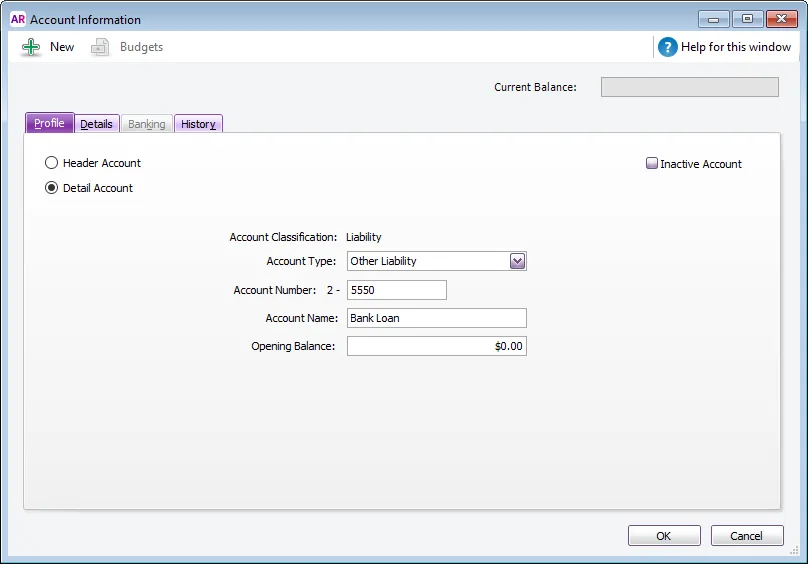
For the Account Type, choose Other Liability.
Specify an Account Number that suits your account list.
Enter a suitable Account Name. Here's our example:
Will you be setting up a bank feed for the loan account?
You'll need to set up the above liability account with the Account Type of Credit Card to be able to associate it with a bank feed.
Click OK.

2. Record the receipt of the loan
When you receive the loan, use a Receive Money transaction to enter it into AccountRight. Here's how:
Go to the Banking command centre and click Receive Money.
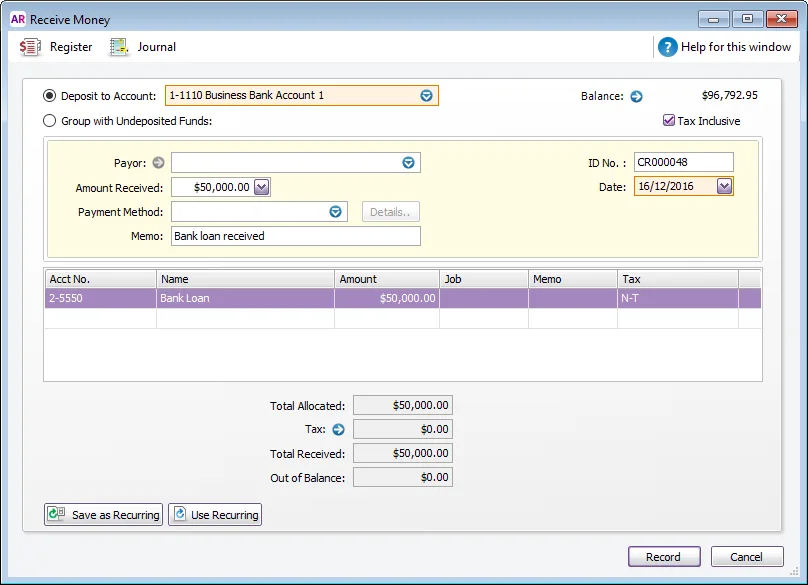
In the Deposit to field, select the bank account that the loan money was deposited into.
In the Amount Received field, enter the loan amount.
In the Acct No. column, select the liability account created in the previous task.
In the Tax/GST column, specify the N-T (No Tax/Not Reportable) tax/GST code. Here's our example:
Click Record.

3. Record the loan repayments
Loan repayments can be recorded using Spend Money transactions. Our example below is for a fixed repayment with the interest portion allocated to an expense account. This allows the loan interest to be tracked separately. For your loan, you might need to seek clarification from your accounting advisor about the best way to enter the repayments.
Go to the Banking command centre and click Spend Money.
In the Pay from Account field, select the account you're making the repayment from.
In the Amount field, enter the total value of the repayment.
In the Acct No. column, select the liability account created earlier.
In the Tax/GST column, specify the N-T (No Tax/Not Reportable) tax/GST code.
Specify bank interest/charges on a separate line and use the applicable tax/GST code for your needs. Here's our example:
Click Record.
As you record loan repayments, the balance of the liability account will be reduced to reflect a reduction in that liability.
If your loan repayments are fixed, save this Spend Money transaction as a recurring transaction.