You can pay your suppliers or employees into their bank accounts by creating a bank file then uploading it to your bank for processing.

Setting up for bank files
There's a few one-off tasks you need to do before you can create bank files for electronic payments. This includes making sure a specific category is set up in MYOB (an electronic clearing category), entering your suppliers' and employees' bank account details, and entering the bank account details where your electronic payments will be paid from.
1. Check your Electronic Clearing Category
When you record a payment in MYOB that's going to be paid electronically (via bank file), the payment is temporarily held in an MYOB category called the electronic clearing account. The payments sit there until you're ready to upload them to your bank for processing using a bank file. When the payments are added to a bank file, they're cleared from the electronic clearing account.
Unless you or your accounting advisor has changed the default categories in MYOB, the electronic clearing account should already exist in your MYOB business.
You can check via the Accounting menu > Categories (Chart of accounts) > Assets tab. Here's what it'll look like:

If you need to create a new category for this purpose, see adding, editing and deleting categories.
You'll also need to make sure this category is set as the linked category for electronic payments (Accounting menu > Manage linked categories > Categories & Banking tab). This just ensures that your electronic payments work correctly behind the scenes in MYOB.

If you have a different category set up as as your electronic clearing account, you'll need to choose it here and click Save.
2. Enter your suppliers' and employees' bank account details
To pay funds into a supplier's or employee's bank account, you'll need to enter their account details in MYOB.
Entering supplier bank account details
Click Contacts on the menu to open the Contacts page.
Choose Supplier in the Contact type list.
Click a supplier's name to open their details.
If you need to add a new supplier, click Create contact and follow the steps to add a supplier.
Enter the supplier's Bank account number and Bank account name.
Click Save.
Repeat for each supplier you want to pay electronically.
Entering employee bank account details
Go to the Payroll menu > Employees.
Click the employee's name to open their details.
Click the Employment tab.
Select the option Pay via electronic payments (bank file).
To split the employee's pay into more than one account, choose the number of accounts and enter the details for each account. More about splitting an employee's pay.
Enter the employee's account details. The Bank statement reference is the text that will appear on the employee's bank statement when you pay them.
Click Save.
Repeat for each employee you'll be paying via bank file.
3. Enter your business bank account details
The last thing you need to do is enter the banking details for the business bank account your electronic payments will come from. You'll be able to get these details from the account's bank statement or from your bank.
Go to the Accounting menu and choose Categories (Chart of Accounts).
Click the category your electronic payments will come from.
This account must be a Bank account type. Tell me more about account types.
Enter the Bank account number and Bank account name. If you're not sure about these details, check with your bank.
When you're done, click Save.
You're now ready to process your electronic payments using bank files.
You can pay your suppliers or employees into their bank accounts by creating a bank file, then uploading it to your bank for processing.
Setting up for bank files
There's a few one-off tasks you need to do before you can create bank files for electronic payments. This includes making sure a specific account is set up in AccountRight (an electronic clearing account), entering your suppliers' and employees' bank account details, and entering the bank account details where your electronic payments will be paid from.
1. Record your bank account details
Before you can process electronic payments, you need to record the details of the bank account your electronic payments will come from.
To record your bank account details
Go to the Accounts command centre and click Accounts List. The Accounts List window appears.
Select the bank account (that is, an account with a Bank or Credit Card account type) that you want to use for electronic payments.
Click Edit. The Account Information window appears.
Click the Banking tab.
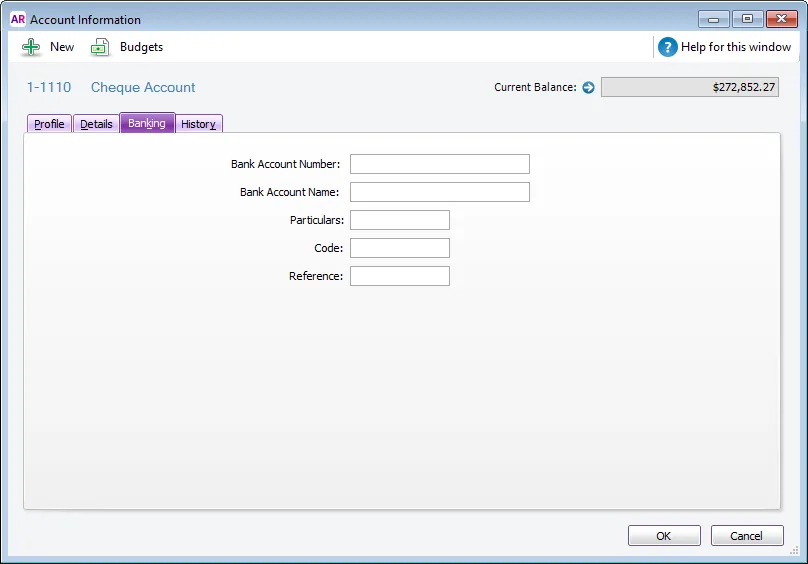
Enter your bank account details in the fields. Copy this information exactly as it appears on your bank statement or chequebook.
HSBC and Citibank account number formats
If you are setting up an HSBC bank account for electronic payments, you need to enter your 12-digit internal account number in the Particulars field to allow your bank to process direct credit files. If you are setting up a Citibank bank account for electronic payments, you need to enter your internal account number in the Reference field to allow your bank to process direct credit files.
Click OK to return to the Accounts List window.
Repeat from step 2 for each bank account you want to make electronic payments from.

2. Check your electronic clearing account
When you record a payment in AccountRight that's going to be paid electronically (via bank file), the payment is temporarily held in an AccountRight account called the electronic clearing account. The payments sit there until you're ready to upload them to your bank for processing using a bank file. When the payments are added to a bank file, they're cleared from the electronic clearing account.
Unless you or your accounting advisor has changed the default accounts in AccountRight, the electronic clearing account should already exist in your company file.
You can check via the Accounts command centre > Accounts List > Asset tab. Here's what it'll look like:

If you need to create a new account for this purpose, see adding, editing and deleting categories.
You'll also need to make sure this account is set as the linked account for electronic payments (Setup menu > Linked accounts > Accounts & Banking Accounts). This just ensures that your electronic payments work correctly behind the scenes in AccountRight.

3. Record the bank details of suppliers
By recording the bank details of your suppliers you'll be able to pay them electronically.
To record the bank details of a supplier
Go to the Card File command centre and click Cards List. The Cards List window appears.
Locate the supplier you pay electronically and click Edit. The Card Information window appears.
Click the Payment Details tab.
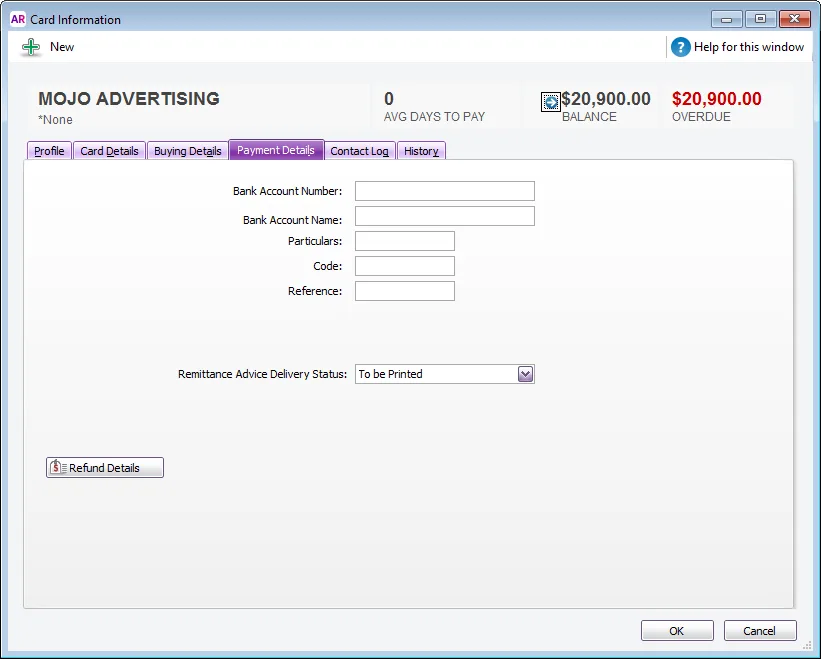
Enter the supplier’s bank account details.
In the Particulars, Code and Reference fields, enter the default details that will help the supplier identify your payments on their bank statements. If required, you can change these details when entering a payment.
Select the Remittance Advice Delivery Status. If you choose an emailing option, confirm or enter the supplier's email address. Learn more about how to print or email remittance advices.
(Not Basics) Click Refund Details and enter the payment method by which the supplier refunds you and click OK. The Card Information window appears.
Click OK to return to the Cards List window.
Repeat from step 2 for each supplier you pay electronically.

What's next?
After setting up and recording electronic payments, you'll be able to make electronic payments with a bank file.